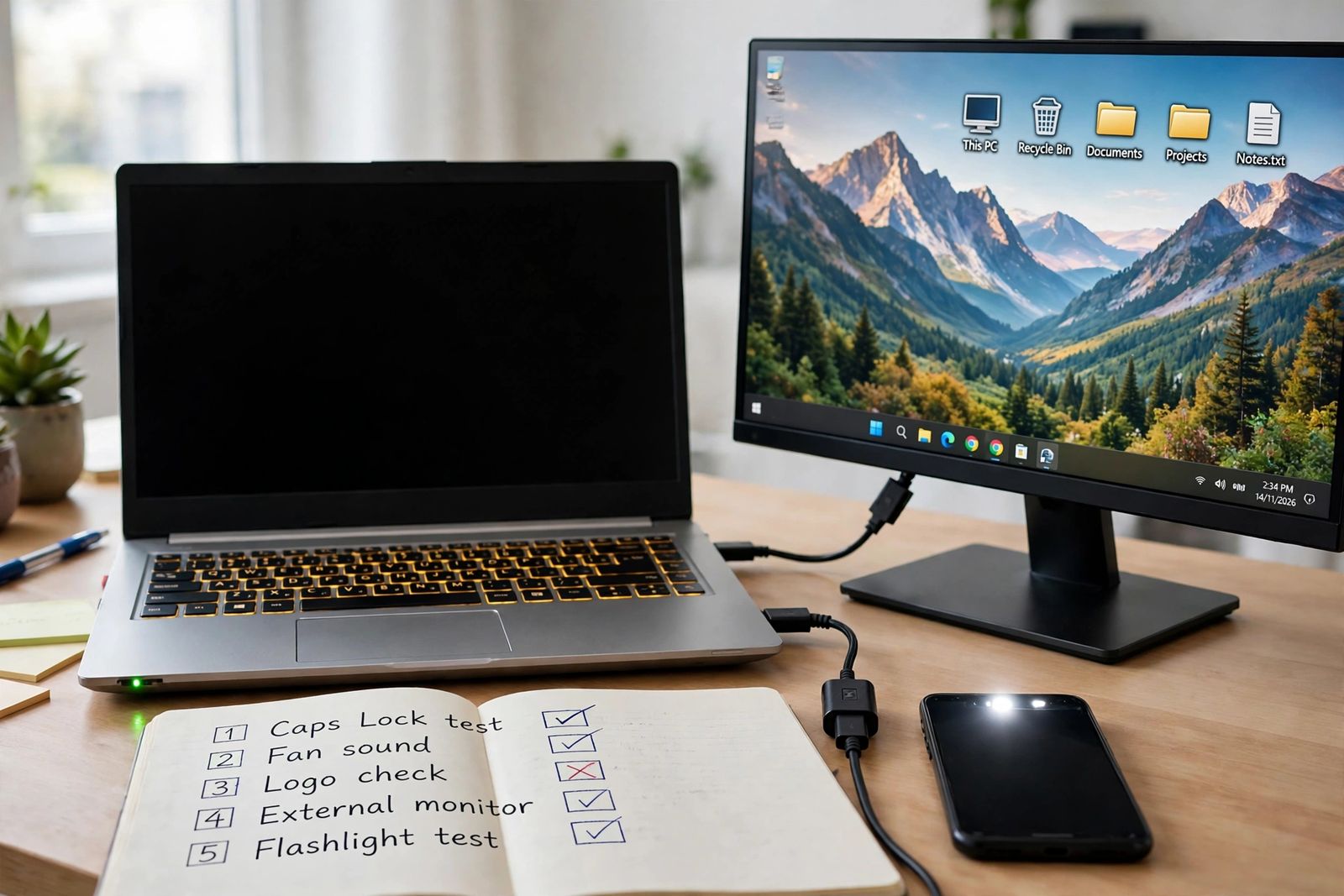
If your laptop screen is black, do not start by replacing the screen or reinstalling Windows — first find out whether the fault is the screen at all, because in most cases the laptop itself is still running and only the picture is missing. Run one ordered test sequence and stop at the step that answers it: press Caps Lock and watch whether its light toggles, listen for the fan and any drive or startup sounds, note whether the maker’s logo ever appeared, try the two keyboard resets below, then connect an external monitor or TV. A laptop that answers Caps Lock, made its usual sounds and shows a perfect picture on an external screen has already told you the computer is healthy and the fault sits in its built-in display chain — panel, backlight or the cable through the hinge. A laptop that answers nothing, shows no logo on any screen and stays silent has a different problem: it never finished starting, and no screen replacement will fix it. The sequence below keeps those two faults separate, in order, before any brand reset or repair.
The one question this article answers first
“Laptop screen is black” covers at least four different failures that look identical in the first five seconds:
- Windows is running, the picture is stuck. The graphics driver hung, Windows is sending the picture to a screen that is no longer connected, or the desktop shell never loaded. Free to fix, usually in under a minute.
- The built-in display chain has failed. The panel, its backlight or the hinge cable. The laptop works normally on an external monitor.
- The laptop never finished starting. It stopped during its power-on self-test (POST) — memory, firmware or board level — before any picture could be sent anywhere. No display, internal or external, will show anything.
- The laptop has no power at all. No lights, no fan, no charging indicator. That is not a screen fault in the first place.
Guides that jump straight to a fix list mix all four together, which is how readers end up reinstalling Windows for a dead backlight or pricing a new screen for a laptop that never booted. The test sequence exists to name your row before you touch a setting.
The ordered test sequence — screen or whole laptop?
Work through these tests in this exact order. Each one takes under a minute, needs no tools except an HDMI cable and a phone light from test 5 onward, and rules out one layer. Change nothing else between tests, and write down each result as you go — the combination is the diagnosis, and you will need it word for word if this ends in a support call.
| Test | What to do, exactly | If this happens | What it means |
|---|---|---|---|
| 1. Caps Lock response | Press Caps Lock several times, slowly, and watch its light or on-key indicator | The light toggles on and off reliably | The keyboard path and the system behind it are responding. The laptop has got well past its first start-up checks — treat this as a picture problem and keep going |
| The light never changes, or there is no light to check | No evidence the system is responding. Note it and continue — this test alone proves nothing either way on models without a Caps Lock light | ||
| 2. Fan and drive sounds | In a quiet moment, listen at power-on: fan spin-up, any startup sound, drive activity | Usual fan and startup sounds, even with a black screen | Power is reaching the board and start-up is at least attempting. Combined with a toggling Caps Lock, the laptop is very likely running without a picture |
| Complete silence, no fan, no lights at all | Stop — this is a power problem, not a screen problem. Check the charger, outlet and charging light first; if the battery will not charge either, work through laptop plugged in but not charging before returning here | ||
| 3. Logo check | Restart and watch from the first second: did the maker’s logo or any firmware text ever appear? | Logo appeared, then the screen went black | The panel, backlight and cable all carried a picture seconds ago — they work. The fault arrived with Windows: driver, display mode or update. Go to the keyboard resets, then Safe Mode |
| No logo ever, on any start | The failure is before Windows loads. Windows fixes cannot reach it yet — the external test and the brand resets are your route | ||
| 4. Keyboard resets | With the laptop on: press Windows + Ctrl + Shift + B, wait; then press Windows + P, tap P again, press Enter, wait a few seconds | A beep or flicker after the first shortcut, or the picture returns after either | Windows was running and heard you. The first shortcut restarted the graphics driver; the second moved the picture back from another output. You are done — update the driver so it does not recur |
| Nothing at all, no beep, no flicker | Either Windows is not running to hear the shortcut, or the picture path is broken below Windows. Continue to test 5 | ||
| 5. External monitor | Connect a known-working monitor or TV by HDMI (or a USB-C port that carries video), select its correct input, restart the laptop | Perfect picture on the external screen, built-in screen still black | The laptop is proven healthy — processor, memory, graphics and Windows all work. The fault is inside the built-in display chain. Back up your files now, while you have a working desktop |
| Black on both screens | The fault is not isolated to the built-in screen. Either the laptop never finishes starting, or the graphics output itself has failed. Go to the brand resets, then the stop-testing section | ||
| 6. Flashlight check | With the laptop on and given a minute to reach the desktop, dim the room and hold a phone light close to the black screen at a shallow angle | A faint ghost of the desktop, icons or a sign-in box is visible in the beam | The panel is still drawing the picture — what has failed is the light behind it: the backlight or its power feed. That is a display-assembly repair, not a new laptop, and your files are untouched |
| Nothing visible under the light | Inconclusive on its own. Read it with test 5: external works + no faint image points to the panel or its hinge cable rather than the backlight |
Read your six results together before doing anything else:
| Your combination | The verdict | Your next move |
|---|---|---|
| Caps Lock toggles + external picture perfect | Laptop healthy, display chain faulty | Back up, then the panel tests and repair section below |
| Logo appeared + keyboard reset brought the picture back | Driver or display-mode hang | Update or roll back the driver (Safe Mode section) so it stays fixed |
| Caps Lock toggles + cursor visible on black | Windows running, desktop shell stalled | Restart Windows Explorer (next section) |
| No logo anywhere + both screens black + Caps Lock dead | Laptop never finishes starting | Brand hard reset for your maker, then stop-testing — this is POST/board territory |
| Faint image in the flashlight beam | Backlight failure | Repair conversation for the display assembly; keep using the laptop on an external screen meanwhile |
| No lights, no fan, no sounds at all | No power, not a display fault | Charger and power checks first — do not troubleshoot the screen |
That table is the asset no fix list replaces: six cheap observations, taken in order, that separate a free software fix from a panel repair from a board fault — before money or a reinstall enters the picture.
If Windows is running: the two keyboard resets and the cursor case
These steps only work if test 1 or test 4 gave you any sign Windows is alive. Microsoft’s blank-screen guide builds its basic steps from exactly these moves, and sorts the fault by timing the same way this article does: a blank screen with a cursor points to a stalled process or driver, a blank screen at login to a display-output or profile problem, a blank screen after an update to an incompatible driver, and a blank screen with a blinking cursor to the firmware being unable to find a boot device at all.
- Windows + Ctrl + Shift + B restarts the graphics driver without restarting the laptop or closing your apps. Microsoft’s success signal is precise: you should hear a beep or see a screen flicker. No beep and no flicker is also information — Windows did not answer, which pushes you back toward the never-started rows of the verdict table.
- Windows + P, then P again, then Enter cycles the projection modes — PC screen only, Duplicate, Extend, Second screen only. A laptop that last drove a TV, projector or dock can still be sending its only picture there. Go slowly: give each mode a few seconds before cycling again.
- Brightness, stated once because it is genuinely common: press the brightness-up key several times, holding Fn if your model needs it. A screen dimmed to zero is indistinguishable from a dead one.
- Black screen with a movable cursor: Windows has loaded but the desktop has not. Press Ctrl + Alt + Del — if the security screen appears, Windows is responsive — then open Task Manager (or press Ctrl + Shift + Esc directly), find Windows Explorer, and choose Restart. If Explorer is not listed, use Run new task, type
explorer.exe, and press Enter. Microsoft lists this same restart for the cursor case.
If the picture returns, finish the job: install pending updates in Settings > Windows Update, and if the black screen began right after a driver or Windows update, roll that driver back instead (Device Manager > Display adapters > your adapter > Properties > Driver > Roll Back Driver) and take the replacement driver from Windows Update or your maker’s support page for your exact model — never from a driver-updater utility. A laptop that also crawls once it is running has a second, separate problem worked through in order in why is my computer so slow. And if the keyboard itself only partly answers — some keys typing, others dead even while these resets work — that is a separate key-pattern fault, worked through in some keyboard keys not working.
The external monitor test, done properly
Test 5 is the single most decisive check in the sequence, and the one most often done sloppily. Do it in a way that makes its answer trustworthy:
- Use a monitor or TV you have seen working today, a cable you trust, and select the exact input on that screen by hand — HDMI 1 is not HDMI 2. A dead cable or a wrong input manufactures a false “both screens black” verdict; the same discipline applies to any external display fault, worked link by link in monitor no signal for desktops and in second monitor not detected when Windows will not list a second screen at all.
- On USB-C, remember the port must support video (DisplayPort Alt Mode or Thunderbolt). The plug fitting proves nothing.
- Restart the laptop with the external screen connected, and give it a full minute. Then cycle Windows + P to Duplicate once, in case Windows is holding the picture on the built-in screen only.
- If the external picture appears, back up your important files before any further fix. You may not get a more convenient working desktop than this one, and every later step is safer with a copy made.
One limit must be stated plainly, because many guides overstate this test: a working external monitor proves the laptop can produce video and that the fault is in the built-in display chain — it does not tell you which part of that chain has failed. Panel, backlight and hinge cable all produce the identical external-works result. The flashlight test separates the backlight; the maker’s panel self-test (Dell below) separates the panel; what remains is the cable. Anyone who quotes you for a specific part on the external test alone is guessing with your money. If the external desktop appears but your pointer will not move on it, do not read that as a second display fault — a wireless mouse not working has its own connection-type checks, and a lit mouse proves far less than it looks. The reverse split exists too: a screen that works perfectly while only the camera picture inside it stays black in every app is not a display fault at all — laptop camera not working works its own ordered chain from the privacy shutter to the driver.
Brand hard resets: the static drain, with your maker’s timing
If both screens stay black and there was never a logo, the next step is a full power drain — clearing the stuck power state and residual charge that can leave a laptop’s controller refusing to start the display. This is where the most repeated error in guides to this fault does real harm, so it gets its own correction before the steps:
There is no universal hold time. Microsoft’s 20 seconds is the length for a forced restart of a running Windows machine — a different operation. A static drain is a maker procedure, and each maker publishes a different one. A guide that tells every laptop owner to “hold the power button for 20 seconds” (or 60) is blending four different procedures into a number that is exactly right for almost nobody. Use your maker’s row:
| Maker | The documented drain / reset | The details that matter |
|---|---|---|
| HP | Hard reset: turn off, disconnect the AC adapter and all peripherals, hold the Power button for about 15 seconds, reconnect the adapter, power on | HP documents this as clearing the computer’s memory without erasing personal data. It is 15 seconds, not 20 or 60 |
| Dell | Flea-power drain: turn off, disconnect the AC adapter, remove the battery if it is removable, hold the Power button for 15–20 seconds, reconnect and power on. On supported newer models, an RTC reset (holding Power for about 30–35 seconds until the LED blinks) is Dell’s deeper variant — use it only where Dell documents it for your model | Do not open a sealed Dell to chase the internal battery; the RTC route exists precisely for those models |
| Lenovo | Power drain: disconnect accessories and AC power, remove the battery only if detachable, hold the Power button for more than 15 seconds, reconnect AC, start. On models with an emergency-reset hole on the underside: with AC disconnected, press the switch inside the hole with a straightened paper clip, reconnect AC, power on | The emergency-reset hole is not the Novo button — Lenovo separates them, and they do different jobs. Find the hole in your model’s user guide bottom view; not every model has one, and the underside has other holes |
| ASUS | EC reset (hard reset): remove all external devices, connect the power adapter on most models, hold the Power button for 40 seconds, then power on | ASUS is explicit that models differ: some use a 20-second design, signalled by the power indicator flashing rapidly after about 15 seconds — release when the flashing stops. ASUS’s EC reset page is the authority for your model |
General rules for every brand: disconnect docks, hubs and USB devices first — a dock can hold the machine in the very state you are clearing; never interrupt a machine that may be mid-firmware-update or memory retraining (on some ThinkPads, blinking Esc, F1 and F4 lights mean exactly that work is underway — wait); and a drain that works once and then fails again at every sleep is not a cure, it is a symptom — the sleep and driver sections below are where that pattern gets fixed. Note also what a drain is not: it deletes no files, resets no Windows settings, and cannot repair a failed panel, backlight or board. If the screen is still black on both displays after your maker’s correct drain, the fault has survived the last free power fix — move to the panel tests if your maker offers one, then to the stop-testing section.
Two related power boundaries, so they are not confused with this fault: a laptop whose fan screams before it cuts out is overheating, not displaying a screen fault — laptop fan loud separates those sounds and causes — and a machine that reaches Windows and then restarts on its own belongs to the pattern diagnosis in computer keeps restarting, not to this sequence.
Panel self-tests: let the screen prove itself
Two makers build a test that drives the panel without Windows, which makes it the cleanest possible separation of panel from software:
- Dell — LCD Built-In Self-Test (BIST). With the laptop off and the charger connected, hold the D key and press Power, keeping D held until colours fill the screen. Dell’s own guide states the sequence exactly: solid black, white, red, green and blue, each for a few seconds, repeating until you press Esc to stop it. Dell is equally explicit about the boundary: these tests check screen hardware only — not Windows, drivers or settings. So read it both ways: clean, even colours across every screen means the panel works and your fault is software or graphics output; lines, dark areas, distortion or a screen that stays black during its own self-test means the panel side has failed and no Windows fix will reach it.
- Lenovo — LCD self-test on supported ThinkPads. On the models whose manuals document it (the T14 Gen 5, T16 Gen 3 and P14s Gen 5 among them), connect AC power, shut down, then press Fn + Left Ctrl + Power together and watch for five full-screen solid colours; the test exits after about 20 seconds. Model-specific by design — if your manual does not list it, do not improvise the key combination.
- HP — BIOS recovery as a screen witness. HP has no equivalent colour test, but its firmware route proves a related point: turn the laptop off, hold Windows + B, press and hold Power for 2–3 seconds, then release Power while still holding Windows + B until the BIOS Update or recovery screen appears. If that screen displays, the panel and basic video path can draw a picture, and a black screen that only happens in Windows is a Windows or driver fault. HP’s diagnostics (Esc at start-up, then F2) serve the same witnessing purpose.
If a self-test fails, record exactly what you saw — which colours, which areas stayed dark, any LED flash pattern, counted — before calling support. That record is the difference between a warranty conversation that starts at the answer and one that starts at the beginning.
Logo appeared, then black: Safe Mode and the driver
Return to this section if test 3 showed a logo, or a self-test proved the panel, but normal Windows still lands on black. The route in is Microsoft’s recovery path, and the modern detail matters: repeatedly tapping F8 at start-up is a legacy habit that does not open a boot menu by default on current Windows machines.
- Force the recovery environment: hold the Power button for 10 seconds to shut down, power on, and interrupt start-up the same way two to three times until Windows opens Recovery Mode — or, from any working sign-in screen, hold Shift while choosing Restart.
- Choose Troubleshoot > Advanced options > Startup Settings > Restart, then press F5 for Safe Mode with Networking (F4 for Safe Mode without it). Microsoft’s guide uses F5 for this step.
- Safe Mode loads a basic display driver. If the built-in screen shows a picture here, the panel, cable and backlight are all proven in one move — your fault is the normal driver, a start-up app or a recent update. If Safe Mode only ever appears on the external monitor, stop treating this as software.
- In Safe Mode, act on the timing: the black screen began right after an update → Roll Back Driver in Device Manager, or Uninstall Updates from the same Advanced options menu (latest quality update first). No recent update → install the current graphics driver from Windows Update or your maker’s page for your exact model. A restore point from before the fault, via System Restore in Advanced options, is the third option — it keeps personal files and removes apps and drivers installed since.
- Restart normally after one change, and test. Changing the driver, the update and the restore point together teaches you nothing about which one fixed it.
Have your BitLocker recovery key findable before recovery work if your drive is encrypted — recovery can ask for it, and it lives in your Microsoft account. And one correction worth stating plainly, because it frightens people away from a legitimate later step: reseating RAM does not overwrite or endanger the files on your drive. Memory holds nothing when the power is off and the drive is never written to by a reseat. The real reasons RAM reseating sits late in this article — and only for models with user-accessible, non-soldered memory, done to the maker’s service guide — are warranty, static and the simple fact that the six tests above answer most black screens without opening anything. A guide that warns you off it on data-loss grounds has the risk wrong; a guide that puts it first has the order wrong.
Black after sleep, and black that keeps coming back
A screen that is black only after waking, or that a drain fixes for a day, is usually a power-state or driver problem rather than a dying panel — the panel proves itself every successful start. Once you have a picture, work these in order: update the graphics driver from your maker’s page (sleep-wake handling is driver territory); in Control Panel > Power Options > Choose what the power buttons do, turn off Fast Startup as a test, since it carries driver state across shutdowns and is a documented suspect for wake faults; and check Settings > System > Power & battery screen and sleep timeouts before assuming a fault at all for a screen that merely blanks when idle. If the black screen tracks lid movement — flickers or returns at certain hinge angles — stop working the software list: that pattern is the display cable wearing where it flexes through the hinge, and it is a repair, not a setting. A related but different pattern — a screen that keeps its picture but will not hold it steady, pulsing or blinking instead of going black — is not this fault at all, and monitor flickering runs its own three-way test of cable, refresh rate and driver in that order.
When to stop testing
Stop and hand it over — to the maker’s warranty service if covered, a repair shop if not — when any of these is true: both screens stay black after your maker’s correct drain, with no logo ever; a panel self-test fails or shows damage; Caps Lock never responds and beep or blinking-light codes repeat at every start (record the pattern and look it up for your exact model — those codes are model-specific, and a generic chart will mislead you); the screen works only at certain lid angles; or you find a swollen battery, a burning smell, liquid damage or a cracked panel — unplug that machine and leave it off. Do not reinstall Windows for a screen that is black at the logo stage: firmware does not use Windows, so no reinstall can reach a fault that exists before Windows loads, and a reset cannot repair a panel, a backlight or a board. Bring whoever you hand it to your six test results — Caps Lock, sounds, logo, keyboard resets, external, flashlight — plus any self-test result. That record is real diagnostic work, and it should shorten both the conversation and the quote.
One boundary: this sequence is written for Windows laptops. If the machine in front of you is a MacBook that shows nothing at all, the fault is a different one with a chip split — Intel versus Apple silicon — that decides which resets even exist, worked through in order in MacBook not turning on.
Frequently asked questions
Why is my laptop on but the screen is black? Because “on” only proves power reached the board. The picture can be missing because Windows is running with a hung driver or the wrong output selected, because the built-in panel, backlight or hinge cable has failed, or because the laptop never finished starting at all. The six-test sequence separates those: Caps Lock and sounds for liveness, the logo for timing, the keyboard resets for Windows, the external monitor for the display chain, and the flashlight for the backlight.
How do I know if my laptop screen is broken or the laptop itself has failed? Connect an external monitor and restart. A good picture there proves the laptop — processor, memory, graphics, Windows — is working, and isolates the fault to the built-in display chain. Then use the flashlight test for the backlight and, on Dell and supported Lenovo models, the built-in colour self-test for the panel. Black on both screens after a correct brand drain means the fault is not isolated to the screen.
What does it mean if Caps Lock still works on a black screen? That the system is responding to the keyboard, which is strong evidence the laptop has started and is running without a picture — your fault is in the display path or in Windows’ handling of it, not a dead machine. It does not by itself prove the desktop loaded: the cursor case, where Windows is up but Explorer has stalled, is exactly a Caps Lock-alive black screen, and it is fixed by restarting Explorer.
How long should I hold the power button to drain my laptop? Your maker’s figure, not a universal one: about 15 seconds for HP, 15–20 seconds for a Dell flea-power drain, more than 15 seconds for Lenovo (or its emergency-reset hole on models that have one), and 40 seconds for an ASUS EC reset, with a 20-second variant on some ASUS models. Microsoft’s 20 seconds is a forced restart of a running machine — a different operation that several guides wrongly present as the drain length for every brand.
Can a black screen mean my files are gone? Almost never. The display chain and the storage drive are separate systems, and a laptop with a dead screen usually reads perfectly over an external monitor — which is why the first job when the external test works is a backup. The risks to files in this fault come from the fixes, not the fault: forced shutdowns during an update, and resets or reinstalls chosen before the diagnosis is in.
My laptop screen is black but I can see a faint image. What failed? The backlight or its power feed. The panel is still drawing the picture — that is the faint image your phone light revealed — but nothing is lighting it from behind. On modern screens the lighting is part of the display assembly, so this is normally quoted as display work; the laptop remains fully usable on an external monitor in the meantime.
This article is general information, based on the Microsoft Support blank-screen guide, Dell’s LCD Built-In Self-Test guide, ASUS’s EC reset guide, and Lenovo’s and HP’s published reset procedures, all linked above and checked in November 2026. Hold times, self-test keys, reset holes and diagnostic codes vary by brand and exact model — your laptop’s user guide and support page are the authority for your machine. If the laptop is under warranty, run the tests, record the results, and let the maker’s service do the opening.