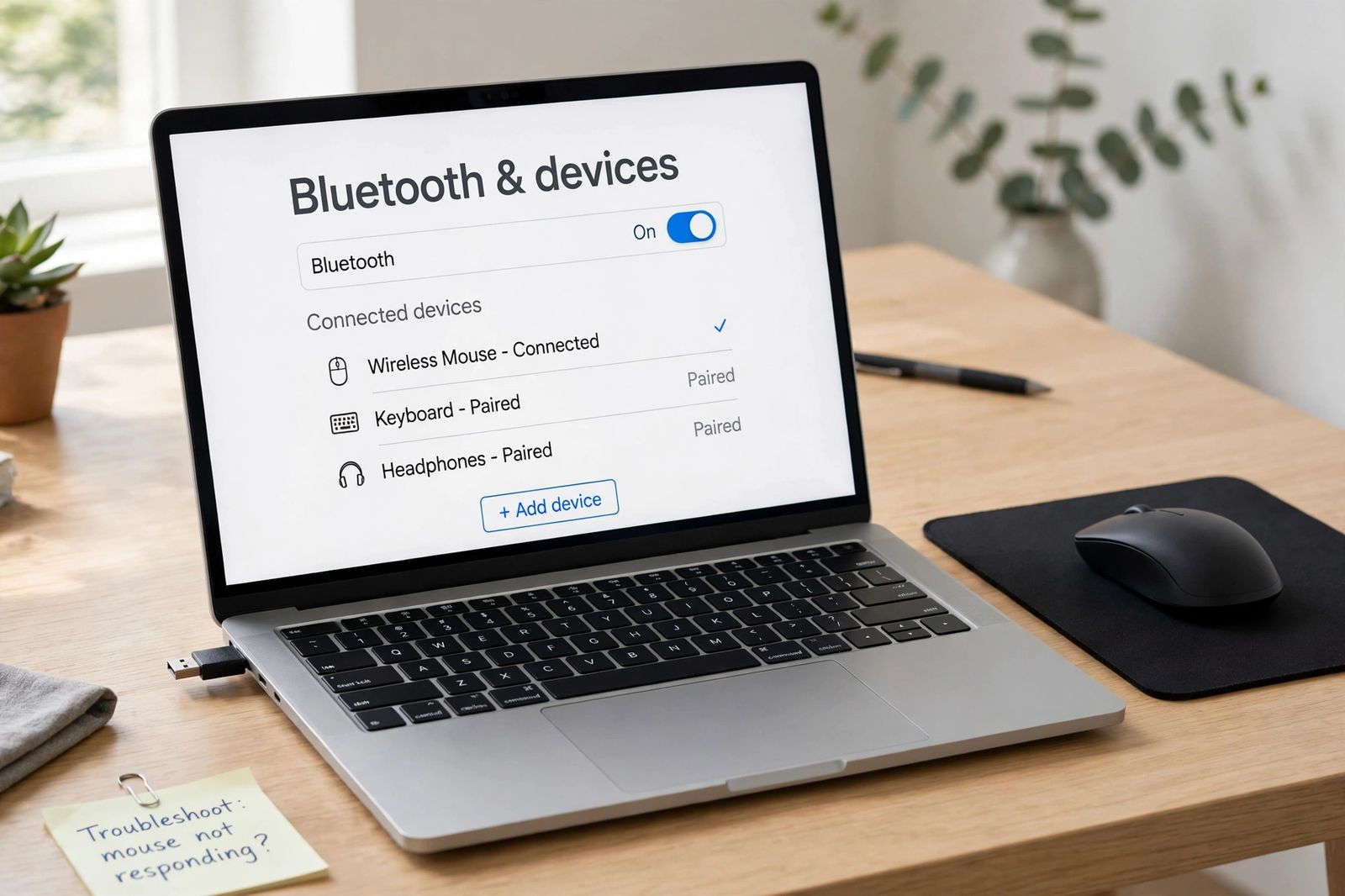
A wireless mouse stops working for one of a short list of reasons — flat or sagging batteries, a power switch knocked off, a USB receiver that is unplugged, badly placed or drowned out by interference, or a Bluetooth pairing that has gone stale — and which list applies depends entirely on how your mouse connects. So do not work through generic fixes at random. First decide which of the two kinds you have: a mouse with a small USB receiver (a dongle) plugged into the computer, or a Bluetooth mouse with no receiver at all, paired directly to the PC. Then follow only that track below, in order. If your mouse lights up but the pointer will not move, skip straight to the dedicated section for that symptom — it has its own causes, and a lit light proves far less than most guides claim.
First: which kind of wireless mouse do you have?
Look at the computer, not the mouse. If a small USB plug — often barely bigger than the port itself — is sitting in a USB port and belongs to the mouse, you have a receiver (RF dongle) mouse. It talks to that receiver on its own 2.4 GHz radio link. It is not a Bluetooth device, and this is the single most common wrong turn in mouse troubleshooting: a dongle mouse cannot be paired, found or fixed from Settings > Bluetooth & devices > Add device, because there is nothing Bluetooth about it. Windows Bluetooth settings will never list it, and time spent there is wasted.
If there is no receiver anywhere — check inside the mouse’s battery compartment too, because many models store the dongle there — and the mouse was set up through Bluetooth settings, you have a Bluetooth mouse. It pairs directly with the computer’s built-in Bluetooth radio, and its faults live in pairing, Bluetooth power saving and the adapter driver.
Some mice offer both: a receiver plus a Bluetooth mode, selected by a switch or channel button underneath. If yours is one of those, note which channel it is currently set to — a multi-device mouse knocked onto its second or third channel is “not working” in the simplest possible way: it is faithfully connected to a different computer. Press the channel or Easy-Switch button until your original channel is selected, and check its light: on Logitech models, for example, a steady channel light means connected, a slow blink means it is trying to reconnect, and a fast blink means it is ready to pair.
Two shared checks come before either track, because they take under a minute and rule out the most common causes of all:
- Power, properly tested. Flip the mouse over: is the switch on? Then fit fresh batteries or charge the mouse — even if it lights up. A weak battery can power the light and the sensor while sagging under the load of the radio, so “it lights up” does not clear the battery. Microsoft’s mouse troubleshooting gives the same reading from the other side: a mouse that is not responsive, shows a blinking red light, or shows no light is telling you its batteries are low and should be replaced or recharged. Dell’s mouse guide likewise puts low battery charge at the top of its causes for a non-responsive wireless mouse.
- Is Windows itself alive? Press Ctrl + Alt + Delete. If the security screen appears, Windows is responding and the fault really is the mouse or its link. If nothing responds at all — keyboard included — the computer has hung, which is a different fault entirely: a machine that repeatedly freezes or restarts has its own diagnosis in computer keeps restarting, and a machine that is merely painfully slow once it responds is covered by the ordered checks in why is my computer so slow. If the keyboard answers but only in part — a few keys dead while the rest type — that is neither a hang nor a mouse fault, and some keyboard keys not working reads that failure by the shape of the dead keys.
The two-track diagnosis
This table is the article’s method. Find your connection type, work down its steps in order, and stop the moment the pointer moves — the step that restores it names the fault. Do not borrow steps from the other track: replugging a receiver does nothing for a Bluetooth mouse, and re-pairing does nothing for a dongle mouse.
| Step | Track A — USB receiver (dongle) mouse | Track B — Bluetooth mouse |
|---|---|---|
| 1 | Receiver check: unplug the receiver, wait about 10 seconds, plug it back into a port directly on the computer — not a hub, dock, monitor or KVM switch | Bluetooth check: turn Bluetooth on in quick settings or Settings > Bluetooth & devices; also toggle airplane mode on for 10–15 seconds and off again |
| 2 | Placement check: move the receiver closer to the mouse — a front port instead of a rear port on a tower — and away from USB 3 drives, hubs and other radios (details below) | Pairing check: is the mouse listed under your devices? If it is listed but dead, remove it (… > Remove device) and pair it again from Add device > Bluetooth |
| 3 | Channel/switch check: on a multi-device mouse, confirm it is set to the receiver’s channel, not a Bluetooth channel | Pairing-mode check: hold the pairing button for 5–7 seconds until the light blinks, then select the mouse in the add-device list; a light that flashes three times and stops means it is still paired to another PC in range |
| 4 | Detection check: open Device Manager and watch Mice and other pointing devices as you unplug and replug the receiver — the entry should disappear and return; a disabled entry (error Code 22) needs Enable device | Troubleshooter check: on Windows 11, open the Get Help app and run the Bluetooth troubleshooter; check the Bluetooth adapter in Device Manager for a warning icon |
| 5 | Pairing check (brand models only): if the receiver and mouse have lost each other, re-pair them with the maker’s own software — for Logitech, Logi Options+; a Unifying receiver (orange star logo) and a Logi Bolt receiver are different families and do not pair with each other’s devices | Power-saving check: if the mouse dies after sleep or idle minutes, check the Bluetooth adapter’s Power Management tab in Device Manager and clear Allow the computer to turn off this device to save power as a test |
| 6 | The decider: plug the receiver into another computer with the fresh batteries fitted. Works there = this PC’s port, driver or settings. Fails there too = the mouse or its receiver | The decider: pair the mouse with another computer or a phone/tablet. Works there = this PC’s Bluetooth stack or driver. Fails there too = the mouse |
The sections below explain the steps that need more than a line — placement and interference for Track A, pairing behaviour for Track B — and then the symptom that cuts across both tracks.
Track A in detail: receiver placement and interference
A dongle mouse’s radio link is short-ranged and easily smothered, and placement faults produce the classic pattern of a mouse that lags, stutters or cuts out before it dies completely. Logitech rates its Unifying receiver at up to 33 feet (10 metres), but that is an open-air figure: walls, a metal PC case and a desk all shorten it sharply. Work through the placement in this order:
- Directly in the computer. Logitech’s own guidance is to connect the receiver to the computer itself, not to a hub or KVM switch — hubs and docks add both distance and electronics between the receiver and the mouse. Dell says the same in simpler form: the receiver must be securely plugged into a working USB port, and unplugging the dongle and reconnecting it after a few seconds can re-establish the link.
- Out from behind the tower. A receiver in a rear port sits behind a metal case that blocks the very signal it needs. Moving it to a front port — or onto a short USB extension cable so it sits on the desk near the mouse — is the single most effective placement fix.
- Away from USB 3 devices. This is the interference source most guides miss. USB 3.0 drives, flash drives and hubs emit radio noise in the same 2.4 GHz band the receiver uses, and Logitech documents that they can delay or drop input. If your pointer stutters with a USB 3 drive plugged in beside the receiver, unplug the drive for a minute as the test: if the pointer smooths out, move the receiver to a USB 2.0 port, or further from the drive, permanently. Keep other electrical devices at least 8 inches (20 cm) from the receiver, as Logitech advises.
- A different port. Ports fail individually. A receiver that works in one port and not another has named the port, not itself — and if no USB device works in any port, the fault is the PC’s USB side, which is a broader problem than a mouse, worked as its own one-port-versus-all-ports split in USB ports not working.
One brand warning, because it costs people money: receivers are not interchangeable. Many mice are paired to their own receiver at the factory, and even within Logitech’s range the families are separate — a device carrying the orange Unifying star does not pair with a Logi Bolt receiver, and not every Logitech device is Unifying-ready at all. Before buying a replacement receiver, check the logo on the underside of the mouse and the maker’s support page for your exact model. And note the software change: Logitech no longer supports its old Unifying Software and directs pairing through Logi Options+ instead, so an old guide telling you to download the Unifying utility is out of date.
Track B in detail: Bluetooth pairing and power saving
A Bluetooth mouse fails in the pairing layer, not the placement layer — the same layer, with the same stale-record and already-connected-elsewhere causes, that Bluetooth headphones not connecting diagnoses for audio devices. Microsoft’s documented sequence is: check or replace the batteries; put the mouse in pairing mode by pressing and holding its pairing button for 5–7 seconds until the light blinks (the button is usually on the bottom); then, with Bluetooth on, add it from Bluetooth settings and follow any prompts. Three behaviours in that same Microsoft guidance explain most “it just won’t pair” cases:
- Three flashes, then dark. If the pairing light flashes three times and turns off, the mouse is already paired to another PC within range. Go to that PC, remove the mouse from its Bluetooth devices, then pair it with yours.
- Too many neighbours. Turn off other Bluetooth devices connected to the PC while testing — Microsoft notes that many simultaneous Bluetooth connections can interfere with the mouse’s link.
- The post-idle pause is normal. Bluetooth devices hibernate after 8–10 minutes of inactivity to save battery, and can take several seconds to reconnect when you move the mouse again. A short delay after a break is the design, not a fault. A mouse that needs a full re-pair after every sleep is a different matter — that points at the adapter’s power management (Track B, step 5 in the table) or a stale pairing, which the remove-and-re-pair in step 2 clears.
If the mouse flashes in pairing mode but never appears in the add-device list, there is one Windows 11 setting worth knowing: in Settings > Bluetooth & devices > Devices, under Device settings, change Bluetooth devices discovery from Default to Advanced. Default discovery shows only common device types; Advanced shows everything, and some mice only appear there. And if Bluetooth itself has vanished — no toggle anywhere — the mouse is not the problem at all: the adapter or its driver is, and the fix runs through Device Manager and the PC maker’s support page, not through the mouse. A machine whose display is also misbehaving has separate display-chain checks — a screen that shows nothing at all is worked in order in monitor no signal, and a second screen Windows never lists is covered in second monitor not detected.
Lights up but won’t move: the dedicated checks
This symptom deserves its own sequence because a lit light proves only one thing — that some power reaches the mouse. It does not prove the battery can sustain the radio, that the link exists, or that the sensor can see your desk. Work these in order:
- Fit fresh batteries anyway. This is the check people skip because the light is on, and it is the most productive one. A battery near the end of its life often holds enough voltage for the light and sensor at rest but sags the moment the radio transmits — the mouse lights up, clicks may even register, and the pointer never moves or moves in bursts. Logitech lists low batteries as a cause of dropouts and lag for exactly this reason. New batteries (from a pack, not borrowed from a remote) settle the question in a minute.
- Change the surface. A mouse tracks by imaging the surface under it. Glass, mirrors, glossy and transparent surfaces defeat most sensors completely: the mouse is powered, connected, and blind. Test on a plain mouse pad, a sheet of matte paper, or a bare wooden desk. If the pointer moves there, the mouse was never broken — the desk was. Best Buy’s Geek Squad guide makes the same point for intermittent trouble: use a smooth, flat surface that is not shiny or reflective, ideally a mousepad.
- Clean the sensor window. Turn the mouse off, turn it over, and clear the small sensor window with a dry cotton swab or compressed air. A single hair or film of dust over the sensor produces a pointer that freezes, jumps or drifts while everything else works.
- Prove the link exists. A lit mouse with a dead link is indistinguishable from a lit mouse with a dead sensor until you test the link: for a dongle mouse, do Track A steps 1–2 (replug direct, move closer); for a Bluetooth mouse, check whether it shows as Connected — not merely Paired — in Bluetooth settings. “Paired but not connected” means the pairing record survives but the live link does not; remove and re-pair.
- Test clicks separately from movement. If clicks register (right-click a clear patch of desktop, using the keyboard or touchpad to position first if needed) but the pointer never moves, the radio link and buttons are working and the fault is narrowed to the sensor or the surface — steps 2 and 3. If nothing registers at all, the fault is the link or the power, and you are back on your track’s steps.
- Rule out a busy PC. If the pointer stutters only while the computer is working hard — and a borrowed wired mouse or the touchpad stutters too — the mouse is reporting a slow computer, not suffering a fault of its own; laptop fan loud covers the heat-and-load side of that pattern, where the fans and the slowdown arrive together.
Using Windows while the mouse is dead
Several steps above need Settings or Device Manager, and all of them are reachable from the keyboard. Windows key + I opens Settings, Windows key + X opens the menu that contains Device Manager, Tab and Shift + Tab move between controls, the arrow keys move within lists, Enter selects and Spacebar flips switches. Shift + F10 opens the right-click menu for whatever is selected — that is how you reach Uninstall device or Enable device in Device Manager without a pointer. If you need a pointer before anything works, Mouse Keys turns the numeric keypad into one: turn it on in Settings > Accessibility > Mouse, after which 8, 2, 4 and 6 move the pointer and 5 clicks. On a laptop, the touchpad is the obvious stand-in — and if the touchpad and the mouse have both stopped, suspect the computer rather than two devices failing on the same day. And if the laptop’s own screen shows nothing at all while you work around the dead mouse, that is not a pointer problem at all — laptop screen is black separates a failed built-in display from a laptop that never started.
Driver work, when your track leads there, follows one rule: drivers come from Windows Update (including Advanced options > Optional updates) or the mouse or PC maker’s own support page — never from a third-party “driver updater” utility, several of which are advertised on the very guides that rank for this problem. In Device Manager, a mouse can appear under Mice and other pointing devices or under Human Interface Devices; uninstalling the entry and restarting lets Windows reinstall its standard driver cleanly. Restart rather than shut down for this: with Fast Startup on, a shutdown preserves part of the old session, while Restart always performs a full boot. And if the failure began immediately after a Windows update, note the timing rather than reinstalling at random — computer keeps restarting covers the update-gone-wrong pattern on the restart side.
Three claims to be careful with
Guides on this topic — including pages from large organisations — repeat a few things that are wrong or out of date:
- “Press the Connect button on the receiver to resync it.” That advice, still published by major retailers, describes older hardware. Most modern nano receivers have no button at all; the resync is done by replugging the receiver, by the channel button on the mouse, or by the maker’s pairing software. Hunting for a button that does not exist wastes the first ten minutes of the fix.
- “Run the Hardware and Devices troubleshooter.” The top-ranked Microsoft Q&A answer for this exact query sends readers to that troubleshooter through the Windows 8 Charms bar — a route that no longer exists. On current Windows 11 the automated route is the troubleshooter in the Get Help app; the old
msdt.exediagnostic commands have been deprecated. The same official answer also assumes the mouse is Bluetooth without any evidence — the assumption this article’s two-track split exists to prevent. - “A receiver connection is more stable than Bluetooth.” This comparative claim appears in manufacturer support text with no measurement behind it. Both links run in the 2.4 GHz band and both fail in their own ways — receivers from placement and USB 3 interference, Bluetooth from pairing and power saving. Treat neither as inherently superior; treat yours according to its own track.
When to replace the mouse
Replace — after checking the warranty — when the mouse fails the decider test in step 6 of its track: fresh batteries fitted, and it still does not work on a second computer, with its receiver plugged directly into that machine (Track A) or after a clean pairing attempt (Track B). At that point the fault has followed the mouse across two systems, and no setting on either PC explains it. The same verdict applies if a rechargeable mouse no longer holds a charge, if single clicks have started registering as double clicks on every computer (a worn button switch, which no setting repairs), or if the case around a rechargeable battery has begun to swell — in that last case, stop using and charging it. What does not justify replacement: a mouse that works on another computer. That result clears the mouse completely and puts the fault in the first PC’s ports, Bluetooth stack, drivers or settings — frustrating, but free to fix. If the mouse is a second screen short of a full setup problem — say the pointer works but an external display does not — second monitor not detected works that chain separately.
Frequently asked questions
Why is my wireless mouse not working even with new batteries? Work your track: for a dongle mouse, the receiver (unplugged, in a hub or dock, behind the case, or beside a USB 3 drive) and the channel setting on a multi-device mouse; for a Bluetooth mouse, a stale pairing — remove it and pair again. Then run the decider test on another computer to separate mouse from PC.
Why does my wireless mouse light up but not move the cursor? The light proves power, not a link and not tracking. Fit fresh batteries (a weak battery sags under radio load), test on a matte surface or mouse pad instead of glass or gloss, clean the sensor window, and confirm the link: receiver replugged and close, or Bluetooth showing Connected rather than only Paired.
Can I pair my USB dongle mouse through Bluetooth settings? No. A receiver mouse uses its own 2.4 GHz link to its dongle and never appears in Bluetooth settings. Only a Bluetooth-mode mouse pairs there. If your mouse offers both, check which channel or mode its switch is set to.
How far can a wireless mouse be from its receiver? Logitech rates its Unifying receiver at up to 33 feet (10 metres) in good conditions. Walls, metal cases and other electronics cut that sharply in real rooms — if moving closer fixes it, placement was the fault, and an extension cable that brings the receiver onto the desk is the permanent fix.
Why does my Bluetooth mouse lag or freeze after I stop using it for a while? Usually by design: Bluetooth devices hibernate after 8–10 minutes of inactivity to save battery and take a few seconds to reconnect, as Microsoft documents. A mouse that never reconnects until re-paired points instead to the adapter’s power management or a stale pairing.
Does a wireless mouse need a driver? Almost always the one Windows installs automatically. Maker software (such as Logi Options+) is needed for re-pairing receivers, extra buttons and firmware updates — get it, and any driver, only from Windows Update or the maker’s own site.
This article is general information, based on the Microsoft Support, Dell Support, Best Buy and Logitech guidance linked above and checked in November 2026. Button names, pairing-light patterns and receiver families vary by model — your mouse’s manual and its maker’s support page are the authority for your exact hardware.