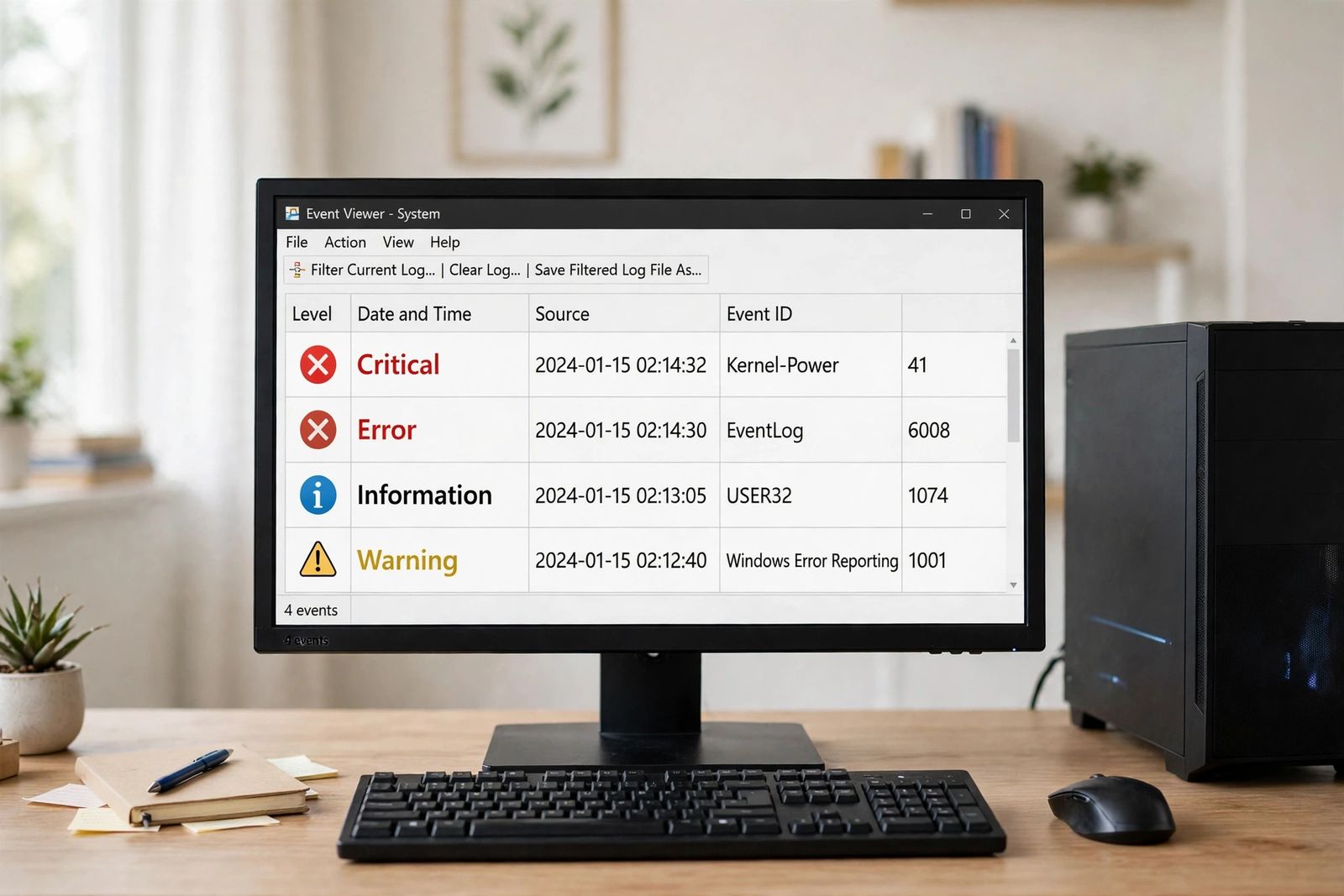
A computer that keeps restarting is almost always restarting for one of a short list of reasons — a failing or overloaded power supply, overheating, faulty memory, a crashing driver, or a Windows update stuck in a loop — and which one it is depends on when the restart happens, not on how often. Do not start by reinstalling Windows or trying fixes at random. First name your pattern from the table below — restarts before Windows loads, restarts only under load, restarts at random while idle, or restarts that began right after an update — then open Event Viewer and read the critical events logged around the last restart. The pattern narrows the cause to one or two suspects, and one value inside Event ID 41, explained below, separates a software crash from a genuine loss of power. Work only on the row that matches your machine.
Step 1: Name your pattern first
The same symptom — screen goes black, logo comes back — is produced by completely different faults depending on its timing. A restart that happens before the Windows sign-in screen cannot be caused by a program you run, because no program has loaded yet. A restart that only happens in games or renders is tied to power draw and heat in a way an idle restart is not. Find your row before touching any setting:
| Your pattern | What it usually means | First suspects, in order | Go to |
|---|---|---|---|
| Boot loop — restarts before or during the Windows logo, never reaches the desktop (or reaches it for seconds) | Windows cannot finish starting: a half-installed or interrupted update, a corrupt system file, or a driver that crashes at load | Failed update, system files, start-up driver | The boot loop section |
| Under load — fine for browsing and documents, restarts in games, video exports, or other heavy work, often with no blue screen and no warning | The hardware cuts power to protect itself, or the power supply cannot hold up when the processor and graphics card draw hard | Overheating, then the power supply (PSU) | The under-load section |
| Idle / random — restarts at any time, including sitting at the desktop doing nothing; sometimes a blue screen flashes too fast to read | A driver crashing in the background, faulty RAM, or — if there is never any blue screen or error — power being lost outright | Driver, RAM, power | The idle section |
| After updates — restarts began the same day Windows updated, or the PC restarts itself at night or mid-work and shows “Getting Windows ready” | Either a planned update restart you were not warned about, or one update failing and retrying | Update settings, then the failing update itself | The after-updates section |
| On wake — restarts when waking from sleep, or is found restarted in the morning | A driver failing during the sleep/wake power change, or an update restart scheduled overnight | Power-state driver, update restart settings | The after-updates and idle sections |
Two observations sharpen the pattern before you open anything. First: is there ever a blue screen, even for half a second? A blue screen means Windows itself caught a fatal error and chose to restart — that is a software or memory story. No blue screen, ever, with the machine simply cutting out and coming back, points at power or heat, because the hardware stopped before Windows could draw anything. Second: did anything change just before this started — an update, a new driver, a new graphics card, a moved or cleaned case? Restarts that start the day something changed are usually that change, and undoing it is a faster test than any diagnostic.
Step 2: Read Event Viewer — and read Event 41 correctly
Event Viewer is Windows’ own log book, and it records what happened around every restart. Open it with Windows key + R, type eventvwr.msc, and press Enter. Go to Windows Logs > System, click Filter Current Log on the right, and tick Critical and Error. Now find the entries timestamped at your last restart and read these IDs:
| Event ID | Source | What it actually tells you |
|---|---|---|
| 41 | Kernel-Power | The system rebooted without shutting down cleanly. On its own it tells you that the restart was unclean — not why. The reason is in its Details, covered below |
| 6008 | EventLog | The previous shutdown was unexpected. This is the companion record to Event 41: together they confirm the time of the failure, nothing more |
| 1074 | User32 | A restart was initiated — by Windows Update, a program, or a user. If a 1074 sits right before your “random” restart, the restart was planned by something, not a crash |
| 1001 | BugCheck / Windows Error Reporting | A blue screen (bug check) occurred, and this entry carries its stop code — the most specific software clue in the log |
| 6006 / 6005 | EventLog | A clean shutdown (6006) and the log service starting again (6005). If your restart is surrounded by these and a 1074, Windows shut down properly — look at update and power settings, not hardware |
The correction most guides get wrong: Event 41 is not a diagnosis
Many guides — including several that rank for this keyword — tell you Event ID 41 “points to” a failing power supply, or to “a driver crash, overheating, or a power supply issue.” Microsoft’s own troubleshooting document for Event ID 41 says the opposite, plainly: by itself, Event ID 41 does not contain enough information to define what occurred. It is logged at the next start-up, after the fact, whenever the previous session ended without a clean shutdown — which includes someone holding the power button down. Treating “I found Event 41” as “my PSU is dead” sends people buying power supplies for what turns out to be a bad driver.
What turns Event 41 into evidence is one field inside it. Open the Event 41 entry, go to the Details tab, and read two values in the EventData:
- BugcheckCode is not 0 — a blue screen did happen, and this is its stop code, written in decimal. Convert it to hexadecimal (Calculator in Programmer mode) and look that code up: 159 decimal is 0x9F, DRIVER_POWER_STATE_FAILURE, in Microsoft’s own example. Your fault is the crash — usually a driver or RAM — and Event 41 itself is now irrelevant.
- PowerButtonTimestamp is not 0 — the restart followed the power button being pressed and held. If nobody held the button, note it and move on; Microsoft lists this as its own scenario, separate from any failure.
- Both are 0, or there is no Event 41 at all — Microsoft’s third scenario: the system was unresponsive, or power was lost before Windows could record anything. This is the only reading that points first at hardware — power supply, overheating, or a machine hanging completely.
That three-way split is the whole diagnostic. BugcheckCode decides software versus power before you spend anything, and no other single check in this article narrows the cause as far.
Step 3: Make the next crash show itself — turn off automatic restart
By default Windows restarts immediately after a system failure, which is why a blue screen can flash past unread. Turning that off does not fix anything; it makes the next failure stop and show its stop code on screen, where you can photograph it.
- Press Windows key + R, type
sysdm.cpl, press Enter. - Open the Advanced tab.
- Under Startup and Recovery, click Settings.
- Untick Automatically restart under System failure, click OK.
Dell gives the same steps in its automatic-restart guide. From now on: if the machine stops on a blue screen, you had a crash — work the software sections. If it still restarts cleanly with no blue screen even with this setting off, Windows never got the chance to crash — the power or heat sections are your route, because the hardware is cutting in first.
If yours is a boot loop
A PC that restarts before reaching the desktop, or seconds after it, cannot be fixed from inside normal Windows, because it never stays there. Use the recovery environment instead. If Windows fails to start repeatedly it offers recovery options on its own; you can also reach them by interrupting start-up — hold the power button as Windows begins loading, repeat until the recovery screen appears — then choose Troubleshoot > Advanced options. Work in this order:
- Uninstall the latest update. In Advanced options, choose Uninstall Updates and remove the latest quality update. A loop that began after an update — above all one that began after the power was cut during an update — is most often that update failing to complete and retrying. Microsoft Q&A threads on this exact pattern, including a PC turned off mid-update, are routed to recovery repair for the same reason.
- Run Startup Repair from the same Advanced options screen and let it finish.
- Boot into Safe Mode (Advanced options > Startup Settings > Restart, then choose Safe Mode). Safe Mode loads Windows with the minimum set of drivers. If the loop stops in Safe Mode, a driver or start-up program that loads in normal mode is the cause — uninstall the most recent driver or app, starting with whatever arrived the day the restarts began. If it loops even in Safe Mode, the fault is deeper: system files or hardware.
- Use System Restore, if a restore point from before the restarts exists, to roll the system state back to that date. Your documents are not touched; drivers and updates installed since are undone.
Do not reinstall Windows as a first move in a boot loop. If the cause is a failing drive or memory, a reinstall fails partway or appears to work and then corrupts again — and it destroys the update history and logs that identify the cause.
If yours restarts under load
Restarts that happen only when the machine works hard — games, exports, large compiles — and never at the desktop have two suspects, and the order matters because one is free to check.
Heat first. A processor or graphics card that passes its temperature limit shuts the system down instantly to protect itself, with no blue screen and often no useful log beyond Event 41 with BugcheckCode 0. The supporting signs: the fans are loud in the seconds before the restart, the restart comes sooner on a hot day or in a closed cabinet, and the machine needs a minute off before it will start again. Watch the temperatures with a monitoring tool while you reproduce the load, and treat readings as model-dependent — limits vary by chip — rather than as one universal number. The physical fixes are the common ones: clear dust from fans, heatsinks and filters with the PC off and unplugged, confirm every fan spins, give the case open air on all sides, and on a laptop use a hard surface rather than a bed. A machine that has run hot for years may also need its thermal paste renewed — a repair-shop job if you are not comfortable inside the case. On a laptop, loud fans in the run-up to a cut-out are the same warning heard from the other side — laptop fan loud works through the fan-noise diagnosis in full.
Then the power supply. A PSU that is aging or too small for the machine can deliver fine at idle and give up at the moment the graphics card and processor draw together — the restart lands exactly on the heaviest second of a game. The pattern evidence: restarts began after a graphics card upgrade, the PSU is many years old or an unbranded unit, or restarts also happen when a power-hungry USB device is plugged in. Be careful with one popular test: software voltage readings for the PSU’s rails are not a reliable measurement and are not a method any manufacturer documents. The reliable home test is substitution — borrow a known-good power supply of adequate wattage, or have a shop bench-test yours. Never open a power supply yourself: its capacitors can hold a dangerous charge after unplugging.
While you are in this section, undo any overclocking, including the memory’s XMP or EXPO profile in the BIOS/UEFI settings. An overclock that was stable for years can stop being stable as parts age, and “restarts under load only” is its classic signature. Restoring default settings is a free, reversible test — if the restarts stop, you have the answer. And if the PC also produces no picture at all on some starts, that is a different fault in the display chain — see monitor no signal for its ordered test sequence.
If yours restarts at idle, at random
Random restarts on a machine that can sit at the desktop — sometimes with a blue screen, sometimes without — split by the Event 41 reading from step 2. If BugcheckCode was not 0, or you have a stop code from step 3, the cause is software-side: work through drivers, memory and system files. If both values were 0, suspect power first (the under-load section above), even at idle — a supply can fail at any load.
Drivers. The graphics driver is the most common crasher, followed by network and chipset drivers. If the restarts began after a driver update, roll it back: Device Manager > right-click the device > Properties > Driver > Roll Back Driver. If no update is recent, install the current driver from the PC or component maker’s own support page — not from a driver-updater utility, which no manufacturer recommends and which is itself a common source of wrong drivers. One change at a time, then use the machine.
Memory. Faulty RAM produces crashes that look random because they depend on which part of memory a program happens to use. Test it with the tool Windows includes: save your work, press Windows key + R, type mdsched.exe, and choose Restart now and check for problems. Microsoft documents the tool running its standard test automatically after the restart, with Basic, Standard and Extended mixes selectable by pressing F1 during the test; the result is shown when you sign back in, and is also recorded in Event Viewer under the MemoryDiagnostics-Results source. Any error at all means a memory fault — if the machine has two sticks, test afterwards with one stick at a time to find the failing one. No errors on the Standard test with restarts continuing makes RAM less likely, not impossible; the Extended mix is the longer second pass.
System files. Corrupt Windows files cause crashes that no driver change fixes. Repair them in Microsoft’s documented order — which is DISM first, then SFC, and the order is the point: Microsoft’s System File Checker guidance runs DISM first because SFC copies its replacement files from the component store that DISM repairs. From an administrator Command Prompt:
DISM.exe /Online /Cleanup-image /RestoreHealth— let it finish; it can take several minutes and uses Windows Update as its source.sfc /scannow— do not close the window until verification reaches 100%.
Several ranking guides run these in the reverse order, SFC first. On a machine whose component store is the damaged part, that order leaves SFC with nothing healthy to copy from.
Malware and background software. Run a full scan in Windows Security > Virus & threat protection > Scan options > Full scan. Malware is a less common cause of restarts than the items above, and a clean, instant restart with no other symptoms is not its typical signature — but a scan is free, and restarts that arrive with pop-ups, changed settings, or a PC that is also suddenly slow belong here first; a machine that is slow and unstable has its own ordered checks in why is my computer so slow.
Fast Startup. This feature saves part of the system state at shutdown to boot faster, and it can carry a bad driver state across restarts. Turning it off is a quick test: Control Panel > Power Options > Choose what the power buttons do > Change settings that are currently unavailable, then untick Turn on fast startup. Note that the shortcut command powercfg /h off sometimes offered for this also disables hibernation entirely — the Control Panel route changes only Fast Startup.
If yours restarts after updates
Separate two different things that both look like “Windows restarted my computer.” The first is a planned restart: Windows Update finished installing and restarted to complete it, possibly outside your working hours. Event 1074 in the log at that time confirms a restart was initiated rather than a crash, and Event 6006 before it confirms a clean shutdown. The controls for this are in Settings > Windows Update > Advanced options: turn on Notify me when a restart is required, set Active hours to cover when you actually use the PC, and turn off the option to restart as soon as possible. Your files and hardware are fine; only the scheduling needs fixing.
The second is a failing update: the same update installs, the PC restarts, the update rolls back or fails, and the cycle repeats — often showing as a boot loop or a restart at the same point every day. Check Settings > Windows Update > Update history for the same update marked failed again and again. The fixes, in order: run the Windows Update troubleshooter in Settings > System > Troubleshoot > Other troubleshooters; if one update keeps failing, uninstall the latest quality update from the recovery environment as described in the boot loop section, then pause updates for a week from the Windows Update page so the machine is usable while a corrected version is published. On a laptop, also make sure the machine is not losing power mid-update — a charger fault during an update can manufacture exactly this loop, and that separate fault has its own checks in laptop plugged in but not charging.
One claim to be careful with, because it appears in summaries of the Reset feature: Reset this PC with “Keep my files” does not keep your installed programs. It keeps personal files and removes apps and drivers, which then need reinstalling. That is why Reset sits at the end of the order in this article, after the pattern, the log and the targeted fixes — it is a valid last step for deep system corruption, but it is a rebuild, not a repair, and it cannot fix a failing power supply, hot processor or bad memory stick at all.
When to stop and hand it over
Stop testing and involve the maker’s warranty service or a repair shop when any of these is true: the PC restarts even in Safe Mode and with a known-good power supply substituted; the memory test reports errors on a machine you are not comfortable opening; you smell burning, hear buzzing or clicking from the power supply — unplug that machine and leave it off; or the drive shows errors alongside the restarts, in which case back up your important files before any further restarts, because each power cycle is another load on a failing part. Repeated restarts on an unidentified power fault are not harmless: an unstable supply can damage other components, and repeated thermal shutdowns degrade the parts they are protecting. A shop’s advantage here is exactly the two substitutions that are hard at home — a bench power supply and known-good memory.
Frequently asked questions
Why does my computer keep restarting with no error message?
Because the failure is happening below the level that writes messages. Either Windows is set to restart automatically on failure, hiding the blue screen — turn that off with the sysdm.cpl steps above — or power is being cut by the hardware (heat or the power supply) before Windows can log or display anything. Event 41 with BugcheckCode 0 in its Details is the log evidence for the second case.
What does Event ID 41 mean — is my power supply broken? Not by itself. Per Microsoft, Event 41 only records that the system rebooted without shutting down cleanly; it does not identify the cause. Open its Details tab: a non-zero BugcheckCode means a blue-screen crash caused the restart, a non-zero PowerButtonTimestamp means the power button was held, and both at zero points to power loss or a completely unresponsive system — only that third reading puts the power supply at the top of the list.
Can a Windows update really cause a restart loop? Yes, in two ways: a planned update restart that was never announced to you (Event 1074 in the log, fixable with Active hours and restart notifications), and a failing update that retries after every boot (the same update marked failed repeatedly in Update history). Interrupting power during an update makes the second kind more likely.
Will reinstalling Windows fix random restarts? Only if the cause is Windows itself — corrupt system files or a driver problem that survives the repair steps. If the cause is a power supply, overheating, or faulty RAM, a reinstall changes nothing except removing your programs and the logs that identified the fault. Run the pattern check, the Event Viewer reading and the memory test first; they take less time than a reinstall and they survive as evidence either way.
Why does it restart when I play games but not otherwise? Games are the heaviest combined load most PCs ever run: processor and graphics card draw peak power and produce peak heat at the same moment. A power supply that cannot hold that draw, or cooling that cannot clear that heat, fails exactly then and nowhere else. Check temperatures under load first, then test with a known-good power supply, and undo any overclock or XMP/EXPO profile while you test.
This article is general information, based on the Microsoft Learn Event ID 41 troubleshooting document, Microsoft’s System File Checker guidance, Microsoft’s Windows Memory Diagnostic documentation and Dell’s automatic-restart guide, all linked above and checked in November 2026. Temperature and power limits vary by model — your PC and motherboard manuals are the authority for your exact hardware. If you can smell burning or a drive is failing, stop, back up what you can, and get hands-on help.