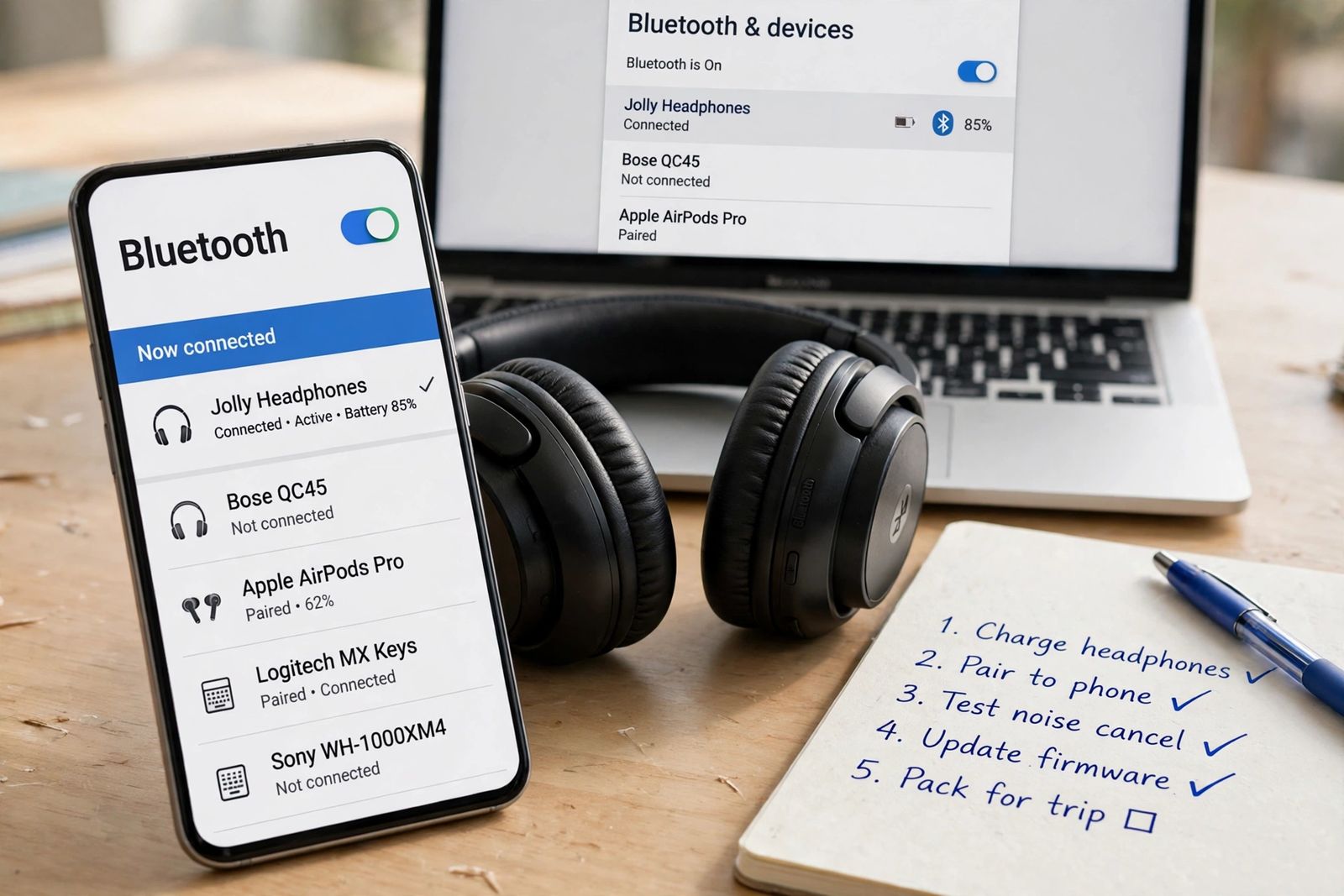
If your Bluetooth headphones are not connecting, the most likely reason is not a broken headphone or a broken phone — it is that the headphones are already connected to another device nearby: the laptop on the desk, the tablet in the next room, the phone you used yesterday. Most headphones reconnect automatically to a device they know the moment they switch on, and while that link is held they either never appear in the Bluetooth list of the device you are holding, or they appear and refuse to pair. So before you change any setting, free them: turn Bluetooth off on every other phone, tablet and computer in range, or disconnect the headphones there, then put the headphones into pairing mode — switched on is not the same as discoverable — and pair. If they still will not connect, the next cause is a stale pairing record: forget the headphones on the device that is failing (Settings > Bluetooth > Forget, Remove or Unpair), then pair again as if they were new. Only after those two come the headphone-side reset — and that word covers two different operations, one of which keeps your pairings and one of which deletes them all, so it pays to know which your model is doing. Everything below is built around one idea the generic fix lists miss: “not connecting” is five different pairing states wearing one symptom, and each state has its own test and its own fix. Find your state first and you will usually be done in minutes.
The pairing-state diagnosis: find your state first
A Bluetooth connection is not one thing. The headphones can be paired (the two devices have saved each other), connected (a live link exists right now), discoverable (advertising in pairing mode, waiting to be found), and selected for audio (the phone or computer is actually sending sound to them) — four separate states, and a failure in any one of them presents as “not connecting” while the other three sit there looking innocent. This table is the article’s method. Match what you see, run the one test in that row, and go to the fix it names — in that order.
| What you see | The pairing state that failed | The 30-second test | Start here |
|---|---|---|---|
| Headphones never appear in the list on the device you want | Already connected elsewhere, or not in pairing mode at all | Turn Bluetooth off on every other nearby device, then re-enter pairing mode and watch for the fast-flashing light or “pairing” voice prompt | Free them first (next section), then real pairing mode |
| Headphones appear, you tap them, pairing fails or is rejected | A stale pairing record — the saved keys on the two sides no longer agree | Forget them on this device, restart both sides, pair again from pairing mode | Forget-and-repair, split by side (below) |
| Listed as Paired / Saved, but never Connected | The record survives, the live link does not | Tap the name once to force a connection; if it fails, the record is the problem, not the radio | Forget-and-repair, split by side (below) |
| Shows Connected, but sound comes from the phone or speakers | Connected, but not selected for audio — or another device is playing through them | Check the output selector and the Media audio toggle; check no other paired device is playing music | Connected but silent (below) |
| Connects, plays, then drops after seconds or minutes | The link forms but cannot hold: battery, distance, interference, or a second device pulling them away | Charge fully, test within arm’s reach with other devices’ Bluetooth off | Connects, then drops (below) |
| Fails the same way on every phone and computer you try | The fault is in the headphones themselves | After a full charge and the maker’s documented reset, the failure still follows the headphones | When to stop (below) |
Two distinctions in that table do most of the work. The first is paired versus connected: a name sitting in your Bluetooth list proves only that a pairing was saved at some point, not that any link exists now — Google’s Android help builds its whole fix around exactly this, starting with “confirm that your devices are paired and connected” as two separate things to check. The second is on versus discoverable: a headphone that is switched on is normally busy trying to reconnect to a device it already knows, and it only becomes findable by a new device when you deliberately put it into pairing mode. Apple’s guidance for a Bluetooth accessory that will not connect to an iPhone or iPad starts in the same place: if the accessory has not been paired before, you may need to place it in discovery mode first — and a headphone silently holding a link to your laptop is, from your phone’s point of view, not in discovery mode at all.
Hidden cause #1: already connected to another device
Worked example, because this is the pattern that wastes the most hours. Picture the desk in this article’s photo: black over-ear headphones next to a smartphone, a laptop open behind them. The headphones were paired to both last week. This morning the laptop woke first, the headphones auto-connected to it before you picked up the phone, and now the phone’s Bluetooth list shows nothing — or shows the headphones greyed and unresponsive — even though both devices are inches apart and nothing is broken. The phone is not failing to find a free headphone; it is failing to find a headphone that is already spoken for.
Rule it in or out properly, in this order:
- Check every device the headphones have ever paired with that is in the house and awake — laptop, tablet, second phone, TV, car if it is parked close. On each one, look at whether the headphones show as Connected. Auto-reconnect is a feature working as designed; it just picked the wrong device.
- Disconnect them at that end, or turn that device’s Bluetooth off. Either frees the link. Apple’s own sequence for the mirror-image case — an accessory that pairs with some devices but not your iPhone or iPad — is exactly this: unpair the accessory from your other devices, then try to pair with the device you want again.
- Now put the headphones into pairing mode and pair with the device in your hand, close by. Google puts the Fast Pair distance at within 0.5 m (1.6 ft) of the phone, with Bluetooth and Location on — pairing from across the room is a self-inflicted version of this same failure.
The exception that proves the rule is multipoint — headphones that genuinely hold two links at once. They get their own split below, because multipoint changes the diagnosis without removing it: a multipoint headphone full up with two connections still has no room for the third device you are holding.
The multipoint split: one link, two links, or two links switched off
“Can it connect to two devices?” has three different answers depending on the model and its settings, and mixing them up produces some of the most confident wrong advice in the top results for this search — one widely read guide tells readers multipoint “lets them stay connected to up to three devices simultaneously.” It does not. Standard Bluetooth multipoint is two simultaneous connections: Soundcore’s own support pages describe its multipoint models as connecting with two Bluetooth devices at once, and Sony’s help guides describe the same two-device limit for its multipoint headsets. A headphone may remember many more pairings than two — Sony states its headsets can store pairing registrations for up to eight devices — but remembered is not connected. If a guide promises you three live links, it has confused the pairing memory with the connection limit, and following it will have you hunting for a third connection your headphones cannot make.
| Your headphones | How many live links? | What “not connecting” usually means | The move that works |
|---|---|---|---|
| Single-connection (most budget and older models) | One | The one link is held by another device | Bluetooth off on the other device, then pairing mode, then pair |
| Multipoint, both slots free | Two | A stale record on the device that fails, not a full house | Forget on the failing device only, re-pair into the free slot |
| Multipoint, both slots taken | Two — and both are busy | The third device you are holding has nowhere to land | Disconnect one of the two, or pair by displacing the least recent link per the maker’s app |
| Multipoint switched off, or blocked by a codec setting | Effectively one until you change the setting | The setting, not the radio, is refusing the second link | Turn multipoint on in the maker’s app — and check the codec row below |
Two maker-documented blockers belong in that last row, because no generic guide in the top results mentions either. Soundcore’s support page for its Space One headphones states plainly that the headphones cannot enter multipoint pairing mode while in LDAC mode — the high-quality codec and the second connection are a choice, and you exit LDAC in the soundcore app before the second pairing will even start — and that they cannot enter pairing mode during a call in progress, so a call on the first device silently blocks pairing to the second. If your multipoint headphones “refuse” a second device, check for an active call and for LDAC before you reset anything.
Forget-and-repair, split by side
Forgetting and re-pairing is the fix every guide recommends, and it works — but “forget and reset everything” as a single lump step is why it so often fails or does damage. A pairing has two ends, each holding its own record, and the clean repair treats them in a deliberate order: the phone/PC side first (cheap, reversible, erases one record), the headphone side second (stronger, and on many models it erases every record). Do Side A completely before you touch Side B.
Side A — the phone, tablet or computer
- Toggle and restart first. Turn Bluetooth off and on again, and restart both devices. This is step 1 in both Google’s Android Bluetooth fix and Apple’s accessory guidance — turn the accessory off and back on again, and make sure it is fully charged, because a low battery fails pairing in ways that look exactly like a software fault. Microsoft’s Windows guidance makes the same point from the PC side: some Bluetooth devices do not enter pairing mode or hold a connection when the battery is low.
- Forget the headphones on the device that is failing. iPhone or iPad: Settings > Bluetooth, tap the (i) next to the headphones, Forget This Device. Android: Settings > Connected devices > Saved devices, tap the gear next to the headphones, Forget. Windows: Settings > Bluetooth & devices, the three-dot menu next to the headphones, Remove device. Mac: System Settings > Bluetooth, (i) next to the headphones, Forget This Device. One record, on one device — nothing else is erased.
- Check the app permission nobody looks at (iPhone). If the headphones have a companion app, Apple directs you to Settings > Privacy & Security > Bluetooth to confirm Bluetooth is turned on for that app. A headphone whose app is denied Bluetooth can pair with the phone and still be invisible to the app that is supposed to manage it — a “not connecting” that is really a permission.
- Put the headphones in pairing mode, then pair fresh, close up. On Android, Settings > Connected devices > Pair new device, then tap the headphones’ name; if a passcode is requested and you do not have it, Google’s help says to try
0000or1234, the most common passcodes. On Windows, Add device > Bluetooth. On iPhone, the headphones appear under Other Devices. If they pair and connect now, stop — Side B was never needed.
Side B — the headphones themselves
Only go here if Side A, done fully, changed nothing — or if the headphones fail on a second device too, which is what proves the fault lives on this side.
- Enter real pairing mode, and respect its clock. The gesture is model-specific — a held power or Bluetooth button until the light flashes fast or a voice says “pairing”, or for earbuds a case button with the lid open. Sony’s help guides put two numbers on it that the generic guides get wrong: pair within about 1 m (3.2 ft) of the device, and pairing mode cancels if pairing is not completed within about five minutes — not the “one or two minutes” several top guides warn about, which sends people rushing a step that was never about to expire. Open the Bluetooth screen on the phone first, then trigger pairing mode, and you will be comfortably inside the real window.
- Reset — but know which kind your model has. This is the second visible correction in this article. Most guides use “reset”, “factory reset” and “restart” as if they were one operation. Sony — whose distinction other makers follow in substance even when the words differ — documents two: a reset, after which “the pairing information and other settings are retained”, and an initialize, which “resets all the device settings to the factory defaults and deletes all pairing information”. Sony’s WF-1000XM5 support page even warns that releasing the button at the wrong moment during a reset turns it into an initialize. Soundcore’s documented Space One reset — hold power and volume-up together for 5 seconds until the indicator flashes red three times — is the erasing kind, a return to factory settings. The practical rule: try the maker’s reset first if your model offers the retaining kind; use the erasing kind (initialize / factory reset) only when you are prepared to re-pair every device you own, and afterwards delete the old pairing entry on each of those devices before pairing again, exactly as Sony instructs. And never borrow a button combination from another brand’s guide — the sequence that resets one model can do nothing, or something else entirely, on yours. AirPods have their own model-split reset with its own confirmation signal — amber, then white — and their pairing-error light is decoded in full in AirPods flashing orange light; the general Bluetooth pairing layer that light sits on top of is this page.
- Update, then judge. Install phone/computer system updates, and check the maker’s app for headphone firmware. A pairing broken by a phone update is a known pattern, and the fix arrives as a patch on one side or the other — not as another reset.
Connected, but no sound comes out
A headphone can be paired, connected, and still silent, because audio routing is a fourth state of its own. Google’s Android help separates the checks: confirm the volume is up on phone and accessory; check that other devices paired with your phone are not playing the music — a tablet quietly streaming to your headphones is hidden cause #1 wearing a different hat; and open Connected devices > Saved devices > the headphones’ settings and turn on Media audio for music and Phone audio for calls, because either toggle can be off while the link itself is healthy. On a computer, do the equivalent in the sound output selector: choose the headphones explicitly rather than assuming “connected” in Bluetooth settings means “selected” for sound. Test with a locally downloaded track rather than a stream, as the UMA and Apple-guided checks both suggest — that separates a Bluetooth fault from a Wi-Fi or streaming interruption in one step. If calls are silent but music plays, or the reverse, you do not have a connection problem at all; you have exactly one of those two toggles off.
Connects, plays, then drops
A link that forms and then dies is a different fault from one that never forms, and re-pairing rarely fixes it. Work the physical causes in order: charge — a battery near empty can enter pairing mode, connect, and then sag under load, which is why every maker’s sequence puts charge before settings; distance and obstructions — test within arm’s reach with a clear line before blaming anything else, because walls, metal and even a body between phone and headphones cut a link that tested fine across a desk; interference — Bluetooth shares the 2.4 GHz band with Wi-Fi and, on a computer, with unshielded USB 3 devices and hubs sitting next to the Bluetooth antenna, a source Microsoft itself flags, so unplug the hub or move the headphones’ pairing test away from the desk as an experiment; the second device — on multipoint headphones, the other connected device starting playback or taking a call can pull the audio away, which reads as a dropout on yours. The same pairing-layer logic, worked through for a pointer instead of audio — including the decider test of trying the accessory on a second computer — is in wireless mouse not working, because a Bluetooth mouse and a Bluetooth headphone fail in the same layer for the same reasons.
Three claims to be careful with
Guides for this search — including large, otherwise careful publishers — repeat a few things the makers’ own pages do not support:
- “Multipoint connects up to three devices at once.” Covered above because it changes what you do: the documented multipoint limit on Sony and Soundcore models is two simultaneous connections, with a larger number (up to eight on Sony headsets) being the stored pairing count. Expecting a third live link manufactures a fault that does not exist.
- “Clear the Bluetooth cache (or storage) on Android” as a routine early fix. Two ranking guides give this a numbered step, one of them as its Fix 4. Google’s own Fix Bluetooth problems on Android page never mentions cache or storage clearing at all — its sequence is toggle, confirm paired and connected, restart, then problem-specific steps. The distinction matters because the two buttons side by side in that menu do very different things: clearing a cache is minor, but clearing the Bluetooth app’s storage/data deletes every pairing on the phone, a whole-house reset presented as a light clean. If a fix is not in the platform maker’s own sequence, it belongs at the end of the order with its cost stated, not in the first five steps.
- “Just factory reset the headphones” as an early step. As the Sony reset-versus-initialize split shows, the erasing operation deletes every pairing the headphones hold, plus — on many models — EQ, custom controls and noise settings. Guides that put a generic “hold power and volume for 10–15 seconds” reset in the middle of the fix list, without naming the model it applies to or the pairings it destroys, are spending your setup time to save their research time. The retaining reset, where your model offers one, and Side A forgetting, cover most cases without that cost.
When to stop and get service
Stop when the failure follows the headphones: fully charged, Side A forgotten and re-paired, the maker’s documented reset (and, if offered, initialize) performed — and the headphones still will not enter pairing mode, or fail identically on a second phone or computer known to pair fine with other accessories. At that point the remaining causes are a failing battery, a failing radio, or firmware corruption, none of which another settings change reaches; use the warranty or the maker’s support channel. The mirror result clears the headphones completely: if they pair and play on a second device, the fault is the first device’s Bluetooth stack, driver or settings — on Windows, run the automated Bluetooth troubleshooter in the Get Help app and take drivers only from Windows Update or the PC maker’s support page, never from a third-party driver utility. One more stop condition costs nothing to check first: if no Bluetooth accessory will connect to your phone or computer, the accessory was never the problem — Apple lists “you can’t connect any Bluetooth accessories with your device”, and a Bluetooth setting that is greyed out, as contact-support territory for the device itself.
Frequently asked questions
Why do my headphones show in the Bluetooth list but won’t connect? Because the saved pairing record on one side no longer matches the other — the classic stale pairing. Forget the headphones on the device that fails (Side A), put them in pairing mode, and pair again fresh. If they show as Paired but never Connected on several devices, the stale record is on the headphone side and the maker’s reset is the next step.
Why won’t my headphones appear in the Bluetooth list at all? Almost always one of three states: they are already connected to another device in range (hidden cause #1 — turn Bluetooth off there), they are switched on but not in pairing mode, or the battery is too low to advertise properly. Charge them, free them from the other device, then deliberately enter pairing mode with the phone’s Bluetooth screen already open.
My headphones connect to my phone but not my laptop (or the other way round). What does that prove? That the headphones work. A one-device failure is a fault in that device’s pairing record, driver or audio routing — forget and re-pair on the failing device, and check its output selection. Do not reset the headphones for a fault they have just proved they do not have.
Will forgetting and re-pairing delete anything important? Forgetting on the phone or computer deletes only that one pairing record; your music, accounts and other pairings are untouched. The headphone-side erasing reset (Sony’s initialize, and factory resets generally) is the destructive one: it deletes all of the headphones’ pairings and can remove custom settings, which is why it sits last in the order here.
Do I need to be close to pair? Yes — pairing is the weakest moment of the link. Google specifies within 0.5 m (1.6 ft) for Fast Pair accessories, and Sony’s guides specify about 1 m (3.2 ft) for pairing its headsets. Pair on the desk, then test the range afterwards; a connection that only works close up after a successful close-up pairing is a distance or interference problem, not a pairing problem.
Why do my headphones keep switching to another device by themselves? Auto-reconnect doing its job on the wrong target, or multipoint handing audio to the device that most recently started playing or rang. Disconnect them on the device you do not want, or turn its Bluetooth off; on multipoint models, check the maker’s app for which connections are active, and remember the LDAC-and-calls blockers — a call in progress on one device can block pairing and switching behaviour on the other.
This article is general information based on the Apple Support, Google Android Help, Microsoft Support, Sony Support and Soundcore support guidance linked above and checked in November 2026. Button gestures, pairing-mode timing and reset behaviour differ between headphone models; where your model differs, its maker’s support page for that model is the deciding source.