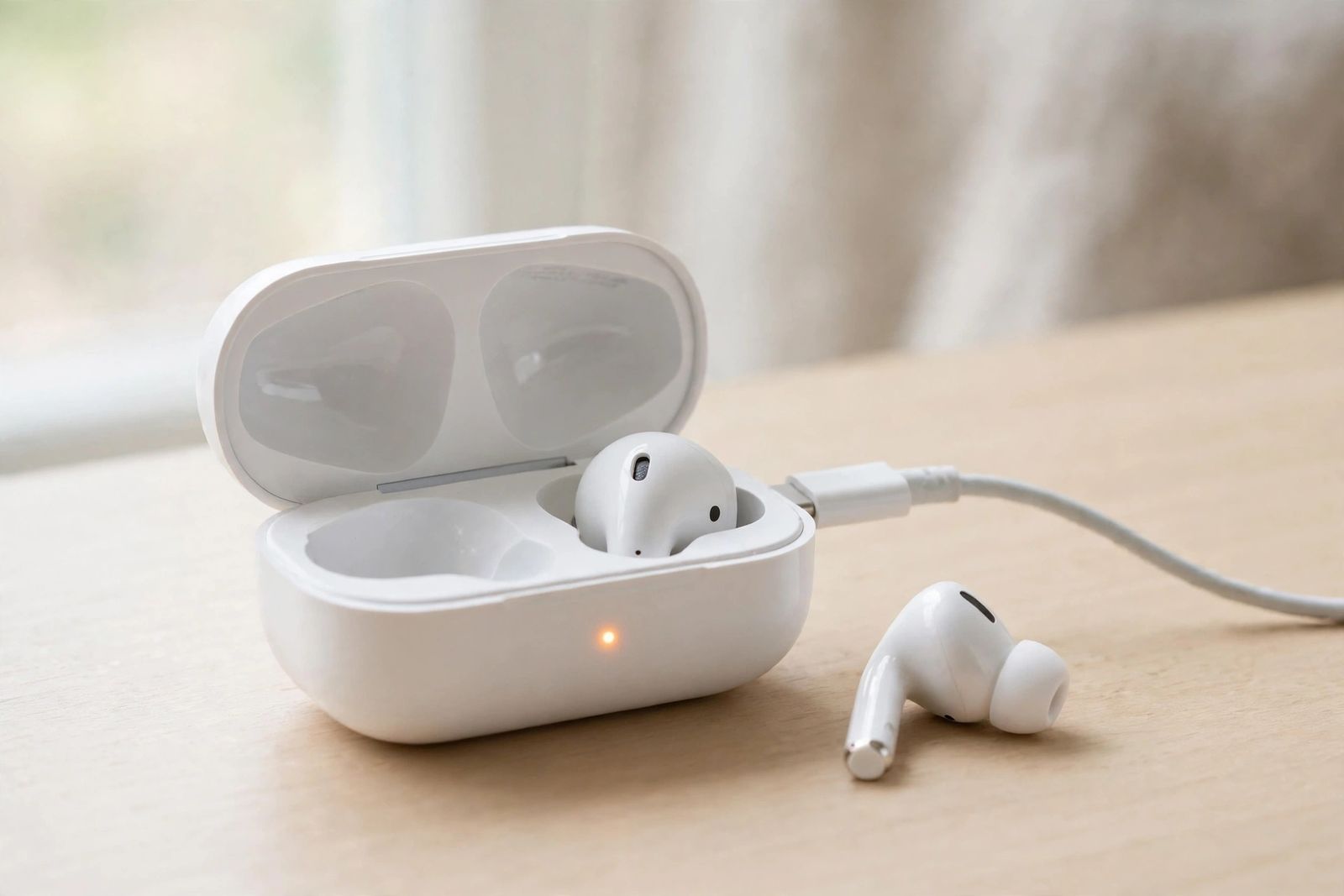
If your AirPods are not charging, the fix depends on which part has actually failed, so split the problem before you change anything: if one bud is dead while the other charges, the cause is almost always that bud’s charging contacts, its seating in the case, or its firmware — clean that bud’s stem contacts and the pins in its case slot, reseat it, and charge the case; if both buds are dead but the case itself takes a charge, clean both slots and then reset the AirPods; if the case itself will not charge — no status light at all when you plug it in — the fault is in the power path: the cable, the adapter, the outlet, or lint packed into the case’s charging port. In every branch, Apple’s own first step is the same: put both AirPods in the case, close the lid, connect the case to power with the cable for its port — Lightning or USB-C, depending on the model — and charge the AirPods and case for at least 15 minutes before judging the result, because a deeply flat case can show nothing at all for the first minutes. The status light is your diagnostic instrument throughout: green means fully charged, amber means less than one full charge remains, flashing amber means a pairing error, and no light at all means the case itself needs charging. What follows is that split diagnosis worked through in full — how to read the light correctly, the safe way to clean (which is narrower than most guides claim), the cable and wireless checks, the firmware and charge-limit settings that imitate a fault, and the point where the problem stops being yours to fix.
The split diagnosis: find your branch first
Most charging guides give you one long list of fixes in a fixed order, which means the reader with a single dirty contact works through cable swaps and resets that were never going to help. The symptom itself tells you where the fault lives, because the charging chain has three separate links — power into the case, power from the case into each bud, and the software that reports and manages both — and each link fails in its own way.
| What you see | The failing link | Start here |
|---|---|---|
| One bud charges, the other stays at 0% or never appears | That bud’s contacts, seating, or firmware | Clean and reseat that bud (below) |
| Both buds dead, but the case light comes on and the case percentage rises | Case-to-bud contacts, or a software glitch | Clean both slots, then reset |
| Case shows no light and no percentage rise on cable or wireless | Power into the case: cable, adapter, outlet, port, or the case battery | Power-path checks (below) |
| Everything charges but stops short of 100%, or one bud drains far faster | A charge limit, uneven wear, or a dying cell | Charge-limit and wear checks (below) |
| Case charges by cable but not wirelessly — or the reverse | One charging route only: pad alignment, or the port | Test the other route to isolate it |
Two checks feed every branch, so do them before anything else. First, read the real percentages, not just the light: open the case near your iPhone or iPad and look at the battery display for the left bud, the right bud and the case separately — Apple notes you can check charge status on your iPhone or iPad, your Mac, or the case itself. A bud that shows a lightning-bolt charging icon is charging, whatever the light seems to say. Second, give the 15-minute cable charge above a full run with the lid closed. Judging after thirty seconds misdiagnoses flat cases as dead ones.
The status light, decoded from Apple
The small light is the only instrument the case itself gives you, and it is widely misread — most often by guides that reduce it to “amber means charging.” Apple’s own definition, from its guide to charging AirPods and the status light, is about how much charge remains, and what the light is reporting changes with where the buds are:
- Green: fully charged. With the AirPods in the case, the light shows the AirPods’ charge status; with the AirPods out of the case, it shows the case’s own charge status. The same light answers two different questions depending on whether the buds are in.
- Amber: less than one full charge remains — again, of the AirPods if they are in the case, of the case if they are out. Amber is a level reading, not a promise that charging is happening right now; a case sitting unplugged with a low battery shows amber too. This is the correction to the “amber = charging” shorthand repeated across the top results for this search: amber tells you the level is below full, and only the percentage display tells you whether power is actually flowing.
- Flashing white: the case is in pairing mode, ready to connect. Normal during setup and after a reset.
- Flashing amber: a pairing error. The buds and the case have lost sync with each other; the fix is the reset described below, not more charging. The flashing light itself — including the brief flash on newer models that is only a battery prompt, and the full light decode — is covered in AirPods flashing orange light.
- No light at all: the case battery is empty — Apple puts it plainly: if there’s no light, your AirPods need to be charged. A dark case is a flat case until a 15-minute cable charge proves otherwise.
- On a wireless charger: place the case with the status light facing up; Apple says the light should turn on for several seconds, then turn off while continuing to charge. A light that lights briefly and goes out on a pad is success, not failure — one of the most common false alarms in this whole topic. If the light never comes on, reposition the case; if it still will not charge wirelessly, Apple says to plug the case directly into a power outlet with a cable instead.
- Newer models pulse: on AirPods 4, AirPods 5, AirPods Pro 2 and AirPods Pro 3 with the latest firmware, Apple describes the light briefly pulsing amber when the AirPods or the case are below 95 percent, and flashing amber when the AirPods are below 95 percent while the case is below 25 percent. On these models a brief amber pulse is a level report, not the pairing error the same colour means elsewhere — context and model decide which reading applies.
Where the light lives also varies: on cases that charge only by cable it sits inside the case, between the two buds; on wireless-charging cases it is on the front, which is why the pad instruction says “status light facing up.”
Branch one: one bud will not charge
A single dead bud with a healthy twin is the most localised fault there is: the case, the cable and the power supply have all just proved themselves by charging the other bud. What remains is the path into that one bud.
- Read both percentages. Confirm the case itself has real charge — MacRumors’ guide to this exact problem notes that once the case falls under roughly 10 percent it may no longer charge both buds evenly, so a nearly flat case can present as a one-bud fault. Charge the case first if it is low.
- Reseat the bud. Take it out and put it back, feeling for the magnetic snap into its slot. Remove anything that changes how it sits — foam tips, ear hooks, grip accessories — and try again. A bud held a fraction off its pins by an accessory looks exactly like a dead bud.
- Clean that bud and its slot — the method matters, and the next section gives Apple’s version, because the folk version (a swab wet with alcohol, worked around inside the case) is one Apple warns against.
- Leave both buds in the case, lid closed, for 30 seconds, then recheck. Apple’s own one-sided troubleshooting uses this pause: open the case near your iPhone afterwards and confirm whether both buds now show as charging.
- Reset if it persists. A bud the case no longer recognises properly can be a pairing fault wearing a charging fault’s clothes; the reset below re-syncs the pair as a unit. If the same bud still refuses after a clean, a reseat, a charged case and a reset, the bud itself — its contact or its cell — is the likely fault, and that is a service conversation, not another home fix. Apple sells replacement single AirPods and replacement cases individually through its service channels, which is worth knowing because at least one current guide for this search claims the manufacturer does not sell the parts separately and steers you to a third-party shop instead. It does, and for a part that has to pair and charge as a matched set, Apple’s own replacement is the safer route.
Branch two: both buds dead, case alive
If the case light comes on, its percentage rises on charge, and neither bud takes power, the break sits between the case and the buds — or in the software that brokers them.
Clean both slots and both stems (next section), reseat both buds, and run the 15-minute lid-closed charge. Then check the percentages again. If the buds still show nothing, reset the AirPods: a reset clears the pairing state that a charging display depends on, and a stale pairing is the usual reason a mechanically sound pair reports as dead. The full reset sequence differs by model — back-button hold on AirPods 1, 2 and 3 and Pro 1 and 2, a triple double-tap on the front of the buttonless AirPods 4, 5 and Pro 3 cases — and it erases your settings, so it is deliberately not the first step here; the complete procedure, including the unpair step that comes before it, is in how to reset AirPods.
One more impostor belongs in this branch: firmware mid-update. AirPods firmware arrives automatically while the buds are charging in Bluetooth range of a Wi-Fi-connected iPhone, iPad or Mac, and Apple says to allow at least 30 minutes in that state for an update to land. A pair caught mid-update can behave oddly for a while; leave them charging near the phone for half an hour before concluding anything, and afterwards you can confirm the version under Settings > Bluetooth > (i) next to your AirPods, against Apple’s firmware page.
Branch three: the case itself will not charge
No light on plugging in, no percentage rise, nothing — now work the power path from the wall outward, in this order:
- Reseat everything. Apple starts here for a reason: make sure the cable is plugged firmly into the case and into the USB power adapter, and that the adapter is correctly plugged into a working power outlet. Test the outlet with something else if there is any doubt.
- Swap the cable, then the adapter. Cables are the weakest link in the chain and the cheapest to rule out. Use the cable type your case actually has — Lightning on AirPods 1, 2 and 3 and Pro 1 cases and the original Pro 2 case, USB-C on later Pro 2, AirPods 4 and 5 cases and current models — and prefer a known-good cable over a drawer spare. A laptop USB port is a valid test but a weak power source; a wall adapter is the cleaner experiment. The same “plugged in but nothing happening” logic, worked through for a computer, is in laptop plugged in not charging — in both cases the percentage behaviour and a known-good power path settle most of it.
- Clean the case’s charging port. Pocket lint packs into the port until the plug no longer seats fully, and the case then behaves as if the cable were dead. Apple’s instruction is specific: remove debris from the charging port with a clean, dry, soft-bristled brush — and, to avoid damaging the metal contacts, do not put anything in the charging ports. No pins, no toothpicks, no SIM tools.
- Isolate with the other charging route. If your case supports wireless charging, put it on a Qi or MagSafe pad, status light up: if it charges there, the port or the cable was the fault; if a cable charges it but the pad does not, reposition it on the pad and check the pad with another device before blaming the case. Not every case charges wirelessly — the standard cases for several models are cable-only — so a pad doing nothing for a cable-only case is expected behaviour, not a second fault.
- Wait, then judge. Give a fully flat case the full 15 minutes on a known-good cable and adapter before reading the light. If there is still no light and no percentage movement after that, on two cables and two power sources, the case battery or its charging circuit is the probable fault — that is service territory.
AirPods Max sit slightly apart in this branch: they charge directly by cable, with no bud-charging case in the chain, and Apple’s charge time for a first test is at least 5 minutes with the cable that came with them, in their Smart Case if you are leaving them — the Smart Case puts them into an ultra-low-power state that preserves charge.
Cleaning: Apple’s method, and the popular one it rules out
Cleaning fixes more of these problems than any other single step — and it is also where the top guides for this search most visibly part company with the manufacturer, so the distinction is worth making plainly.
What Apple says (its AirPods cleaning guide and the Pro version of the same page): clean the charging case with a soft, dry, lint-free cloth; if necessary, the cloth — the cloth, for the outside of the case — can be dampened slightly with isopropyl alcohol; allow the case to dry; remove debris from the charging port with a clean, dry, soft-bristled brush; do not use abrasive materials; do not get liquid in the charging ports; and do not put anything in the charging ports, because that is how the metal contacts get damaged.
What several ranking guides say instead: work a cotton swab dampened with 70 or even 99 percent isopropyl alcohol around the contacts inside the case, and use brushes or picks inside the port. That is the consensus error this article is correcting. Liquid carried into the case on a swab reaches exactly the openings Apple tells you to keep liquid out of, and anything rigid in the port risks the contacts the whole charging chain depends on. The dry version of the job loses nothing: wipe the metal contact at the bottom of each bud’s stem with a soft, dry, lint-free cloth; wipe the contact points at the bottom of each case slot the same way, with the cloth or a dry swab used gently on the surface — nothing pushed into ports, nothing wet; brush loose lint out of the case wells and around the port with the dry soft-bristled brush; then reseat the buds and retest. If a bud still will not charge after the dry clean, the problem was never the grime a wet swab would have reached either.
While you are looking: check the contacts for visible corrosion or pitting and the case wells for anything wedged at the bottom. Damage you can see is not a cleaning problem, and it moves the bud or the case into the service branch below.
Charges, but stops short — or drains unevenly
Two behaviours look like charging faults and usually are not:
- Stopping below 100 percent can be a setting doing its job. AirPods Pro 3 ship with an Optimized Charge Limit, and Apple explicitly gives the remedy in its won’t-charge guidance: you can use your iPhone or iPad to turn off the Optimized Charge Limit on AirPods Pro 3 and charge your AirPods fully. A pair that pauses at a limit and finishes when the limit is off was never faulty. The same battery-care idea, on the phone side, is what the optimised charging settings in how to check battery health on iPhone manage.
- Uneven buds are usually uneven use, not uneven charging. The bud that handles calls and the one that has been in your ear longer drains further and then has further to climb; different levels mid-charge are normal. What is not normal is the same bud at or near zero every morning after a night in a charged case — that pattern, after the branch-one checks, points to that bud’s cell wearing out. AirPods batteries are not user-replaceable, and a worn cell is a replacement-bud decision. A phone that seems to drain alongside them is a separate question, covered in iPhone battery draining fast.
The reset, and when to stop and get service
Reset only after the branch checks: it is the right fix for a flashing-amber pairing error and for a pair the case has stopped recognising, and the wrong first move for a dirty contact or a flat case. The short version: forget the AirPods in Settings > Bluetooth first, then, with both buds in the case — button models: hold the setup button about 15 seconds; buttonless models: double-tap the front of the case three times — until the status light flashes amber, then white. That order is the confirmation; guides that tell you the reset is done when the light “turns white” have skipped the amber stage that proves the reset actually ran. Full steps per model, and reconnecting afterwards — including to a Windows machine, in how to connect AirPods to a laptop — are in how to reset AirPods.
Stop and contact Apple Support or an authorised service provider when any of these is true after the checks above: the case shows no light and no charge movement on two known-good cables and power sources; the same single bud fails in a case that charges its twin and has been cleaned, charged and reset; you can see damaged, corroded or pitted contacts, or the case or a bud has taken liquid or a hard drop; or the flashing-amber error returns immediately after a correct reset. Apple does not offer a home repair for a case battery or a bud cell — service means a replacement part, and Apple sells single replacement AirPods and replacement cases, so one dead bud does not have to mean a whole new set.
Frequently asked questions
Why is only one of my AirPods not charging? Because the fault is local to that bud: the case and cable have just proved themselves on the other bud. The usual causes, in order, are a case battery too low to charge both buds evenly, the bud sitting slightly off its pins (often because of an accessory tip or hook), dirty contacts on that bud’s stem or in its slot, and — after those — a pairing glitch a reset clears, or a worn-out cell in that bud.
What does the amber light on my AirPods case mean? In Apple’s definition, amber means less than one full charge remains — of the AirPods if the buds are in the case, of the case itself if they are out. It is a level reading, not proof that charging is under way. Flashing amber is different: that is a pairing error, fixed by resetting. On AirPods 4, 5, Pro 2 and Pro 3 with the latest firmware, a brief amber pulse simply reports a level below 95 percent.
My case light turns off on the wireless charger. Is it still charging? Yes — that is the documented behaviour. Apple says that on a Qi-compatible charger with the status light facing up, the light turns on for several seconds, then turns off while continuing to charge. If the light never appears at all, reposition the case; if wireless still fails, test with a cable into a wall outlet to separate a pad problem from a case problem.
Can I clean the charging contacts with alcohol? Not the way most guides describe it. Apple allows a cloth slightly dampened with isopropyl alcohol on the outside of the case only, and is explicit that no liquid should get into the charging ports and nothing should be put into them. The contacts themselves get a soft, dry, lint-free cloth, and port debris gets a clean, dry, soft-bristled brush. Wet swabs inside the case are the popular advice Apple rules out.
How long should I charge AirPods that are completely dead? At least 15 minutes with the buds in the closed case, connected by cable, before you judge — that is Apple’s own first step, and a fully flat case may show no light for the first part of it. AirPods Max get at least 5 minutes on their cable. For a firmware update to complete afterwards, leave the AirPods charging near a Wi-Fi-connected Apple device for at least 30 minutes.
My AirPods charge but the case doesn’t — or the other way round. Which part is broken? Neither conclusion yet: they are separate batteries with separate failure points, which is why the diagnosis splits them. A case that will not take power points to the cable, adapter, outlet, port or case battery (branch three). The case-only version of that diagnosis — cable swap, port lint check and a buds-removed charge test, in that order — is worked through in AirPods case not charging. Buds that will not take power from a case that demonstrably charges point to contacts, seating or pairing (branches one and two). The percentage display for each part, read separately, is what tells you which battery is actually moving.
Will resetting my AirPods fix a charging problem? Only the software kind: a flashing-amber pairing error, or a pair the case has stopped recognising. A reset does nothing for a dirty contact, a lint-packed port, a failed cable or a worn cell — which is why it sits after the cleaning and power-path checks here, not before them.
This article is general information based on Apple Support’s published AirPods charging, cleaning and firmware guidance, linked above and checked in November 2026. Port types, light behaviour and charge-limit settings differ between AirPods models; where your model differs, Apple’s guide for that model is the deciding source.