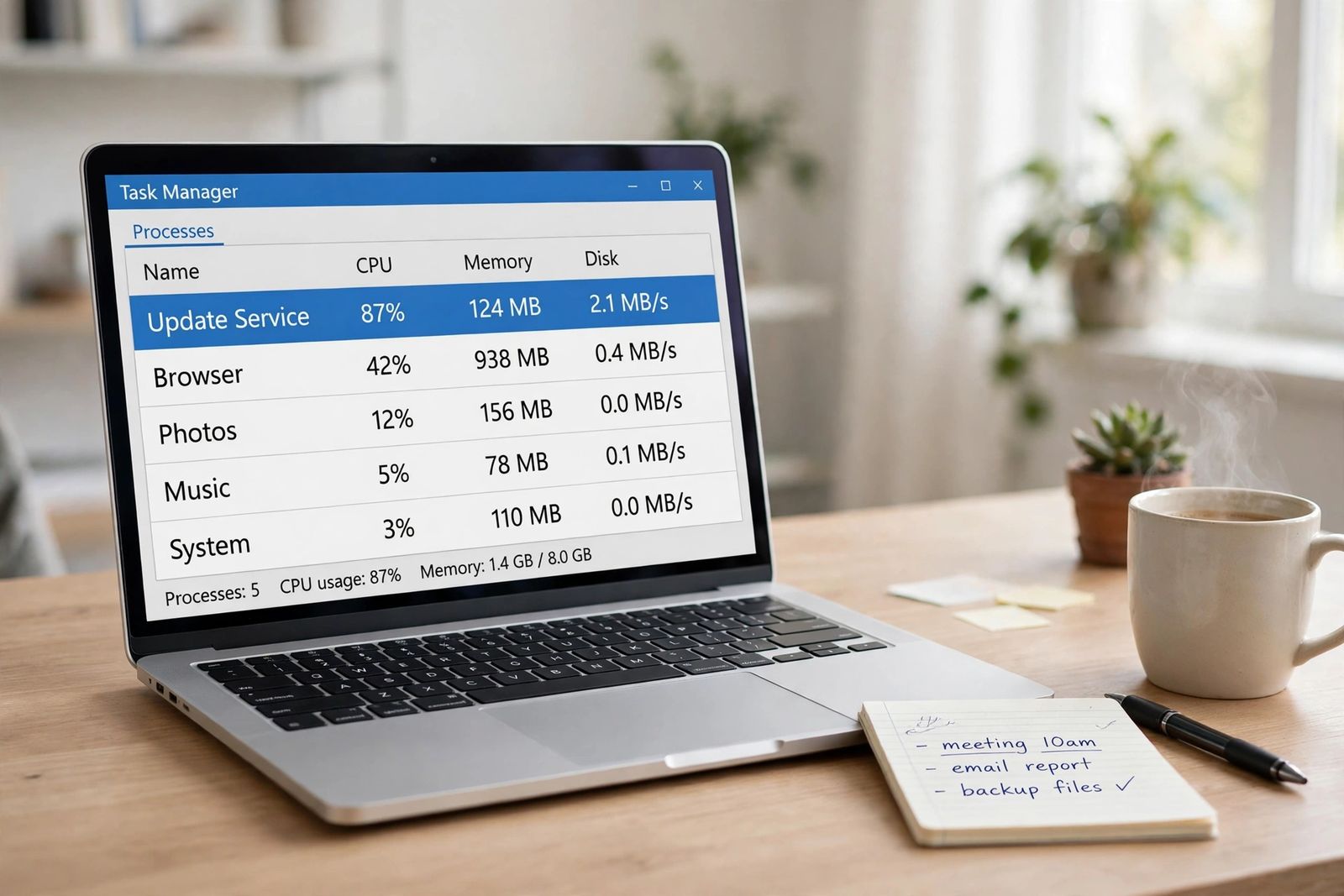
A loud laptop fan means the laptop is hot, or thinks it is — the fan speeds up because a processor or graphics chip is making heat faster than the cooling system can quietly remove it, and the most common reason is not dust but work: one process in Task Manager is holding the CPU high while you are doing almost nothing. So do not start by cleaning anything. Start by listening — a smooth rush of air, a thin electrical whine and a grinding rattle are three different sounds with three different causes and three different fixes — then open Task Manager with Ctrl + Shift + Esc, sort by CPU, and name the process at the top. If one process is pinned high, that process is your answer and the fan is just doing its job. Only when CPU is near idle and the fan still roars do you move on to airflow, dust, power mode and the maker’s own quiet settings, in that order.
First, listen: three sounds that get called “fan noise”
Almost every guide treats every loud laptop as one problem. It is at least three, and the fix for one does nothing for the others — cleaning a fan will not silence an electrical whine, and no power setting repairs a worn bearing. Spend ten seconds identifying which sound you actually have before touching a setting.
| Sound | What it sounds like | What is actually making it | First move |
|---|---|---|---|
| Fan noise | A smooth rush or whoosh of air that rises and falls gradually over seconds, louder at the vents | The cooling fan spinning faster against real heat — a busy process, blocked airflow, or dust slowing the heat’s escape | The Task Manager hunt in the next section |
| Coil whine | A thin, high-pitched electrical buzz, squeal or whine that changes pitch instantly when the workload changes — scrolling, opening a game menu, a frame rate jumping | Inductors in the CPU/GPU power-delivery circuits vibrating as current through them changes. It is an electrical sound, not airflow, and it has no moving part | Note when it happens (often high frame rates or charging); see the coil whine section — cleaning and fan fixes do not apply |
| Failing bearing | Grinding, rattling, clicking, ticking or buzzing that is rough and mechanical, often worst at certain speeds or when the laptop moves | The fan itself: a worn bearing or a blade catching on something | Stop diagnosing software — this is a fan replacement or a service visit |
The timing is the giveaway between the first two. A fan has weight and spins up and down over seconds as temperatures change. Coil whine reacts at the speed of the work itself: alt-tab out of a game or stop scrolling and the tone vanishes or drops in pitch immediately, while the fan is still spinning at its old speed. If the pitch jumps in step with what is on screen rather than with how warm the laptop feels, you are hearing the power circuits, not the fan.
Microsoft draws the service line in the same place. Its Surface fan behaviour page says fan operation is normal and expected, but that “noises like grinding, whining, or ticking are abnormal” and should never sound like something is broken — on a Surface, that is a service conversation, not a cleanup. Makers of gaming hardware describe coil whine differently: MSI and other manufacturers call the inductor vibration behind it a normal physical phenomenon rather than a hardware defect. Both can be true for different sounds on different machines — which is exactly why the sound has to be identified first, and why the rest of this article is about the first row of the table, the fan itself running loud against heat.
Step 1: The Task Manager hunt — find the process before you clean anything
This is the step most loud-fan guides bury third or fourth, behind cleaning, and it is the step that fixes the largest share of cases. Microsoft’s own fan guidance puts it in the same place: to see which apps have heavy CPU utilisation, open Task Manager and select CPU to sort tasks by their CPU utilisation, because processes with high utilisation are what create the need for the fan to be on — and closing the apps that are not needed lowers utilisation and reduces the need for assisted cooling.
Do it while the laptop is loud, not after it quiets down — and note that a busy process announces itself in the pointer too: if the mouse stutters only while the fan is roaring and the CPU is pinned, the computer is the bottleneck, not the mouse; a pointer that misbehaves on a quiet, idle machine belongs to the mouse’s own diagnosis in wireless mouse not working.
- Press Ctrl + Shift + Esc to open Task Manager. If it opens in the compact view, choose More details.
- On the Processes tab, click the CPU column header to sort highest first. Leave it open and watch for a minute — a one-second spike means nothing; a process that holds the top of the column is your suspect.
- Read the result against this table:
| What you see | What it means | What to do |
|---|---|---|
| One app you recognise sits high — a browser, a game, a video editor, a sync tool | That app is the heat source; the fan is behaving correctly | Close it, or close the heavy tab inside it, and listen: the fan should step down within a minute or two as the chip cools |
| A Windows process sits high — Windows Update, search indexing, an antimalware scan | Background maintenance is running. This is common and usually temporary — Microsoft notes a new device spends its first 24 hours checking for and installing updates and syncing files, with faster fans until it finishes | Let it finish. If the same process is high every day at every hour, treat the update or scan as stuck: restart, then run Settings > Windows Update and let everything install |
| A process you do not recognise sits high and stays high | Possibly unwanted software using your processor — the pattern a malware scan exists for | Do not end it blindly. Search the exact name first, then run a full scan in Windows Security > Virus & threat protection |
| Everything is near idle — total CPU in single figures — and the fan still roars | The heat is not coming from current work. The problem is the cooling path, a power setting, or the fan itself | Move to steps 2–5 below |
That last row is the one the cleaning-first guides get accidentally right and the process guides miss: a fan that is loud at genuine idle is telling you the cooling system cannot move the heat it already has, or that something is ordering the fan to run regardless of temperature. The Microsoft Q&A threads on loud Windows 11 fans are full of the puzzling version of this — fans at full speed while typing an email at 3–5% CPU — which is why “close some apps” is not a complete answer and the order below exists.
A related trap: do not end a process just because it is at the top. Ending Windows Update mid-install or a system process achieves nothing a restart would not do more safely. The hunt is for identification first — the name at the top tells you which section of this article is yours.
Step 2: Give the heat a way out — surface, vents and room
If the process hunt came back clean, check the path the heat takes out of the machine. A laptop pulls cool air in through vents — usually underneath and at the sides — and pushes hot air out, and anything covering the intake starves the whole system. Every major maker names the same offenders: beds, pillows, sofas and laps. Move the laptop to a hard, flat desk and the fan on some machines quietens within minutes, because the intake it was suffocating on is open again.
Keep clearance around the vents as well. HP’s overheating guidance asks for at least 15.25 cm (6 inches) of clearance around each vent — note that HP states this figure; it is the maker’s specification, not a universal standard, but the direction is the same for every brand: a laptop pushed against a wall, a printer or a stack of books is rebreathing its own hot exhaust.
Two environmental facts from Microsoft’s fan page round this step out. A room warmer than 25°C / 77°F makes the fan come on more often and spin faster for the same work, and charging itself generates heat — until the device is fully charged, additional cooling may be needed and the fan may run more. A laptop that is loud while fast-charging in a warm room and quiet an hour later on battery may have nothing wrong with it at all. And if the machine is also slowing down as it gets loud, heat is already costing performance — the ordered checks in why is my computer so slow pick up from that symptom.
Step 3: Clean the vents — from outside, in the makers’ way
Dust is real, and it is the most common physical cause: it mats over the heatsink fins and coats the fan blades until the fan has to spin much faster to move the same air. It is third here, not first, only because the two steps above are free, take two minutes, and rule out the causes cleaning cannot fix. A laptop that got gradually louder over a year of use, with a clean Task Manager, is the classic dust case.
Clean it the way the makers describe, which is from outside, with the case closed:
- Shut the laptop down completely and unplug it. Let it cool.
- Find the intake and exhaust vents — sides, back and underside, depending on the model.
- Hold a can of compressed air upright and use short bursts into the vents, at a slight angle, so loosened dust blows out rather than deeper in. Upright matters: a tilted or upside-down can can spray propellant, and makers warn against powerful airflow devices such as air compressors, which have damaged fan blades.
- Wipe the vent grilles with a dry microfiber cloth, wait a few minutes, and power back on.
Do not use a vacuum cleaner on the vents. Guides disagree here — one of HP’s own pages has suggested a vacuum while its overheating page says to use canned air — but Dell’s guidance is explicit that vacuums can generate static electricity, and static plus uncontrolled suction is a risk with no benefit over canned air. Follow the canned-air version.
What this clean cannot do is reach dust already packed onto the internal fins, and no maker gives owners steps for opening the laptop to clean or oil the fan — that is a service-centre job, and on many models opening the case has warranty implications. If the external clean changes nothing and the laptop is a few years old, the remaining physical causes — packed internal dust and thermal paste that has dried out between the chip and its heatsink, so heat transfers poorly and the fan compensates — are diagnosed and fixed by opening the machine, which is the service decision covered at the end of this article, not a first-weekend project.
Step 4: Turn the heat down at the source — power mode and the maker’s quiet mode
Windows cannot set a fan speed. There is no fan slider in Settings, because the firmware reads the temperature sensors and sets the speed itself. What Windows can change is how much heat the processor is allowed to make — and that is a real lever, because less heat means a slower fan.
Microsoft documents the power mode route directly: in Settings > System > Power & battery > Power mode, setting the mode to Recommended on a Surface “helps limit the fan speed and provides quieter operation”, while Better performance and Best performance let the device run quicker, warmer and louder. On other Windows laptops the same setting offers Best power efficiency, Balanced and Best performance — HP’s notebook fan page gives the same advice in its own words, “select either Balanced or Best power efficiency.” If your laptop lives on Best performance, it will hold high processor speeds through light work and pay for it in fan noise all day. Balanced is the honest default; drop to Best power efficiency when quiet matters more than speed. If the power mode control is greyed out, Microsoft notes a custom power plan may be selected — switch to the Balanced plan in Control Panel’s Power Options and the setting returns.
On top of the Windows mode, most makers ship their own thermal profile, and it can override the Windows choice:
- Lenovo: Quiet mode in Lenovo Vantage or Legion Zone, or Fn + Q on models that have the shortcut, which cycles the Intelligent Cooling modes. ThinkPads largely follow the Windows power mode instead.
- HP: the Quiet thermal profile in HP Command Center, where the fan turns off or runs minimally at the cost of some CPU performance; on OMEN gaming laptops the equivalent is ECO mode in OMEN Gaming Hub.
- Dell: the Quiet thermal setting in Dell Power Manager or Dell Optimizer — Dell is plain that it may reduce performance and raise the case temperature slightly, which is the trade every quiet mode is making.
- ASUS: Whisper mode in MyASUS, or Silent in Armoury Crate on ROG and TUF models.
Use the maker’s mode for the machine in front of you rather than a third-party fan utility — no manufacturer sends owners to one, and an unsupported tool fighting the firmware’s own temperature control helps neither the noise nor the laptop. While you are in settings, a trim of the startup list pays off here too: every app that launches at sign-in is background load the fan has to cool, and Task Manager > Startup apps lets you disable the ones you do not need without uninstalling anything. If the laptop has a second problem once it is running — plugged in but refusing to charge, for instance — that is a separate fault with its own order of checks in laptop plugged in but not charging.
A correction: the “system cooling policy” fix is mostly a ghost
One step appears in a large share of loud-fan guides, presented as a normal Windows 11 fix: dig into Control Panel’s advanced power settings, find Processor power management > System cooling policy, and switch it from Active to Passive so the processor slows down before the fan speeds up. Treat that advice as out of date. The Active/Passive definitions come from Microsoft’s processor power management documentation written for the Windows 7 era, Microsoft marks the setting as hidden, and many current laptops do not show it at all — Microsoft does not document it as a Windows 11 control. If the setting happens to exist on your machine, changing it is harmless, but a fix most readers cannot find is not a fix: the supported levers on a current laptop are the Windows power mode and the maker’s own thermal profile in step 4. Guides still leading with the cooling-policy tweak are recycling a setting Windows has been retiring for years.
Step 5: Updates — Windows, drivers and, carefully, the BIOS
Out-of-date firmware can leave a fan following an old, crude temperature table. All four of HP, Dell, Lenovo and ASUS list a BIOS or firmware update among their fan-noise fixes, and Lenovo ties some fans that run faster than expected to a fault in the BIOS or embedded-controller thermal logic — its support article suggests restoring BIOS defaults (F9 in the BIOS on the models it covers) as part of the fix. Windows updates and driver updates come first, because they are routine: Settings > Windows Update, install what is offered, then Advanced options > Optional updates for driver updates, and restart.
BIOS updates come from one place only — your exact model’s support page on the maker’s own site, or the maker’s support app — and they deserve the caution HP itself prints: installing the wrong BIOS could cause your computer to stop working, and the machine must not be restarted or powered off until the update finishes. This is a step to take when the maker’s support page for your model lists a fan, thermal or embedded-controller fix, not a ritual to perform because a guide mentioned it. Never take a BIOS or driver from a driver-updater utility or a download site.
If the sound is coil whine
Return to the second row of the sound table for a moment, because it is the one most often misdiagnosed as a dying fan. Coil whine is the vibration of inductors — coils in the power-delivery circuits for the CPU and graphics chip — as the current through them changes. Its fingerprints are a pitch that tracks the workload instantly rather than the temperature gradually, appearing or worsening at very high frame rates in games (an undemanding game rendering hundreds of frames per second can whine harder than a heavy one), and audibility that depends heavily on a quiet room.
No cleaning, power mode or fan replacement fixes it, because no fan is involved. What can reduce it is reducing the electrical pattern causing it: capping a game’s frame rate to your screen’s refresh rate is the standard test — if the whine drops or changes the moment the cap applies, you have confirmed the source. Beyond that, coil whine is generally treated by the graphics and motherboard makers who address it as a normal physical phenomenon rather than a failure — but follow your own maker’s line where it differs, since Microsoft, for example, lists whining among the abnormal sounds for Surface devices and routes it to service. A whine that is new, loud and on a machine under warranty is worth one support conversation; a faint whine that has always tracked frame rate is a characteristic, not a breakdown.
When to stop and hand it over
Stop working through software steps and go to the maker’s warranty service or a repair shop when any of these is true:
- The sound is grinding, rattling, clicking or ticking — the bearing row of the table. That is a mechanical part wearing out, and the fix is a replacement fan. Microsoft’s line for its own hardware is the same: at no point should the fan sound like something is broken.
- The fan runs at full speed constantly, even at genuine idle with the laptop cool to the touch, after the process hunt, the power-mode change and the updates — Lenovo’s support position is that hardware failure is possible at that point, and a faulty temperature sensor or embedded-controller fault is not a settings problem.
- The laptop shuts down from heat, or throttles hard in light tasks, despite clean vents — the cooling system is no longer moving the heat, and continued use risks the processor the fan is failing to protect. A machine that restarts outright instead of shutting down belongs in computer keeps restarting, which separates heat cut-outs from power-supply and driver causes.
- The maker’s built-in fan diagnostic fails: HP’s runs from its UEFI diagnostics (Esc then F2 at start-up, Component Tests), Dell’s from SupportAssist or the F12 menu, ASUS’s from System Diagnosis in MyASUS. A failed test is the machine naming the part for the service conversation — take the error code with you. The same pre-Windows menus carry the other component tests too: the keyboard test in HP’s Component Tests list is the one used to prove a keyboard fault before Windows loads in some keyboard keys not working.
One related boundary is worth keeping: a PC that shows fans spinning and lights on but produces no picture at all is not a fan problem, whatever it sounds like — that is a broken link in the display chain, worked through link by link in monitor no signal.
Frequently asked questions
Why is my laptop fan so loud when I am not doing anything? Because “nothing” is usually something: a background process, an update, indexing or a scan holding the CPU up. The Task Manager hunt in step 1 names it — sort Processes by CPU while the laptop is loud. If CPU is genuinely near idle and the fan still roars, work steps 2–5: airflow, dust, power mode, updates.
Is a loud laptop fan dangerous? The noise itself is not — it is the cooling system removing heat, which is its job, and loud fans during gaming, video calls, exports or the first day of updates are normal behaviour. What deserves attention is the pattern around it: loud at idle long after work ends, loud with the laptop cool to the touch, any grinding or rattling, or shutdowns from heat.
Why did my laptop fan suddenly get loud? Something changed: a process or update started, a browser tab went wrong, or dust that had been building for months finally restricted airflow past a threshold. The suddenness is the clue — check Task Manager first, and if a software change (an update, a new app) arrived at the same moment, it is the prime suspect.
How often should I clean the vents? Asurion’s guidance is a quick external clean about every six months, more often in a dusty environment or a home with pets. External cleaning is the owner-level job; internal cleaning is a service job on most models.
Will a cooling pad quiet my laptop? It can help a laptop whose intakes are starved on a desk, by lifting it and adding airflow — but no manufacturer promises a pad lowers the laptop’s own fan noise, and pads have fans of their own, rated anywhere from near-silent to louder than the laptop. A pad does nothing for a runaway process, packed internal dust or a failing bearing.
Can I just turn the fan off or slow it down with an app? No, and you should not want to: the firmware sets fan speed from temperature sensors precisely so the processor cannot cook itself, Windows offers no fan-speed control, and the makers’ quiet modes — the supported route — work by capping the heat, not by overriding the fan. A fan stopped by force is a laptop overheating in silence.
This article is general information, based on the Microsoft Support, HP, Lenovo and maker guidance linked above and checked in November 2026. Model-specific details — quiet-mode names, shortcuts such as Fn + Q, diagnostic menus and BIOS behaviour — vary by brand and model; your laptop’s support page is the authority for your exact machine. If the sound is mechanical, or the laptop is under warranty, prefer the maker’s service route over opening the case.