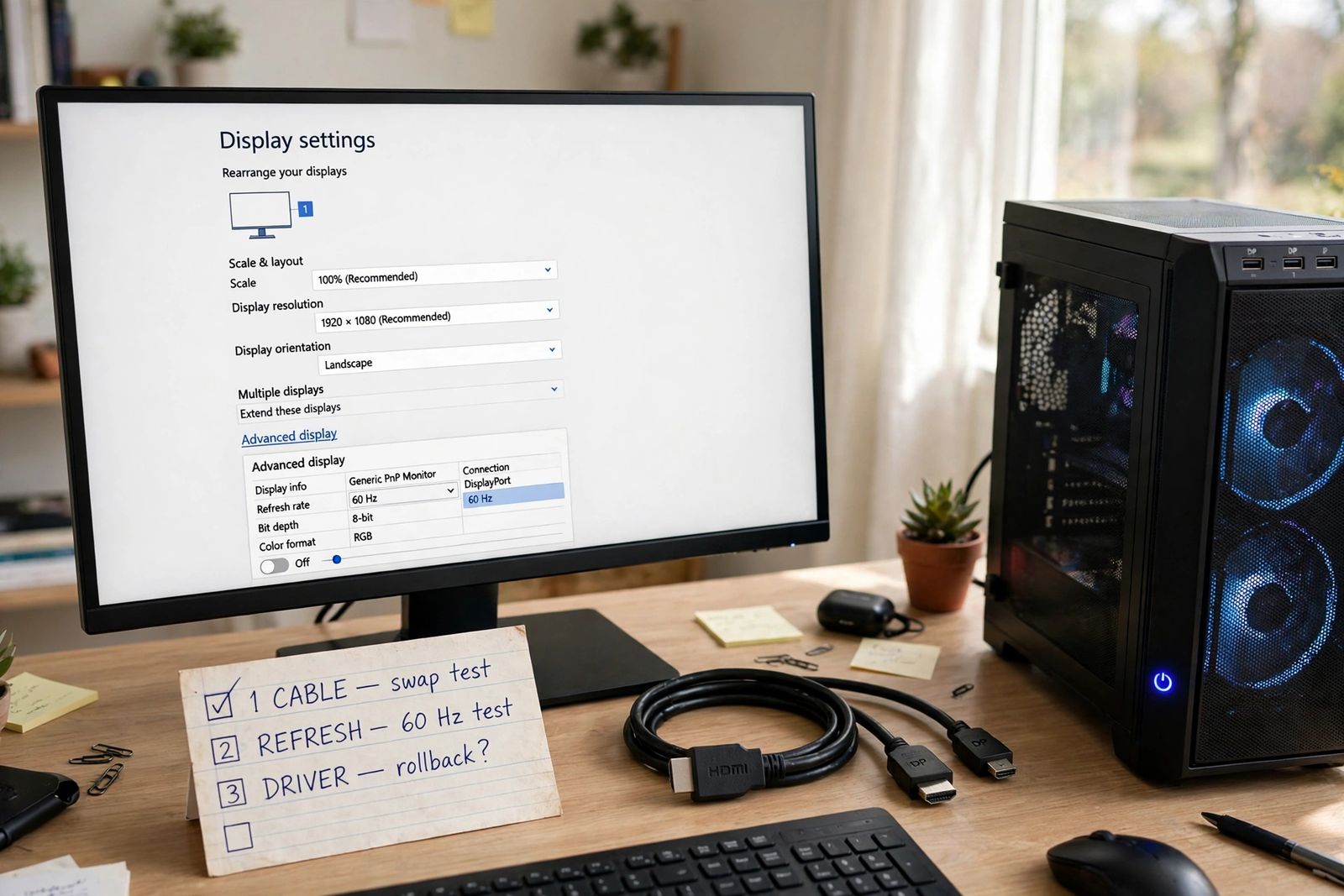
A flickering monitor — one that has a picture, but the picture pulses, shimmers, blinks to black for a second, or flashes in games — is almost always failing at one of three links: the cable carrying the signal, the refresh rate the PC is asking the chain to carry, or the graphics driver producing the signal. Do not work through those three at random, and do not start by reinstalling the driver. First read the pattern — where the flicker shows decides which link is most likely — then run the three-way test in its fixed order: 1) cable, 2) refresh rate, 3) driver, testing after each step and stopping the moment the flicker stops. The step that stops it names the link that was failing, and the pattern table below tells you when to skip straight to the games-only fix — variable refresh rate — instead.
Flickering is its own fault — separate it from its neighbours first
Three monitor problems get mixed up, and they do not share fixes:
- The monitor has a picture, and the picture flickers. This is the fault this article covers: the chain is alive end to end, but something in it is unstable — the cable, the mode being carried, or the driver.
- The monitor has no picture at all and says “No Signal.” A different fault: one link in the chain is dead, not unstable. That case has its own ordered sequence — cable, input source, port, RAM reseat, known-good swap — in monitor no signal.
- A second monitor never appears in Windows at all. Also different: the connection handshake never completed, so there is no picture to flicker. That detection failure is worked link by link in second monitor not detected.
One boundary check before the test: is this a separate monitor, or a laptop’s built-in screen? The cable step below applies to a separate monitor. On a built-in screen, skip step 1 and start at the pattern split and step 2 — and if that screen’s flicker changes when you move the lid, the suspect is the laptop’s internal display cable, which is a repair job, not a setting. If that built-in screen is not flickering but stays completely black while the laptop runs, it has left this fault altogether — laptop screen is black runs the test sequence that tells a screen fault from a laptop that never started.
Step 0: Read the pattern — it decides where the test starts
Before changing anything, watch where the flicker actually shows. This takes a minute and it is the most valuable minute in the whole diagnosis, because each pattern points at a different link — and two of the patterns let you skip most of the test.
| Where the flicker shows | What it proves | Go to |
|---|---|---|
| Everywhere — desktop, BIOS/start-up screens, and the monitor’s own menu | The fault exists before Windows and its driver load, or inside the monitor itself | Step 1 (cable), then the monitor-isolation checks at the end |
| Desktop and apps, but only after Windows loads | The hardware chain carried the start-up screens cleanly; what changed at sign-in is Windows’ settings and driver | The Task Manager split below, then step 3 (driver) |
| Only in games — desktop, browsing and video are clean | The desktop mode is stable; the game-only features are the difference: variable refresh rate and high frame rates | The games-only section (VRR) first |
| Only at high refresh rates — steady at 60 Hz | The chain works at a low mode and fails at a high one: bandwidth — the cable or port cannot carry the bigger mode cleanly | Step 1 (cable) with the 60 Hz result already in hand, then step 2 |
| Only at low brightness — eases or vanishes at full brightness | Points at the backlight’s dimming behaviour rather than the signal | Raise brightness as a test; see the low-brightness note after step 3 |
| When a heater, kettle or similar appliance switches on | The pattern follows the power circuit, not the picture | The power check in step 1 |
Two of these patterns rest on maker checks, not guesswork. Samsung’s own flicker guide uses the monitor’s on-screen menu as the divider: if the menu is fine, so is the monitor, and the fault sits in the connected device or the cable. Dell’s built-in self-test works the same way from the other side: if the self-test passes, the issue is not the monitor — check the system, BIOS, graphics card and drivers. And a flicker that is present on the BIOS or start-up screens is present before the Windows driver exists in the session, which is why “everywhere, including BIOS” sends you to hardware first and “only after Windows loads” sends you to the driver.
The Task Manager split (for the after-Windows pattern)
If the flicker starts only once Windows is up, run Microsoft’s ten-second split before touching the driver. Press Ctrl + Shift + Esc to open Task Manager and watch it while the flicker happens. Microsoft’s screen-flickering guide divides the cause exactly here:
- Task Manager flickers along with everything else — a display driver is probably causing the problem. Go to step 3.
- Task Manager stays steady while the rest of the screen flickers — an incompatible app is probably causing the problem. Update that app, or uninstall it and test; Microsoft’s order is update first, then uninstall one app at a time, restarting and checking after each, until the flicker stops.
This split matters because the commonest advice on the internet — “update your graphics driver” — is only the right branch half the time. If Task Manager is steady, no driver change will fix an app that is forcing the rest of the screen to repaint.
The three-way test
Run these in order. Change one thing at a time, test after each change on the same screen content that flickered before — the same game scene, the same desktop — and stop as soon as the flicker stops. Steps 1 and 2 need no downloads and open nothing. Step 3 is last on purpose: most flicker is already fixed by then, and a driver reinstall done first can mask which link was actually failing.
| Step | Link being tested | The test, in brief | If the flicker stops, the link was |
|---|---|---|---|
| 1 | Cable (and port, and power) | Reseat both ends; swap in a known-good cable; try a second port; plug the monitor into a different outlet | A half-seated, damaged or under-rated cable, one dead port, or an unstable power feed |
| 2 | Refresh rate (and resolution) | Set the native resolution; test at 60 Hz; then set a rate the monitor and PC both support | A mode the chain could not carry, or a rate outside the panel’s supported range |
| 3 | Driver (and its game features) | Restart the driver; roll back if an update started this, otherwise update from the maker; test with VRR off | A broken or newly updated driver, or a variable-refresh mismatch |
Step 1: The cable — reseat it, swap it, simplify the path
Samsung and Dell both put the cable first, for the same reason: it is the cheapest link, the most commonly disturbed, and the one whose failure imitates every other fault on this page. A cable can be half-seated, pinched behind a desk, internally damaged with no visible mark, or simply not rated for the mode it is being asked to carry — a cable that is flawless at 60 Hz can drop the signal at a high refresh rate, which is why the “only at high refresh” pattern in the table points here.
- Reseat both ends. Unplug the video cable at the PC and at the monitor, check the plugs and the cable for damage or pinching, and plug both ends firmly back in. On DisplayPort plugs, press the latch to remove and push until it clicks when refitting. Samsung’s guide starts with exactly this unplug-and-replug, and adds the check people skip: make sure the cable is not trapped between the desk and the wall or under a chair leg.
- Swap in a known-good cable. Borrow one from a setup that works, of the same type. If the flicker stops, the old cable was the link — however healthy it looked. Samsung’s wording is the rule: if there is damage, or the flickering continues after reseating, replace the cable with one that works.
- Try a second port — a different output on the graphics card, and a different input on the monitor if it has one, re-selecting that input on the monitor afterwards. One output can fail while the card is fine. While you are simplifying, take out anything between PC and monitor for the test — a dock, hub, adapter or splitter — and connect one direct cable. Adapters deserve suspicion: many HDMI-to-DisplayPort and DisplayPort-to-HDMI adapters carry a signal in one direction only.
- Check the power feed in the same step. Samsung lists an unstable or inconsistent power supply as a flicker cause and gives the test: plug the monitor into a different outlet — if the flickering stops, the original circuit was overloaded or inconsistent. High-current appliances such as heaters feed back into a shared circuit and can make a monitor flicker when they switch on; Dell makes the matching point about the power strip — if another device shares the strip with the monitor, remove it and test — and about electromagnetic fields from nearby equipment as a possible cause. Lenovo’s monitor guidance adds a concrete separation for interference: move equipment that produces magnetic fields away, and place devices at least 305 mm (12 inches) apart.
If the flicker survives a known-good cable, a second port, a direct connection and a different outlet, the cable link is cleared. Do not buy a third cable. Move to the mode the cable is being asked to carry.
Step 2: The refresh rate — test at 60 Hz, then set a supported rate
The refresh rate is how many times per second the monitor draws a new image. Ask the chain for a rate it cannot carry — above the panel’s specification, above the cable’s rating, or above what the port supports — and the picture does not refuse politely; it flickers, distorts or drops out. Samsung states the failure directly: selecting a value your monitor does not support can cause flickering, stretching distortion or a black screen.
Work it in this order:
- Set the native resolution first: Settings > System > Display, and choose the resolution marked (Recommended). Samsung’s advice is to run at the native resolution and adjust scaling in the operating system if text looks too large or small, rather than running a non-native resolution.
- Test at 60 Hz: in the same Display settings, open Advanced display and set the refresh rate to 60 Hz. This is a test, not the final setting. Read the result:
- Flicker gone at 60 Hz, back at the high rate — the mode was the problem: the chain (most often the cable, step 1) cannot carry the high mode cleanly, or the high mode itself is outside what the panel supports. The fix is a cable rated for the mode you want, or staying at a supported rate — not a driver reinstall.
- Flicker unchanged at 60 Hz — the mode is cleared. The fault is not bandwidth; move to step 3.
- Set the working rate properly. Choose the highest refresh rate that the monitor and the connected device both support — that is Samsung’s formulation, and Lenovo’s monitor guidance carries the warning that belongs with it: set the highest noninterlaced refresh rate supported by your monitor and the video controller, because using a resolution or refresh rate the monitor does not support might damage it — check the monitor’s documentation for its supported rates.
- Turn off any monitor overclock. If your monitor’s own menu has an Overclock setting that raises the rate above the panel’s specification and it is on, turn it off for the test. Dell lists this as a flicker step in its own right: operating the monitor at a refresh rate higher than the panel specification can cause flicker. Dell gives the same treatment to motion features — if a Moving Picture Response Time (MPRT) or Ultra Low Motion Blur (ULMB) feature is on, try turning it off.
Two popular claims get corrected in this step, because both send people the wrong way — see the corrections section below: the driver you update for flicker is the graphics driver, not the monitor driver; and “just choose the maximum hertz” is not safe advice when the maximum on offer exceeds what the panel, cable or port supports.
Step 3: The driver — restart, roll back or update, in that order
The driver is the link that produces the signal and sets its timing, so a corrupted install or a bad update produces exactly this symptom — a healthy monitor and cable, and a picture that will not sit still. Microsoft’s order is deliberate, and it is not “download the newest driver first”:
- Restart the driver: press Windows logo key + Ctrl + Shift + B. Microsoft lists this as the first move — in some cases it fixes the issue outright; you will see a brief blink, which is normal. If the flicker was a stalled driver rather than a broken one, you are done.
- If the flicker began with an update, roll back: Device Manager > Display adapters > right-click your adapter > Properties > Driver > Roll Back Driver, then restart. Microsoft’s condition is explicit: if Windows Update recently made updates to your device, roll back the display driver. A flicker that started the morning after an update is the textbook case, and installing an even newer driver over a bad one is not the same fix.
- Otherwise, update — from the maker: use Windows Update, or download the current driver from the PC maker or the graphics maker (NVIDIA, AMD or Intel). Microsoft notes you may need to contact the PC or display adapter manufacturer for the most recent driver for your system. Get it from there — not from a driver-updater utility. No maker sends owners to one, and an updater that installs the wrong package can leave you with no working display driver at all.
- Uninstall only if the first three fail: Device Manager > Display adapters > your adapter > Properties > Driver > Uninstall Device, ticking Attempt to remove the driver for this device, then restart — Windows attempts to reinstall a driver, and you then install the maker’s package, downloaded before you uninstall.
Note what this step is not: it is not updating the “monitor driver” under Monitors in Device Manager. That is the first flaw corrected below, and it is the headline tip of a top-ranking guide on this keyword.
Games only: variable refresh rate is the first suspect
If the desktop is clean and the flicker lives only in games — classically as brightness pulsing in dark scenes, menus and loading screens, where the frame rate swings or drops low — do not run the desktop steps again. The difference between the desktop and a game is that the game switches on variable refresh rate (VRR): G-Sync on NVIDIA cards, FreeSync on AMD. The monitor stops refreshing at a fixed rate and starts matching the game’s frame rate, and that matching is where this flicker lives.
Test it directly: turn VRR off and play the same scene.
- On NVIDIA: right-click the desktop, open NVIDIA Control Panel, expand Display, select Set up G-SYNC, and uncheck Enable G-Sync, G-Sync Compatible, then Apply. That is the exact path Samsung gives in its flicker guide.
- On AMD: turn FreeSync off in AMD Software, or in the monitor’s own menu.
Read the result plainly. If the flicker stops with VRR off, VRR was the trigger — the monitor is not broken. Dell is unusually direct about why: on several of its VA gaming monitors — it names models including the S2422HG, S2722DGM, S3222DGM, S3222HG and S3422DWG — G-Sync is not supported as G-Sync Compatible, and Dell states that flicker is expected if G-Sync is turned on; the fix it gives is to turn G-Sync off, or use FreeSync with an AMD card. The general rule travels: check whether your exact monitor is certified for the VRR mode you are enabling on your card. Your permanent choices are to leave VRR off, or keep it on and hold the game’s frame rate inside the monitor’s VRR range with a frame-rate cap — either is a setting, not a repair. If the flicker continues with VRR off, go back to the three-way test: a game is also where high refresh rates and high bandwidth live, so steps 1 and 2 still apply.
A note on low-brightness flicker
One pattern does not belong to the three links: a faint shimmer that appears when the monitor’s brightness is turned down and eases or disappears at full brightness. That pattern points at how the backlight dims, not at the signal — the cable, rate and driver can all be healthy while it happens. The test costs nothing: raise the monitor’s brightness to full and watch the same content. If the flicker goes, you have isolated it to the brightness behaviour of that panel; lowering the brightness again in the graphics settings rather than the monitor’s own control is the usual workaround, and a panel that does this from new is a return-window conversation with the retailer, not a driver hunt.
Two claims to be careful with
Guides ranking for this keyword repeat two things that are wrong or only half true, and each one wastes a reader’s time:
- “Update your monitor driver in Device Manager.” A top-ranking retailer’s guide makes this its first tip — Device Manager > Monitors > the monitor’s Driver tab > Update Driver. But every maker’s flicker guide aims at a different driver: Microsoft, Dell and Samsung all work on the display adapter (graphics) driver — roll it back, update it, uninstall it — under Display adapters. The monitor entry’s driver is rarely the flicker link, and updating it first sends you through a restart and a “fixed?” check on the wrong part while the graphics driver — the one that sets the signal’s timing — goes untouched.
- “Choose the maximum hertz your monitor can handle.” The same guide’s refresh-rate tip, and it is only half the rule. Samsung’s version is the highest value the monitor and the connected device will both support; Lenovo warns that an unsupported rate might damage the monitor; Dell warns that running above the panel specification — an overclocked rate — itself causes flicker. A maximum offered by a menu can exceed what the cable or port can carry, which is precisely the “fine at 60 Hz, flickers at the top rate” pattern. Set a supported rate, prove it at 60 Hz first, and treat anything above the panel’s specification as a suspect, not a target.
A third habit deserves the same caution: forum answers that name a single cause from a single machine — heat and dust, one old driver’s clock behaviour, one adapter — describe that poster’s PC, not yours. The pattern split at the top of this article exists so a single anecdote cannot send you opening a case or replacing a card before the cable has been tested.
When to stop testing
Stop and hand it over — to the maker’s warranty service if it is covered, or the retailer inside the return window — when any of these is true: the flicker appears in the monitor’s own menu or self-test with nothing connected (Samsung’s divider: if the menu or messages also have the issue, request service; Dell’s: a self-test result separates the monitor from the system); the monitor flickers on a second computer with a known-good cable, at a supported rate; or the flicker is in the BIOS screens on more than one cable and port and the monitor’s own menu is clean — at that point both ends have been isolated by turns and what remains is the PC’s graphics output or the monitor’s input side, which is a service diagnosis. Do not reinstall Windows for a flickering monitor: it cannot repair a cable, a mode the chain cannot carry, or a panel, and every check above can be done without touching your files.
Frequently asked questions
Why does my monitor flicker? Because one of three links is unstable: the cable carrying the signal, the refresh-rate mode the chain is being asked to carry, or the graphics driver producing the signal. Read the pattern first — everywhere including the BIOS points at hardware, only after Windows loads points at the driver or an app, only in games points at variable refresh rate — then run the three-way test in order: cable, refresh rate, driver.
Why does my monitor only flicker in games? Because games switch on variable refresh rate (G-Sync or FreeSync) and push high frame rates the desktop never asks for. Turn VRR off and replay the same scene: if the flicker stops, the VRR pairing was the cause — Dell notes some of its monitors are not G-Sync Compatible and that flicker is expected with G-Sync on. If it continues, test the cable and the rate at 60 Hz, because games are also where bandwidth runs out.
Can a bad cable really cause flickering with no visible damage? Yes. Cables fail internally and get pinched out of sight, and both Samsung and Dell list a loose or damaged cable among the common causes. The proof is the swap, not the inspection: if a known-good cable stops the flicker, the old cable was the link, however perfect it looked.
Why is it fine at 60 Hz but flickering at a higher refresh rate? Because the higher mode needs more bandwidth end to end — card port, cable and monitor input must all carry it. A chain that manages 60 Hz can fail at the higher rate on the cable alone. Fit a cable rated for the mode you want, confirm the rate is one the monitor and device both support, and turn off any monitor overclock above the panel’s specification.
Should I update the monitor driver or the graphics driver? The graphics driver — the display adapter in Device Manager. That is the driver Microsoft, Dell and Samsung all direct you to for flickering: restart it with Windows + Ctrl + Shift + B, roll it back if an update started the problem, otherwise update it from Windows Update or the maker’s own site. The separate monitor entry in Device Manager is not the flicker fix ranking guides sometimes present it as.
This article is general information, based on the Microsoft Support, Dell Support, Samsung Support and Lenovo Support pages linked above and checked in November 2026. Menu labels, VRR certification and supported rates vary by model — your monitor’s manual and support page are the authority for your exact hardware.