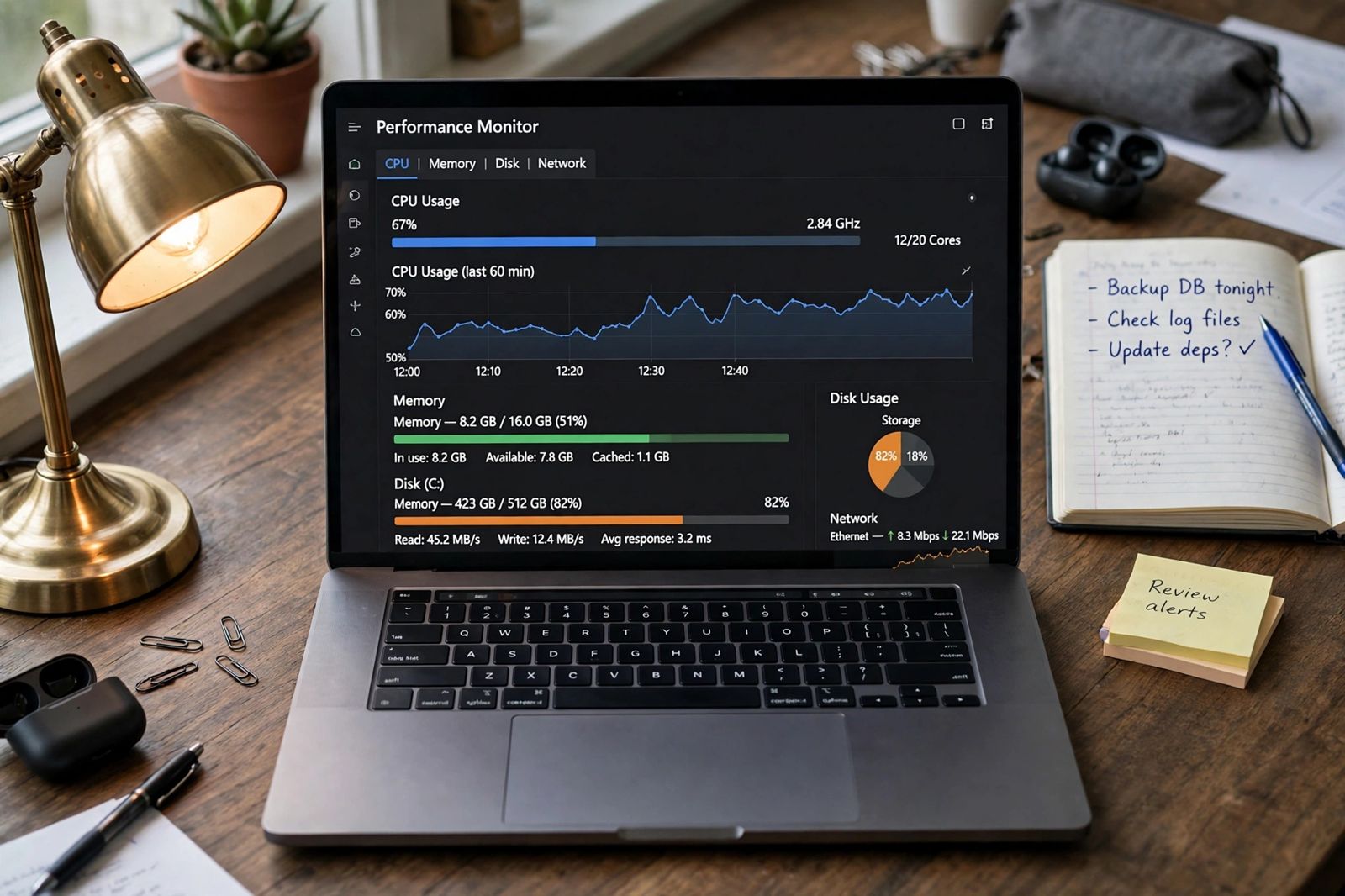
Your computer is most likely slow for one of a short list of reasons, in roughly this order: too many apps launching at startup and running in the background, a system drive that is nearly full, memory (RAM) pressure from too many apps and browser tabs, a background update or scan, malware, outdated Windows or drivers, or — on an older machine — a mechanical hard drive or a drive that is starting to fail. Do not try fixes at random. Start with Task Manager: if one reading — CPU, Memory or Disk — is pinned high while the computer feels slow, that reading names your cause, and the checklist below works through the causes in the order that rules the common ones out fastest.
Slow computer or slow internet? Check this first
These two problems feel identical and have completely different fixes, so separate them before anything else. Open a program that does not use the internet — a document, a photo, the file explorer. If that is slow too, the computer itself is the problem and this article applies. If offline programs respond normally and only websites, videos and downloads crawl, the connection is the problem: see Wi-Fi keeps disconnecting if the connection also drops, and test again closer to the router or on a wired connection before changing anything on the PC. A browser that alone is slow, on a computer that is otherwise fine, is usually a browser problem — too many tabs and extensions, or a cache that needs clearing; how to clear cache covers that job for the main browsers. And if the computer produces no picture at all — the monitor simply says “No Signal” while the PC’s lights are on — that is not slowness but a broken link in the display chain, which has its own ordered test sequence: monitor no signal. A related but separate fault is a second screen that Windows never lists while the first works normally — that detection chain is worked in order in second monitor not detected.
The ordered diagnostic checklist
Work down this list in order. Each step names the exact place to look, the reading to take, and what that reading points to. Stop when you find a cause, fix that one thing, restart, and test again before moving on — changing five things at once tells you nothing about which one mattered.
| Step | Where to look | Reading that points to a cause | Cause it names |
|---|---|---|---|
| 1. Restart properly | Start > Power > Restart | Fast after restart, slow again within minutes or hours | Something that loads at startup or builds up in memory — go to steps 2 and 4 |
| 2. Read Task Manager live | Ctrl + Shift + Esc > Processes, while the PC is slow | One column — CPU, Memory or Disk — stays near the top, and one app sits at the top of that column | That app or process is the bottleneck right now |
| 3. Check the totals | Task Manager > Performance | CPU, Memory or Disk consistently above about 80% | The machine is being asked for more than it has — Intel uses consistently above 80% as its over-capacity signal |
| 4. Count the startup load | Task Manager > Startup apps | Several apps marked High startup impact that you do not need at sign-in | Startup overload |
| 5. Check free space | Settings > System > Storage | System drive nearly full, or the bar shown almost entirely used | Low disk space |
| 6. Check memory pressure | Task Manager > Performance > Memory, with your normal apps open | Memory continually above about 80%, or repeatedly hitting 100% | Not enough RAM for your workload — Intel’s stated signal for adding RAM |
| 7. Check what is pending | Settings > Windows Update | Updates downloading, installing, or waiting for a restart; optional driver updates offered | A background update, or outdated software and drivers |
| 8. Scan for malware | Windows Security > Virus & threat protection | A threat found, or high CPU/Disk use by a process you do not recognise and did not install | Malware or unwanted software |
| 9. Check the drive itself | Task Manager > Performance > Disk; Settings > System > Storage | Disk reads as HDD (not SSD) and Disk sits at 100% during ordinary tasks, or the drive’s health status in its maker’s tool reports warnings or failure | An old mechanical drive, or a failing drive — back up first |
That table is the whole method. The sections below explain each cause, why it slows the machine, and the fix Microsoft itself documents for it.
1. A background process is using the machine right now
Microsoft’s own performance guide includes monitoring resource usage for exactly this reason: a single heavy process can slow everything else. Open Task Manager with Ctrl + Shift + Esc while the computer is misbehaving — not after it recovers — and sort the Processes tab by CPU, then by Memory, then by Disk. A brief spike means little; a process that holds the top of a column for minutes at a time is your suspect. If it is an app you recognise, close it and see whether the machine recovers. If the name is unfamiliar, search the exact name before ending or removing anything — plenty of legitimate Windows processes have unfriendly names, and ending a system process achieves nothing a restart would not do more safely.
Restarting properly matters here. Microsoft’s closing advice in the same guide is to close unused apps and browser tabs and, if performance does not improve, restart the PC and afterwards open only the apps you need. One boundary case: if the machine responds normally but only the pointer stutters, freezes or cuts out, the bottleneck is the mouse’s own link rather than the computer — wireless mouse not working splits that fault by connection type, USB dongle versus Bluetooth, before any Windows setting is touched. A machine that is fast after a restart and slows down again over hours usually has a program that leaks memory or a background task that grows — the live Task Manager reading, taken when it is slow, is how you catch which one.
2. Too many startup apps
Apps that launch at sign-in compete for CPU, memory and disk during the busiest minutes of the machine’s day, and many keep running in the background afterwards. Microsoft documents the fix directly: open Task Manager, choose Startup apps, right-click the apps you do not need starting automatically, and select Disable. Disabling is not uninstalling — the app still opens normally when you click it; it simply stops pre-loading itself every morning.
Use the Startup impact column as your measurable check. It is Windows’ own rating — High, Medium or Low — of how much each app costs at sign-in. Work through the High-impact entries you recognise and do not need immediately: game launchers, chat apps, media helpers and updaters are the usual residents. Leave security software and anything you do not recognise alone until you have looked it up. If your laptop also has a power problem once it is running, that is a separate fault with its own checks — see laptop plugged in but not charging.
Microsoft also lets you stop apps running in the background after they start: in Settings > Apps > Installed apps, open an app’s Advanced options and set Let this app run in the background to Never for apps that have no reason to work when you are not using them.
3. The system drive is nearly full
Microsoft states the mechanism plainly: low disk space can reduce system performance, because Windows needs room on the drive for temporary files, updates and its own working space. Check your reading in Settings > System > Storage, which shows how full the system drive is and what is using it.
How full is too full? Microsoft does not publish a percentage, so treat the figures that circulate as practical guidance rather than a specification — and note whose guidance they are. Intel’s slow-PC guide advises leaving 10 to 15 percent of a hard disk drive free for virtual memory and temporary files, and says SSDs work best with 25 to 30 percent of capacity available. You do not need to hit those numbers exactly; the direction is what matters — a drive with almost nothing free is a performance problem in its own right, whatever else is also wrong.
Free space the way Microsoft recommends, with built-in tools rather than third-party cleaners:
- Run Storage Sense: Settings > System > Storage > Storage Sense > Run Storage Sense now, to delete temporary files automatically.
- Clear temporary files manually: Settings > System > Storage > Temporary files, tick what you are happy to remove, then Remove files.
- Uninstall unused apps: Settings > Apps > Installed apps, and remove the large ones you no longer use — this frees space and cuts background activity at the same time.
- Move, do not just delete: photos and video collections usually dwarf everything else; moving them to an external drive or cloud storage frees more space than any cleanup tool.
Skip registry cleaners and “one-click optimiser” downloads. They are not part of Microsoft’s documented route for any of this, the registry is not on the list of causes above, and an unknown cleaner is itself a common way unwanted software gets onto a machine.
4. Memory is full — RAM pressure
RAM is the machine’s working space. When it fills, Windows moves data to the much slower drive and back, and everything waits on that swapping. Your measurable check is in Task Manager > Performance > Memory, taken with your normal workload open — browser, documents, chat apps, the lot. Intel’s guidance puts a number on it: if RAM usage continually exceeds 80 percent, or often hits 100 percent, the machine does not have enough RAM for what you are asking of it.
Before spending anything, reduce the load and re-measure. The browser is usually the largest single consumer: each tab holds memory, media-heavy and auto-refreshing tabs hold the most, and the browser’s own task manager (in Chrome, the three-dot menu > More tools > Task Manager) shows which tab or extension is responsible. Close what you are not using, remove extensions you have not touched in months, and check the Memory reading again. If it still sits above that level with only your essential apps open, adding RAM — where the machine allows it; some thin laptops have soldered, non-upgradeable memory — is the honest fix, and no setting substitutes for it.
5. Malware or unwanted software
Malware slows a computer the ordinary way: it uses CPU and disk for work you never asked for. Microsoft lists a malware scan as its second solution, ahead of cleanup: go to Settings > Privacy & security > Windows Security > Virus & threat protection and run a scan. You do not need to buy anything for this — Windows Security is built in.
Treat these as the warning signs that move this step to the top of your list: the slowdown arrived suddenly, the browser’s homepage or search changed by itself, pop-ups appear when you are not browsing, or Task Manager shows sustained high usage by a process you do not recognise and do not remember installing. Run the scan, follow what it reports, and restart. Unwanted bundled software — the kind that arrives alongside a free download — sits in the same category: uninstall it from Installed apps like anything else. If one specific site keeps reopening or redirecting you after the scan comes back clean, blocking that site outright is the separate next step — how to block a website on Chrome covers the extension, hosts file and router routes, and which one actually holds.
6. Pending updates and driver problems
An update installing in the background can make a healthy machine feel broken for an hour, and an update that never finishes can make it feel broken for weeks. Check Settings > Windows Update: if updates are downloading or waiting for a restart, let them finish and restart the machine, then judge performance again. If the update does not just slow the machine but keeps restarting it, that is a different fault with its own pattern-first diagnosis — see computer keeps restarting. Microsoft notes that Windows updates often include fixes and performance improvements, so a machine that has been deferring them is also missing those.
Drivers come through the same door. On the Windows Update page, open Advanced options > Optional updates — Microsoft describes these as updates such as a new non-critical driver that may help, and offers them there rather than installing them automatically. Install what is offered for hardware you actually have, restart, and re-check. HP’s slow-computer guide makes the same point from the manufacturer’s side: keeping Windows and the browser up to date is part of basic performance upkeep, alongside managing startup and background programs. What you should not do is install driver-updater utilities from adverts — drivers belong to Windows Update or the manufacturer’s own support page, nowhere else.
7. The drive itself: old, mechanical, or failing
If every reading above is unremarkable and the machine is still slow at everything — starting, opening programs, copying files — look at the drive. In Task Manager > Performance > Disk, Windows names the drive type. A machine still booting from an HDD is moving every file with a spinning mechanical part; an SSD has no moving parts and reads and writes far faster, which is why Intel and HP both treat the HDD-to-SSD change as the single biggest upgrade for an older machine. That is a hardware judgement, not a setting, and it is worth making only once the free checks above have been ruled out.
A failing drive is different from an old one, and the order matters: back up your important files first, before running further tests. The signs are slowness that arrived suddenly and keeps worsening, programs freezing while the disk sits at 100%, new clicking or grinding noises from a mechanical drive, files that error or disappear, and a health warning or failed self-test in the drive maker’s own diagnostic tool. A drive reporting failure is not a tune-up problem — the fix is replacement, and every extra test you run on it is time spent on a part that has already told you its answer. If a laptop is both slow and has charging trouble, sort the power fault separately with the checks in laptop plugged in but not charging — a machine throttling on a failing battery or charger can look like a slow computer.
Two smaller causes round out the list. Heat: a processor that overheats deliberately slows itself to protect the hardware, so a machine that starts fast and slows as the fans get loud — especially with blocked vents or a laptop used on a bed — should be moved to a hard, clear surface and its vents checked for dust before anything else is suspected. If the fan noise itself is the complaint, laptop fan loud separates the three sounds first, then runs the same process hunt in order. Power mode: on a laptop, Microsoft documents setting Power mode to Best performance (Settings > System > Power & battery) when maximum performance matters more than battery life, with the warning that it drains the battery faster and may run warmer.
Frequently asked questions
Why is my computer so slow all of a sudden? Something changed: an update installing in the background, a new app or extension, a drive that just filled up, or malware. Work the checklist from step 2 — the live Task Manager reading, taken while it is slow, usually names it within minutes.
Why is my computer so slow to start up? Startup apps are the first suspect. Count the High startup-impact entries in Task Manager > Startup apps and disable the ones you do not need at sign-in. A mechanical HDD and a nearly full drive make startup slower still.
How much free space should my drive have? Microsoft does not set a figure; it says low space reduces performance and provides Storage Sense to fix it. As practical guidance, Intel advises keeping 10–15% of an HDD free and 25–30% of an SSD’s capacity available. Treat those as targets, not pass/fail lines.
Will adding RAM fix a slow computer? Only if memory is actually the bottleneck — measurable in Task Manager > Performance > Memory, where usage continually above about 80% or repeatedly at 100% under your normal workload is Intel’s signal. If CPU or Disk is the pinned reading instead, RAM will not fix it.
Should I use a registry cleaner or a paid “speed up” tool? No. None of the causes in the diagnostic above is addressed by one, Microsoft’s documented fixes are all built into Windows, and unknown optimiser downloads are a common source of the unwanted software in step 8 of the checklist.
This article is general information, based on the Microsoft Support, Intel and HP pages linked above and checked in November 2026. Readings such as Task Manager percentages are guides to where the pressure is, not guarantees — if your drive reports a health failure or your data is at risk, back up first and consider professional repair.