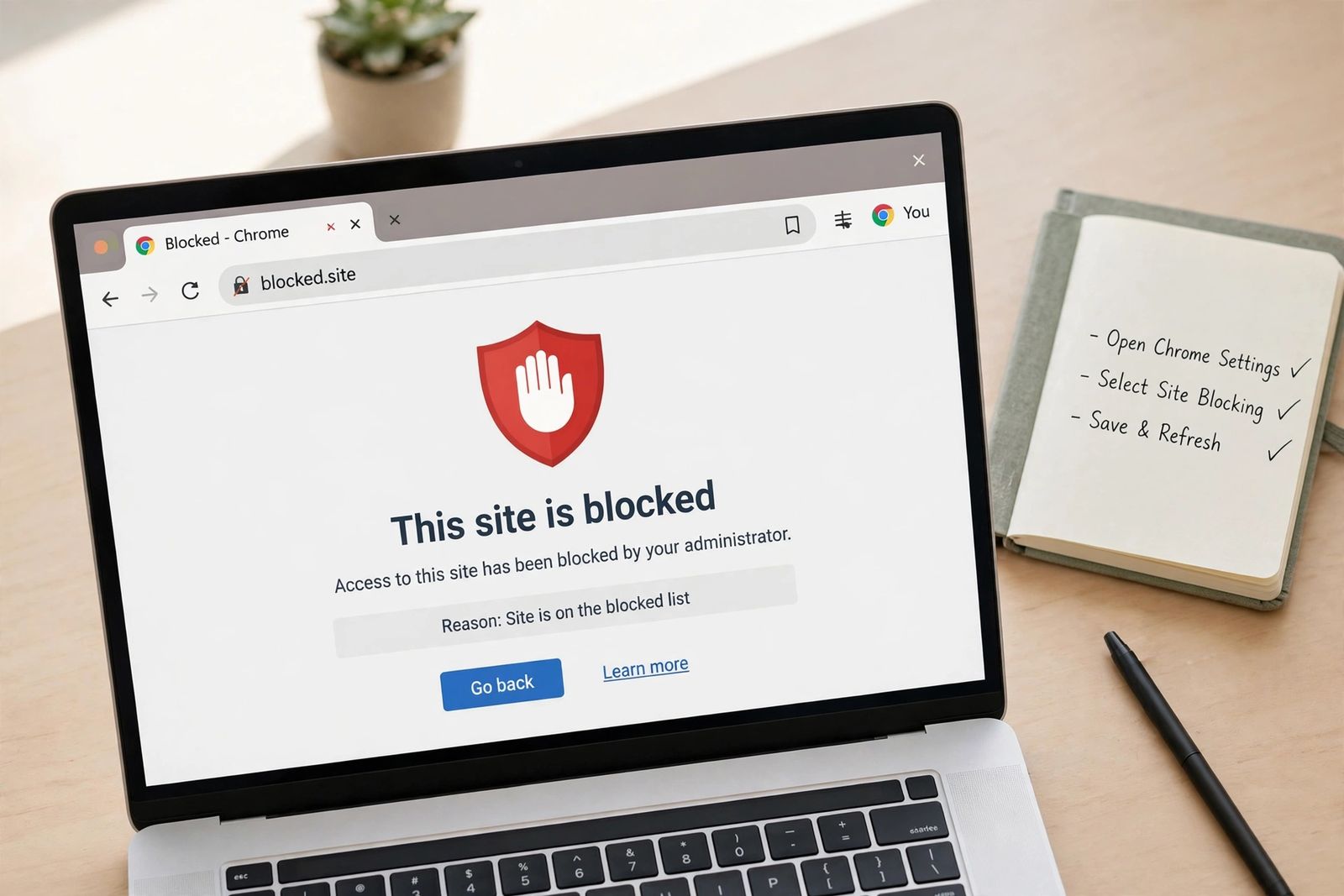
Chrome has no built-in setting that blocks a website you choose, so how to block a website on Chrome always means picking a method that sits somewhere else: for your own focus, install a site blocker extension from the Chrome Web Store; for a child, block the site in Google Family Link on their supervised account; and for a block with no extension at all, add the site to your computer’s hosts file, which stops it in every browser on that machine, or to your router, which stops it on every device on your home Wi-Fi. Each method covers a different area and fails in a different way, so choose by your goal first — the table below is that choice, with the honest limit of each route stated up front.
Start with your goal: the decision table
Most guides list methods in the order the writer thought of them. That is backwards. A block that is right for keeping yourself off a distracting site during work is the wrong block for a nine-year-old, and a block that covers one laptop does nothing for the phone in the next room. Find your goal in the first column; the method beside it is the one to set up.
| Your goal | Method to use | What it covers | How hard is it to undo? | Honest limit |
|---|---|---|---|---|
| Temporary focus — block a distracting site for work hours, a study session, or a set number of minutes a day | A blocker extension with a schedule or timer (for example BlockSite’s work mode or StayFocusd’s daily time allowance) | Chrome, in the one profile where the extension is installed | Easy by design — that is the point of a temporary block; a password or a timed lock makes it harder in the moment | It does not run in Incognito unless you switch that on, it does not touch other browsers, and anyone who can open the extensions page can remove it |
| Permanent block for yourself — a site you want gone from your own computer, indefinitely | A blocker extension with password protection, or the hosts file if you want it gone from every browser | Extension: Chrome only. Hosts file: every browser on that one computer | Extension: as hard as its password makes it. Hosts file: needs an administrator account to change back | Nothing is truly permanent while you hold the admin password or the extension password yourself — these are strong fences, not locks you cannot climb |
| Child-safe — block sites for a child, on their account and their devices | Google Family Link for a supervised Google Account (Apple Screen Time on iPhone, iPad and Mac; Microsoft Family Safety on Windows) | Family Link: Chrome wherever the child is signed in with that supervised account. Screen Time: browsers on that Apple device | The child cannot undo it; only the parent account or the Screen Time passcode can | On a Windows, Mac or Linux computer, and on iPhone and iPad, a child who signs out of Chrome or opens another browser steps outside Family Link’s Chrome filtering — pair it with a router block at home |
| No extension — block a site without installing anything in Chrome | The hosts file on the computer, or a block at the router or in DNS settings | Hosts file: every browser on that computer. Router/DNS: every device on that network | Hosts file: administrator account required. Router: router admin sign-in required | The hosts file needs an entry for each hostname, and Chrome’s Secure DNS can bypass it. A router block stops applying the moment a device leaves your Wi-Fi or uses mobile data |
Two combinations cover most households. A parent usually wants Family Link on the child’s account plus the router block underneath it, so the second browser and the tablet are covered too. An adult blocking their own distractions usually wants only the extension — anything heavier is effort spent fighting yourself.
Before you start
- Write down the exact address. Note the site as you actually visit it, including whether it starts with
www. Some methods block exactly the name you type and nothing else; the sections below say which ones. - Only block on devices and accounts you own or manage — your own computer, your child’s supervised account, your home router. On a work or school computer, the administrator owns this decision; ask them.
- Check what access you have. An extension needs no special rights. The hosts file needs an administrator account on Windows or the admin password on a Mac. Family Link needs you to be the parent on the child’s supervised account. The router needs its admin sign-in, usually printed on a label on the router itself.
Three claims in other guides that are wrong
Blocking guides copy each other, and three errors have spread widely enough that they are worth correcting before the steps, because each one sends readers to a setting that cannot do what they came for.
- “Block a site in Chrome’s own site settings.” Chrome’s Site settings control what a site is allowed to do — send notifications, open pop-ups, use your camera — not whether the site loads at all. There is no site-settings entry that blocks a website. That panel is still useful, and the section near the end of this article covers the two jobs it genuinely does. But if a guide tells you site settings are a way to block a site temporarily, it is describing a permission change, not a block.
- “You can’t block websites on a Mac with Screen Time.” You can. Screen Time on a Mac has the same web content restrictions as on an iPhone: System Settings > Screen Time > Content & Privacy, turn on web content restrictions, choose Limit Adult Websites, click Customize, and add sites to the Restricted list. Some guides state the opposite in one section and the correct steps in another.
- “Screen Time and blockers can block one page of a site.” Screen Time blocks sites, not individual pages inside a site — adding an address blocks that site, not a single article or video on it. Blocking one page while leaving the rest of the site open, such as one section of a video site, is a job for an extension that supports page or path rules, or for a managed Chrome policy. The hosts file and DNS filtering cannot do it at all: they work on whole hostnames.
Method 1: Block with an extension (temporary focus or permanent, for yourself)
An extension is a small add-on from the Chrome Web Store that gives Chrome a feature it does not have. A blocker keeps a list of addresses and shows its own block page when you try to open one. It is the fastest method, it needs no administrator rights, and it is the only method here with proper schedules and timers — which is why it is the right answer for temporary focus, and, with password protection switched on, a reasonable one for a permanent self-block.
A blocker has to see the addresses you visit in order to block them, so choose carefully. Google’s own advice is to only approve extensions you trust: read the permissions prompt before you confirm, check the developer and the reviews, and note what the free version actually includes — some blockers cap how many sites the free tier will block.
- Open Chrome on your computer and go to the Chrome Web Store.
- Search for a site blocker, such as BlockSite or StayFocusd, and select the one you want.
- Select Add to Chrome. Chrome lists the permissions the extension needs.
- If you agree, select Add extension. The extension’s icon appears to the right of the address bar, or inside the Extensions (puzzle piece) menu.
- Select the extension’s icon and open its block list or settings.
- Type the address of the site you want to block and add it. Entering the bare domain, such as
example.com, covers the whole site in most blockers. - Open a new tab and try the site. You should see the extension’s block page instead.
Google’s install page confirms those Add to Chrome steps, and adds two facts worth knowing: you cannot add extensions while browsing in an Incognito window or as a guest, and an organisation may block some extensions on a work or school computer.
Close the Incognito gap
Extensions do not run in Incognito windows by default, so without this step a blocked site opens there freely:
- At the top right of Chrome, select More (three dots) > Extensions > Manage extensions.
- On your blocker, select Details.
- Turn on Allow in Incognito.
Make a self-block harder to undo
Set the schedule or password before you need it, not in the moment you are trying to break the block. BlockSite offers timed focus sessions and password protection for its settings; StayFocusd instead gives each site a daily time allowance and offers a lock-in period that cannot be cancelled once started. Whichever you use, the principle is the same: an extension you can switch off in two clicks is a reminder, not a block.
One caution that belongs here rather than in an advert: every extension you add also costs a little performance, and a blocker you no longer use should be removed rather than left running. If the whole machine, not just one site, feels sluggish, that is a different diagnosis — why is my computer so slow works through the causes in order, including how to see which extension or tab is using your memory.
Limits, plainly: an extension covers only the Chrome profile it is installed in. Other profiles and other browsers on the same computer are unaffected, and anyone with access to Manage extensions can turn it off or remove it unless the extension’s own password protection is set. To undo the block, remove the site from the extension’s list, or remove the extension itself.
Method 2: Block for a child with Family Link (child-safe)
Family Link is Google’s free parental control service. If your child has a Google Account managed by Family Link, the sites you block follow them to Chrome on an Android device, a Chromebook, an iPhone or iPad, or a computer — as long as they are signed in to Chrome with that supervised account. These steps follow Google’s Family Link help page for Chrome:
- Open the Family Link app on your own phone.
- Select your child.
- Tap Controls, then Google Chrome and Web.
- Under Manage sites, tap Approved sites and Blocked sites.
- Tap Add a website and enter the address.
How you type the address decides what is covered. To block a single website, include the www, such as www.example.com — that blocks that address only. To cover the site more broadly, enter the domain, the main name without the www; Google’s help explains that the form you enter decides whether subdomains and country versions are included, so check the exact entry if a block misses a version of the site.
On the same Google Chrome and Web screen you also choose the overall filter level:
- Allow all sites: your child can visit everything except the sites you block by hand.
- Try to block explicit sites: Chrome tries to block sexually explicit sites. Google’s wording is “tries” — no filter catches everything.
- Only allow approved sites: your child can visit only the sites on your approved list. This is the strictest setting and suits younger children.
A site you block or approve by hand stays that way under any of the three settings. When your child tries to open a blocked site, they can ask for permission: a request sent as a message reaches you as a notification in the Family Link app, where you approve or deny it; on Android devices and Chromebooks they can also ask in person, and you approve on their device with your Google Account password. Incognito mode is turned off while a child is signed in to Chrome with a Family Link account, so the Incognito gap from Method 1 does not exist here.
Limits, in Google’s own terms: on a Windows, Mac or Linux computer, your child can sign out of Chrome and switch to another profile, and Family Link settings for Chrome no longer apply; they may also have access to other browsers where the settings do not apply either. On an iPhone or iPad, signing out of Chrome has the same effect. That is why the decision table pairs Family Link with a router block for the home network — Family Link guards the account, the router guards the house.
On Apple devices, the equivalent control is Screen Time: Settings > Screen Time > Content & Privacy Restrictions, turned on, then App Store, Media, Web & Games > Web Content > Limit Adult Websites, and Add Website under Never Allow. Set a Screen Time passcode the child does not know; without one, the restrictions can be switched off in Settings. On Windows, Microsoft Family Safety does the same job for a child’s Microsoft account through its content filters. Both are device-level controls, so unlike Family Link they also cover browsers other than Chrome on that device.
Method 3: Block with the hosts file (no extension, one computer)
The hosts file is a plain text file that your computer consults when it looks up a website’s address: it maps names to IP addresses locally, before any outside lookup. Point a site’s name at 127.0.0.1 — the address that means “this computer” — and the site cannot load in Chrome or in any other browser on that machine. It is free, it installs nothing, and it works in Incognito without any extra step. Its price is care: you need an administrator account, and a mistake in this file can cause connection problems, so copy the original file somewhere safe before you change it, and only add new lines at the bottom — never edit or delete the lines already there.
On Windows
- Select Start, type Notepad, right-click it, and choose Run as administrator. Approve the prompt. Without this step Windows will not let you save the file.
- In Notepad, select File > Open and go to
C:\Windows\System32\drivers\etc. - Change the file type list in the bottom-right from text documents to All files. The hosts file has no extension, so it stays hidden until you do.
- Select hosts and choose Open. Lines starting with
#are comments; Windows ignores them. - On a new line at the bottom, type
127.0.0.1followed by a space and the site, for example127.0.0.1 www.example.com. - Add a second line for the version without the
www, such as127.0.0.1 example.com. The file matches exact names, so each version, and each subdomain you want blocked, needs its own line. - Select File > Save. Use Save, not Save As — the file must stay named
hostswith no.txtending, or it will do nothing. - Open Command Prompt, type
ipconfig /flushdns, and press Enter, so Windows drops its saved lookups and uses your change straight away. Then restart Chrome and test the site; it should show an error page such as “This site can’t be reached.”
To undo the block, reopen the file the same way, delete the lines you added, save, and flush DNS again. If the file itself ever gets into a mess, Microsoft publishes the exact steps to reset the hosts file back to its default — including the default text to restore and the warning that a hosts file can’t have a file extension.
On a Mac
Open Terminal, run sudo nano /etc/hosts, and enter your administrator password. Add the same lines at the bottom — 127.0.0.1 , a space, then the name, one line per version of the name. Press Control + O to save and Control + X to exit, then flush the Mac’s DNS cache with sudo dscacheutil -flushcache; sudo killall -HUP mDNSResponder and restart Chrome.
The limit most guides miss: Secure DNS
If your hosts entries look correct but the site still opens in Chrome, check Chrome’s Secure DNS setting before assuming you made a mistake. Secure DNS (DNS-over-HTTPS) sends name lookups to an outside resolver over an encrypted connection, and when a lookup is answered that way, the local hosts entry for that name can be effectively skipped — several of the top guides for this keyword never mention it. You will find the setting under Settings > Privacy and security > Security, in the Secure DNS section. Turning Secure DNS off makes Chrome rely on the system lookup, which does read the hosts file. Treat that as a trade-off, not a free fix: Secure DNS exists to make lookups private, so switching it off to make a hosts block stick is a decision to make knowingly, on your own machine.
Other limits: the hosts file affects only that one computer, it cannot block a single page inside a site (whole hostnames only), and anyone with an administrator account can edit it back.
Method 4: Block at the router or with DNS filtering (no extension, whole home)
Blocking at the router stops a site for every phone, tablet, computer and smart TV on your Wi-Fi, in every browser, with nothing installed on any of them.
- Open your router’s app, or sign in to its admin page in a browser. The address — often
192.168.0.1or192.168.1.1— and the sign-in details are usually printed on a label on the router. On Windows you can confirm the address by runningipconfigin Command Prompt and reading the Default gateway line. - Look for a section named something like Parental controls, Access control, Block sites or URL filter. The name and the menu path depend entirely on the brand, so your router’s manual is the authority here.
- Add the site’s address to the blocked list and save or apply the change. Some routers need a restart before a new rule takes effect.
- Test from a device connected to your Wi-Fi.
If the connection itself keeps dropping while you work through this, fix that first — WiFi keeps disconnecting runs the one-device-versus-every-device test that tells you whether the fault is a device, the router or the line.
If your router cannot block specific sites at all — some only offer broad categories — a filtering DNS service is the alternative: you set the router’s DNS servers to a service that refuses to look up the sites or categories you choose. Cloudflare’s family resolver at 1.1.1.3, for example, filters malware and adult content as a preset; custom services let you build your own list. Note the difference: a preset resolver blocks its categories, not your one named site, unless the service offers a custom list.
Limits: a network block ends at your front door. A phone on mobile data or a laptop on someone else’s Wi-Fi is not filtered, a VPN routes around it, and a device with its own Secure DNS or private DNS set can bypass a DNS-based filter. This is a household layer, not a guarantee — which is fine, as long as you chose it knowing that.
Method 5: Block on work or school Chrome (managed devices only)
If Chrome is managed by an organisation, an administrator can block sites centrally with two policies: URLBlocklist, which prevents users from opening a list of addresses, and URLAllowlist, which makes exceptions to it. Google’s Chrome Enterprise help sets the terms: the allowlist takes precedence over the blocklist, each list holds up to 1,000 URLs, users must restart Chrome before a new policy takes effect, and an admin can verify the policy on a device at chrome://policy. Admins set this in the Google Admin console under Devices > Chrome > Settings, in the URL Blocking fields, or through Group Policy and equivalent tools on each platform.
This is not a route for a personal copy of Chrome — there is no personal version of it, which is precisely why personal users end up with Methods 1 to 4. To check whether your Chrome is managed, open the More (three dots) menu and look for “Managed by your organization” at the bottom. If a site is blocked on a work or school machine, the administrator is the person who can change it.
Blocking on a phone
Chrome on Android and iPhone does not accept desktop extensions, so on a phone the block lives in the account or the operating system, not in the browser:
- For a child on Android or a Chromebook: Family Link (Method 2) — the same blocked list applies in Chrome while the child is signed in.
- For a child on iPhone or iPad: Family Link also applies in Chrome while the child is signed in; Apple’s Screen Time route above additionally covers the whole device.
- For yourself on iPhone or iPad: Screen Time’s Never Allow list (same steps as above) blocks the site in Chrome and other browsers on the device, guarded by your Screen Time passcode.
- For yourself on Android: there is no equivalent built-in per-site block for your own account; your practical options are the router block while you are on home Wi-Fi, or a reputable blocker app from the Play Store — read its permissions and reviews with the same care as a desktop extension, because a filtering app can see your browsing.
- Any phone on your home Wi-Fi is covered by the router method while it stays connected to it.
What Chrome itself can block — and what it cannot
Chrome cannot block a whole site for a personal user, but it can stop a site from bothering you, and sometimes that is the actual problem:
- Notifications: More > Settings > Privacy and security > Site Settings > Notifications. Next to Not allowed to send notifications, select Add and enter the site’s address.
- Pop-ups and redirects: in Site Settings, open Pop-ups and redirects and add the site under Not allowed to send pop-ups or use redirects.
- Dangerous sites in general: under Privacy and security > Security, Chrome’s Safe Browsing, especially its Enhanced protection option, warns before known dangerous sites and downloads. That is Google’s blocklist protecting you, not a list you control.
If a page keeps misbehaving after a permission change — loading stale content or rendering oddly — that is a cache problem rather than a blocking problem; how to clear cache covers the cache-only clear that keeps your sign-ins intact.
Test the block, then fix what still opens
Test every block as soon as you set it: open a new tab, type the address, and press Enter. Then try the version without the www, and try an Incognito window. On a child’s device, test while signed in to the child’s account. Most “the block doesn’t work” reports are one of these:
- It opens in Incognito. The extension is not allowed there. Turn on Allow in Incognito in the extension’s Details (Method 1). Hosts-file and router blocks apply in Incognito with no extra step.
- It opens in another browser or another Chrome profile. An extension — and Family Link’s Chrome filtering — only covers Chrome and the profile or account it was set on. Move down a level: hosts file for the whole computer, router for the whole home.
- The hosts file was saved but nothing changed. Check the file is still named
hostswith no.txtending, that each line is the number, a space, then the name, and that both thewwwand bare versions are listed. Runipconfig /flushdns, restart Chrome, and if it still opens, check the Secure DNS point in Method 3. - Notepad refused to save. Notepad was not run as administrator. Close it and start again with Run as administrator.
- Family Link has no effect. The child is not signed in to Chrome with the supervised account, or the address form is wrong — a
wwwentry blocks that single address, a domain entry covers more. Re-check both. - The router block works on some devices only. Those devices are on mobile data, on another network, or using their own private DNS or VPN. A router rule can only govern traffic that passes through the router.
- The site’s app still opens. Every method here blocks the website in a browser. An installed app is managed separately, through Family Link’s app controls or the phone’s own parental controls.
- A stale copy of the page appears. A browser can briefly show a cached version of a page it visited before the block. Clear the cache for that browser and test again — how to clear cache has the steps that keep your passwords and sign-ins.
How to unblock a site later
Reverse the method you used, in the place you used it — and if you blocked the site in two places, you have to remove it from both:
- Extension: remove the address from the extension’s block list, or remove the extension.
- Family Link: open Approved sites and Blocked sites and remove the site from the blocked list.
- Hosts file: delete the lines you added, save, and run
ipconfig /flushdnsagain. - Router or DNS: remove the address from the router’s blocked list, or restore the previous DNS setting.
- Managed Chrome: only the administrator can change the policy.
Blocking stops a page from loading; it does not delete anything. Your history, bookmarks and saved passwords for the site stay in Chrome until you remove them yourself.
Frequently asked questions
Can I block a website in Chrome without an extension?
Yes — just not with a Chrome setting. Use Family Link for a child’s supervised account, the hosts file for every browser on one computer, your router for every device at home, or a policy on managed Chrome. Chrome’s own settings can only restrict a site’s permissions, such as its notifications and pop-ups.
How do I block a website on Chrome permanently?
Nothing is permanent while you keep the password or admin account that set the block, so choose the method that is hardest for you to undo in a weak moment: a password-protected extension, an extension lock-in timer that cannot be cancelled once started, or the hosts file if you are content that changing it back needs an administrator sign-in. “Permanent” here means deliberate-to-undo, not impossible-to-undo.
Does blocking a site in Chrome also block it in Incognito?
Only if the method works below the browser or you switch it on. Extensions are off in Incognito by default — enable Allow in Incognito in the extension’s Details. Hosts-file, router and Screen Time blocks apply in Incognito automatically. For a supervised child, Incognito is turned off altogether in Chrome.
Can I block just one page of a website?
Yes, but only with the right tool: an extension that supports page or path rules, or a managed URLBlocklist entry. Family Link, Screen Time, the hosts file and DNS filtering all work at site or hostname level — they cannot leave the rest of a site open while blocking one page on it.
Why does a blocked site still open on my phone?
Because the block probably does not live where the phone is browsing. A desktop extension never reaches a phone; a router block stops applying on mobile data; Family Link stops applying if the child is signed out of Chrome. Match the method to the device using the phone section above, and test on the phone itself.