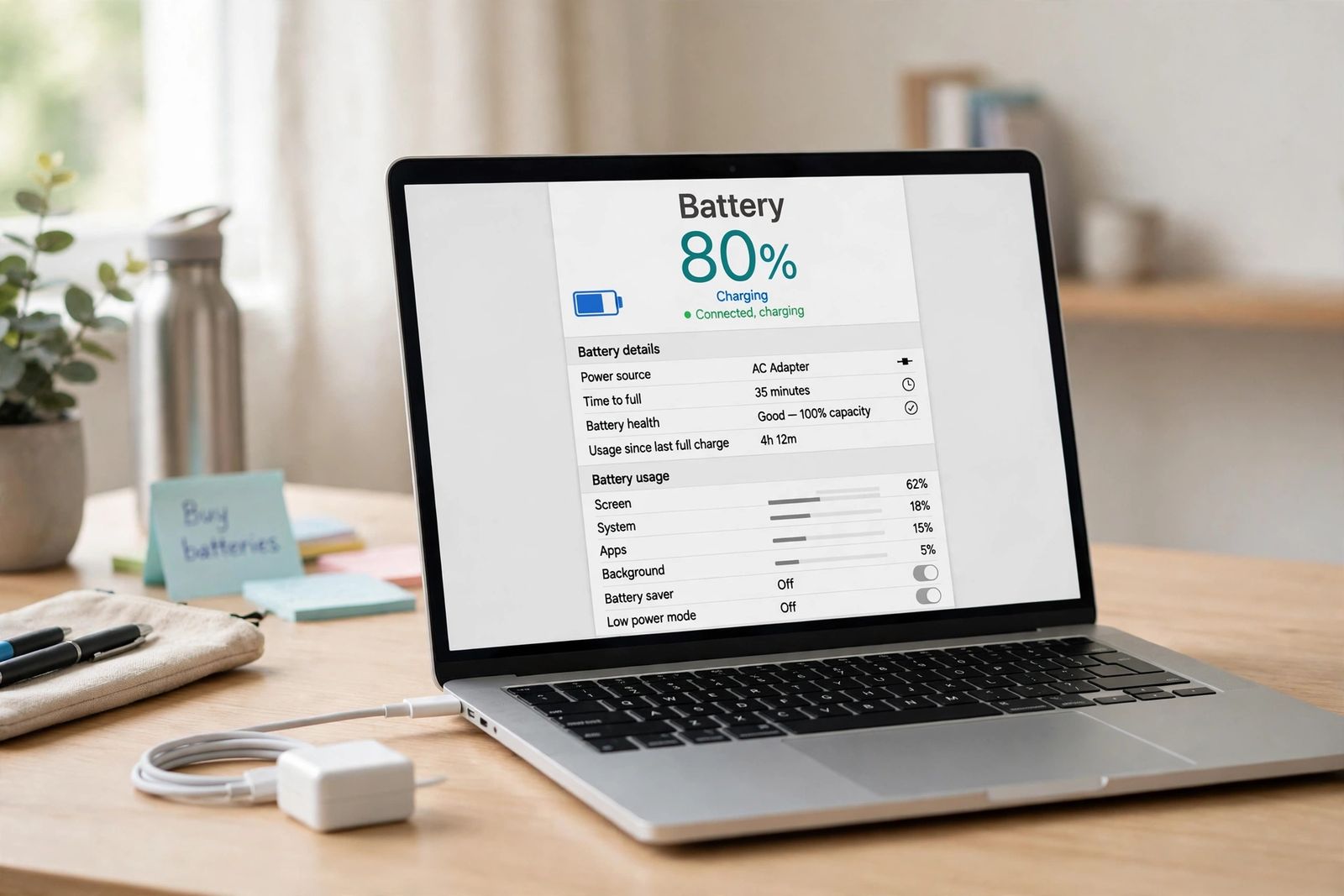
If your laptop is plugged in but not charging, the percentage it is stuck at tells you where to look: a battery that stops at a round figure like 80% or 60% and stays there is almost never faulty — a battery conservation or charge-limit setting (Lenovo Vantage Conservation Mode, Dell’s battery charge settings, ASUS Battery Health Charging, or Windows Smart charging) is deliberately holding it below full to slow battery wear. A battery that will not charge at any percentage, or falls while plugged in, is a different problem: work through the adapter’s wattage next, then the connections and battery driver, then a battery health report to measure whether the battery itself has worn out. Do not buy a charger or a battery until the percentage has pointed you at one of those three, in that order.
This article is about the fault — a laptop on mains power whose battery is not gaining charge. Whether it is wise to leave a healthy laptop plugged in all the time is a separate habits question, which this article does not cover.
Start with the percentage: the stuck-percentage diagnosis
The same Windows message — “plugged in, not charging” — covers at least four different situations, and each has a different first move. Find your row before changing any setting:
| What you see | What it usually means | First check |
|---|---|---|
| Stops at 80% and stays there | A charge limit is on: Windows Smart charging, ASUS Balanced Mode, Dell Primarily AC Use or a similar battery-care mode | Your maker’s battery app (step 1 below) |
| Stops at 55–60% and stays there | Lenovo Conservation Mode, ASUS Maximum Lifespan Mode, or a Dell Custom charge range | Your maker’s battery app (step 1 below) |
| Sits at 95–99%, not charging | Normal behaviour: makers let the charge fall a few percent before topping up, rather than micro-charging constantly | Nothing — this is not a fault |
| Percentage never moves, at any starting level | Power is not reaching the battery, or Windows is misreading it | Adapter and connections, then the battery driver (steps 2–3) |
| Percentage falls while plugged in, or charges only when the laptop is off or asleep | The adapter cannot supply what the laptop is using, so nothing is left for the battery | Adapter wattage (step 2) |
| No charging light, charger not recognised at all, or “battery not detected” | A break in the power path, or a hardware fault | Connections and a known-good charger (step 2); repair if those fail |
Two of the most common guides for this fault start with the physical checks — outlet, cable, port — whatever the symptom. That order wastes time on the most common modern case: when the stop is at a round 80% or 60%, the charger is almost always innocent and a setting is the whole answer. The percentage comes first; the screwdriver thinking comes after.
Step 1: the charge-limit setting, brand by brand
Lithium-ion batteries age faster when they sit at 100% charge, so makers cap the charge on machines that live on a desk. The cap is set in the maker’s own app or in the BIOS/UEFI firmware — there is no universal charge-limit switch inside Windows Settings. Microsoft’s Smart charging page says this plainly: some manufacturers turn Smart charging on in Windows 11, the battery is then held at a lower level that is better for it and may not charge to 100% at all, and because every manufacturer implements it differently, you change it through the manufacturer’s own route. The Windows tell-tale sign is a small heart on the battery icon, in the taskbar and in Power & battery settings; hover over it and it reads “Fully Smart charged,” which Microsoft says means the battery is not charging even though the device is still plugged in — intentionally.
Lenovo — Conservation Mode in Lenovo Vantage. Open Lenovo Vantage > Device > My Device Settings > Battery and look for Conservation Mode; on ThinkPads, look instead for a custom battery charge threshold. Lenovo’s own support guidance is that a battery which charges only to about 55–60% is usually Conservation Mode doing its job. One correction to what most guides print: the cap is not 55–60% on every Lenovo. Lenovo’s user guides for some Slim and Legion families state the charge is kept within 75–80% instead. So do not rule Conservation Mode out because your Lenovo stops at 80% rather than 60% — read the band your own copy of Vantage states next to the toggle, because that is the figure your machine uses. Lenovo also notes that with Conservation Mode off, a battery already between 95% and 100% may not start charging again; that is self-protection, and normal.
ASUS — Battery Health Charging in MyASUS. ASUS’s official Battery Health Charging page documents three modes, integrated into the MyASUS app for most models. Full Capacity Mode is the default and charges to 100%. Balanced Mode stops charging when the power is above 80% and resumes when it falls below 78%. Maximum Lifespan Mode stops above 60% and resumes below 58%, and ASUS recommends it when the computer is always powered by the AC adapter. If your ASUS stops at 80% or 60%, one of those two modes is set — switch to Full Capacity Mode only when you genuinely need the full runtime.
Dell — Battery Charge Configuration in Dell Power Manager, MyDell or the BIOS. Dell exposes the same idea as a charging mode rather than a single cap. Dell’s own documentation for the Primary Battery Charge Configuration lists the modes: Adaptive (the default on many models — the system adjusts charging to your usage pattern), Standard (charges fully at a standard rate), ExpressCharge (charges fully, faster), Primarily AC Use (lowers the charge level for systems that live on mains power), and Custom, where you set the percentages yourself — Dell’s documented ranges are a Custom Charge Start of 50–95% and a Custom Charge Stop of 55–100%, with at least 5 points between them. On a Dell stuck below 100%, check which mode is selected in Dell Power Manager or MyDell, or in BIOS Setup under Power Management; Primarily AC Use or a Custom range explains the stop, and Standard or Adaptive restores a full charge. Because the BIOS copy of this setting survives a Windows reinstall, check there too if the app shows nothing set.
HP — Battery Health Manager. On many HP laptops the setting lives in the BIOS under Advanced > Power Management > Battery Health Manager. Set to Maximize My Battery Health, HP caps charging at 80% of the battery’s available capacity — while Windows may still display 100%, because the percentage is shown against the capped capacity. That display quirk means an HP can look fully charged while holding less than a new full charge, which is worth knowing before you judge its runtime.
Microsoft Surface — Smart charging in the Surface app. Smart charging is always available on supported Surface models, turns itself on when the device has been plugged in for long periods or used at high temperatures, and limits the maximum charge to 80%. When you need a full charge — before a trip, say — open the Surface app, go to Battery & charging, and choose Charge to 100%; Microsoft advises doing it several hours before you need it, and the limit returns afterwards. Microsoft also documents a separate, stricter Battery Limit that stops at 50%, aimed at devices that stay plugged in permanently.
If you find a limit set and your laptop lives on a desk, the honest advice is to leave it on — it is protecting the battery, and a capped battery is not a broken one. Pause or disable it when you need full runtime away from a socket, and turn it back on when you return. A heating side-effect worth knowing: charging itself generates heat, so a laptop that is charging hard may also run its fan loudly — that related symptom has its own ordered checks in laptop fan loud.
Step 2: adapter wattage — enough to run it is not enough to charge it
If no charge limit is set and the percentage still will not rise, suspect the power arriving at the laptop. An underpowered adapter is the classic trap: it can supply enough to run the laptop, or to slow the drain, while leaving nothing spare to put into the battery. The giveaway is a laptop that charges when it is off or asleep but not while you work — the system is using everything the adapter supplies.
- Use the charger made for the laptop, or one that meets its charging requirements. Read the wattage on the original charger’s label — 45W, 65W and 100W are common — and match or exceed it. A 20W USB-C phone charger may keep a laptop alive at a desk; it will rarely charge it under load.
- For USB-C, the cable is part of the wattage. Every USB-C cable carries up to 60W (3A). Above 60W the cable needs an e-marker chip that tells the charger and laptop it can carry more; without one, the chain quietly drops back to 60W with no error message. A laptop that needs 90W, fed through a plain cable, behaves exactly like a laptop on a weak charger.
- Plug straight into the laptop while you test, not through a dock, hub or monitor. Docks and monitors commonly pass through only 60–65W, which can be below what the laptop needs to run and charge at once. Use the port marked for power if your model charges on only one of its USB-C ports.
- Try a different wall outlet, plugged directly into the wall rather than through a strip or extension, and check every connection is firmly seated — wall to charger, charger to cable if it detaches, cable to laptop. A USB-C plug that is almost in is a common silent failure.
- Disconnect power-hungry accessories and test again; docks and drives consume the charger’s headroom.
- Look for damage. A frayed cable, a bent or dirty connector, or debris packed into the charging port can each stop charging. Clear loose lint from a port gently; if you can see damage to the port, connector or cord, stop and contact the maker rather than continuing home fixes, and do not use a charger with a damaged cable.
Heat can pause charging on its own: many laptops stop or slow charging when the battery is too hot or too cold, as a safety measure — after heavy work, or in a hot room. Move the laptop to a hard, cool surface, close the heavy apps, let it cool, and test again before suspecting parts. A machine that is also getting slower as it gets hotter is throttling, which is worked through separately in why is my computer so slow.
Only handle a removable battery if your model genuinely has one designed to come out, and follow the maker’s instructions for it. Most current laptops have sealed batteries; opening the case to reach them is not a troubleshooting step, and nothing in this article requires it.
Step 3: restart, then the battery driver
A plain restart — Start > Power > Restart, not closing the lid — clears temporary charging faults more often than it should. A fuller reset of the charging controller helps some machines: shut down completely, unplug the charger, and hold the power button for about 15–30 seconds before reconnecting and starting again. Makers publish slightly different versions of this power-drain step for their own models; follow your maker’s version where one exists.
If charging still fails, the battery driver is next. Windows talks to the battery through a standard driver, and when it glitches, Windows can report “plugged in, not charging” for a battery that could charge perfectly well. Microsoft’s documented fix is to remove that driver and let Windows reinstall it:
- Plug the laptop in.
- Open Device Manager and expand the Batteries section.
- Right-click Microsoft ACPI-Compliant Control Method Battery and choose Uninstall device. Leave the Microsoft AC Adapter entry alone.
- Restart the laptop. Windows reinstalls the driver as it starts.
- Install any pending Windows updates, and check the laptop maker’s support page for your exact model for BIOS and chipset updates, applying only what the maker publishes for that model — with the charger connected throughout any BIOS update.
Microsoft attaches one warning to this step: do not perform it on a Surface Pro X, where uninstalling the driver can only be undone by a full system reset. Read any warning on your own maker’s page before uninstalling anything.
One firmware point the short guides miss: a charge limit set in the BIOS, or left behind by a maker’s app you have since uninstalled, is enforced by the embedded controller — it survives in Windows no matter what the app now shows. If every Windows-side setting says full charge and the stop is still at exactly the same percentage, check the BIOS battery settings before you blame the battery. And if the machine’s problem widens — it reaches Windows and then restarts on its own — that is a different fault again, matched by pattern in computer keeps restarting; a display that never appears at all on an external monitor is the separate chain in monitor no signal, and a laptop whose own built-in screen stays black is decided by the screen-vs-laptop test sequence in laptop screen is black. A MacBook that will not turn on at all is a separate fault again — its charger wattage and port tests, and the Intel-versus-Apple-silicon reset split, are worked through in MacBook not turning on.
Step 4: run a battery report and read the battery’s real health
If the settings, charger and driver all check out, measure the battery itself. Windows can generate a battery report: open Terminal or Command Prompt, run powercfg /batteryreport, and Windows saves an HTML report — open it in a browser. The two numbers that matter are Design Capacity — what the battery held when new — and Full Charge Capacity — what it holds now.
Read them as a ratio. A full-charge figure modestly below the design figure is ordinary wear on a used machine. A figure far below it — as a working rule, below roughly 60% of design — means a worn-out battery, and a worn battery explains a laptop that charges slowly, stops early, drops its charge oddly, or dies at a displayed 20%. That is a measurement, not a guess: it is what separates “the battery is finished” from every software cause above. Makers’ own diagnostic tools (Dell’s F12 Diagnostics at startup, and the battery checks inside HP, Lenovo and ASUS support apps) give the same verdict in pass/fail form; a failed battery test means replacement.
Wear is gradual and normal, and it is exactly what the charge limits in step 1 exist to slow: batteries kept at full charge and at high temperature age fastest, which is the pattern desk-bound laptops live in. A battery report showing heavy wear on an old machine is not a software fault — the choices are living with shorter runtime, using the machine mostly on mains power, or a battery replacement through the maker or a reputable repairer.
What not to do
Do not buy a replacement battery as a first response — on current machines the charge limit is a more common cause than a dead battery, and it costs nothing to check. Do not buy a cheap unbranded charger to test with: an underpowered or poor-quality adapter can reproduce the same symptom or worse. Do not drain the battery to zero repeatedly to “recalibrate” it — this advice circulates widely in forum answers for this fault, but no maker page behind this article recommends deep-discharge cycles as a fix for a modern laptop battery, and a battery that will not charge gains nothing from being emptied. And do not ignore a battery that is swelling, a case or touchpad that no longer sits flat, or a hot spot around the battery: stop using the laptop on your lap, keep it on a hard surface, unplug it, and contact the maker — that is a safety matter, not a troubleshooting step.
When it is a repair
Take it to the maker or a repairer when: the battery is not detected at all; the laptop switches off the moment it is unplugged, at any displayed percentage; the charging port or cable is visibly damaged, or charging only works at one cable angle; the battery report shows severe wear and the runtime no longer meets your needs; or charging fails with a known-good original charger after the driver reinstall. Those are hardware outcomes, and no setting in Windows changes them.
Frequently asked questions
Why does my laptop stop charging at 80 percent? Almost certainly a charge limit working as designed — Windows Smart charging, ASUS Balanced Mode, a Dell mode such as Primarily AC Use, or your maker’s equivalent battery-care setting. Look for the heart symbol on the battery icon, then check your maker’s battery app and, if needed, the BIOS. It is a feature to leave on for a desk-bound laptop, and to pause only when you need a full charge.
Why does my Lenovo stop at 60 percent — and why do some stop at 80? Lenovo Conservation Mode in Lenovo Vantage: on many models the panel states the battery will only be charged to 55–60% of capacity. But Lenovo’s user guides for some Slim and Legion families state a 75–80% band instead, so both stops can be the same feature on different models. Read the band your own Vantage shows; turning Conservation Mode off (or removing a ThinkPad charge threshold) restores a full charge.
My laptop is plugged in but the percentage is not increasing. Is the battery dead? Not necessarily, and not first. Check the cap (step 1), then the power path: original charger of the right wattage, the right USB-C cable and port, secure connections, a different outlet. A charger that can run the laptop but not charge it under load is a common cause. A battery report’s design-versus-full-charge comparison is what actually tells you whether the battery has worn out.
What does “plugged in, not charging” mean in Windows 11? That Windows sees mains power but the battery is not accepting charge right now. That can be the charge limit (with the heart icon and “Fully Smart charged” message), a temporary driver glitch, an underpowered charger or cable, a hot battery pausing for safety, or a genuinely worn or faulty battery. The steps above are ordered to separate those.
Should I replace my laptop battery or my charger? Neither, until the checks say which. If the laptop charges from a known-good original-spec charger, the charger was at fault. If it charges nowhere and the battery report shows severe wear, the battery is. Replacing parts in the other order is how people end up owning a spare of the wrong one.
This article is general information, based on the battery and charging guidance published by Microsoft, ASUS and Dell and on Lenovo’s support guidance for Conservation Mode, checked in November 2026. Charge-limit settings, battery apps and menu names differ by manufacturer and model — where yours differ, follow your maker’s support page for your exact laptop, and stop and seek service for any visible damage or swelling.