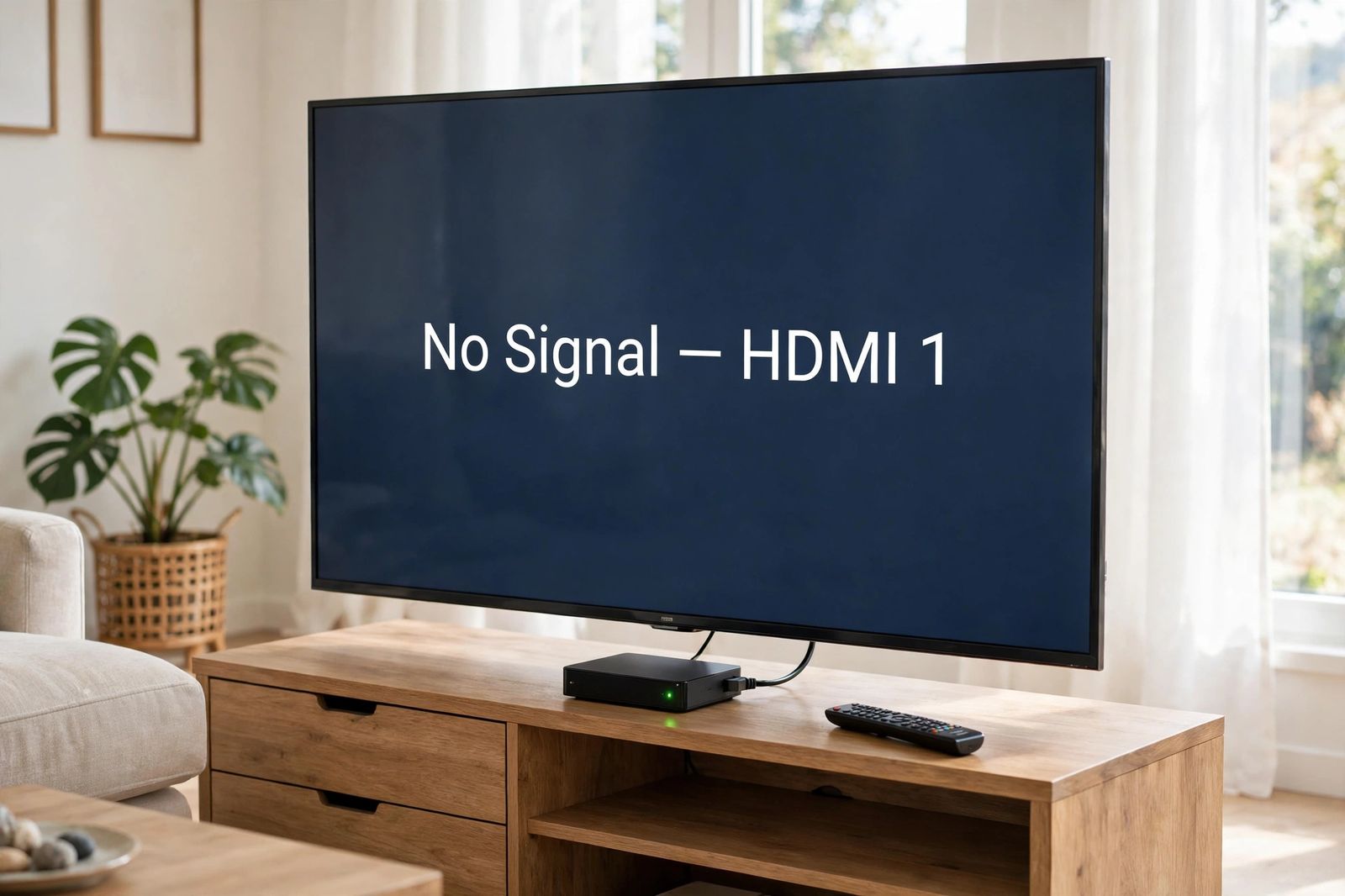
A TV that says “No Signal” on an HDMI input has power and a working screen — it is simply receiving no usable picture on the input it is listening to, so the fault sits in one link of a short chain: the input the TV is set to, the cable, the port, the handshake between the two devices, or the source device itself. Do not test those links at random, and do not start with a factory reset. Follow the isolation chain below in its exact order — correct input, cable swap, port swap, then a full power-cycle handshake reset done TV first and source last — testing after each step and stopping the moment the picture returns. Each step rules one suspect in or out, and the final step proves, rather than guesses, whether the TV, the cable or the source device is the part at fault.
What “No Signal” proves — and what it does not
The message is drawn by the TV itself, not sent by the box, console or computer connected to it. That is genuinely useful information: a TV that can light up and draw its own “No Signal” box has power, a working panel and working electronics. Press Home or Menu on the TV remote and the point is proven — if the TV’s own menu or home screen appears, the screen itself works, and the fault is in the chain feeding the selected input. Samsung, LG and Sony all build their own troubleshooting on the same starting checks: the source device is on, the selected input matches the port in use, and the connection is secure, before the TV itself is treated as faulty. LG’s own TV guide puts its “It says there is no signal on the screen” checks in exactly those terms — check whether the cable to the external device is properly connected, choose the connected input, and check the external device is turned on: LG’s screen-issues guide.
What the message does not prove is anything about the rest of the chain: not that the cable carries video, not that the TV is listening on the right input, not that the port is healthy, and not that the source is awake and sending anything. Each of those is a separate link that fails in its own way — which is why the chain below goes link by link instead of fix by fix. One separation matters before you start: a TV whose own menu will not appear either — no home screen, no settings, nothing on its own buttons — is not a no-signal case at all. That failure is inside the TV, and the stop-testing section at the end applies. This article covers the common case: menus work, one HDMI source does not.
The isolation chain — the original asset of this article
This is the whole method, in the order the signal itself travels. Change one thing at a time. A later step cannot compensate for an earlier one, and swapping two parts at once teaches you nothing, because you will not know which swap mattered.
| Step | Suspect being tested | The test, in brief | If the picture returns, the suspect was |
|---|---|---|---|
| 1 | Input selection (and a sleeping source) | Wake the source; set the TV by hand to the exact input the cable uses — HDMI 1 is not HDMI 2; connect directly, with nothing in between | The TV was listening on the wrong input, or the source was asleep |
| 2 | Cable | Swap in one known-good cable, same ports, nothing else changed | The original cable, however healthy it looked |
| 3 | TV port | Move the known-good cable to a different HDMI port and select that input | That one port — or that port’s own settings (see the caution in step 3) |
| 4 | The handshake state | Full power-cycle in order: everything off and unplugged, HDMI disconnected, TV powered and on its input first, source powered last | A failed HDMI handshake / HDCP negotiation, cleared by a clean restart |
| 5 | TV vs source — the proof step | A second known-good source on this TV, and your source on a second display; read the result table | Whichever side the fault follows — proven, not guessed |
Steps 1 to 3 need no tools and change nothing permanently. Step 4 is the reset, and it comes fourth on purpose: most cases are already fixed by then, and power-cycling before ruling out the input and the cable is how a wrong input survives three resets in a row. Step 5 is the decider, used when the first four have not found it — or used early, if you have a second source within reach, because it splits the chain in half in one move.
Step 1: The correct input — and a source that is actually awake
A TV with several inputs is listening to exactly one of them. If your cable is in HDMI 2 and the TV is set to HDMI 1, it will report “No Signal” on a completely healthy setup. Press Input or Source on the remote, and select by hand the exact input that matches the physical port your cable is plugged into, reading the label beside the port rather than trusting your memory of it. Do not rely on automatic switching: HDMI-CEC can switch inputs for you when a device wakes, but it is exactly the feature that fails in the cases that reach this page, so manual selection is the test. Samsung’s own order starts here too — its HDMI detection guide lists the cable not being secure, the source input not being set to the correct HDMI port, and the connected device being powered off or in sleep as the first causes to clear: Samsung’s HDMI detection guide.
While you are on the input, prove the source is awake. A console in rest mode, a cable box in standby, a PC asleep and a streaming stick powered from a TV USB port that has gone to sleep all send nothing, and the TV reports that honestly as no signal. Press a button on the source’s own remote or controller, check its power light is in its fully-on state rather than its standby colour, and — for a streaming stick — power it from its supplied wall adapter for the whole of this diagnosis, not from the TV’s USB socket, which may not deliver stable power. Give a woken device a few seconds before judging the screen. If that source is a Roku and its remote does nothing at all, do not keep reading the blank screen as a signal fault — a Roku remote not working is fixed by remote type first, infrared or voice, before the stick can be woken and tested here.
Finally, simplify the path for the rest of the chain: take out anything sitting between the source and the TV — an AV receiver, a soundbar passing video through, an HDMI switch, a splitter, a capture device, an adapter. Connect the source straight to the TV with one cable. Every device in between has to pass the signal and its copy-protection check along correctly, and a chain with one link cannot be confused by a middle link. If the direct connection works, whatever you removed is the link to investigate — reconnect it last, on its own, after everything else is proven.
Step 2: The cable swap — the only honest cable test
Look at the cable first, briefly: unplug it at both ends and push both ends firmly back in. A plug that looks connected can sit slightly out and carry nothing, and a cable’s own weight pulling behind a wall-mounted TV works plugs loose over time. Inspect the plugs for bent metal, a cracked housing, and the cable itself for a sharp kink or crush point near either end.
Then swap, because looking is not testing. Replace the cable with one you know works — borrowed from a working setup in the same house is ideal — keeping the same ports at both ends and changing nothing else. If the picture returns, the original cable was the dead link, however healthy it looked: cables fail internally with no visible damage, and a cable can also pass 1080p and fail at 4K, because the higher mode needs more of the cable, not just a connection. Samsung’s guide includes the same step — try a different, certified cable — and adds a tool most guides never mention: many Samsung TVs can test the cable themselves, under Settings > Support > Device Care > Self Diagnosis > HDMI Troubleshooting, checking each connected port in turn. If your TV offers a cable test, run it on the suspect cable before you buy anything.
Two cable facts that decide later steps, stated once here. First, length: a long passive run — beyond roughly 15 to 25 feet at 4K — can drop a signal that a short cable carries easily, so do the rest of this chain, where you can, with a short known-good cable and the source near the TV. Second, category: the honest labels are the certified ones — Premium High Speed for 4K at 60 Hz with HDR, Ultra High Speed for 4K at 120 Hz or 8K. A cable that is merely expensive, with no certification, has promised nothing.
Step 3: The port swap — what it proves, and what it does not
Move the known-good cable to a different HDMI port on the TV, and select that port’s input — the step is not done until the input selection has followed the cable. If the picture returns, you have learned that the chain works through this port. Hold the conclusion there, because the common version of this step overclaims: a picture on the new port does not by itself prove the first port has failed. Ports carry their own settings. A per-port enhanced-format setting that is on for one port and off for another (named in step 6 below), a port left in a stuck handshake state that step 4 would have cleared, or a renamed or hidden input can all make one port silent while its hardware is fine. The port is only proven faulty at step 5, when known-good sources and cables fail on that port and work on others.
Note the port labels while you are behind the TV, because they are not all equal and it matters for 4K sources: on many TVs only one or two ports carry the full 4K at 120 Hz mode a current console or graphics card wants, and one port is usually marked ARC or eARC, meant for sending TV sound out to a soundbar. For this diagnosis any working port will do; for the final reconnection, put a 4K 120 Hz source on a port whose label promises it. If that ARC port’s own job later fails — the picture fine but the soundbar silent — HDMI ARC not working runs the return path in its own order, labelled port, CEC under its brand name, format test and cable swap, ending in a test that proves whether the TV or the soundbar is at fault.
Step 4: The handshake reset — a full power cycle, in the right order
Every time an HDMI source and a TV connect, they negotiate: the TV tells the source which resolutions, refresh rates and sound formats it accepts, and the two run a copy-protection check called HDCP. That negotiation is the handshake. When it fails — after a power cut, a firmware update, a device that woke while the TV was off, a cable moved between ports — the screen stays blank even though the cable, ports and settings are all fine. No menu setting retries a failed handshake cleanly; a full power cycle forces both devices to start the negotiation from nothing. This is also the step that fixes the classic “it worked yesterday” case.
Do it in this order, because the order is the mechanism — the TV must be on, awake and listening on the right input before the source starts sending, so the source’s one clean handshake attempt lands on a ready TV:
- Turn the TV and the source device off.
- Unplug both from the wall — not standby, not the remote, the plugs out. If there is a receiver or soundbar still in the chain, unplug it too. (It should already be out of the chain from step 1.)
- Disconnect the HDMI cable at both ends while everything is unplugged.
- Wait. The makers do not agree on one magic number, and this article will not invent one: Samsung’s own power-cycle instruction is to unplug both devices for at least 10 seconds; Sony’s power reset for a no-signal case leaves the TV and connected devices without power for 60 seconds. Waiting 60 seconds satisfies both. Waiting ten minutes, as some guides insist, adds nothing either maker asks for.
- Reconnect the HDMI cable, firmly at both ends.
- Plug the TV back in, turn it on, and select the correct HDMI input by hand.
- Only then plug the source back in and turn it on. Let it boot fully and give the picture a few seconds to appear.
A note on direction, because guides argue about it: a minority of setups — some older receivers and boxes — behave better source-first, and if the TV-first order changes nothing on a stubborn setup, repeating the cycle source-first is a legitimate second attempt. But TV-first is the order the makers’ own sequences use and the order to run first: Sony’s reset reconnects the cables and then turns on the TV and the connected devices, and the iFixit answers thread for this exact error gives the same practical advice — start the TV first, then the source device, which initiates the handshake. If the picture returns at this step, the dead link was never a part at all; it was the state the two devices were stuck in, and nothing needs buying or replacing.
If the fault was a PC or laptop rather than a box or console, two keyboard checks belong to this step rather than a later one: Windows + P set to Duplicate or Extend (a laptop set to its own screen only sends the TV nothing, by instruction), and Windows + Ctrl + Shift + B to restart the graphics driver. A single monitor or TV that a PC will not light at all is the same signal-chain logic worked from the PC end in monitor no signal, and a second screen Windows never lists is a detection failure with its own chain in second monitor not detected.
Step 5: The proof step — prove whether it is the TV, the cable or the source
If the first four steps have not brought the picture back, stop adjusting and start proving. You need two known-good witnesses: a second source (a laptop, another console, a streaming stick from another room) and, ideally, a second display (any other TV or monitor). You already have a known-good cable from step 2. Run two crosses, one change at a time:
- Second source → this TV, same port, same input selected, known-good cable.
- Your source → second display, known-good cable.
Read the two results together:
| Result | What it proves | The part at fault |
|---|---|---|
| Second source works on this TV; your source fails here | The TV, its port and the cable are all cleared by a working picture | Your source device — or its output settings (see the mode section below) |
| Your source works on the second display; everything fails on this TV | The source and the cable are cleared; the fault stayed with the TV | This TV — the port if other ports work (step 3), the TV’s input side if no port works |
| Both crosses work — each half works with a different partner | No single part is dead; the two original devices fail only with each other | The pairing: a handshake/HDCP or format negotiation between these two devices — repeat step 4, then work the mode section below |
| Both crosses fail — your source fails everywhere, and no source lights this TV | Two separate faults, or one fault in the shared item | Re-check the one shared item first: the cable. Swap it again. If a second known-good cable changes nothing, both a source fault and a TV fault are on the table — hand over (below) |
One correction matters here, because guides repeatedly get the logic backwards: a part is guilty when the fault follows it to a new setup, or when every known-good replacement for the other parts still fails with it in place. If your source works on another TV, that result clears the source — it does not point at it. And if a second source works on your TV, your TV is cleared the same way. Samsung’s guide ends at the same place: test the HDMI cable and device on another TV to rule out hardware issues, and if its cable test reports an error, replace the cable with a certified one and test again before contacting support.
When it fails only at 4K, HDR or 120 Hz — a mode, not a dead link
A chain that works at 1080p and shows “No Signal” only when a game, film or setting switches to 4K, HDR or 120 Hz has no dead link: every part works, and together they cannot carry the mode being asked for. Work it as a mode problem, in this order:
- Lower the source’s output to 1080p at 60 Hz and confirm the picture is stable. On a console that gives no picture at all, use its low-resolution start: on PlayStation 5, hold the power button until the second beep for Safe Mode, then Change Video Output > Change Resolution; on Xbox Series X|S, hold the Xbox button and Eject (or Pair, on disc-free models) until the second beep for a low-resolution start. Raise the mode one step at a time afterwards; the step where it fails names the ceiling you have hit.
- Check the TV’s per-port enhanced-format setting — in both directions. Ports ship in a standard mode on many TVs, and 4K HDR at 60 Hz or above needs the enhanced mode on for that port: Input Signal Plus (Samsung), HDMI Ultra HD Deep Colour (LG), HDMI Signal Format set to Enhanced (Sony). LG’s own guide ties the setting to exactly this case — with a UHD set-top box, adjust HDMI ULTRA HD Deep Color. But the reverse is also a real fix: with an older source, turning the enhanced mode off can restore a picture the standard device could not negotiate with it on. The setting is a test in both directions, not a switch that is simply supposed to be on.
- Then suspect the cable’s category, honestly: a non-certified or long cable is the usual ceiling at 4K. Test the same mode with the short known-good cable from step 2 before buying an Ultra High Speed replacement.
Two settings get blamed more than they deserve, so treat them as late tests, not early ones. HDMI-CEC (Anynet+ on Samsung, SimpLink on LG, BRAVIA Sync on Sony) can make a TV jump to the wrong input or wake and sleep devices unexpectedly — if your symptom is inputs changing themselves, turn CEC off on both devices, power-cycle with step 4 and test; a plain, stable “No Signal” on the correct input is rarely CEC. And firmware: once you have a picture by any route, check the TV and the source for pending updates, because makers do fix HDMI compatibility in software — but an update cannot be installed onto a source you cannot see, which is why it is not a step in the chain.
Three claims to be careful with
Guides on this topic repeat a few things that are wrong or only half true, and each one can send you buying the wrong part or resetting the wrong thing:
- “Push the HDMI plug in until it clicks.” Standard HDMI plugs do not click and do not lock — there is no latch on a normal Type A HDMI connector, unlike DisplayPort. A correctly seated HDMI plug is simply pushed fully home, and it can still work loose because nothing locks it. Advice that has you pushing harder, listening for a click that will never come, risks a damaged port.
- “It works on the other port, so the first port is faulty — replace the TV / book it in.” Not proven, as step 3 explains. A per-port setting, a stuck handshake state or a hidden input can silence one port with its hardware intact. A port earns the word faulty only when known-good sources and cables fail on it at step 5 while working on the TV’s other ports.
- “Unplug it for exactly 10 minutes / hold the power button to drain the magic charge, then factory reset.” The makers’ own numbers are smaller and plainer — Samsung says at least 10 seconds unplugged, Sony says 60 seconds — and neither maker puts a factory reset anywhere near the front of this diagnosis. A factory reset erases your apps, accounts, Wi-Fi and picture settings and cannot repair a cable, a port or a failed handshake partner; it is a last resort after the chain, not a step in it. The invented percentages attached to these claims (“resolves 40% of cases”, “85% of no-signal problems”) appear in guide after guide with no test and no source behind them; this article makes no such claim for any step, including its own.
When to stop testing
Stop and hand it over — to the maker’s warranty service if the TV is covered, or a repair shop if it is not — when any of these is true: the TV shows no menu and no home screen of its own (that failure is inside the TV, not in any chain); at step 5, no known-good source lights this TV on any port with a known-good cable, while the same sources light another display; your source produces no picture on any display with any cable; or you find physical damage — a port socket that is bent, recessed, cracked or loose, a plug that will not seat, or any sign of burning or a swollen, hot cable. Do not open the TV, and do not insert anything into an HDMI socket to clean or straighten it. And do not factory reset as a parting guess: if the chain above has not named the fault, erasing the TV’s settings will not name it either — it will only add your accounts and picture settings to the list of things to rebuild.
Frequently asked questions
Why does my TV say “No Signal” when everything is plugged in? Because plugged in is not the same as connected. The TV is listening on one input; the cable may be a fraction out, in the wrong port, or carrying a handshake that failed when the devices started. Work the chain: correct input with the source awake, cable swap, port swap, handshake reset in order.
Does “No Signal” mean my TV is broken? Usually the opposite. The TV is drawing that message itself, which proves its panel and electronics work — and if its Home menu appears, the screen is cleared completely. The TV becomes the proven suspect only at step 5, when known-good sources and cables fail on it while working elsewhere.
Why did it work yesterday and stop today, when nothing changed? Something did change, just not at your hands: a power flicker, a firmware update overnight, a source that updated or slept in a new state, or a cable worked slightly loose behind the TV. Those all fail at the handshake or the connection, which is why step 4 — the full power cycle, TV first, source last — is the step aimed at exactly this case, after the input and cable have been ruled out.
Can a bad HDMI cable cause “No Signal” with no visible damage? Yes. A cable can fail internally and look perfect, and it can pass a lower mode and fail at 4K. Looking at a cable is not a test; swapping in a known-good one is — which is why the swap is step 2 of the chain rather than a visual inspection. On many Samsung TVs the built-in HDMI Troubleshooting cable test under Settings > Support > Device Care > Self Diagnosis can check the cable for you.
My TV shows a picture, then drops to “No Signal” and comes back. Is that the same fault? It is the chain working at the edge of its limits rather than failing outright: a slightly loose plug, a cable too long or not certified for the mode, or an intermittent handshake through a receiver or switch. Run the same chain, and pay particular attention to the direct connection in step 1, the short known-good cable in step 2, and the mode section if the drops happen when content switches to 4K or HDR.
This article is general information, based on the Samsung Support and LG support pages linked above, Sony’s published power-reset guidance for no-signal cases, and the iFixit answers record for this error, checked in November 2026. Menu names, port labels and reset timings vary by maker and model — your TV’s and source device’s manuals and support pages are the authority for your exact hardware.