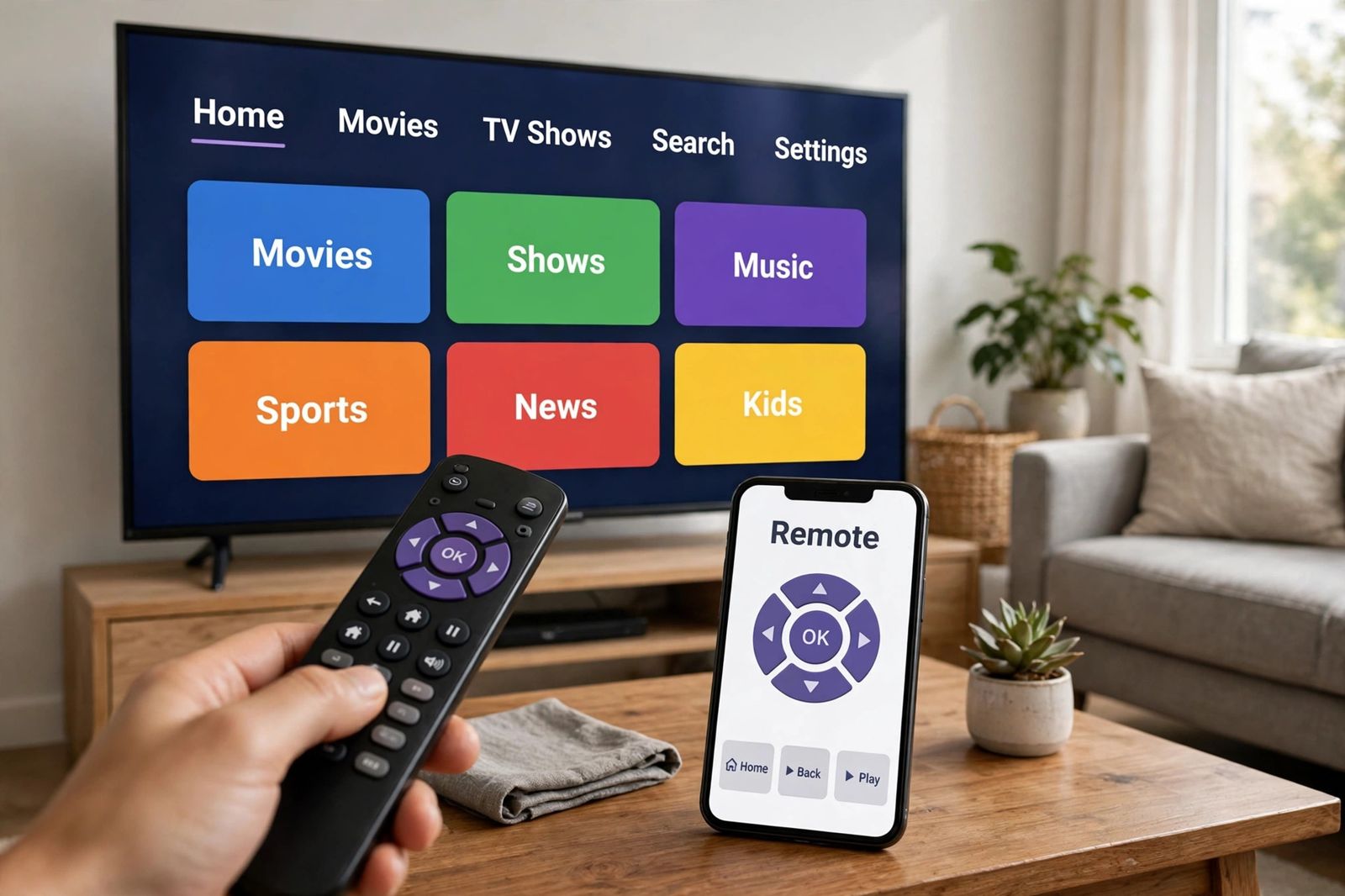
If your Roku remote is not working, the fix depends on which of two different remotes you are holding, and applying the other type’s fix is the most common reason people get stuck. A Roku simple remote sends infrared (IR) light and must point directly at the Roku — it never pairs, so no pairing step can ever fix it. A Roku voice remote connects wirelessly and can lose its pairing — it does pair, and re-pairing is often the whole fix. So start by identifying your remote: if it has a microphone or magnifying-glass button, it is a voice remote; if it has neither, it is a simple remote. Then run the one test built for that type — the phone-camera test for a simple remote, the five-second pairing hold for a voice remote — and follow only that type’s path below.
Step 0: Identify your remote — the split that decides everything
This identification is not a preliminary nicety. The two remotes fail for different reasons, are tested in different ways, and share almost no fixes beyond fresh batteries. Guides that mix their steps into one long list are why readers end up holding a pairing button that does not exist, or pointing a wireless remote at the TV for an hour.
| What you see on your remote | Your type | How it talks to the Roku | Its own test | Its fix path |
|---|---|---|---|---|
| No microphone or magnifying-glass button; no pairing button under the battery cover | Simple remote | Infrared light, line of sight only | Phone-camera test: does the front of the remote flash on your phone screen when you press a button? | Clear the path, fresh batteries, camera test — there is no pairing step |
| Microphone or magnifying-glass button; removable batteries | Voice remote | Wireless, point-anywhere | Does it work when you are not pointing it at the Roku? If not, has it lost pairing? | Restart remote and Roku, then pair: Pairing button 5 seconds, or Back + Home 5 seconds |
| Microphone button and a charging port instead of a battery cover | Voice Remote Pro (rechargeable) | Wireless, point-anywhere | Is it charged? The charging light, not a battery swap, answers this | Charge at least 5 hours, then the same pairing holds; 20-second hold restarts it |
Roku’s own support makes the same split the first step of its troubleshooting: a simple remote has no voice button and uses infrared, while a voice remote has a microphone or magnifying-glass button and connects wirelessly. Roku’s separate IR remote guide adds the physical check: remove the battery cover and look for a pairing button — a remote with no pairing button is a standard IR remote, and any remote with one is an enhanced, point-anywhere remote. Use both checks together, because they answer slightly different questions: the voice button tells you the family, the pairing button tells you which pairing method you will use later.
One more identification that saves confusion later: some voice remotes use infrared for the TV’s power and volume buttons only, while talking to the Roku itself wirelessly. That is why a remote can change the volume perfectly and still not move the Roku menu at all — two different links, one working, one not. There is a section for that split below.
Before either path: the two checks both types share
Two checks apply to every Roku remote, whichever type yours is. Do these first, then split.
Power. Dead or weak batteries are the most common cause across both types. Remove the batteries, press any two buttons (Roku’s own restart step for battery remotes — it clears leftover charge), then insert a fresh matching pair, negative end first, matching the markings in the compartment. For a rechargeable Voice Remote Pro, there are no batteries to swap: charge it with the cable that came with it for at least five hours, as Roku specifies. A remote that feels warm or hot is a separate, urgent case — stop using it, do not remove hot batteries, put it on a hard non-flammable surface such as tile, let it cool, and contact Roku if it does not cool down. Every other step in this article assumes a remote that is cool and powered.
Is the Roku itself frozen? A working remote cannot control a stuck player. Install the free Roku mobile app on your phone, join the same network the Roku is on, and try to control it from the app. If the app works, the Roku is alive and the fault is in the remote or its link — continue with your type’s path. If the app also gets no response, restart the Roku itself: unplug it from power, wait at least five seconds (several guides use ten; Roku’s own current wording is five), plug it back in, and wait for the Home screen before testing the remote again. Note the app’s one hard limit, which matters again later: the app can only reach a Roku that is already on your network. A Roku that has never been set up, or that lost its network connection, cannot be rescued by the app — Roku states plainly that you need a remote to connect a Roku device to Wi-Fi.
Once power and the player are cleared, the paths divide. Follow only yours.
Path A — Simple (infrared) remote: clear path, batteries, camera test
A simple remote sends an invisible infrared beam from its front to a receiver on the front of the Roku device. Anything that beam cannot pass through — a cabinet door, a soundbar, the TV itself if the player sits behind it — stops every button press, however fresh the batteries are. Roku’s IR guide is blunt about the ranking of causes: the most common reason for missed button presses is the Roku device sitting where the signal is blocked or partly blocked, and the second most common is low or dead batteries. Pairing is not on the list at all, because this remote does not pair.
Work the path in this order:
- Make the front of the Roku visible. You should be able to see the front of the player or Roku TV from where you sit. Do not keep a player behind the TV or inside a closed cabinet. Test from different positions — hold the remote higher, point it down at the front of the device, move left and right. If it responds from some positions and not others, you have found a blockage, not a broken remote: move the obstacle, or move the Roku.
- Reseat, then replace, the batteries. Take the batteries out and put them back in; if nothing changes, replace them with a fresh matching pair. Weak batteries produce a weak beam, which is why a dying simple remote often works up close and fails from the sofa — that distance pattern is a battery symptom, not a pairing symptom.
- Run the phone-camera test (below). This is the deciding test for this path: it separates a remote that is not sending anything from a Roku that is not receiving.
The phone-camera IR test — is the remote firing at all?
Infrared light is invisible to your eyes but not to a phone camera, which can detect a wider range of light than the human eye. Roku’s own IR guide gives this as its pro tip, with one detail most guides drop: it generally works only with the front-facing camera.
- Open your phone’s camera in selfie mode, so you can see yourself on screen.
- Hold the front of the remote in front of that camera, a few inches away.
- Press several different buttons and watch the phone screen.
Read the result exactly:
| What the camera shows | What it proves | Next step |
|---|---|---|
| A flashing light at the front of the remote with each press | The remote is sending infrared — its transmitter and batteries work | The fault is on the receiving side: the path is blocked, the Roku is hidden or frozen, or its receiver is the problem. Re-work step 1, restart the Roku, and test again |
| No flash at all, with fresh batteries fitted | The remote is sending nothing — the transmitter has most likely failed | Try one more fresh pair and a second phone camera before concluding (some cameras filter infrared); if there is still no flash, the remote itself is dead and replacement is the fix |
That second row is the value of the test: it turns “my remote doesn’t work” into a proven dead part, instead of another round of guessing. A simple remote that sends no infrared with fresh batteries, tested on two cameras, will not be revived by any setting on the Roku — because there is no setting that connects it. It was never connected. It only ever shone a light.
If the camera shows the remote firing and the path is clear, but the Roku still ignores it, use the mobile app test from the shared checks: app works means the player is fine and the receiving side of this one link is suspect; app fails too means the problem was the player all along. And check compatibility before replacing: not every Roku remote works with every device — Roku’s Players Remote, for example, is not the remote for Roku TVs or Streaming Sticks, which use their own TV remote.
Path B — Voice (wireless) remote: restart, then pair with the right hold
A voice remote does not need line of sight and should work pointed anywhere in the room — so if yours only works aimed carefully at the TV, or has stopped working altogether, it has most likely lost its wireless pairing, run low on power, or both. The sequence below is Roku’s own order: restart the remote, restart the Roku, replace or recharge, then pair. The timings matter and are widely gotten wrong, so they are stated precisely: five seconds pairs, twenty seconds restarts. Holding the button longer does not pair “harder.”
Restart the remote and the Roku first
- Battery models: remove both batteries, press any two buttons, reinsert the batteries negative end first, and replace the cover.
- Rechargeable models: hold the Pairing button for 20 seconds — or, if there is no pairing button, hold Back + Home for 20 seconds — then wait for the status light to stop flashing.
- The Roku: unplug it from power, wait five seconds, plug it back in, and wait for the Home screen.
Then test. If the remote responds, it only needed the restart. If not, check its battery level once you have any way to control the Roku (the app will do): Settings > Remotes & Devices > Remotes > your remote > About. Roku notes that if buttons still do not respond well after a restart, replacing the batteries or fully recharging is the next step — do that before pairing, because a remote with weak power can flash its light and still fail to complete pairing.
Pair it — with the hold your remote actually has
- Restart the Roku TV or player and wait for the Home screen. Both sides need to be ready; a remote put into pairing mode while the Roku is still starting will simply sit there flashing.
- Put the remote into pairing mode, close to the Roku:
- With a pairing button (on the back, or inside the battery compartment): hold it for 5 seconds until the status light flashes.
- Without a pairing button: hold Back + Home together for 5 seconds until the light flashes. Back is the left-pointing arrow; Home is the house icon.
- Wait for the pairing message on screen — allow up to about 30 seconds — then test the directional pad and Home.
If you have a working app or a second remote, you can also start pairing from the Roku’s own menu — Settings > Remotes & devices > Add devices > Remote > Continue — and then put the remote into pairing mode with the same holds. This menu route is also how you add a replacement voice remote.
Two corrections belong here, because the guides ranked for this keyword get both wrong:
- “Hold the pairing button for 3 seconds.” That timing appears in older guides, including Tom’s Guide’s. Roku’s current support page specifies 5 seconds for pairing — and 20 seconds is a different action entirely (a restart of a rechargeable remote), not a longer, stronger pair. Use 5 to pair, 20 to restart, and do not blur them.
- “Press and hold the pairing button for 5 seconds to drain the remote, then hold it for 3 seconds to pair.” At least one current guide builds its re-pairing steps on that sequence. It conflates three different Roku steps — the battery-removal restart (remove batteries, press any two buttons), the 5-second pairing hold, and the 20-second rechargeable restart — into timings Roku does not give. Follow Roku’s sequence above instead.
If pairing keeps failing
- Move closer and clear interference. Pair from a few feet away. Other wireless electronics crowded around the player can interfere; move what you can, temporarily.
- Streaming Stick owners, check the cable and the stick’s position. A stick plugged straight into the TV’s HDMI port sits in a pocket of interference from the TV itself. Roku’s fix is an HDMI extender to move the stick away from the port — Roku offers one free — and, on models whose USB power cable contains the wireless receiver, you must use that included cable: replacing it with an ordinary USB cable removes the receiver the remote talks to.
- Then do the full restart-and-pair once more, in order: batteries out (or the 20-second hold on a rechargeable), Roku unplugged and restarted to the Home screen, fresh power in the remote, then the 5-second pairing hold. A flashing light that never completes, repeated after all of that, points to the remote itself or to compatibility — a voice remote pairs with one Roku at a time and must be a model your device supports.
- Home Wi-Fi is a separate fault. A voice remote talks to the Roku directly over its wireless link; it does not need your router to send a button press. If the Roku itself has dropped off your home network — apps will not load, the app cannot find the player — that is a network problem, worked through link by link in WiFi keeps disconnecting, not a pairing problem.
Navigation works but power and volume do not — a different link
This pattern confuses people because the remote is clearly “working.” In fact two links are involved: the wireless link to the Roku (navigation, working) and the TV-control link for power and volume (not set up, or lost). Roku treats it as its own problem, with its own fix:
- Update the Roku software first: Settings > System > System update > Check now (use the app if the remote’s Roku buttons are the ones that work, you can do this with the remote itself).
- Re-run TV control setup: Settings > Remotes & Devices > Remotes > Set up remote for TV control, and follow the prompts.
- If that does not work, check how your remote is controlling the TV. Point the remote directly at the TV’s sensor, on the front of the TV, and try the volume. If it works pointed, that part of the remote uses infrared and needs that line of sight every time. If it does not, enable CEC on your TV — the setting that lets the Roku remote send power and volume commands over HDMI; TV makers give it their own names, so check your TV’s manual for its label — and then run the TV-control setup again. Roku is explicit that voice commands such as “turn off the TV” work only through CEC, not through infrared. The same CEC link also carries a soundbar’s return audio, so a TV with CEC switched off can fail at both jobs at once — volume control here, and a silent bar worked through link by link in HDMI ARC not working.
The reverse pattern carries its own lesson: if volume works but Roku navigation does not, do not conclude the remote is paired — volume may be travelling by infrared while the wireless link is down. Go back to Path B and pair.
Use the Roku app as a temporary remote — and to run the re-pairing
The Roku mobile app is more than a stopgap here; it is the tool that lets you operate the Roku while its remote is dead, including opening the pairing menu and checking the remote’s battery level. Install the official app, connect the phone to the same network as the Roku, open Devices, select your Roku, and tap Remote. From there you can reach Settings > Remotes & devices > Add devices > Remote > Continue to start pairing the physical remote properly, and Settings > System > System update > Check now to rule out a half-finished update. An Ethernet-connected Roku can also work, provided the phone is on the same local network; on an iPhone, allow the app’s Local Network permission or it will not find the player.
Remember the limit stated earlier: the app cannot set up a Roku that is not already on the network. If your Roku is factory-fresh, freshly reset, or has lost its network connection entirely, you need a compatible physical remote to connect it to Wi-Fi — Roku itself says there is no way around that step. If instead the problem is that the TV shows no picture from the Roku at all — a blank or “No Signal” screen before any menu appears — that is an input and cable problem, not a remote problem; monitor no signal works through that chain in order, and the input-selection step is the one a TV shares with a monitor. For a TV rather than a monitor, TV no signal on HDMI runs that same chain in full — input, cable swap, port swap, then the handshake reset — to prove whether the TV, the cable or the Roku itself failed.
When to stop and replace the remote
Replace — or contact Roku support — when any of these is proven, not merely suspected:
- Simple remote: no infrared flash in the phone-camera test, with fresh batteries, on two different cameras, with a clear path. The transmitter is dead; no setting revives it.
- Voice remote: it will not enter pairing (no flashing light with known-good power), or it flashes and never completes pairing after the full restart-and-pair sequence done in order, close to a restarted Roku.
- Any remote: it becomes warm or hot (stop, let it cool on a non-flammable surface, contact Roku if it does not cool), the battery compartment is corroded or damaged, or buttons are physically broken.
- Before buying: confirm the replacement lists your exact Roku model. Roku remotes look nearly identical and are not interchangeable — players, sticks and Roku TVs take different remotes, and a simple Players Remote will not control a Streaming Stick. A factory reset of the Roku is not on this list: it erases your account, apps and settings, returns the device to first-time setup — where, without a working remote, you cannot even rejoin Wi-Fi — and it cannot repair a dead transmitter or a failed wireless link. Restarting the device is a step in the paths above; factory-resetting it is a different act that this fault never requires.
Frequently asked questions
Why is my Roku remote not working even with new batteries? Because batteries fix only power, and power is only one link. A simple remote with fresh batteries can still be blocked, or its transmitter can be dead — run the phone-camera test to find out which. A voice remote with fresh batteries can still be unpaired — restart it and the Roku, then use the 5-second pairing hold.
How do I pair a Roku remote with no pairing button? First decide which “no pairing button” you have. If it is a voice remote without a button, hold Back + Home for 5 seconds until the light flashes, with the Roku restarted and on its Home screen. If it is a simple remote, it has no pairing because it never pairs — fresh batteries and a clear line of sight are its whole setup.
What does a blinking light on my Roku remote mean? On a voice remote, a flashing status light means it is in pairing mode (after a 5-second hold) or restarting (after a 20-second hold). Flashing by itself does not mean it has connected — wait for the pairing message on screen. If it flashes and never completes, work through the pairing-failure checks above.
Can I use my phone as a Roku remote permanently? Yes, while the Roku stays on your home network — the official app offers the directional pad, Home, search and a keyboard. Its limits are practical: it drains your phone, and it cannot help if the Roku ever leaves the network and needs Wi-Fi set up again, because that step requires a physical remote.
Why does my Roku remote work up close but not from the sofa? On a simple remote, that distance pattern usually means weak batteries — the beam is too dim to reach reliably — or a partly blocked path that only a short range overcomes. On a voice remote, range problems point at interference, especially a Streaming Stick tucked behind the TV; an HDMI extender moves it clear.
Will resetting my Roku fix the remote? Restarting it, yes — that is a step in both paths, done by unplugging for five seconds. Factory-resetting it, no — that erases your settings and account, leaves you needing a working remote to set up Wi-Fi again, and does nothing for a dead remote. Restart the remote itself (batteries out and any two buttons pressed, or the 20-second hold on a rechargeable) before you touch the player’s reset options at all.
This article is general information, based on Roku’s own support pages for simple and voice remotes and for infrared remotes, linked above and checked in November 2026. Button names, menu wording and pairing-button placement vary slightly by remote model and Roku software version — where yours differ, Roku’s support page for your model is the authority. If a remote is hot, damaged or swollen, stop using it and contact Roku rather than continuing to troubleshoot it.