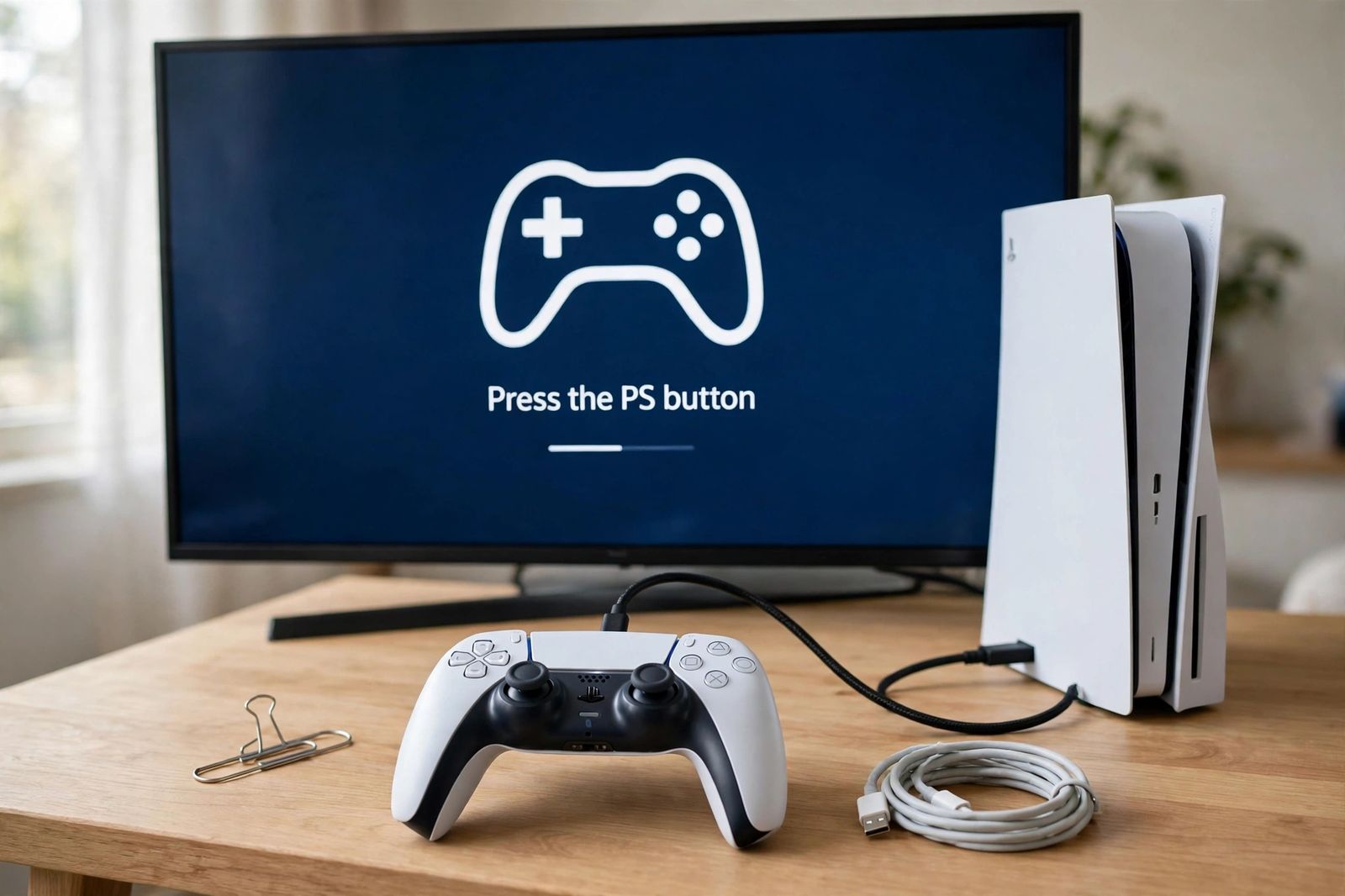
If your PS5 controller is not connecting, the fix is usually this: turn the PS5 on with its own power button, connect the DualSense straight to the console with the USB cable that came in the box — or any cable you know carries data, not just power — and press the PS button once. If the light bar blinks and a player indicator lights up, the controller was never broken; it was waiting for a proper pairing. If that wired attempt does nothing, the next suspects, in order, are a charge-only USB cable (the single most common trap, explained below), a flat battery, a controller that is still trying to reach a phone, PC or second console it was paired with, and only then the pinhole reset on the back of the controller. Do not start with the reset, do not factory-reset the console, and do not buy a replacement until the two tests near the end of this page have told you whether the fault lives in the controller or in the console’s Bluetooth. And if the console itself will not turn on at all — no light, no beep when you press its power button — that is a power chain, not a pairing one: our PS5 not turning on guide reads the light and the beep and works Sony’s cable test, power cycle and Safe Mode order for it.
What is your controller actually doing?
The same headline — “won’t connect” — covers four different faults, and they do not share a fix. Match yours before touching anything:
| What you see | What it usually means | First move |
|---|---|---|
| No light at all when you press PS | Flat battery, or a cable/port that is delivering nothing | Charge it on the console with the included cable, then try a second port |
| Light bar flashes blue, then goes dark | The controller is searching for a host it cannot find — usually a device it was paired with before, not this PS5 | Pair it to this console by USB cable, below |
| It charges — orange light — but never pairs by cable | A charge-only USB cable: power is getting through, pairing data is not | The data-cable section, next |
| It works with the cable plugged in but dies or drops when you unplug | Battery too low to hold a wireless link, a pairing that never completed, or a wireless fault | Leave it charging, complete the USB pairing, then work the decision tests |
| A second controller will not pair, while the first works fine | The second controller simply has not been paired yet, or is still on | Pair it wirelessly through Bluetooth Accessories, below |
| No controller will connect to this console at all | The fault is moving toward the console side, not the controllers | The second-device tests, below |
A lot of these failures happen on a console’s first day — a new PS5 unboxed as a gift, a spare controller bought for two-player games, or a move up from a PS4 (the upgrade many players are making for current-generation-only games; if that is you, our explainer on is GTA 6 on PS4 covers why the old console cannot run them). First-day failures are almost never broken hardware. They are pairing that was never completed, with the wrong cable.
The data-cable trap: a cable can charge your controller and still pair nothing
This is the trap that wastes the most time, because every sign points the wrong way. A USB-C cable has separate jobs inside it: some wires carry power, others carry data. Cheap cables — the kind bundled free with phone accessories, e-readers and LED lamps — are often built with only the power wires. Plug one into a DualSense and the controller lights up and charges exactly as it should, because power is all charging needs. But PlayStation’s own pairing steps make the controller pair with the console through the cable: the console and controller introduce themselves over the data wires. A charge-only cable has no data wires, so the introduction never happens. The controller sits there glowing, looking healthy, while the console has quite literally never seen it.
So an orange charging light proves exactly one thing: power reached the controller. It proves nothing about pairing. Before you reset anything, rule the cable in or out:
- Use the cable from the PS5 box if you possibly can. It is the one cable in the house guaranteed to carry both power and data, because PlayStation ships it for exactly this job.
- Read the packaging or listing of any replacement. PlayStation’s wording for a suitable cable is one labelled charge and sync or charging and data. A cable sold as charge only cannot be used for pairing, however well it charges.
- No label? Test the cable with a phone and a computer. Plug your phone into a PC with the suspect cable. If the computer offers file transfer or photo import, the cable carries data. If the phone only charges and never appears on the computer, it is a power-only cable — put it back in the drawer and test the controller with a different one.
- Do not judge by thickness or price. A thick braided cable can still be charge-only, and a thin one can carry data. The file-transfer test settles it; the look of the cable does not.
- Plug straight into the console. No hub, no extension lead, no charging dock in between during the pairing test — each one is another thing that can pass power and block data.
Swap in a known data cable and repeat the simple pairing below before you go any further. For a large share of “broken” controllers, that swap is the whole repair.
How do I pair the controller with the PS5 properly?
This is PlayStation’s official sequence, and the order matters:
- Turn the PS5 on — with the power button on the console itself if no controller is working yet.
- Connect the controller to the console with the included USB cable (or a confirmed data cable, per the section above), plugged directly into a console USB port.
- If the controller is off, press the PS button. The light bar blinks, and then the player indicator lights up.
- Leave it connected until it has some charge, then unplug and use it wirelessly.
Three facts from the same PlayStation page explain most repeat failures. First, a DualSense can pair with only one PS5 console at a time — a controller last used on a friend’s console, or a second console in the house, has to be paired to yours again with the cable, and doing so moves its PS5 pairing to your machine. Second, up to four controllers can be used on one PS5 at the same time, so a console refusing a second, third or fourth pad is not “full” — that pad just has not been paired yet. Third, pressing the PS button on an off controller does not start a fresh search of the room; it reconnects to the device the controller last connected to. If that device was a phone or a PC, the controller will faithfully go looking for the phone or the PC, flash blue, fail, and go dark — while sitting right in front of a perfectly healthy PS5.
If your PS5 itself is set up and downloading happily but the pad will not wake it, keep the two problems separate in your head: a console that will not download is a settings and storage chain (our GTA 6 preload not working guide works through it on PS5), while a controller that will not pair is the cable-and-pairing chain on this page. Fixing one never fixes the other. And a handheld console that will not charge at all is a third chain again — our Nintendo Switch not charging guide works through Nintendo’s official-adapter test and forced shutdown for it.
Heat is a separate chain again: if the console itself is showing the “too hot” warning or cutting out mid-game, that is a placement-and-dust problem, not a pairing one — our PS5 overheating guide works through Sony’s 10 cm clearance and cleaning order for it.
Stick drift is a separate chain again: if the controller connects fine but your character or camera moves while your thumbs are off the sticks, that is a stick problem, not a pairing one — our PS5 controller stick drift guide measures the resting offset first, then sets the deadzone from that number.
My controller keeps connecting to my phone or PC instead
A DualSense can hold up to four registered pairings, each in its own slot, and it is loyal to them in ways that look like faults. PlayStation’s guide to using a DualSense with phones, computers and other devices documents the system:
| Slot | Hold with the PS button | Player indicator |
|---|---|---|
| Slot 1 | Triangle button | One light |
| Slot 2 | Circle button | Two lights |
| Slot 3 | Cross button | Three lights |
| Slot 4 | Square button | Four lights |
Holding one of those action buttons together with PS for about three seconds switches the controller to that slot’s device. When all four slots are full, pairing a fifth device replaces the pairing you have not connected to for the longest time. And one rule causes endless confusion: if you simply press PS while the controller is off, it connects to the last device it was used with — not to the nearest one, and not to the PS5 by default.
So if your controller spent last week playing games on a laptop, tonight’s blue flashing in front of the PS5 is the controller looking for the laptop. The clean fix back to the console is not a button combination at all: it is the wired pairing above — cable in, press PS, and the PS5 becomes the controller’s console again. To pair it to a phone or computer in the first place, the controller must be off and unplugged; then hold the Create button and the PS button together until the light bar blinks, and select the controller in that device’s Bluetooth list. Supported minimums, per PlayStation, are Windows 10 (64-bit) or Windows 11, macOS Big Sur 11.3, iOS/iPadOS 14.5 and Android 12.
The pinhole reset: PlayStation’s procedure, done exactly
If a known data cable and a correct wired pairing still get you nothing, PlayStation’s troubleshooting step is to reset the controller itself. It takes a minute:
- Turn off the PS5 console — fully off, not Rest Mode.
- Unplug the USB cable from the controller.
- Turn the controller over and find the small reset hole on the back, next to the Sony logo. Inside it sits a tiny button.
- Push the button with a pin, an unfolded paperclip or a SIM ejector tool (PlayStation notes the tool is not included) and hold it for at least five seconds. Push straight into that one hole — do not probe the screw holes, the speaker holes or any other opening.
- Connect the controller to the PS5 with the cable that came with it, turn the console on, and press the PS button.
Two corrections matter here, because guides ranking for this problem get both wrong. First, a reset does not wipe the controller’s pairings. PlayStation’s own troubleshoot text states it plainly: resetting “will not reconfigure the controller or affect pairing settings.” Pages telling you the pinhole “clears the pairing memory” or “erases all previous connections” are describing a factory reset that this button does not perform — which is why a controller can still go back to its old device after a reset, and why the wired re-pairing in step 5 is not optional paperwork but the actual point of the procedure: the reset clears a stuck controller state, and the cable pairing is what re-establishes the connection. Second, the hold is at least five seconds — pages quoting seven seconds or “several seconds” are rounding a specification PlayStation-derived guides state as five; a quick jab is too short, and holding for much longer does nothing extra. And if the reset changes nothing, do it once and move on to the tests below. Five resets in a row are not a stronger reset; they are the same reset, repeated.
It works plugged in, but not wirelessly
Work this in order before blaming the Bluetooth:
- Let it actually charge. A battery that is nearly empty can run the controller over the wire and still be unable to hold a wireless link. Leave it connected to the console until it has a real charge, then unplug and press PS.
- Check how it is set to communicate. With a working controller (or this one, while it is wired), go to Settings > Accessories > Controller (General) and look at the communication method setting, which decides whether the controller talks to the console over USB or Bluetooth. A controller locked to USB-only behaviour will look “wireless-dead” for a settings reason, not a hardware one.
- Check Rest Mode charging. A console that never charges the pad overnight makes every evening start with a flat controller. Go to Settings > System > Power Saving > Features Available in Rest Mode and set Supply Power to USB Ports to Always or 3 Hours. A PS5 that is fully switched off charges nothing at all.
- Get close and cut the clutter for the test. Pair again sitting near the console, with other Bluetooth devices you are not using switched off, so a weak first link is not fighting the whole room. Distance and interference explain flaky reconnections; they do not explain a controller that has never paired, which is a cable or pairing problem, above.
Is it the controller or the console? The two tests that settle it
Everything so far fixes the common causes. What remains is the question that decides whether money gets spent: is the faulty side the controller, or the PS5’s own Bluetooth and ports? Guessing here is how people buy a new controller for a console fault. Two comparisons settle it, and each takes minutes. The same two-test logic settles the Xbox version of this problem too — our Xbox controller not connecting guide runs it there with the wired test first, and with one twist: an Xbox console does not use Bluetooth for its controllers at all.
Test 1 — the controller, on a second device. Pair the suspect DualSense to a phone, tablet or computer over Bluetooth: controller off and unplugged, hold Create + PS until the light bar blinks, then select it on the device (minimum versions are listed in the slots section above). You can also plug it into a computer by USB and update its software there with Sony’s PlayStation Accessories app — a route that works even while the PS5 side is unusable.
Test 2 — a second controller, on the PS5. Borrow any working DualSense and try it on your console with the same known data cable and the same USB port, using the wired pairing steps above. (No cable is needed to pair an additional controller if one controller already works: on the working pad, go to Settings > Accessories > General > Bluetooth Accessories, then on the new pad hold Create + PS until the light bar blinks and select it on screen. Some guides claim every new controller must be cabled to the PS5 first — PlayStation’s own steps include this wireless route, and it works.)
Now read the pair of results together:
| Test 1: suspect pad on a phone/PC | Test 2: known-good pad on your PS5 | What it means |
|---|---|---|
| Connects and works | Connects and works | Neither device is broken — the suspect pad’s PS5 pairing was the fault. Re-pair it by cable and it should stay |
| Connects and works | Will not connect either | The console side is the problem — its Bluetooth, ports or software. Two different controllers failing the same way exonerates both controllers |
| Will not connect anywhere, even after the pinhole reset | Connects and works | The suspect controller is the problem. The console, cable and port have all just been proven good by the borrowed pad |
| Will not connect anywhere | Will not connect either | Swap the cable and the console port and repeat once — a bad cable or port can fail both tests at once. If the pattern survives a known data cable in a second port, both sides need professional diagnosis |
That table is the whole decision. A controller that pairs happily with a phone is not a dead controller, whatever it does in front of the PS5; a console that refuses two different controllers is not going to be fixed by a third. Write down which combination you got — it is exactly the information PlayStation support will ask for.
Update the software — using the menu path that actually exists
Outdated software is a real but minor cause, and it is worth ten minutes once a controller is talking to the console again. DualSense device software arrives as part of PS5 system software updates, per PlayStation. To check the controller manually: Settings > Accessories > Controller (General) > DualSense Wireless Controller Device Software. For the console itself: Settings > System > System Software > System Software Update and Settings.
One warning, because an outdated route is still circulating: some older troubleshooting pages send you to Settings > Devices > Controllers to update a PS5 controller. That menu belongs to the PS4 era and does not exist on a PS5 — if a guide’s steps name menus your console does not have, the guide, not your console, is out of date, and its other steps deserve the same suspicion. The same applies to reset instructions that place the pinhole “next to the top right screw”: on a DualSense, the reset hole is the small hole on the back next to the Sony logo, as in the procedure above.
What not to do
- Do not factory-reset the PS5 (Reset PS5) for a controller problem. It erases the console to fix an accessory, and it cannot distinguish a cable fault from a controller fault from a console fault — the tests above do that for free.
- Do not rebuild the database or restore default settings in Safe Mode as an early step. Those Safe Mode options circulate in older guides for this symptom; PlayStation’s own route for a controller that will not connect is cable pairing, the pinhole reset, software updates, and then its Repairs tool — in that order.
- Do not troubleshoot your router or Wi-Fi. The controller talks to the console over a local Bluetooth link; your internet connection is not in that path, and changing Wi-Fi networks cannot repair a pairing. (If the console’s own online connection keeps dropping once the controller works, that is a genuinely separate fault — our Wi-Fi keeps disconnecting fixes cover it.)
- Do not open the controller. A swollen battery, a loose or damaged USB-C port, liquid damage or a cracked shell are stop-and-get-help signs, not invitations. Opening it risks the warranty and fixes none of the causes on this page.
When it is a repair, not a setting
Take the controller to PlayStation Repairs — PlayStation’s diagnostic route — when all of the following are true: it has had a real charge; it still will not pair with a known data cable in two different console ports; the pinhole reset has been done once, properly, with the console off; the software is up to date; and the test table above points at the controller (it fails on a second device too, while a borrowed controller works on your PS5). At that point the remaining causes are internal — battery, USB-C port, or the wireless hardware — and none of them is reachable from a settings menu. Take the console side instead if the table pointed there: several known-good controllers failing on one PS5 is a console problem, and support will want that comparison result, so tell them both halves of the test, not just “it won’t connect.”
Frequently asked questions
Why is my PS5 controller flashing blue and then turning off? It is searching for a device it was paired with and cannot find it — most often a phone, PC or another console it was last used with, because pressing PS simply reconnects it to its last device. Pair it to this PS5 by USB cable: console on, cable in, press PS.
Why does my controller charge but not connect? The likeliest cause is a charge-only USB cable: it carries power, so the controller lights up and charges, but it has no data wires, so the pairing that happens through the cable never takes place. Use the cable from the PS5 box, or test a suspect cable by plugging a phone into a computer with it — if no file transfer is offered, the cable carries no data.
Where is the reset button on a DualSense? In the small hole on the back of the controller, next to the Sony logo. With the PS5 turned off and the controller unplugged, press the button inside with a pin or unfolded paperclip and hold it for at least five seconds, then reconnect by cable and press PS.
Does resetting the controller delete my pairings or profiles? No. PlayStation’s own troubleshooting text says a reset will not reconfigure the controller or affect pairing settings. Guides that describe the pinhole reset as wiping pairing memory are wrong — the reset clears a stuck state, and you still re-pair by cable afterwards because that pairing is the fix, not because everything was erased.
Can one DualSense work with my PS5 and my PC? Yes. It can hold up to four registered pairings, one per slot (Triangle, Circle, Cross and Square, held with the PS button). Pressing PS on its own reconnects it to whichever device it last connected to, and pairing it back to the PS5 is the wired cable-and-PS-button sequence.
Do I need a cable to pair a second controller? Not if one controller already works. Use the working controller to open Settings > Accessories > General > Bluetooth Accessories, then hold Create + PS on the new controller until its light bar blinks and select it on screen. The cable route also works, and is the route to use when no controller is working at all.
My controller works on my phone but not on my PS5. What does that prove? That the controller’s Bluetooth and battery can work — so suspicion moves to the console side or to the pad’s PS5 pairing. Re-pair by cable once; if a second, borrowed controller also fails on the same console, the console is where the fault lives.
This article follows PlayStation’s own DualSense support pages — the controllers support hub for pairing, updating and the reset procedure, and the guide to using DualSense with other devices for Bluetooth pairing, the four pairing slots and reconnecting to a PS5 — checked in November 2026. It covers the standard DualSense wireless controller; the DualSense Edge follows the same pairing and reset route with its own software menu.