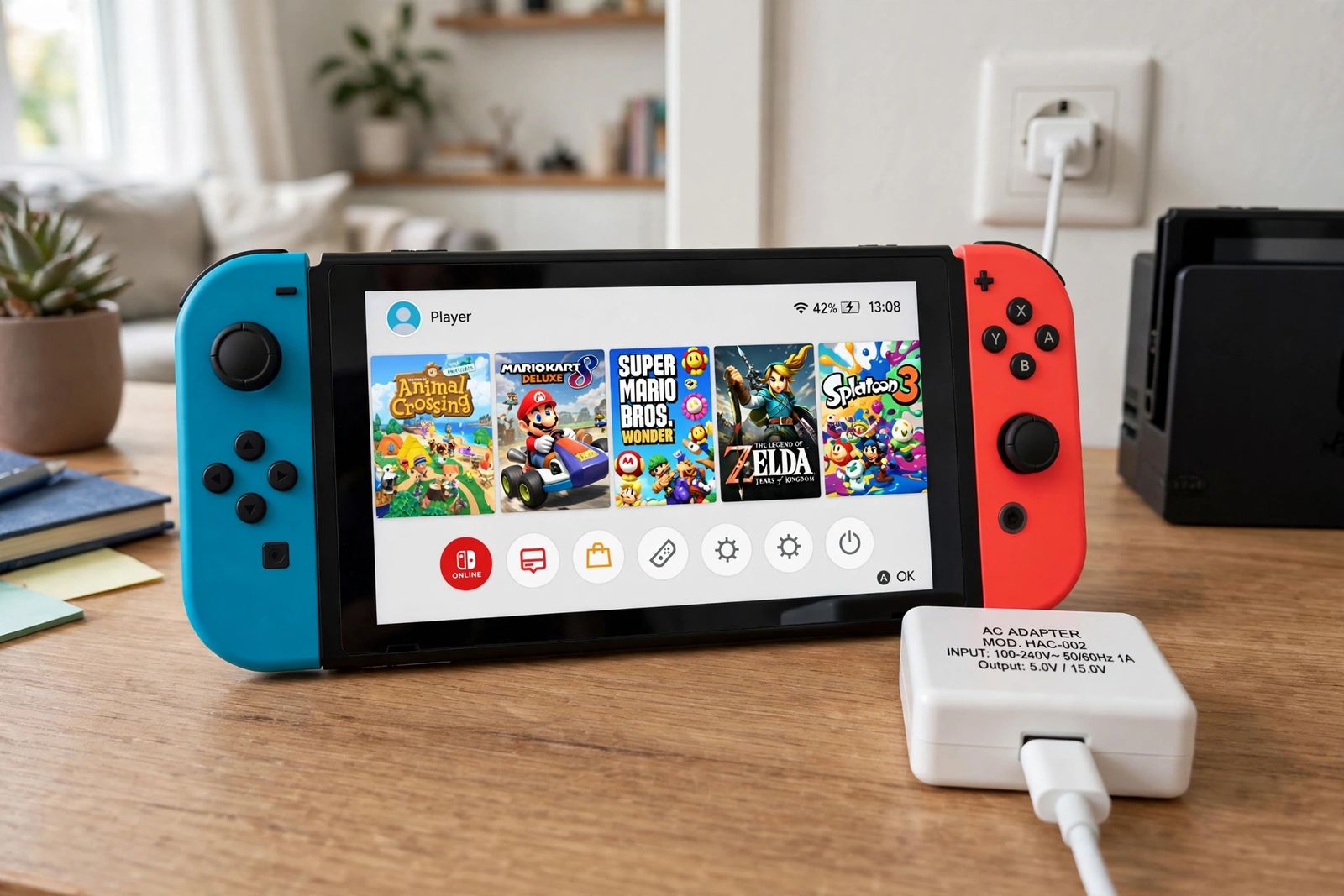
If your Nintendo Switch is not charging, do Nintendo’s own sequence first, in this order: take the console out of the dock, unplug the AC adapter from both the wall and the console and leave it unplugged for 30 seconds to reset the adapter, hold the POWER Button down to force the console to shut down (Nintendo’s charging guide uses a 20-second hold; its Q&A page says at least 12 seconds for a frozen console — the section below reconciles the two), then plug the official adapter — model HAC-002, the one whose label carries a 15V output — straight into a wall outlet and straight into the console, and press POWER once. If the battery was nearly empty, the screen will stay dark except for a charging indicator that flashes briefly in the top-left corner; leave it charging for at least 30 minutes before you judge it. Most “dead” Switches are a wrong or tired adapter, a frozen console, or a battery that was simply flatter than it looked — and the tests on this page separate those three from a genuine fault, and a dock fault from a console fault, before any money is spent. This page covers the Nintendo Switch, Switch Lite and Switch OLED Model; the Switch 2 has its own adapter and its own support page, noted at the end.
First, what is your Switch actually doing?
“Nintendo Switch not charging” covers several different faults, and they do not share a fix. Match yours before touching anything:
| What you see | What it usually means | First move |
|---|---|---|
| Screen dark, but a battery-and-lightning icon flashed briefly in the top-left corner when you plugged in | The battery is nearly depleted — that flash is the charging indicator for an empty console | Leave it on the official adapter for at least 30 minutes, then press POWER once |
| Console is on, but there is no lightning bolt on the battery icon at the top-right | The console is running but not accepting charge from whatever is plugged in | The official-adapter test, below |
| It charges in the dock but not with the cable plugged straight in — or the other way round | One half of the charging path is faulty: dock side, or adapter/cable/console side | The dock-vs-handheld split table, below |
| Screen black, sound may still be playing, buttons do nothing | The console has frozen, not died | The forced shutdown, below |
| Battery percentage falls while it is plugged in and being played | Charge is arriving slower than the game is using it — Nintendo notes charging takes longer while the console is in use | Test again with the console asleep or off, on the official adapter |
| It only charges when the cable is held at an angle, or the plug feels loose | The USB-C connector is worn or damaged, or debris is stopping the plug seating | Look in the port with a light (below); visible damage such as bent metal means service, not cleaning |
Two things that are not evidence, whatever other pages tell you. First, the Switch has no charging light. Nintendo states it plainly: Nintendo Switch systems do not have a power light. Any guide that sends you looking for an orange or green charging light on the console is describing a different machine. Second, the light on the dock is not a charging indicator. Nintendo’s Q&A page says so in those words: the dock light comes on when there is video output to a TV screen. A dark dock light proves nothing about charging, and a lit one proves nothing either. The only charging evidence the console itself gives you is on its own screen — the bolt on the battery icon, or that brief top-left flash on an empty battery.
And if your problem is a controller that will not pair rather than a console that will not charge, that is a different chain entirely — our PS5 controller not connecting guide works through the same kind of cable-and-pairing trap on PlayStation’s side, and our Xbox controller not connecting guide does the same for Microsoft’s.
The decider: the official-adapter (15V) test
Every other test on this page depends on this one, because a Switch tested with the wrong power supply can fail every step while being perfectly healthy. Nintendo’s troubleshooting does not start with the console at all. It starts with the adapter — so check yours before you reset anything:
- Find the model number. Nintendo’s instruction is exact: check that you are using the Nintendo Switch AC adapter by finding the model number MOD. HAC-002 on the bottom of the AC adapter, where the cord attaches. That adapter’s own rating label carries two outputs — 5.0V and 15.0V (15V at 2.6A). The 15V line is the point of this test: it is what the console and, especially, the dock are built around, and it is the line a phone charger or a controller cable does not offer.
- Rule out the impostor Nintendo warns about by name. The Q&A page cautions: check you are not using a different adapter, “such as the USB charging cable [HAC-010] supplied with controllers.” That cable is a genuine Nintendo part, it fits the port, and it is the wrong tool for charging the console — it exists to charge controllers. A console that “won’t charge” on the controller cable has not failed anything yet.
- Check the adapter for damage. Nintendo’s list: a frayed or split cord, loose connectors, or kinks. Any of those found, the adapter needs to be replaced — testing further with a damaged adapter proves nothing.
- Plug it in the way Nintendo specifies. The adapter goes directly into a wall outlet — Nintendo’s Q&A page says directly into a mains socket rather than an extension cord or power strip — and, for this test, directly into the console, with the console out of the dock. Try a different outlet if the first one gives you nothing, as Nintendo’s guide instructs.
- Read the screen, not a light. Press POWER once. A battery charging icon — the battery with a lightning bolt — is the pass mark. On a nearly empty battery, expect only the brief top-left flash and a dark screen; give it the full 30 minutes below before calling it a fail.
Why insist on the official brick when other USB-C chargers exist? Nintendo’s position, stated on its own page, is that a non-licensed adapter is itself a suspect: “If a non-licensed AC adapter is being used, replacing it with the correct accessory may resolve the issue,” and unlicensed products “do not undergo Nintendo’s testing and evaluation process and may have compatibility problems.” You do not have to believe a third-party charger can never work. The point of a test is a known-good reference: until the console has been tried on an undamaged HAC-002 in a wall outlet, you have not tested the console — you have tested a charger.
Nintendo’s reset sequence, in Nintendo’s order
With the right adapter in hand, this is the maker’s own procedure from its Nintendo Switch System Cannot Be Charged page — and the order matters, because the adapter is reset before the console is touched:
- Remove the console from the dock. Nintendo puts this in its “before you start” notes; every step below is done handheld, so the dock cannot confuse the result.
- Unplug the AC adapter from both the wall and the console. Leave it unplugged for 30 seconds to reset the AC adapter. (Nintendo’s Q&A page gives a shorter wait — at least 20 seconds — in its own shorter sequence. Thirty seconds satisfies both; use 30.)
- Hold down the POWER Button for 20 seconds, then release it. In Nintendo’s words, “This performs a forced shut down on the console.”
- Plug the AC adapter directly into a power outlet, then into the console. Try a different outlet if there is any doubt about the first.
- Press the POWER Button once. The console should turn on and display a battery charging icon.
- If the battery was nearly depleted, wait. The screen will remain off and a charging indicator will be momentarily displayed in the top-left corner. Nintendo: charge the console for at least 30 minutes before trying to power it on again. (Its regional pages phrase the same wait as 15 to 30 minutes; 30 is the safe reading, and impatience at minute five is how healthy consoles get written off.)
A full charge, for reference, takes approximately 3 hours when the console is powered off or in sleep mode, per Nintendo — and longer if the console is in use. A battery that has not reached 100% after several hours on the official adapter is, by Nintendo’s own framing, an adapter or charging-port problem, which is what the split test below is for.
The 12-second hold: which number is right, 12 or 20?
Search this problem and you will find 12 seconds, 15 seconds and 20 seconds all stated as the hold time, usually with total confidence. Two of those numbers are Nintendo’s. One is not.
- At least 12 seconds is the figure on Nintendo’s Q&A page for a console that won’t charge: “Your console may have frozen. Press and hold the POWER Button for at least 12 seconds to turn the console completely off. Then press the POWER Button again to turn the console on.” iFixit’s troubleshooting page uses the same 12-second hard restart.
- 20 seconds is the figure Nintendo’s US charging page and its no-power page both use for the forced shut down inside the full reset sequence above.
- 15 seconds — the figure in uBreakiFix’s guide, where the hold is also mislabelled a “soft reset” — appears in no Nintendo page. It is neither maker’s number, and a “soft reset” is not what a long POWER hold does: Nintendo calls this a forced shut down, the remedy for a console that has frozen with a black screen (sound may still be audible from the speakers while the screen stays blank — a frozen console, not a dead one).
The two real figures do not actually conflict. Twelve seconds is Nintendo’s stated minimum to force a frozen console completely off; twenty seconds is the hold Nintendo builds into its charging and no-power sequences. Holding for the full 20 seconds in the sequence above therefore covers both — you cannot “over-hold” your way past the 12-second threshold and miss the shutdown. What you should not do is jab the button for three seconds (that is the ordinary power-menu hold on a working console, not a forced shutdown), release at an invented 15, or repeat the hold again and again hoping repetition strengthens it. Once, properly, inside the sequence — then read the result.
One more reassurance, because the word “reset” frightens people off this step: the forced shut down and the adapter reset are not a factory reset. Nothing in Nintendo’s charging procedure erases games, saves or settings — it powers a stuck console fully off and resets the adapter, then starts both again. Do not let any guide talk you from this sequence into a factory reset or an initialisation for a charging fault; Nintendo’s route never goes there.
The dock-vs-handheld split: the table that assigns the fault
Once the console has had the official adapter, direct, plus the reset sequence, run the split. Nintendo’s own steps quietly contain it — troubleshooting is done with the console removed from the dock, and its adapter test sends the adapter off to power other devices — but no page in the top 10 lays the combinations out. Lay them out:
Test A — handheld: official HAC-002, wall outlet, straight into the console (no dock). Charging icon? Test B — docked: same adapter, connected to the dock’s AC Adapter terminal (open the dock’s back cover; Nintendo’s Q&A warns to make sure the plug is properly inserted — and not inserted into the USB or HDMI ports), console seated in the dock. Charging icon on the console screen / picture and charge on the TV? Test C — the adapter, elsewhere: Nintendo’s own step — plug the AC adapter into another Nintendo product that uses USB-C, such as a Pro Controller, a Joy-Con Charging Stand, or the dock itself, and check whether that device charges (on a dock, you may see the power light turn on for a moment when first plugging it in — that brief light is mentioned by Nintendo only as a sign the adapter delivered power to the dock, not as a charging indicator).
Now read the pattern:
| Handheld (Test A) | Docked (Test B) | Adapter elsewhere (Test C) | What it means |
|---|---|---|---|
| Charges | Charges | — | Nothing is broken. The fault was the earlier setup — a non-official adapter, a power strip, a dock plug in the wrong terminal, or a frozen console the reset cleared |
| Charges | Does not charge | Adapter powers the dock/other device | The console and adapter are proven good by Test A. The fault is in the dock path: re-seat the adapter in the dock’s AC Adapter terminal and the console in the dock; if it still fails, the dock itself is the faulty side |
| Does not charge | Charges | — | The dock path works and the console can charge — suspicion falls on the direct connection: the console’s bottom USB-C connector seating, or debris stopping the plug going fully in. Inspect the port (below) and repeat Test A with the plug firmly seated |
| Does not charge | Does not charge | Other device charges | The adapter is exonerated by Test C. The fault is console-side: its USB-C connector or internals. This is Nintendo’s service point, below |
| Does not charge | Does not charge | Other device does not charge either | The adapter itself is the prime suspect despite its label — try a second, known-good HAC-002 if one is available. If a second official adapter charges the console, the original adapter needs replacing; if none is available, Nintendo’s route is service, with the adapter included for testing |
Switch Lite owners run Tests A and C only: the Lite is not compatible with the dock — Nintendo states it outright — so there is no docked leg, and a Lite that fails Test A with an adapter that passes Test C is at the service point without further splitting.
That table is the whole decision. A console that charges happily handheld was never a console repair; a dock that will not charge a console that charges direct has indicted itself; and an adapter that charges a Pro Controller but cannot charge the console in either position has cleared itself and pointed at the console. Write your pattern down — it is exactly what Nintendo support will work from.
Look in the port — look, don’t excavate
The one physical check worth doing at home is an inspection, and Nintendo defines its limit: check the USB-C connector at the bottom of the console for damage, such as bent metal. Shine a light in. You are looking for two things: visible damage (bent metal, anything broken or corroded), and debris packed in tightly enough that the plug no longer sits flush against the bottom edge of the console — iFixit’s phrasing for the same check, and the reason a cable can feel “plugged in” while its contacts never meet.
What you do about debris is where the top 10 contradicts itself, so be careful whose advice you take. iFixit suggests an air duster and a toothpick shaved to fit, with a clear warning to avoid inserting anything metal. uBreakiFix says the opposite about the same object — no toothpicks, because wood splinters — and allows only compressed air in short bursts or a soft, dry brush, with no metal and no liquids. Both agree on the hard lines: nothing metal in the port, ever. Stay inside the shared ground — light, air, patience — and stop the moment you can see damage rather than dirt. Bent metal is not a cleaning problem. On Nintendo’s page, a damaged USB-C connector means one thing: the console will need to be serviced. Opening the console to inspect the port from inside, as repair-publisher pages go on to suggest, is not a troubleshooting step Nintendo asks of you, and it is not one this page recommends: the port is soldered to the board, and the split table above has already told you whether the console side is at fault without a single screw coming out.
What not to do
- Do not judge charging by any light. The console has no power light (Nintendo’s words), and the dock light means TV output, not charging (also Nintendo’s words). Judge by the battery icon on the console’s own screen.
- Do not use the 15-second hold, and do not call the long hold a soft reset. Nintendo’s figures are at least 12 seconds (Q&A, frozen console) and 20 seconds (US charging/no-power sequence). The forced shut down is the one in the sequence above.
- Do not factory-reset or initialise the console for a charging fault. Nintendo’s charging route is adapter reset, forced shut down, official-adapter test, split test, service. Erasing the console appears nowhere in it.
- Do not keep testing with a damaged adapter or a controller cable. A frayed, kinked or loose-connector adapter needs replacing (Nintendo), and the HAC-010 cable supplied with controllers is not the console’s charger, however well it fits.
- Do not open the console, and do not probe the port with metal. A swollen battery — a bulging back or a screen lifting from the frame — damaged port metal, liquid damage or a cracked shell are stop-and-get-help signs, not invitations.
When it is a repair, not a setting
Take the console to Nintendo’s service route when the pattern says console-side: it has had the full reset sequence; it has been tested on an undamaged official HAC-002 plugged directly into a wall outlet and directly into the console, for at least 30 minutes if the battery was depleted; it still shows no charging icon and does not reach full after several hours; the same adapter charges another USB-C Nintendo device (Test C); and the split points at the console in both handheld and docked positions. Nintendo’s conclusion at exactly that point is that “the Nintendo Switch console will need to come in for service” — and it asks you to include the AC adapter for testing purposes, so send the brick with the console. If the split instead convicted the adapter (a second official adapter charges the console), replace the adapter; if it convicted the dock (handheld charges, docked does not, adapter proven), the dock is the faulty side and the console needs no repair at all.
A note on scope: this page is about the original Switch family — Switch, Switch Lite and Switch OLED Model — and their HAC-002 adapter. The Nintendo Switch 2 is a different charging family: its own adapter is model NGN-01, it has USB-C connectors on both the top and the bottom of the console, and Nintendo’s Switch 2 page adds a test the original cannot do (try the adapter in the console’s other USB-C connector). Nintendo also states that an original Switch HAC-002 adapter can charge a Switch 2 console directly, but cannot be used with the Switch 2 dock for charging or TV mode. Switch 2 owners should follow Nintendo’s dedicated Switch 2 “Cannot Be Charged” page rather than the dock steps above.
Frequently asked questions
How long should I hold the POWER Button on a Switch that won’t charge? Inside Nintendo’s full charging sequence, hold it for 20 seconds and release — that performs a forced shut down. Nintendo’s Q&A page gives the minimum for a frozen console as at least 12 seconds to turn it completely off, then press POWER again. The 15-second figure in some repair guides appears in no Nintendo page.
How do I know if my Switch is charging if there is no light? By the screen. With the console on, look for the lightning bolt on the battery icon at the top-right. With a nearly empty battery, the screen stays off and a charging indicator appears only momentarily in the top-left corner — leave it at least 30 minutes, then press POWER once. The console has no power light, and the dock’s light signals TV output, not charging.
Can I charge my Switch with a phone charger or the cable from my controller? For troubleshooting, no — and the controller cable is the trap Nintendo names itself: the USB charging cable HAC-010 supplied with controllers is not the console’s AC adapter. Nintendo’s test adapter is the official HAC-002 (its label carries 5.0V and 15.0V outputs); if a non-licensed adapter is in use, Nintendo says replacing it with the correct accessory may resolve the issue.
Why does my Switch charge in the dock but not with the cable — or charge with the cable but not in the dock? Because the two paths share only the adapter and the console’s port, and the split table above separates them: charges in one position only means the shared parts work and the failing position’s extra link — the dock and its AC Adapter terminal on one side, the direct plug seating on the other — is where the fault lives. Run Tests A, B and C and read your row.
How long does a Switch take to charge from empty? Approximately 3 hours to fully charge when powered off or in sleep mode, per Nintendo, and longer while in use. From nearly empty, expect no sign of life beyond a brief top-left indicator until it has had at least 30 minutes (Nintendo’s regional pages say 15 to 30 minutes) — pressing POWER repeatedly during that window proves nothing.
My Switch screen is black but I can hear the game. Is the battery dead? Probably not — Nintendo’s no-power page lists exactly that symptom (blank screen, sound may still be heard from the speakers) for a console that has frozen or will not wake from sleep. Do the forced shut down inside the reset sequence above: adapter unplugged 30 seconds, POWER held 20 seconds, adapter back into a wall outlet and the console, POWER once.
This article follows Nintendo’s own support pages — Nintendo Switch System Cannot Be Charged for the adapter reset, the 20-second forced shut down, the HAC-002 model check and the test-the-adapter-on-another-device step; the Nintendo Q&A page for a console that won’t charge for the at-least-12-seconds hold, the HAC-010 controller-cable warning and the dock-light correction; and Nintendo’s regional charging page for the approximately 3-hour full charge and the 15-to-30-minute depleted-battery wait — checked in November 2026. The 15V figure is the output printed on the HAC-002 adapter’s own rating label (5.0V / 15.0V, 15V at 2.6A). It covers the Nintendo Switch, Switch Lite and Switch OLED Model; Switch 2 owners should use Nintendo’s dedicated Switch 2 page.