If your PS5 is not turning on, read what it does when you press the power button before you unplug anything, because the light and the sound split this fault into four different problems with four different fixes. No light and no sound at all means power is not reaching the console — test the cable and the wall outlet first, in that order. A blue light that blinks or stays blue and never turns white is what PlayStation calls a frozen console: unplug it, wait three minutes, plug it back in and turn it on. One beep, then it dies means the button registered and the start failed almost immediately — that goes to the power cycle and then Safe Mode, below. And a console that starts, then shuts off a little later is usually protecting itself, most often from heat. Work the split in the table below, in order, and stop at the row that matches yours: most “dead” PS5s come back at the cable test or the three-minute reset, and the ones that do not are telling you, just as clearly, that the fault is the internal power supply — a repair, not another hour of button-holding.
The light-and-sound split: find your row, then work the chain
This table is the whole method. The light definitions are PlayStation’s own: solid white means the console is powered on, blue turning to solid white is a normal start, and a power indicator that only blinks white, or stays blue and never transitions to solid white, means the console is frozen and needs troubleshooting. One thing to rule out before the table: a solid orange light is not a dead console at all — it is Rest Mode, a low-power state. Wake it by holding the PS button on a USB-connected or previously paired controller, or press the console’s power button.
| What you see and hear | What it means | Your route |
|---|---|---|
| No light, no beep, no sound at all | Power is not reaching the console, or not getting past its internal power supply. Nothing inside the console has even been asked to start | Step 1 — the cable and outlet test, next section. Do not start with Safe Mode: a console with no power cannot reach it |
| Blinking blue light, or blue that never turns white (blinking white belongs in this row too) | PlayStation’s “console error”: the console is frozen during start-up. Power is arriving; the start is not finishing | Step 2 — Sony’s three-minute reset (unplug, wait 3 minutes, reconnect, turn on). If it keeps happening, Step 3 — Safe Mode and reinstall the system software |
| One beep, then it dies — light flashes and goes out within seconds | The power button registered (that beep is the registration, not an error code) but the start failed almost immediately | Step 2 in its longer form — the full power cycle (hold the power button until it beeps and the indicator goes out, unplug, wait 20 minutes, reconnect), then Step 3 — Safe Mode. If it still dies at the same point every time, skip to the verdict in Step 4 |
| Starts normally, then shuts off — minutes into a game, or during start-up after running briefly | The console started fine and then stopped: the classic pattern of a protective shutdown, most often heat, sometimes a power supply that fails under load | Let it cool and work the heat route (the overheating section below). If it cuts out instantly, cold, at the same point every time, treat it as Step 4 |
The chain, in the order this page works it:
- Power-cable and outlet test — prove power is arriving (lamp test, direct wall socket, reseated and swapped cable).
- Power cycle — a full unplug and wait, using Sony’s actual waits: 3 minutes for a frozen console, 20 minutes when Safe Mode itself will not launch.
- Safe Mode path — hold for the second beep (about seven seconds), controller on a USB cable, then the non-destructive options first.
- PSU verdict — no light on a proven outlet with a proven cable, or the same instant death after every step above, means the internal power supply or the board. That is PlayStation Repairs, and no home step after this point changes it.
Keep the rows separate in your head. A no-light console does not need Safe Mode, a blue-light console does not need a new cable first, and a console whose light goes solid white while the TV stays black has turned on — its problem is the picture path, not power, and nothing on this page is its fix.
Step 1: the power-cable and outlet test (the no-light row)
Work from the wall towards the console, and change one thing at a time:
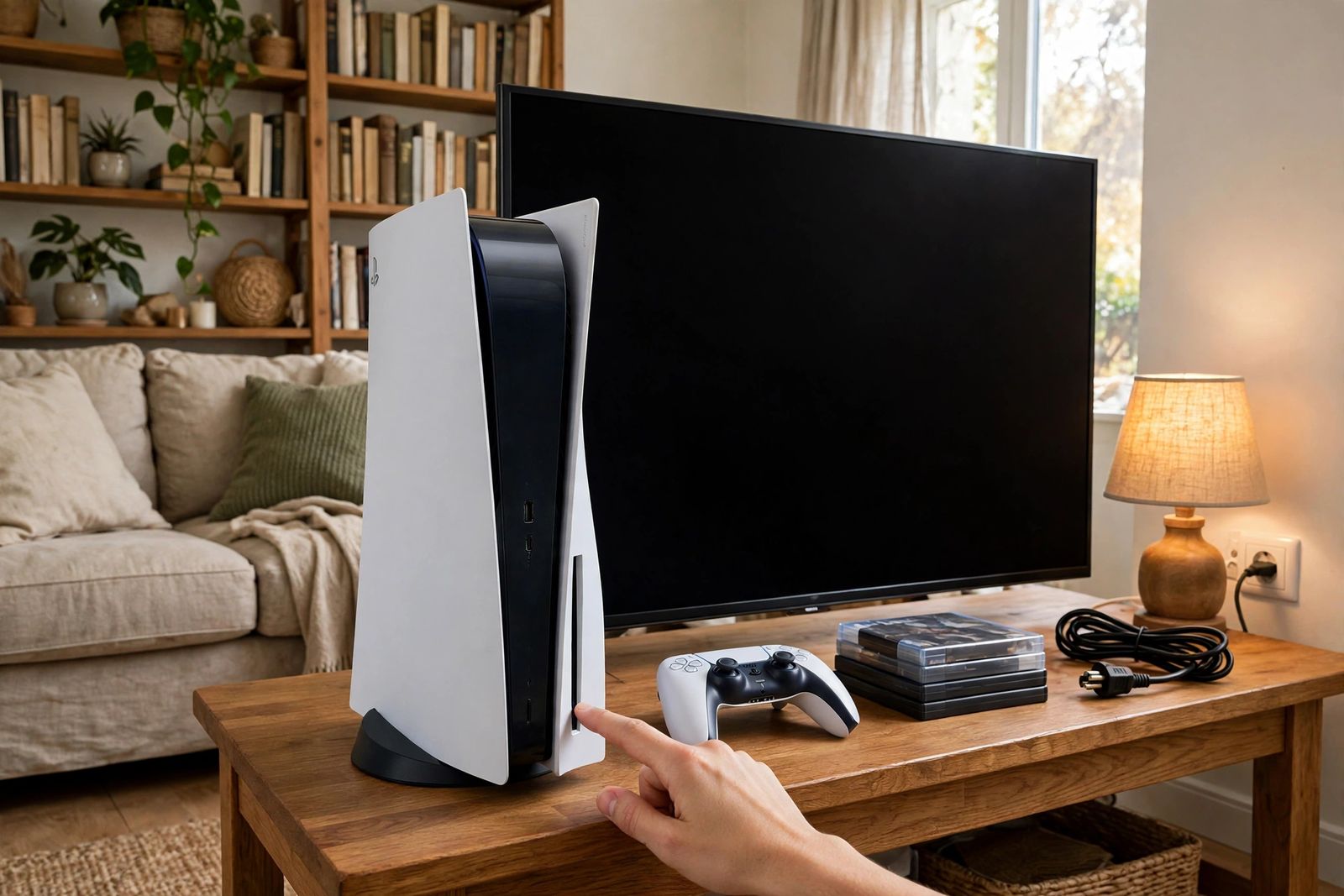
- Prove the outlet with something else. Plug a lamp or a phone charger into the same socket. This sounds too simple to be the step that fixes consoles, but a tripped breaker, a switched-off socket and a dead power strip are the whole fault in a steady share of “dead PS5” cases — and the test takes ten seconds. The photo at the top of this page is exactly this moment: console dark on the stand, lamp lit from the same wall — the outlet is proven, so the hunt moves to the cable.
- Go direct to the wall. For the test, plug the PS5 straight into the wall socket — no power strip, no extension lead, no surge block in between. A strip can pass power to a lamp and still be the thing that failed under the console, and every middleman you remove is a suspect removed.
- Reseat the cable at both ends, firmly. The PS5’s power cable is a standard two-pin figure-8 (IEC C7) connector, and a half-seated plug at the back of the console looks connected and is not. Push it fully home at the console end and at the wall end.
- Swap the cable. Because the connector is a common standard, a figure-8 cable from another device in the house is a valid test cable. Try the console on the known-good cable in the known-good socket.
- Try waking it the other way. Press the PS button on a paired controller, and try the console’s own power button as well — a console that answers one and not the other has a button problem, not a power problem.
If a known-good cable in a known-good wall socket still gives you nothing — no light, no beep, no fan movement — home troubleshooting for this row is over. The power is arriving and the console is not taking it, which puts the fault inside, at the power supply or the board: that is the Step 4 verdict, and it is a repair. Do not keep swapping parts of the room; you have already proven the room.
Step 2: the power cycle — with Sony’s waits, not the internet’s
A power cycle clears a stuck start by taking the console fully off power and letting it sit. Two different waits exist in PlayStation’s own guidance, for two different situations, and using the right one matters more than any ritual added around it:
- Frozen console (blue or blinking white light): 3 minutes. PlayStation’s power-indicator page gives the sequence exactly: unplug the console, wait 3 minutes, plug the console back in, and turn it back on. If the issue keeps happening, the same page sends you on to reinstalling the console software using Safe Mode — Step 3.
- Safe Mode will not launch: 20 minutes. PlayStation’s Safe Mode troubleshooting page gives the longer cycle for that case: press and hold the power button until the console beeps (the screen goes blank, the power indicator flashes white, then turns off), remove the power cable and leave the console for 20 minutes, then reconnect and attempt to launch Safe Mode again. The same page first asks you to try a different USB, HDMI or power cable — a cable fault can be what is keeping Safe Mode off the screen.
Now the correction, because this is where the ranking guides waste your evening. Search this problem and you will be told to unplug for 20 seconds, 30 seconds, 60 seconds, to hold the power button for 10 or 15 seconds while unplugged to “drain the capacitors,” and various combinations of all four — sometimes two different invented waits in the same guide. None of those numbers is PlayStation’s. Sony publishes exactly two waits for this fault — 3 minutes and 20 minutes, each attached to a specific situation, above — and no hold-the-button-while-unplugged step at all. The invented versions are not dangerous, just useless precision: a 60-second unplug that “fixed it” was a frozen console clearing on any full unplug, and a 60-second unplug that did not fix it tells you nothing, because it was never the test. Use Sony’s two waits so that the result means something: if the correct wait does not clear it, you have genuinely eliminated the stuck start and can move on with confidence.
One safety rule from the same guidance: do not disconnect the power cable while the power indicator is lit or blinking. Shut the console down first (hold the power button until the indicator goes out), then unplug. Pulling power mid-write is how a power problem becomes a power problem plus corrupted data.
Step 3: the Safe Mode path — second beep, wired controller, safe options first
Safe Mode starts the console with only the most basic functions active, which is why it can open when a normal start cannot. This is PlayStation’s official sequence, and the timings are specifications, not approximations:
- Turn the console fully off — hold the power button for three seconds. The power indicator blinks for a few moments before turning off.
- Press and hold the power button again, and release it after the second beep — one beep sounds when you first press, and another seven seconds later. That second beep is the Safe Mode signal: release on it. (Guides that tell you to hold for 15 seconds, or to “hold until it beeps twice and shuts down,” are mashing two different actions together — three seconds is a shutdown, seven seconds to the second beep is Safe Mode. Holding far past the second beep does not open a deeper mode.)
- Connect the controller with a USB cable and press the PS button. Wireless does not work in Safe Mode; the cable is mandatory — and it must be a data cable, the same trap as pairing: our PS5 controller not connecting guide explains how a charge-only cable passes power and nothing else.
Reaching this menu is itself a diagnosis: a console that can hold Safe Mode open has working power and working core hardware, and its fault lives in software or storage. Work the options in this order — safe first, destructive last:
| Safe Mode option (PS5 numbering) | What it does | Data |
|---|---|---|
| 3. Repair Console Storage | PlayStation’s own suggestion for a console that “does not start up properly” or has storage issues | Does not erase data — try this first |
| 6. Clear Cache and Rebuild Database | Clear System Software Cache for feature issues and performance drops; Rebuild Database scans the drive and creates a new database of all content | Does not delete your games or saves |
| 4. Update System Software | Updates via direct download or a USB drive — the route when a failed or interrupted update is why the console will not start | No data loss |
| 7. Reset PS5 and 8. Reset PS5 (Reinstall System Software) | Full resets: option 7 deletes all user data and restores the console to its original state; option 8 deletes all user data and removes the system software (the reinstall route PlayStation’s indicator page points to when the frozen start keeps happening) | Both delete everything — last resort, after the options above, and back up first if the console ever lets you |
A numbering correction that will save your data: several high-ranking guides tell you to choose “option 5, Rebuild Database” in Safe Mode. On a PS5 there is no such pairing — in PlayStation’s PS5 list, option 5 is Restore Default Settings, and Rebuild Database lives inside option 6, Clear Cache and Rebuild Database. The “option 5” instruction is the PS4 menu, carried into PS5 guides unchanged. Count the menu on your own screen rather than trusting any guide’s numbers, this one included: the labels are what matter, and “Clear Cache and Rebuild Database” is the label you want.
If Safe Mode will not launch at all, go back to Step 2’s 20-minute cycle and the cable swaps on PlayStation’s troubleshooting page — different USB, HDMI and power cables, launching Safe Mode after each change to find the faulty one. If it still will not launch, that is no longer a software problem: it joins the Step 4 verdict.
The “starts, then shuts off” row: check heat before hardware
A console that boots, plays, and then cuts out is a different fault from one that never starts, and its first suspect is not the power supply — it is heat. The console protects itself by shutting down rather than cooking, and it usually warns first: if you have seen the “Your PS5 is too hot” message, or the fan roars before the cut-out, work our PS5 overheating guide through Sony’s 10 cm clearance and cleaning order before anything on this page. The honest split:
- Cuts out after minutes of play, cabinet or tight shelf, fan loud first → heat until proven otherwise. Move it into open air, clean the vents, retest with the same game.
- Cuts out cold, instantly, at the same point of start-up every time, in open air → not heat. Power cycle (Step 2), Safe Mode (Step 3), and if the pattern survives both, the Step 4 verdict.
- Died mid-game once and now shows no light at all → you have changed rows: work the no-light row (Step 1), because whatever failed has now taken the power with it.
Three claims in the top results that do not survive a check
1. There is no red light, and there are no beep codes. Pages summarising PS5 lights will tell you a blinking red light means a critical error, call the blue light a “Blue Light of Death,” and decode beep patterns for you. PlayStation’s own power-indicator page documents no red indicator state for the PS5 at all, and it publishes no error beep codes — the beeps on this console mark actions (a press registered; the second beep for Safe Mode), not diagnoses. “Blue Light of Death” is PS4-era vocabulary. If your console is blinking blue, Sony’s definition is the plain one: the console is frozen and needs the three-minute troubleshooting. Anyone decoding colours or beeps Sony never defined is inventing a language and then charging you worry for the translation.
2. The Safe Mode option numbers are wrong in guides that copied the PS4 menu. Covered in Step 3, repeated here because it is the correction with real consequences: Rebuild Database is inside option 6 on PS5, not option 5. A reader following the wrong number lands on Restore Default Settings — which, to be fair to it, PlayStation says will not delete content on console storage — but they will not have rebuilt anything, and the guide that sent them there has failed at the one thing it existed to do.
3. “Replace the power supply yourself for $40–$60.” At least one top-ten guide prices a DIY PSU swap as a routine closing step for a no-power console. PlayStation’s route for a console that shows nothing on a proven outlet and cable is PlayStation Repairs — its diagnostic tool, and a repair arranged through it. The PSU is internal, mains-connected hardware; opening the console to reach it is repair-bench work with warranty and safety consequences, not the final bullet of a home troubleshooting list. The same applies to forum folklore about knocking on the console to wake it: an answer in the repair forums themselves points out that a console revived by a knock has a connection fault that the knock did not repair.
What not to do
- Do not open the console to inspect the power supply, reseat internal connectors or blow it out with a compressor. Every home step Sony publishes is external — cables, waits, Safe Mode. The internal end state has a name (Step 4) and a destination (Repairs).
- Do not keep power-cycling a console that dies instantly every time. One proper cycle at the correct wait is a test; the tenth identical attempt is just heat and wear on a fault that has already answered you.
- Do not factory-reset (Reset PS5) as an early step. It deletes all user data, and it cannot fix a console that cannot reach Safe Mode to select it — while for a console that can reach Safe Mode, the non-destructive options above come first by design.
- Do not chase the TV. A solid white light with a black screen is a console that has turned on; swapping power cables will not repair a picture path. Equally, if the console is on and fine but a controller will not wake or pair with it, that is the pairing chain — our PS5 controller not connecting guide works it step by step.
- Do not unplug the console while its indicator is lit or blinking, as a shortcut or otherwise — shut it down properly first, per Step 2.
Step 4: the PSU verdict — when it is a repair
Take the console to PlayStation Repairs — PlayStation’s diagnostic route — when any of these is true after the steps above: no light and no beep on a proven wall outlet with a known-good cable (the Step 1 end state); it beeps and dies at the same point after the 20-minute power cycle and will not hold Safe Mode; or it cuts out cold and instantly, repeatedly, in open air with clean vents. At that point the remaining causes are internal — the power supply unit or the board — and none of them is reachable from a settings menu, a cable drawer or a longer wait. Tell support which row of the split you had and which steps you completed — no-light versus beep-then-dies is exactly the distinction their diagnosis starts from, and it is the difference between being walked through the cable test again and being booked straight in.
Frequently asked questions
Why does my PS5 beep but not turn on? That single beep means the console registered your press of the power button — it is a confirmation, not an error code, and PlayStation publishes no beep codes for the PS5. A beep followed by the light dying means the start failed almost immediately: do the full power cycle (shut down fully, unplug, wait 20 minutes per PlayStation’s Safe Mode troubleshooting), then try Safe Mode. If it dies at the same point every time and will not hold Safe Mode, the fault is internal — see the PSU verdict.
How long should I unplug my PS5 to reset it? PlayStation publishes two waits, for two situations: 3 minutes for a frozen console (blue light that never turns white, or a light that only blinks white) — unplug, wait 3 minutes, plug back in, turn on; and 20 minutes when Safe Mode itself will not launch — hold the power button until it beeps and the indicator goes out, remove the cable, leave the console 20 minutes, reconnect and try Safe Mode again. The 20-second and 60-second waits in other guides are not Sony figures.
How do I get into Safe Mode on a PS5 that won’t start properly? Turn it fully off (hold the power button for three seconds), then press and hold the power button again and release it after the second beep — the second beep comes about seven seconds after the first. Connect a controller with a USB cable and press the PS button. If Safe Mode does not appear, check the HDMI connection, try different USB, HDMI and power cables, and do the 20-minute power cycle above.
Which Safe Mode option should I choose first? Option 3, Repair Console Storage — PlayStation’s suggested option for a console that does not start up properly, and it does not erase data. Next, option 6, Clear Cache and Rebuild Database (Rebuild Database is inside option 6 on PS5, not option 5 — that numbering is the PS4 menu). Leave options 7 and 8, the resets, until last: both delete all user data.
My PS5 light is orange. Is it broken? No — solid orange is Rest Mode, a low-power state in which the console can charge controllers and download content. Wake it by holding the PS button on a USB-connected or previously paired controller, or press the console’s power button. Blinking orange that settles to solid orange is the console entering Rest Mode, which is also normal.
My PS5 turns on but the screen is black. Is that a power problem? Usually not. If the power light goes solid white, PlayStation counts the console as powered on; a missing picture is a display-path problem (HDMI connection, TV input, resolution), and PlayStation’s Safe Mode menu even carries a Change Video Output option for blank screens. Do the power steps only if the light itself never reaches solid white.
Can a power strip stop a PS5 from turning on? Yes — a failed strip, a tripped breaker or a switched-off socket sits at the very start of the no-light row. That is why the outlet test comes first and uses the wall socket directly: prove the power with a lamp or charger, remove every middleman, and only then judge the console.
This article follows PlayStation’s own guidance — the power indicator lights page for the light definitions, the frozen-console 3-minute sequence and the overheating checks; the Safe Mode page for starting Safe Mode (three seconds off, second beep at seven seconds, USB-connected controller) and the eight PS5 Safe Mode options with their data effects; and the Safe Mode troubleshooting page for the cable swaps and the 20-minute power cycle when Safe Mode will not launch — checked in November 2026. It covers PS5, PS5 Slim and PS5 Pro consoles, which share the same power-indicator and Safe Mode guidance.