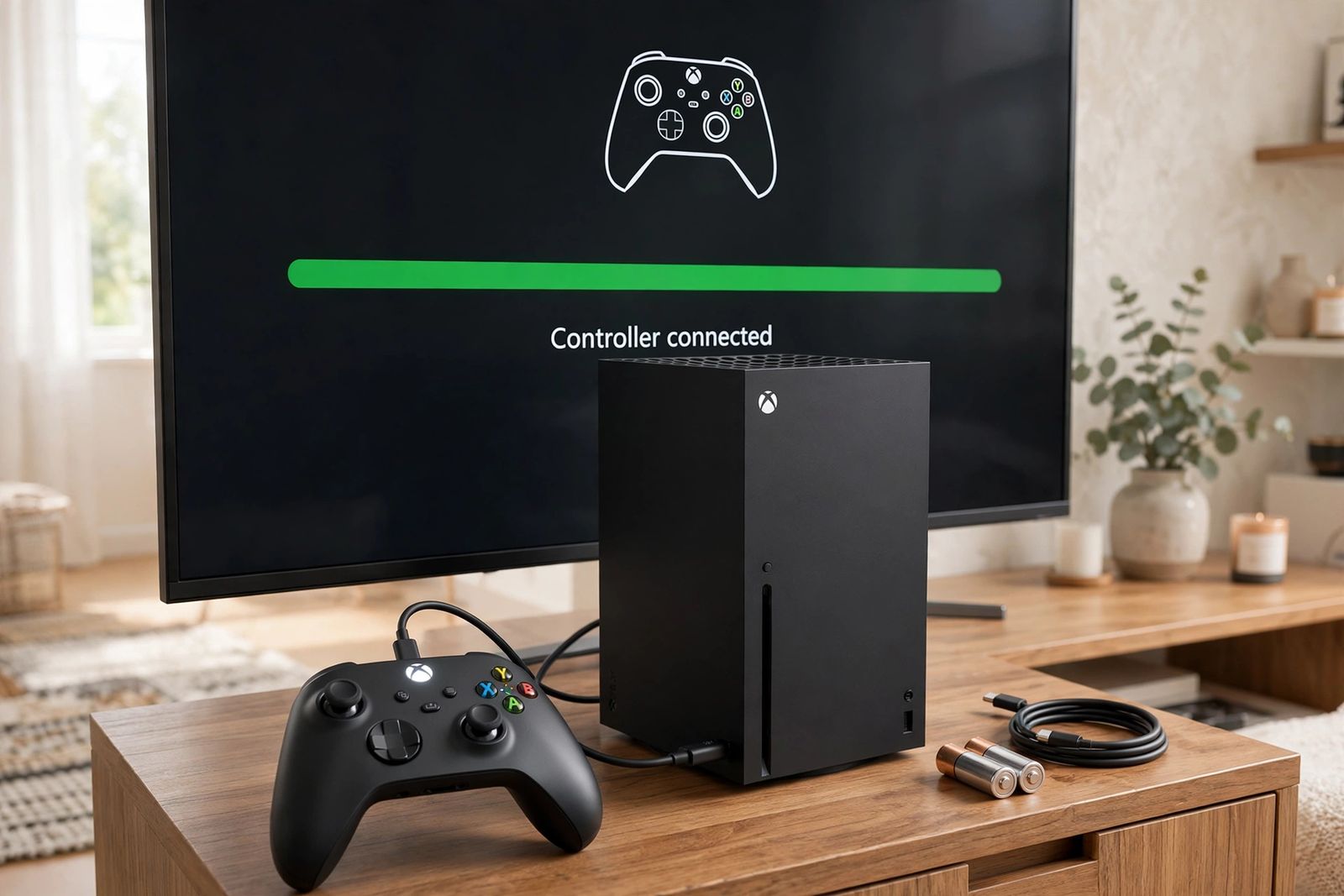
If your Xbox controller is not connecting, do not start by re-pairing it over and over. Start with the one test that splits the problem in half: plug the controller straight into the console or PC with a USB-C cable you know carries data — not a charge-only cable — and press the Xbox button. If it connects and plays wired, the controller itself works, and your fault is in the wireless pairing, which the ordered sequence below fixes: wired test first, then a controller update, then a full console power-cycle, then a clean re-pair done in the maker’s order. If it will not connect even wired, with a known data cable in a second port, stop re-pairing — the fault is power, the cable or port, or the controller, and the last sections of this page tell you which. One split explains half of all failed attempts before you begin: an Xbox console never connects to a controller over Bluetooth. Consoles use Microsoft’s own Xbox Wireless connection; Bluetooth is only for PCs, phones and tablets. Hunting through console settings for a Bluetooth pairing option is time spent in a menu that does not exist.
What is your controller actually doing?
The Xbox button’s light is the controller talking to you. Match the pattern before touching anything:
| What you see | What it usually means | First move |
|---|---|---|
| No light at all | Flat AA batteries or a dead rechargeable pack — or a cable/port delivering nothing | Fresh AAs or a charge, then the wired test below |
| Slow flashing | The controller is searching for a device it was paired with before — and not finding it | The wired test, then the re-pair sequence |
| Fast flashing after you hold Pair | Pairing mode is active and waiting — this part is healthy behaviour | Complete the pairing on the other device within the window, below |
| Flashes, then switches itself off | The search timed out, or the battery gave up mid-search | Charge or swap batteries, then re-pair sitting close to the console |
| Solid light, but nothing responds | It is connected — to something. Often a phone, PC or second console nearby | Turn that other device’s Bluetooth off, or re-pair here by cable |
| Works wired, dies or drops when unplugged | The wireless pairing never completed, the battery is too low to hold the link, or the firmware is stale | Finish this page’s sequence in order: update, power-cycle, re-pair |
One behaviour fools people into thinking a healthy controller is broken: a controller left idle for about 15 minutes switches itself off to save power. That is a feature, not a disconnection fault — press the Xbox button and it should reconnect to the last device it was paired with. And that loyalty is itself a common cause here: a controller last used on a laptop or phone goes looking for the laptop or phone when you press the Xbox button, flashing in front of a perfectly good console that it is not currently paired to.
Step 1 — the wired test, with a data-capable cable, FIRST
This test is the decider, and it only works with the right cable. A USB-C cable has separate wires for power and for data, and cheap charge-only cables — the kind bundled with lamps, e-readers and phone accessories — carry power and nothing else. A charge-only cable can light a controller up and even charge a rechargeable pack while carrying no pairing and no inputs at all. So:
- Use a cable you know carries data. The cable that came with a rechargeable battery pack, or any cable that has ever moved files between a phone and a computer, qualifies. If a cable has only ever charged things, treat it as unproven and test it the phone-to-computer way: if the computer offers file transfer, the cable carries data.
- Match the port to the controller. Current Xbox Wireless Controllers (Xbox Series X|S era) take USB-C at the top edge. Xbox One-era controllers take micro-USB. The wrong plug obviously fits nothing, but the subtler trap is a correct-plug charge-only cable, above.
- Plug straight into the console or PC. No hub, no dock, no extension in between for this test.
- Press the Xbox button. On a console, a wired connection also pairs the controller — when you later unplug, it should stay connected wirelessly to that console.
Now read the result, because it decides everything after:
- It connects and plays wired: the controller’s buttons, sticks and electronics work. Your problem is wireless — pairing, firmware or the console’s wireless state. Continue to steps 2, 3 and 4 in order, and do not skip ahead to buying anything.
- It does not connect wired either: try the second console/PC port and a second known data cable once. If it still does nothing and the Xbox button stays dark even on USB power with fresh batteries or a charged pack, the controller itself is the suspect — jump to the repair section. Re-pairing a controller that cannot talk over a wire is wasted effort.
Step 2 — update the controller, while it is wired
Outdated controller firmware is a real cause of Bluetooth and pairing faults, and the wired connection you just made is exactly how updates are installed:
- On the console: press the Xbox button to open the guide, then go to Profile & system > Settings > Devices & connections > Accessories. Select your controller, choose More options (…), and check Firmware version — if an update is offered, install it and keep the controller connected until it finishes.
- On a Windows PC: install the free Xbox Accessories app from the Microsoft Store, connect the controller by USB cable or with the Xbox Wireless Adapter for Windows, open the app, select the controller, then More options (…) > Firmware version.
One hard rule, because guides blur it: you cannot update the controller over Bluetooth. The Xbox Accessories app will not even detect a Bluetooth-paired controller for updating. If the app shows no controller, that is not a second fault — unplug nothing, just connect the cable and it will appear. Let the update finish completely; a controller disconnected mid-update can be left in a recovery state that needs the update re-run over USB before it works at all.
A related route worth knowing if your problem started right after an update and only affects Bluetooth links to non-Xbox devices like a phone: Xbox keeps a firmware-reversion path for exactly that case, starting from Profile & system > Xbox Support > Get help > Help topics > Hardware & networking > Controllers, under “My Xbox controller has connection issues after the last update.” It is a narrow fix for a post-update Bluetooth problem — not a general pairing step, and not something to run before the wired test.
Step 3 — power-cycle the console properly (not sleep, not a restart tap)
A quick tap of the power button or a menu restart leaves the console’s saved power state — and a stuck wireless state — intact. The full power-cycle is the version that clears it:
- Hold the Xbox power button on the console itself for about 10 seconds, until the console shuts down completely.
- Unplug the power cable from the back and wait about 30 seconds.
- Plug it back in and turn the console on.
Power-cycle the controller the same thorough way: hold the Xbox button on the controller for 5 to 10 seconds until it turns off, wait a few seconds, then press the Xbox button to turn it back on. That hold is the Xbox controller’s reset — which brings up a correction worth stating plainly, because it is all over the guides for this problem:
There is no pinhole reset button on an Xbox Wireless Controller. Pages and FAQ sites that tell you to find “the small reset hole on the back, near the charging port” and press it with a paperclip for five seconds are describing a button this controller does not have — that procedure belongs to other controllers (the PlayStation DualSense has a real pinhole reset; if you are comparing the two systems’ fixes, our PS5 controller not connecting guide covers it there). Poking at the screw holes and seams on the back of an Xbox controller resets nothing and risks the shell. (A console that will not charge at all is a different fault from any controller’s — our Nintendo Switch not charging guide works through Nintendo’s official-adapter test and forced shutdown for that one.) Holding the Xbox button until the controller powers off, then turning it on again, is the whole reset — that, plus the re-pair below.
Step 4 — re-pair, in the maker’s order
Pairing fails surprisingly often because the two buttons get pressed in the wrong order, or both at once. iFixit’s long-standing troubleshooting page, for example, tells you to hold the controller’s Sync button and the console’s Sync button at the same time — that is not Microsoft’s sequence, and it is not the order that works reliably. The maker’s order is one device at a time:
To pair with an Xbox console (Xbox Wireless):
- Turn the console on, and turn the controller on with the Xbox button.
- Press and release the Pair button on the console. On Xbox Series X it sits just above the front USB port; on Series S, to the right of the front USB port; on Xbox One S and One X, on the front below the power button; on the original Xbox One, on the side near the disc tray.
- Within 20 seconds, press and hold the Pair button on the top edge of the controller (the small button near the USB port, between the bumpers) until the Xbox button flashes rapidly.
- Wait. The Xbox button stops flashing and stays solid when the controller is connected.
Do the pairing sitting close to the console, with no other controller also trying to pair at the same moment. A console accepts up to eight wireless controllers at once — so a ninth pairing failing is a full house, not a fault — and if a headset is plugged into the controller and pairing keeps failing, unplug the headset, pair first, then plug it back in; that quirk is old, documented, and still catches people.
If your wired test worked and this wireless pair still will not stick, repeat the sequence once after the step-3 power-cycle. If it fails again in the same way, the decision tests near the end of this page separate a controller-side wireless fault from a console-side one.
The Bluetooth split: PCs, phones and tablets are a different road
Everything above the console sections uses Xbox Wireless. The moment the other device is a PC, phone or tablet, the controller talks Bluetooth instead (or Xbox Wireless through the separate Xbox Wireless Adapter for Windows) — and Bluetooth has its own failure list:
- Not every Xbox controller has Bluetooth. Xbox Series X|S controllers do. Among Xbox One-era controllers, later models do and the earliest ones — including the original Elite — do not. Microsoft’s own check is the plastic around the Xbox button: on a Bluetooth model, that plastic is part of the controller’s front face; on a non-Bluetooth model, it is part of the top strip around the bumpers. If yours is the non-Bluetooth kind, no Bluetooth menu will ever find it — use USB or the Wireless Adapter and stop troubleshooting Bluetooth.
- Pair it the Bluetooth way: controller on, hold the Pair button for about 3 seconds until the Xbox button flashes rapidly, then on the device open Bluetooth settings and select Xbox Wireless Controller when it appears.
- A stale pairing record is the top PC cause. If Windows shows the controller as paired but it does nothing, remove it first — Settings > Bluetooth & devices, find the controller (under other devices if it is not in the main list), choose Remove device — toggle Bluetooth off for about 10 seconds and back on, then add it again fresh with Add device > Bluetooth. Microsoft’s own Q&A answers for this exact problem give the same remove-and-re-pair sequence before anything more drastic.
- Windows takes one Bluetooth Xbox controller at a time. A second controller refusing to join over Bluetooth is that limit, not a broken pad; the Wireless Adapter route does not have it.
- Remember the update rule from step 2: Bluetooth also cannot install firmware updates, so a PC controller that pairs but misbehaves still needs one wired session in the Xbox Accessories app.
And the mirror-image warning for console players: because the console link is not Bluetooth, do not troubleshoot your router or Wi-Fi for a console pairing failure, and do not power-cycle the router as a pairing step — advice that still appears in older troubleshooting pages. Your home network is not in the path between a controller and the console sitting next to it. An idle controller switching off after about 15 minutes is also not a network event; it is the power-saving feature described earlier.
A note on generations: the Xbox 360 controller that still ranks in support results is a different, older system with its own receiver and pairing route. Nothing on this page — and nothing on the 360 support page — transfers between the two. If your controller says Xbox 360 on it, follow the 360 route; if it is a current Xbox Wireless Controller, the 360 steps will only confuse the order above.
Is it the controller or the console? The two tests that settle it
If the full sequence — wired test, update, power-cycle, ordered re-pair — has not fixed it, stop guessing and run the same comparison logic that settles any controller fault: (A controller that connects perfectly but whose camera or character moves on its own has a different fault altogether — that is stick drift, and our Xbox controller stick drift guide settles it with a test reading and Microsoft’s recalibration tool in the Xbox Accessories app.)
Test 1 — the suspect controller, on a second device. Connect it by USB to a PC, or pair it over Bluetooth if it is a Bluetooth model. Working buttons and sticks there prove the controller’s core is alive; if it also fails wired on a second machine with a second known data cable, suspicion hardens on the controller.
Test 2 — a known-good controller, on your console. Borrow any working Xbox controller and run the step-4 pairing on your console, same position, same conditions.
| Test 1: suspect pad elsewhere | Test 2: good pad on your console | What it means |
|---|---|---|
| Works | Works | Neither side is broken — the original pairing was the fault. Re-pair yours by cable, then wirelessly, and it should hold |
| Works | Will not connect either | The console side is the problem — its wireless or its software state. Two controllers failing the same way exonerates both controllers |
| Fails everywhere, even wired | Works | The suspect controller is the problem. The console has just been proven good by the borrowed pad |
| Fails everywhere | Will not connect either | Swap the cable and the console port and repeat the wired test once — a bad cable or port can poison both tests. If the pattern survives, both sides need professional diagnosis |
One split result deserves its own line, because it is more common than people expect: a controller that works on a PC over Bluetooth but will not pair wirelessly to any Xbox console has proven its Bluetooth radio, not its Xbox Wireless radio — they are separate links, and the console only uses the second one. That pattern points at the controller’s Xbox Wireless side, not at your console, however healthy the pad feels on the PC. The mirror case — Bluetooth will not pair to a phone, console pairing is fine — points the other way.
What not to do
- Do not factory-reset the console for a controller problem. It erases the machine to fix an accessory, and it cannot tell a cable fault from a controller fault from a console fault — the tests above do that for free.
- Do not keep re-pairing a controller that failed the wired test. If a known data cable in two ports gets nothing, the pairing buttons are not where the fault lives.
- Do not open the controller or shop for replacement boards as an early step. Consumer troubleshooting ends at batteries, cable, firmware and pairing; a swollen pack, a damaged USB port or liquid damage are stop-and-get-help signs.
- Do not buy a replacement before the two tests. A new controller paired to a console-side fault fails in exactly the same way as the old one, and now you own two controllers and the same problem.
When it is a repair, not a setting
Go to Xbox Support’s controller route — start from the controller firmware and troubleshooting hub — when all of the following are true: the batteries are fresh or the pack is charged; the controller still will not connect wired with a known data cable in two different ports; it has been updated over USB where it would connect at all; the console has had the full 10-second power-cycle; and the test table above points at one side. Tell support which side the tests pointed at and what each test showed — “a borrowed controller works on my console, mine fails wired on two devices” gets you to the right outcome far faster than “it won’t connect.” If the table pointed at the console, say that instead, with the same evidence.
Frequently asked questions
Why is my Xbox controller blinking and not connecting? Slow blinking means it is searching for a device it was paired with and cannot find it — often a phone, PC or another console it was last used with, because pressing the Xbox button simply reconnects it to its last device. Fast blinking after holding Pair is healthy pairing mode. The fix for the slow-blink case is the wired test on this page, which pairs it to this console through the cable, then the ordered re-pair.
Why does my controller work plugged in but not wirelessly? Because the wire and the wireless are separate links, and only the wireless side is failing — an incomplete pairing, low battery, stale firmware, or, on a console, a fault in the controller’s Xbox Wireless link. Work the sequence in order: update it while it is wired, power-cycle the console fully, then re-pair with the console Pair button first and the controller Pair button within 20 seconds.
Is there a reset button on an Xbox controller? No pinhole, no hidden button. The reset is a power cycle: hold the Xbox button for 5 to 10 seconds until the controller turns off, wait a few seconds, and turn it back on. Guides describing a paperclip hole on the back are copying a procedure from a different controller.
Can I update my Xbox controller over Bluetooth? No. Firmware updates install over USB or the Xbox Wireless Adapter for Windows — on the console under Devices & connections > Accessories, or on a PC in the Xbox Accessories app. The app will not detect a controller that is only connected by Bluetooth.
How many controllers can connect to one Xbox console? Up to eight wireless controllers at once, in addition to any wired ones. A new controller failing to pair when eight are already connected is the limit, not a fault — disconnect one first.
My controller connects to my PC but not my Xbox. Is it broken? Not necessarily — and the detail matters. A PC connection over Bluetooth proves the Bluetooth radio works; the console uses Xbox Wireless, a separate link the PC test never touched. Pair it to the console by USB cable first. If it works wired on the console but never wirelessly, while another controller pairs to the same console fine, the fault is in this controller’s Xbox Wireless side.
This article follows Microsoft’s own Xbox Support guidance — the pairing sequence and 20-second window, the controller power-cycle, the firmware update routes on console and in the Xbox Accessories app, and the Bluetooth troubleshooting steps as linked from Microsoft Learn Q&A — checked in November 2026. It covers the current Xbox Wireless Controller for Xbox Series X|S and Xbox One consoles, plus its use with Windows PCs, phones and tablets; the Xbox 360 controller follows its own separate support route.