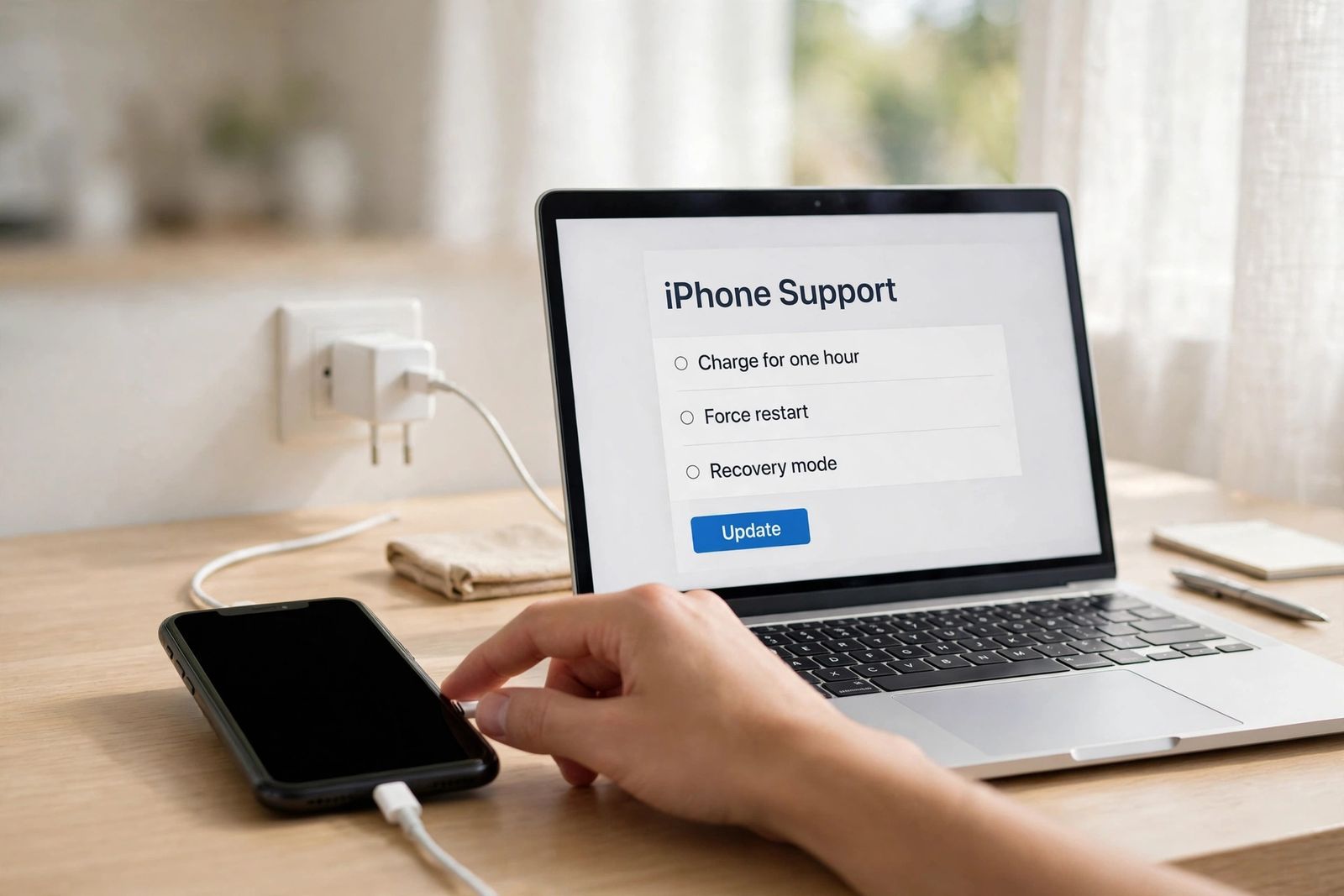
If your iPhone is not turning on, do these three things in this order before you book a repair: charge it on a wall adapter for up to an hour, force restart it with the button sequence for your model, and then — if the screen is still black — run the screen-or-phone test below to find out whether the phone itself is dead or only its display is. That order is Apple’s own sequence: force restart first, and if the phone does not turn on, charge it for one hour and try again; if it shows a low-charge battery, check the hardware and charge for another 30 minutes or until it starts. Most black iPhones are one of three things — a battery drained so deeply it cannot yet power the screen, software frozen with the screen off, or a phone that is actually on with a display that has failed — and each of the three steps above separates one of those from the others. Only after all three fail do you need the heavier tools: recovery mode for a phone stuck on the Apple logo after an update, and service for a phone that stays silent through everything. Nothing in the first three steps erases anything on the phone.
Step 1: Charge it for up to an hour — and read what the screen does
A completely drained iPhone can sit black on a good charger for some time before it shows anything at all, which is why Apple allows a full hour before the next attempt rather than the few minutes most people give it. Connect the phone to a wall adapter with a cable you know works — not a laptop USB port, a hub or a car charger, all of which may supply too little power — push every connection firmly home, and leave it alone. Do not keep pressing buttons during the wait; you are watching for one of four screen behaviours, and each one is a diagnosis:
| What appears while charging | What it means | What to do |
|---|---|---|
| Nothing at all, even after an hour | No power is reaching the phone, the battery has failed, or the software is frozen too hard to show the charging screen | Swap cable, adapter and outlet once; then go to Step 2 and force restart while it is still plugged in |
| A red or empty battery icon | The display and the charging circuit both work — the battery is simply too low to start | Keep it plugged in. Apple: charge for 30 minutes or until it starts once the low-charge battery shows |
| A battery icon with a cable pictured | The phone wants power and is not getting it — the fault is in the cable, adapter, outlet or port, not the phone | Work the charging chain in iPhone not charging: clean the port, swap the cable, check the adapter’s wattage |
| The Apple logo, and the phone starts | It was a deep discharge, nothing more | Let it charge well past the point where it woke before you rely on it; a battery that died this hard and does it often is ageing — see Step 5 |
One distinction the top guides blur: the hour and the half hour are two different clocks in Apple’s instructions. The hour is the wait when the phone shows nothing at all. The 30 minutes applies once a low-charge battery icon has appeared — the phone has proved it is taking power, and from there Apple says charge for 30 minutes or until it starts. Judging a silent phone at ten minutes, as several guides suggest, throws away the most common fix there is.
If a liquid-detected alert appears when you plug in, or the phone recently got wet, stop: unplug, tap the phone gently against your hand with the connector facing down, and leave it somewhere dry with airflow before charging with a cable again. Do not put it in rice — Apple warns the particles can damage the phone — and do not charge through a wet connector except in a genuine emergency, because it can corrode the pins permanently.
Step 2: Force restart — the exact sequence for your model
A frozen iPhone looks exactly like a dead one: black screen, no response to the side button, nothing. The difference is that a force restart cuts power to the software and starts it again, and a frozen phone comes back with everything on it untouched — a force restart erases nothing. The sequence depends on the model, and the timing matters: the two volume presses are quick press-and-release taps, done in succession, and the final hold is longer than feels natural. Apple notes the logo might take longer than 10 seconds to appear on current models; letting go early is the usual reason the sequence “doesn’t work.”
| Your iPhone | Force restart sequence | Release when |
|---|---|---|
| iPhone 8 and later, including iPhone X, 11, 12, 13, 14, 15, 16 and newer, and iPhone SE (2nd and 3rd generation) | Press and quickly release Volume Up, press and quickly release Volume Down, then press and hold the Side button | The Apple logo appears (may take longer than 10 seconds) |
| iPhone 7 and iPhone 7 Plus | Press and hold the Side button and Volume Down together | The Apple logo appears (may take longer than 10 seconds) |
| iPhone 6s and earlier, and iPhone SE (1st generation) | Press and hold the Home button and the Side (or Top) button together | The Apple logo appears (around 10 seconds) |
Try it once off the charger and, if nothing happens, once more while the phone is still plugged in — a battery on the edge can need the cable’s help to complete the boot. If the Apple logo appears and the phone starts, you are done: it was frozen software, and if it happens repeatedly, update iOS (Settings > General > Software Update) and check which app was running when it froze. If the logo appears but never gives way to the Lock Screen, skip to the stuck-logo route below — that is a different fault with a different fix. And if the phone has simply been switched off at some point and you only need it back on normally, how to turn off an iPhone covers the ordinary power-on and power-off buttons for every model. A different result — the phone starts and shows a picture, but the screen then ignores every tap — is not a power fault at all: iPhone screen not responding matches that freeze by pattern (whole screen, one dead strip, after a drop, after an update) before assigning a fix.
Step 3: The screen-or-phone test — is it the screen, or the phone?
This is the test most guides mention in a sentence and none of them set out properly, and it is the one that decides what you would be paying to repair. A phone whose display has failed is on — it rings, vibrates, talks and connects — behind a black screen. A phone that is genuinely off does none of those things. Five checks, in order, separate the two:
- Call it. From another phone, call your iPhone’s number. If it rings, vibrates, or you hear the call through its speaker, the phone is on and the fault is the display or its connection.
- Flip the Ring/Silent switch. On models with the switch, toggling it produces a vibration when the phone is on (on the models with an Action button instead, use the volume buttons and listen for the click sounds at full volume). Vibration with a black screen = phone on, screen dead.
- Listen and feel while charging. Plug the cable in and wait. A phone that is on usually gives the charging chime or a vibration when power connects — though a deeply drained phone gives neither, so silence here proves nothing on its own; it is one vote, not the verdict.
- Ask Siri, or listen for VoiceOver. Hold the side button and say something, or simply touch the screen: if VoiceOver is on, the phone speaks what you touch even with the display black. If you hear VoiceOver, also rule out its Screen Curtain — a three-finger triple-tap on the screen turns Screen Curtain off, and a screen that lights up at that point was never broken, only blanked on purpose. While you are there, ask Siri to “turn up the brightness” — a screen at minimum brightness with a dark filter can look dead in daylight.
- Connect it to a computer. Open Finder on a Mac or the Apple Devices app (or iTunes) on a PC. If the computer recognises the phone, the phone is on and running — the display is the fault. If the computer sees nothing even after the force restart sequence, the phone itself is not starting.
Verdict. Any ring, vibration, voice or computer recognition → the phone is alive and the screen is the repair; your data is on a working phone, so back it up via the computer or iCloud before the screen is replaced. Complete silence on all five, after an hour’s charge and a correct force restart → the fault is power, battery or board, and Steps 4–5 are the remaining routes. Do not pay for a screen on a silent phone, and do not pay for a board on a ringing one — this test is what stops the wrong repair.
Step 4: Stuck on the Apple logo after an update — recovery mode, Update first
A different symptom needs a different route. If the phone turns on but sticks — the Apple logo sits there for a long time, the logo appears then goes black then appears again (a boot loop), a red or blue screen flashes during startup, or this started during or right after an iOS update — the phone is starting and failing partway, which points at damaged iOS rather than at power. First, patience with a specific limit from Apple: if there is a progress bar, make sure it has not moved for at least one hour before you intervene — an update still working is not a stuck phone, and interrupting one can create the fault you are trying to fix. If the logo has no progress bar, or the bar has been frozen past that hour, use recovery mode:
- Connect the iPhone to a computer with a cable. On a Mac with macOS Catalina or later open Finder; on an older Mac open iTunes; on a PC use the latest Apple Devices app or iTunes.
- Put the phone into recovery mode with the same buttons as the force restart, but keep holding the final button past the Apple logo until the Connect to computer (recovery mode) screen appears: iPhone 8 and later — Volume Up tap, Volume Down tap, then hold the Side button; iPhone 7 — hold Side and Volume Down together; iPhone 6s and earlier — hold Home and Side (or Top) together.
- When the computer offers Update or Restore, choose Update. Update reinstalls iOS and keeps your data — Apple’s wording is that choosing Update updates the device to the latest iOS, while choosing Restore erases the iPhone. Update is the fix to attempt, every time, first.
- If the download takes more than 15 minutes, the phone may exit the recovery screen on its own. Let the download finish on the computer, then repeat the button sequence to put the phone back into recovery mode and continue.
- Only if Update fails or the computer gives you no Update option, consider Restore — knowing it erases the phone and you will be setting it up from your last iCloud or computer backup afterwards. Restore is the last software step, not the first.
This ordering is where part of the top 10 leads readers wrong, and it is worth naming plainly (see “Three things the top guides get wrong” below): one ranking repair guide answers a stuck logo and a boot loop with a DFU restore — the deepest erase-and-reinstall mode — as the primary fix, and a widely read 2022 guide tells readers that recovery mode means “you’ll lose all the data on your iPhone you haven’t backed up,” full stop. Neither is Apple’s sequence. Apple’s own stuck-logo page ends at Update, with Restore named as the erasing alternative. Follow Apple: no step that erases the phone is tried before the step that does not.
If recovery mode cannot update or restore the phone, the computer does not recognise it at all, or a button is stuck so you cannot enter recovery mode, Apple treats those as service cases — the remaining fault is hardware, and Step 5 is the end of the home routes.
Step 5: The causes left — temperature, battery, damage
If the phone has had its hour of charge, its correct force restart, silence on the screen-or-phone test, and recovery mode has failed or does not apply, the cause is one of these four:
- Temperature protection. A phone that overheated shuts down and will not start until it cools; a phone brought in from serious cold can also refuse with charge still in it. Move it to a normal room temperature — out of the sun, out of a parked car, indoors from the cold — unplugged, out of a thick case, and give it half an hour before retrying. Never a fridge or freezer: Apple’s cooling instruction is a cooler environment and time, and sudden cold risks condensation inside the phone. The full picture of what is normal warmth and what is a fault is in iPhone overheating.
- A failed battery. The pattern is a phone that died suddenly at a healthy-looking percentage, dies earlier every week, only works while plugged in, or shows nothing after the full hour on a known-good charger. Once a phone like this is revived even briefly, read Settings > Battery > Battery Health: Maximum Capacity around or below 80 percent, or a Service or significantly-degraded message, is the battery naming itself — the reading method is set out in how to check battery health on iPhone, and a phone that also drains unusually fast while it is alive is telling the same story from the other side.
- Damage from a drop or liquid. After a drop, the common version is the screen-or-phone test’s territory — the phone runs, the display or its connector does not. After liquid, do not keep trying to charge or start it while it may still be wet inside; power through wet components does the damage, and corrosion worsens with time, so a dried-out phone that still will not start is a prompt service case, not a wait-and-see one.
- Stop-now signs. Stop charging and get the phone seen if the back is raised or the screen is lifting (a swollen battery — do not press on it), the phone or charger gets abnormally hot on the charger, or there is any smell. None of those is a software problem, and continued charging is the wrong experiment.
Three things the top guides get wrong
Recovery mode does not automatically erase your phone. As covered in Step 4: a top-ranking 2022 guide states the data loss as a blanket fact about recovery mode, and a top-ranking repair guide leads with DFU restore for the stuck-logo and boot-loop symptoms. Apple’s own pages draw the line the guides blur — Update reinstalls iOS and keeps your data; Restore is the option that erases. Any guide that sends you to an erasing step without first naming the non-erasing one is costing readers data they did not have to lose.
The charging wait is an hour, not ten minutes. One of the most-linked repair references tells readers to plug in for “at least 10 minutes” before ruling out a discharged battery, and repeats ten minutes as the pre-force-restart charge. Apple’s instruction for a phone that does not turn on is to charge for one hour and then try again, with the further 30 minutes applying once a low-charge battery shows. Ten minutes is enough for a phone that was merely low; it is not enough to judge a deeply discharged one, and phones get booked in for repair on exactly that premature verdict.
Port cleaning: alcohol versus Apple’s dry method. The same repair reference advises cleaning the charging port with a probe and a little isopropyl alcohol. Apple’s documented method is dry — in its charging troubleshooting guidance: a small, non-metallic, soft-bristled brush, clean and dry, twisted gently to lift debris out, with no liquid and nothing metal. Where a guide and Apple disagree about what goes inside your port, follow Apple. The full charging-path diagnosis, for a phone that takes power but will not hold or use it properly, is iPhone not charging.
When to get service
Book Apple or an Apple Authorized Service Provider when any of these is true: the phone has had a full hour on a known-good wall charger plus its correct force restart and still shows nothing and fails every part of the screen-or-phone test; recovery mode cannot update or restore it, or no computer recognises it; it rings or vibrates with a permanently black screen after Screen Curtain and brightness are ruled out (that is the display repair); Battery Health — on a phone you managed to revive — reports a Service or significantly degraded battery; or the phone shows any stop-now sign from Step 5. Take the cable and adapter you normally use, and say what you have already tried — the hour’s charge, the force restart result, the screen-test outcome. That list starts the diagnosis from evidence instead of from zero. Check your coverage before paying anyone: if the phone is under warranty or AppleCare+ with no liquid or impact damage, a failed battery, port or board is Apple’s to fix. And do not buy parts on a guess — the screen-or-phone test exists precisely so that the repair you pay for is the one the symptoms actually name.
Frequently asked questions
Why won’t my iPhone turn on even though it was fine yesterday? The usual causes, in the order this article tests them: a battery that drained completely overnight (an hour’s charge answers it), software frozen with the screen off (the force restart for your model answers it), or — if it rings or vibrates behind the black screen — a display that has failed while the phone itself runs. A phone that was mid-update adds a fourth: leave a progress bar alone for an hour, then recovery mode with Update.
How long should I charge a dead iPhone before trying to turn it on? Follow Apple’s two clocks: if the screen shows nothing at all, charge for one hour and then force restart. If a low-charge battery icon appears, the phone is taking power — charge for 30 minutes or until it starts. Ten minutes, which some guides suggest, is not long enough to judge a deeply discharged battery.
Will a force restart erase anything on my iPhone? No. A force restart only cuts and restores power to the software; photos, apps and settings stay exactly as they are. The same is true of recovery mode with Update. Only Restore erases the phone — which is why Restore is the last step in Step 4, never the first.
My iPhone screen is black but it rings when I call it. What is broken? The display, or its connection — the phone itself is on and working, which the ring proves. Before booking the screen repair, rule out the two settings that imitate it: VoiceOver’s Screen Curtain (three-finger triple-tap to turn it off) and brightness turned fully down (ask Siri to turn brightness up). If the screen stays black after both, it is a display repair, and your data is safe on a live phone — back it up first if you can.
My iPhone is stuck on the Apple logo after an update. What do I do? If there is a progress bar, give it a full hour unmoved — Apple sets that as the threshold. Past that, or with no progress bar at all: connect the phone to a computer, enter recovery mode by holding the final force-restart button past the logo until the Connect to computer screen appears, and choose Update. Update reinstalls iOS without erasing your data. Restore, which erases, is only for when Update fails.
What if my iPhone won’t turn on after getting wet? Do not charge it with a cable and do not keep trying to start it while it may be wet inside. Unplug everything, tap the phone gently against your hand with the connector facing down, and leave it somewhere dry with airflow. Do not use rice, heat or compressed air. If it still will not start once it is properly dry, book service promptly — corrosion gets worse with time.
How do I know if my iPhone is charging when the screen is black? Watch the sequence rather than a single moment: a red or empty battery icon within the first part of the hour means the display and charging circuit work and the battery is simply low; a battery-with-cable icon means the phone is asking for power it is not receiving — swap the cable, adapter and outlet, and clean the port the dry way in iPhone not charging. No icon at all after the full hour, plus silence on the screen-or-phone test, is the combination that points past charging to the battery or board.
This article is general information, based on the Apple Support pages linked above — “Restart an unresponsive iPhone,” “If your iPhone freezes on the Apple logo,” and Apple’s charging troubleshooting guidance — checked in November 2026. Button sequences and menu names are given per model family as Apple publishes them; if your model’s wording differs slightly, Apple’s page for your device is the deciding source, and the order of the steps — charge, force restart, screen test, Update before Restore — stays the same.