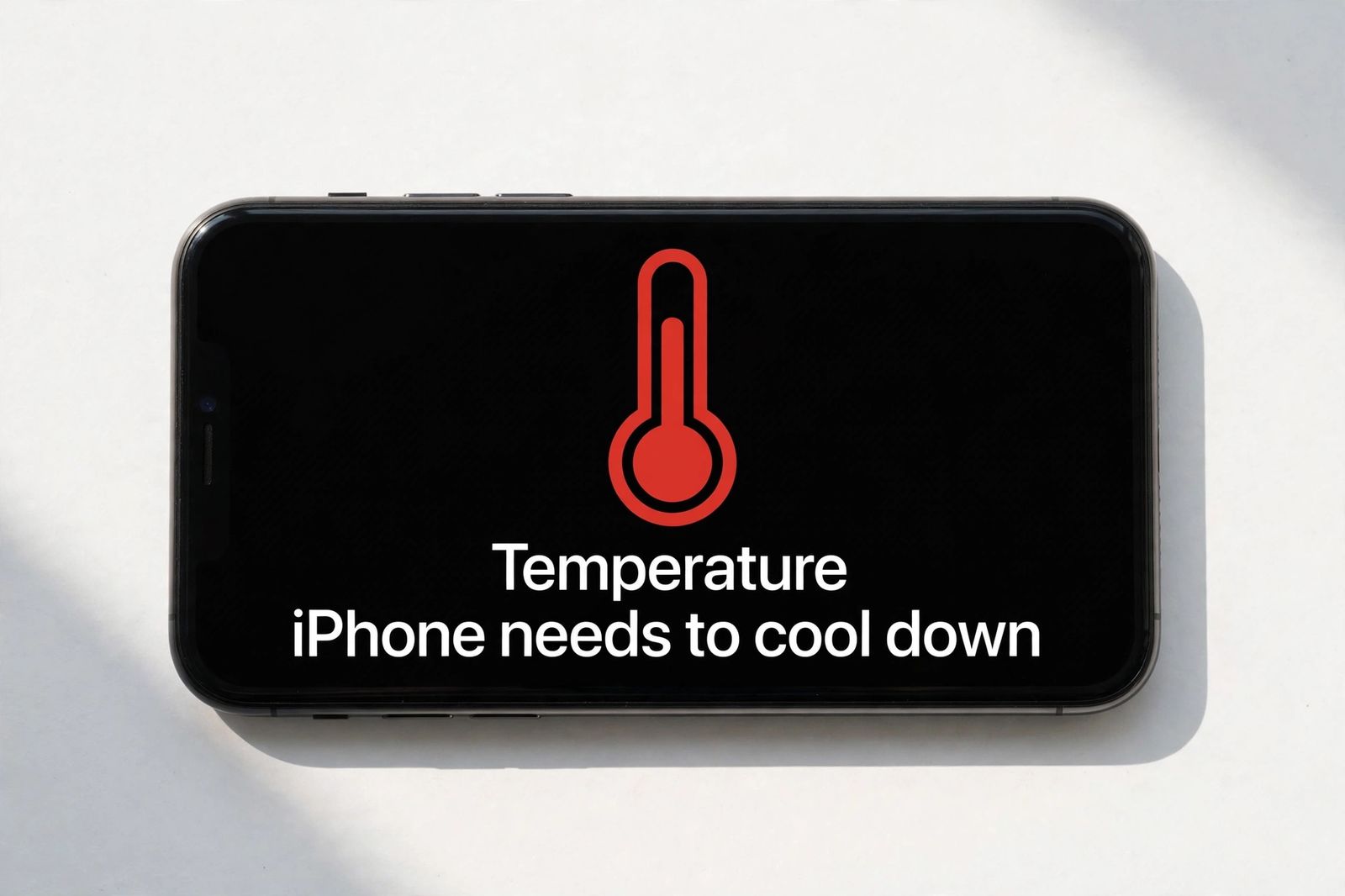
If your iPhone is overheating, cool it the way Apple actually instructs: turn it off, move it to a cooler place away from direct sunlight, and let it cool down on its own — that is the whole of Apple’s recovery procedure, and it pointedly does not include a fridge or freezer. Whether anything is wrong depends on which side of Apple’s line you are on. An iPhone is designed to be used where the ambient temperature is between 0° and 35° C (32° to 95° F), and Apple lists warmth during first setup, restoring a backup, completing a software update, wireless charging, graphics- or processor-intensive apps and camera use, and streaming high-quality video as normal — in its words, if your device does not display a temperature warning, you can keep using it. Overheating, properly speaking, is when the phone starts protecting itself: charging slows or stops, the display dims or goes black, signal weakens, the camera flash is disabled, or the full temperature warning screen appears. Warm during hard work is the phone doing its job; hot while idle, hot during light use, or a warning that returns in normal indoor conditions is a fault pattern — and the sections below separate the two, cause by cause.
Apple’s own numbers: the limits most guides quote loosely
This is the original asset of this article, because almost every guide for this keyword mentions “35 degrees” without separating the three different ranges Apple publishes, or explaining which temperature is even being measured. All three figures are ambient temperatures — the air around the phone — not a reading from inside the device, and an iPhone gives you no in-Settings thermometer reading to check against them anyway.
| Apple’s range | Figures | What it governs |
|---|---|---|
| Use the device | 0° to 35° C (32° to 95° F) | The ambient range iPhone and iPad are designed for; outside it, the device changes its behaviour to regulate its temperature |
| Store the device | −20° to 45° C (−4° to 113° F) | Where the phone may sit switched off; Apple specifically warns not to leave a device in a car, because parked-car temperatures can exceed this range |
| The cost of exceeding the use range | Above 35° C ambient | Apple: using a device in very hot conditions can permanently shorten battery life — the damage from heat is to the battery’s capacity, and it does not come back when the phone cools |
Two consequences follow from reading those numbers properly. First, a summer afternoon can put the air itself outside the use range before you open a single app, which is why this problem is seasonal: the same navigation trip or camera session that is unremarkable in spring can trip thermal protection in summer, because the phone starts the job already close to its ceiling. Second, the thing heat permanently harms is the battery, not the processor. A single warning is the protection working; a phone that lives hot — dashboard mounts, charging under a pillow, filming in direct sun — is spending battery lifespan every time, which is why a phone that overheats often also starts to show the pattern covered in iPhone battery draining fast.
The warning screens, decoded
Apple documents not one warning but a staircase of them, and where you are on the staircase tells you how serious the moment is.
Stage one — the phone quietly sheds load. If the interior temperature exceeds the normal operating range, Apple lists exactly what changes: charging, including wireless charging, slows or stops; the display dims or goes black; mobile signal may weaken as the radios enter a low-power state; the camera flash or other camera features may be temporarily disabled; and some apps run with lower frame rates or longer processing times. None of this is a fault. It is the phone trading performance for temperature, and it reverses when the phone cools.
Stage two — named messages for named situations. Three messages belong here, and guides routinely blur them together:
- While navigating: the phone may show “Temperature: iPhone needs to cool down” and turn off the display — but navigation still provides audible turn-by-turn directions, and the display lights up as you approach each turn. You have not lost your route; follow the voice.
- On the Lock Screen: “Charging On Hold. Charging will resume when [device] returns to normal temperature” means the phone is temporarily too hot or too cold to charge. It is a pause, not a broken charger, and charging resumes by itself at a normal temperature.
- While restoring from an iCloud backup: “Restore Paused. Restoring from iCloud will resume when this [device] cools down.” The restore is held, not lost, and resumes when the device cools.
Stage three — the full temperature warning screen. If the device exceeds a certain temperature threshold, it presents the full-screen warning — the thermometer screen this article’s picture shows. At this point the phone is temporarily disabled for normal use, but Apple notes that an iPhone showing this message may still be able to make emergency calls. Apple’s instruction for this screen is the three steps from the opening paragraph: turn it off, move it somewhere cooler away from direct sunlight, let it cool. There is no fourth step, no setting to tap, and no shortcut — which is exactly where the freezer myth, corrected below, tries to insert one.
Normal vs faulty: the split that decides everything
Run your situation down this table before changing any setting. The left column is Apple’s own list of normal warmth; the right column is the fault pattern the rest of this article troubleshoots.
| Normal — let it finish, or finish what you are doing | Faulty — investigate |
|---|---|
| Warm during first setup or restoring from a backup | Hot while sitting idle, locked, in a cool room |
| Warm while completing a software update, particularly a major release | Temperature warning during light use — messages, mail, reading |
| Warm during wireless charging | Warning that returns repeatedly in normal indoor conditions |
| Warm during graphics- or processor-intensive apps, games, or camera use | Hot plus fast drain, with no heavy app to explain it |
| Warm while streaming high-quality video | Charging On Hold on every charge, in a cool room, with nothing running |
| Warmth that ends when the activity ends | Phone too hot to hold comfortably, or heat concentrated at a swollen back or lifting screen — stop using and charging it and get it seen; that is a safety fault, not overheating |
Apple’s own test is the simplest version of this table: your device will cool when the process has finished or when you complete your activity, and if it does not display a temperature warning, you can keep using it. Heat that tracks a task and ends with it is workload. Heat with no task is the symptom.
One honest limit, because several top guides invent certainty here: Apple gives no duration for how long post-update or post-setup warmth should last. Its temperature page names completing a software update — particularly a major release — as a normal cause of warmth and gives no clock at all. Guides for this keyword variously promise the heat settles in 30 to 90 minutes, one to two hours, a day or two, or one to two days; those figures do not come from Apple and they contradict each other. The workable rule is behavioural, not timed: warmth that is steadily fading as background work finishes is the update; warmth that is undiminished long after setup work should have ended, or that arrives with no update involved, belongs in the faulty column. Keeping the phone on Wi-Fi and plugged in while it settles lets the background work run and finish sooner — the same advice that applies to the post-update drain in iPhone battery draining fast.
The freezer myth, corrected explicitly
Do not put an overheating iPhone in a fridge or freezer. Do not run it under cold water, and do not press it against ice or an ice pack. This needs saying plainly because the idea circulates as a “quick fix” every summer, and one page currently ranking for this keyword even garbles it into the instruction to avoid the fridge “without first warming it up” — there is no version of this that is correct, with or without warming anything.
The correction has two parts. First, it is not Apple’s method: Apple’s complete instruction for the warning screen is turn the device off, move it to a cooler environment away from direct sunlight, and allow it to cool down — gradual cooling at normal room conditions, nothing colder. Second, the mechanism of harm: a phone taken suddenly from very hot to very cold is exposed to a rapid temperature swing and to condensation forming as warm, moist air meets cold internal surfaces — trading a temporary, self-resolving heat event for a moisture problem inside a sealed device. The fast cool-down people want is available without any of that: off, out of its case, unplugged, on a hard surface in a cool shaded room. A phone that has shown the warning typically becomes usable again once it has cooled at that pace; if the warning is still there after it has had a proper chance to cool in those conditions, the problem is no longer the afternoon — it is one of the causes below.
A related half-myth is worth correcting while we are here: removing the case is good practice, but it is not an Apple instruction. Apple’s temperature page never mentions cases at all. A thick case plainly traps heat against the back of the phone, and taking it off while the phone cools and while it charges is a sensible test — but advice that presents case removal as something Apple directs overstates the source. Test it; do not cite Apple for it.
Why it keeps happening: the causes, in the order to check them
Once the phone has cooled, the cause is almost always one of the following. They are ordered by how directly you can verify each one, not by how often guides list them.
1. Stacked heat: heavy work on top of charging, in heat
No single item on Apple’s normal list is a problem by itself. The warning usually arrives when several stack: recording video or navigating while charging, in direct sun, in a case. Each is a heat source or a heat trap, and together they outrun what a fanless phone can shed. The fix is unstacking, not settings: do not charge while filming or navigating in sun, take the case off for long camera sessions, mount a navigating phone by a vent rather than on a sunlit dashboard, and never leave the phone in a parked car — Apple’s named example of a place that can exceed even the storage range. If heat has stopped charging altogether rather than merely slowing it, the tests in iPhone not charging separate a temperature pause from a real charging fault.
2. A runaway app
A phone hot while doing nothing visible is doing something invisible. Open Settings > Battery and read the per-app list: an app you barely opened showing large background activity is the classic culprit. Update it first; if it repeats, restrict its Background App Refresh (Settings > General > Background App Refresh) or delete it and watch the Battery screen for a day — the comparison settles whether it was the cause. The full diagnostic method for that screen is in iPhone battery draining fast, because heat and drain from a runaway app are the same fault wearing two symptoms.
3. Weak signal working the radios hard
Apple lists weakened signal as one of the phone’s responses to heat — radios entering a low-power state — but the reverse is also a cause: in poor coverage the phone works harder to hold a connection, and that work is heat. Heat that appears in one building, one basement, or one leg of a commute and nowhere else is usually this. Prefer Wi-Fi where it is available, and in genuinely dead coverage, Airplane Mode stops the search entirely.
4. Setup, restore and update work that has not finished
Covered in the normal column above: first setup, restoring from a backup, and completing a major software update all make the phone warm while it indexes and syncs, and Apple calls these conditions normal. The fault version is only the one that does not fade — and if the phone is also full, storage pressure adds its own background churn; iPhone storage full: system data deals with that side.
5. An aged or failing battery
A worn battery runs hotter under the same load and drains faster alongside the heat, which is why the two complaints arrive together. Check Settings > Battery > Battery Health (iPhone 15 and later) or Battery Health & Charging (iPhone 14 and earlier) and read Maximum Capacity against Apple’s design figures — 80 percent at 500 complete charge cycles for iPhone 14 and earlier, 1,000 cycles for iPhone 15 models — and read the service wording on the same screen, which outranks the number: a Service or significantly-degraded message is Apple’s own diagnosis. How to check battery health on iPhone walks that screen line by line. A swollen battery is in a different category altogether: a raised back, a screen lifting from the frame, or a phone that no longer sits flat means stop using and charging it and get it seen promptly.
6. Software itself
Restart the phone once it has cooled — a stuck process is the one cause no screen itemises; how to turn off an iPhone covers every model’s buttons. Then update iOS and your apps (Settings > General > Software Update, and the App Store update list): heat bugs are fixed in updates on both sides, and Apple has publicly fixed overheating with a point update before. Treat the erase-and-restore rebuild as the last resort it is, only after a backup you have verified — how to factory reset an iPhone is that sequence, and it fixes nothing if the battery is the cause.
How to stop it coming back
- Charge unstacked. Charge on a hard, ventilated surface, out of a thick case if the phone runs warm, and not while gaming, filming or navigating in the sun. Wireless charging is on Apple’s normal-warmth list, but a cable is the cooler option for a phone that already runs hot.
- Respect the 35° line in summer. Shade at the beach, a bag instead of a sunlit towel, a vent mount instead of a dashboard, and never a parked car. Demand for this topic peaks in summer for a reason: the ambient range is breached by the weather, not by the phone.
- Keep the background honest. Restrain Background App Refresh and Always-on location for the apps the Battery screen actually names, rather than switching everything off on a guess. Low Power Mode (Settings > Battery) is a useful bridge on a hot day — it cuts background work — but it is not a diagnosis.
- Watch the pattern, not the episode. One warning after a summer navigation trip is an event. The same warning weekly, indoors, is a trend — and a trend plus a Battery Health service message is a service visit, with the capacity figure and the exact warning wording noted before you go.
Frequently asked questions
Can I put my iPhone in the fridge or freezer to cool it down faster? No. Apple’s instruction is to turn the device off, move it to a cooler environment away from direct sunlight, and let it cool down — gradual cooling, with no fridge or freezer step. Sudden cold risks condensation inside the phone. Off, unplugged, out of its case, on a hard surface in a cool room cools it safely.
What temperature is too hot for an iPhone? Apple designs iPhone for use where the ambient temperature is between 0° and 35° C (32° to 95° F), and for storage between −20° and 45° C (−4° to 113° F). Those are air temperatures around the phone, not an internal reading — iPhone shows no temperature in degrees in Settings. Using the phone in ambient heat above 35° C can permanently shorten battery life.
Is it normal for an iPhone to get warm while charging? Yes — Apple lists charging wirelessly among the conditions where a device may feel warmer, and calls those conditions normal; the device cools when the process finishes. What is not normal is a phone too hot to hold, a Charging On Hold message on every charge in a cool room, or heat that continues after charging ends.
What does the temperature warning screen mean? That the device has exceeded a certain temperature threshold. Before that screen, the phone has already been protecting itself — slowing or stopping charging, dimming the display, weakening signal, disabling the camera flash. On the warning screen the phone is temporarily disabled for normal use but may still be able to make emergency calls. Turn it off, move it somewhere cooler, and let it cool.
Why does my iPhone overheat when I am not using it? Something is working while you are not: unfinished setup, restore or update indexing; a runaway app with heavy background activity (the Settings > Battery list names it); a weak signal the radios keep hunting for; or an aged battery. Heat with no task is the fault pattern — work through the causes above in order.
Why did my iPhone get hot after an iOS update? Apple lists completing a software update, particularly a major release, as a normal cause of warmth: indexing, photo analysis and sync run in the background after installation. Apple gives no fixed duration for it, despite the confident figures in other guides. Warmth that fades is the update finishing; warmth that persists undiminished, with no background work left to explain it, is something else — restart, check the Battery screen, and make sure you are on the latest point update.
Will overheating damage my iPhone? A single episode is the protection system working, and the protections exist precisely to prevent component damage. The documented long-term cost is to the battery: Apple warns that using a device in very hot conditions can permanently shorten battery life. Repeated heat is therefore a battery-lifespan problem to manage, not a reason to panic over one warm afternoon — unless the back is swollen or the screen is lifting, which is a safety fault: stop using and charging the phone and get it seen.
How long does the temperature warning last? Apple does not publish a time, and any exact figure would be invented. It lasts until the phone’s interior returns to its normal operating range, which depends on how hot it got and where it is cooling. Off, unplugged, out of the sun and out of its case is the fastest safe route; a warning that survives a proper cooling period in a cool room, or that returns immediately in normal conditions, points to a cause in this article rather than to the weather.
This article is general information, based on Apple’s Support page “If your iPhone or iPad gets too hot or too cold” and Apple’s battery pages linked above, checked in November 2026. Menu names differ slightly between models and iOS versions — Battery Health versus Battery Health & Charging is the main one; if a label on your phone differs, the figures and warning wordings above are Apple’s and are the parts to compare against.