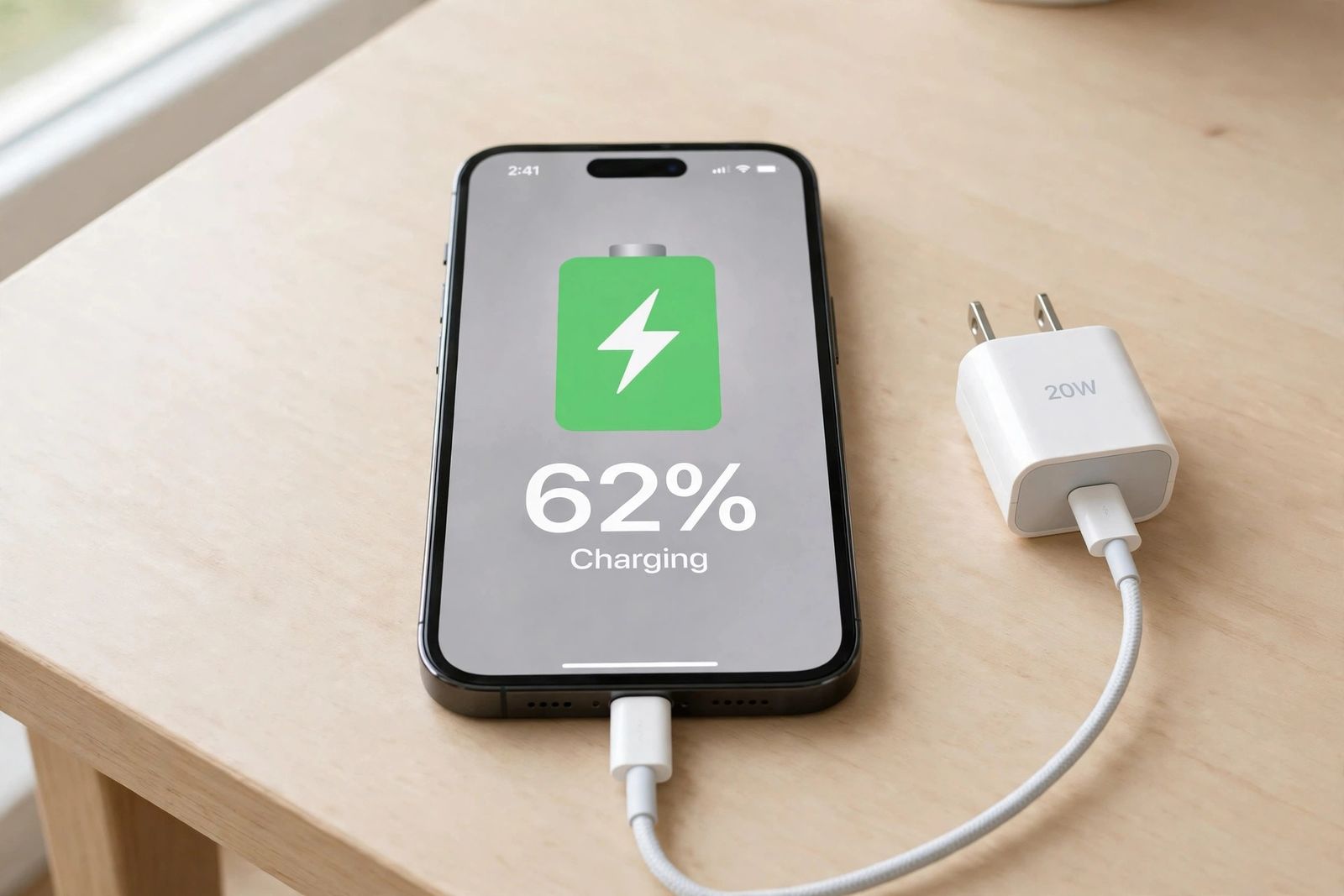
If your iPhone is not charging, do not buy a new charger and do not book a repair yet. Run five tests in this order: clean the charging port, swap the cable for one you know works, check the adapter’s wattage, test wireless charging, and only then read the battery and port for damage signs. The order is the point. A port packed with pocket lint stops the plug seating fully, and no cable or adapter test means anything until that blockage is out; a cable swap means nothing if the adapter behind it can barely power the phone; and wireless charging is the dividing test that separates a wired-path fault (port or cable) from a battery or board fault, because it bypasses the port entirely. Most cases end at Test 1 or Test 2 — Apple’s own support sequence for an iPhone that won’t charge is built from the same parts: check the cable and adapter for damage, use a wall outlet with firm connections, remove any debris from the port, charge for half an hour, force restart, and charge for another half hour. What follows adds the two things Apple’s short page does not give you: the wattage numbers, and a verdict at the end of each test so you know what the result actually proved.
The ordered test chain
Work down the table. Each test either fixes the problem or rules a whole part of the charging path out, and each takes minutes except the dead-phone wait in Test 3.
| Test | Do this | If charging starts | If it still does not charge |
|---|---|---|---|
| 1. Port debris | Inspect the port under a bright light; clear lint the Apple way (below) | The plug was not seating; you are done | The port is clear — the fault is downstream; go to Test 2 |
| 2. Cable | Swap in a known-good cable, one change at a time | The old cable has failed; replace it | The cable is ruled out; go to Test 3 |
| 3. Adapter wattage | Wall outlet + an adapter with enough watts for your model | The old adapter was too weak or faulty | Power delivery is ruled out; go to Test 4 |
| 4. Wireless charge | Qi pad (iPhone 8+) or MagSafe (iPhone 12+), cable unplugged | The battery is fine — the fault is in the wired path (port or its connection) | The fault is past the port: battery or board; go to Test 5 |
| 5. Damage signs | Read Battery Health, the port’s pins and fit, and the phone’s body | — | The signs name the repair; see the verdicts in Test 5 |
Two habits make the chain work. Change one thing at a time — if you swap the cable, the adapter and the outlet together and charging starts, you will never know which part failed, and the faulty one stays in your drawer to fail again on another phone. And test after every step, the way Apple’s sequence insists: reconnect and look for the charging bolt on the battery icon before moving on.
Before Test 1: read the screen, because an alert reroutes everything
If the screen is on, whatever it is already telling you outranks the chain. Four messages matter:
- “Liquid Detected” or “Charging Not Available.” Stop. Unplug the cable from both the phone and the power source. The connector is wet and iOS has switched wired charging off on purpose — this is not a fault to clean or force your way past. Tap the phone gently against your hand with the connector facing down, leave it somewhere dry with airflow, wait at least 30 minutes before trying the cable again, and know that full drying can take up to 24 hours; if the phone was actually exposed to liquid, Apple advises allowing at least five hours before charging with a cable. Never dry it with heat or compressed air, never push anything into a wet connector, and do not put it in rice — Apple warns rice particles can themselves damage the phone. Wireless charging still works during the alert if the back of the phone is dry (that is Test 4, used early, as a workaround). An emergency override exists; charging through a wet connector can corrode the pins permanently, so it is for emergencies only. This alert applies to iPhone XS, XS Max, XR and later.
- “Accessory Not Supported” (or “may not be supported”). Apple names exactly three causes: a dirty or damaged charging port, a defective or damaged accessory, or a USB charger that is not designed to charge devices. Connect the phone directly to the charger with no hub, dock or adapter in between, and start the chain at Test 1 — the alert is pointing at the port and the accessories, in that order.
- “Charging On Hold” (iOS 16 and later). The phone is too hot or too cold. Move it somewhere of normal temperature — out of direct sun, out of a hot car, indoors from the cold — and wait; charging resumes by itself when the temperature normalises. This protection cannot be switched off, and it applies to wireless charging too. If the pause keeps recurring indoors with nothing running, treat it as a heat problem rather than a charging one — iPhone overheating separates normal warmth from a phone that is genuinely running hot.
- Charging stops at the same figure around 80 percent. That is usually a deliberate pause, not a failure: a Charge Limit on iPhone 15 and later (Settings > Battery > Charging, limits from 80 to 100 percent in 5 percent steps), Optimised Battery Charging holding the last part of the charge until near your usual unplug time (touch and hold its Lock Screen notification and tap Charge Now when you need a full charge sooner), or a warm battery — software limits charging above 80 percent when the battery gets too warm and resumes when it cools. If your phone charges normally to that figure every time, it is not broken; the rest of this article is for phones that will not charge at all, charge intermittently, or charge far too slowly. One related label: on iOS 18 and later, Slow Charger in Settings means the connected charger cannot provide optimal power — it is Test 3 telling you its result in advance.
Test 1: Clear the port — the most common cause, checked first
Pocket lint, dust and grit compact at the back of the charging port over months of pocket and bag life, until the plug can no longer seat fully and the contacts never meet. The signs are specific: the plug feels loose, stops short of sitting flush, wobbles, or the phone only charges when the cable is held at an angle. Any one of those is a port-debris sign before it is anything else.
Clear it the way Apple itself specifies in its iPhone charging troubleshooting guidance: use a small, non-metallic, soft-bristled brush that is clean and dry, with just enough bristles to fit inside the connector, and twist them gently to loosen and lift the debris out, brushing away from the connector so you do not push debris further in. Work under a bright light or torch so you can see what is in there, with the cable unplugged. Then plug the cable back in firmly and check that it seats fully and does not wobble.
Three safety lines, because the guides for this keyword disagree with each other and two of the common suggestions go against Apple:
- Nothing metal, ever. No pin, paper clip, SIM tool or needle. Metal can scratch the contacts and short them. This matters most on iPhone 15 and later, whose USB-C port has a thin central tongue carrying the contacts — prying against it can bend it, where the older Lightning port (iPhone 14 and earlier) is an open hollow that is more forgiving. Several top guides advise digging with a wooden toothpick; Apple’s own method is the soft brush above, and the cautious reading of the disagreement is simple: lift loose lint gently, and if debris is packed hard or will not come out, that is a service-counter job, not a reason to dig harder.
- No alcohol-dipped cotton swabs. At least one widely read guide tells you to clean the port with an alcohol-soaked swab. Apple warns against pushing a cotton swab or paper towel into the connector — fibres are left behind and liquid has no business in the port — and its documented method is a dry brush. Follow Apple.
- No compressed air. One top guide recommends it; Apple does not — How-To Geek’s guide states the position plainly: Apple doesn’t recommend spraying compressed air into the port. The brush is slower and safer.
Verdict for Test 1: charging starts and the plug now seats flush → debris was the whole problem. The port is visibly clear, the plug seats fully, and charging still fails → the port is ruled out as a blockage (its electrical health is Test 5). Move to Test 2.
Test 2: Swap the cable — one change at a time
Cables fail more often than any other part of the chain, usually at the flex point near a plug, and they often fail silently — no alert, no visible damage, just no charge. Borrow a cable you know works (it charged another phone today, not one that has been in a drawer for a year), keep your existing adapter and outlet, plug in, and watch for the charging bolt.
Match the cable to the port. iPhone 15 and later use USB-C: any cable and adapter that meet the USB-C standard are acceptable, and the MFi certification that applies to Lightning does not apply to an ordinary USB-C charging cable — guides that demand MFi for a USB-C cable are mixing the two eras. iPhone 14 and earlier use Lightning: use an Apple cable or a certified one carrying the Made for iPhone (MFi) badge; uncertified Lightning cables are the classic trigger for the accessory alert and for silent charge failures. While the old cable is out, inspect it along its full length: fraying, splits, exposed wire, a kinked or bent section, bent adapter prongs. Apple is blunt about damaged accessories — do not use them. Retire a cable that fails any of that, even if it still works at one lucky angle.
If the borrowed cable charges the phone, also run the reverse test when you can: your old cable in another phone. It confirms the cable itself, rather than some interaction, was the fault — the “known good parts” method in both directions.
Verdict for Test 2: known-good cable charges → replace your cable; nothing else was wrong. Known-good cable also fails → the cable is ruled out. The remaining power question is the adapter, which is Test 3.
Test 3: Check the adapter’s wattage — and give a dead phone its half hour
A charger can be alive and still be too weak. The old 5W USB-A adapter that shipped with iPhones for years will charge a modern iPhone eventually, but so slowly that with the screen on it can look like nothing is happening — the phone spends roughly what the adapter supplies. Computer USB ports are the other weak source: many supply very little power, a hub or keyboard port less still, and a computer that is off, asleep or in standby cannot charge the phone at all and can even let it drain. For every test in this article, plug a wall adapter directly into a wall outlet — not a power strip, car port or laptop — with every connection pushed firmly home, and try a second outlet once, to rule out a dead socket.
What “enough watts” means, from Apple’s fast-charging figures:
| Your iPhone | Cable | Adapter for fast charging |
|---|---|---|
| iPhone 15 and 16 | USB-C to USB-C | USB-C adapter with USB Power Delivery, 20W or higher |
| iPhone 17, 17 Pro and 17 Pro Max | USB-C to USB-C | 40W or higher for Apple’s fastest times (up to 50 percent in about 20 minutes); a 20W adapter still charges, more slowly |
| iPhone Air and iPhone 17e | USB-C to USB-C | 20W or higher (up to 50 percent in about 30 minutes) |
| iPhone 8 to 14 (Lightning) | USB-C to Lightning | USB-C Power Delivery adapter, 18–20W or higher (up to 50 percent in about 30 minutes on models that support fast charging) |
| Any model, slow overnight charge | Either | The old 5W adapter works — it is a speed problem, not a compatibility problem |
A higher-wattage USB-C adapter — including one that came with a Mac laptop — is safe to test with: the phone takes the power it asks for, not everything the adapter can offer. What you are ruling out is the opposite direction, an adapter that cannot meet the phone’s minimum. If Settings shows Slow Charger (iOS 18 and later), the phone has already made this diagnosis for you.
If the phone is completely dead, this test has a waiting step. A fully drained iPhone can sit black-screened on a good charger for some time before it shows anything — Apple notes a deep discharge can need 20 to 30 minutes of charging before the phone turns on, though the charging icon should appear within a couple of minutes. So: connect the phone to the known-good wall setup from Tests 1–3, leave it for half an hour, and only then judge. If it still will not power on, or shows only a battery icon, force restart it while connected — on iPhone 8 and later (including iPhone SE 2nd generation and later): press and quickly release Volume Up, press and quickly release Volume Down, then press and hold the Side button until the Apple logo appears; on iPhone 7, hold Side and Volume Down together; on iPhone 6s and earlier, hold Home and Side (or Top) together — then charge for another half hour. If the phone stays completely black through that full hour and the force restart, iPhone not turning on takes over from here: its screen-or-phone test separates a dead display from a dead phone before you pay for either repair. (A normal restart, when the phone is on, is the softer version of the same idea; how to turn off an iPhone covers every model’s buttons and the Settings route.) Update iOS once the phone has enough charge to do it — Settings > General > Software Update — because charging bugs are among the things updates fix, and Apple’s accessory-alert steps end with exactly that instruction. (If the update itself will not download because the phone is full, that is a separate blockage with its own fix order — iPhone storage full.)
Verdict for Test 3: charging at a normal pace on a sufficient wall adapter → the old adapter or source was the fault. Still nothing on a known-good, correctly rated wall setup → power delivery is ruled out end to end. The next test changes the charging method itself.
Test 4: Test wireless charging — the dividing test, and the workaround
Every iPhone 8 and later charges wirelessly on a Qi-certified pad — any maker’s, not only Apple’s — and iPhone 12 and later also work with MagSafe, which snaps the charger into alignment. Unplug the cable first: when both are connected, the phone charges by wire and the wireless test tells you nothing. Place the phone screen-up in the centre of the pad, and if nothing starts, remove a thick, metal or battery case (and any cards or metal between phone and pad) and reposition — off-centre placement is the common wireless failure, and notification vibrations can walk a phone off the coil overnight.
This test divides the fault in two, which is why it sits at position four:
- Wireless works, cable does not. The battery accepts charge and the phone’s charging system is alive. The fault is in the wired path only — the port, its contacts, or its internal connection. You also have a working phone again: charge wirelessly while you arrange the port inspection, instead of living with a dead phone. Apple’s own troubleshooting uses the test the same way: an iPhone that turns on only on a wireless charger may have wired charging issues.
- Wireless also fails. The fault sits past the port — the battery or the board’s charging circuitry. No further cable or adapter purchase will touch it. Go to Test 5 to read which one the signs point to.
One honest limit, which the more careful guides state and the repair-shop pages skip: wireless success proves the wired path is faulty, but it does not prove whether the repairable part is the port itself, its connector, or something upstream of it. That distinction is a bench inspection, and it is the difference between a port repair quote and a larger one — get the inspection before agreeing to a part.
Wireless is also the workaround in two live situations: during a liquid alert (back of the phone dry), wireless charging keeps the phone usable for the hours the connector needs to dry; and with a worn port that charges only at an angle, wireless removes the daily wiggle-and-pray while you decide on repair.
Verdict for Test 4: one of the two branches above — wired-path fault, or battery/board fault. Test 5 reads the damage signs that separate the remaining possibilities.
Test 5: Read the damage signs — battery, port, or stop-now faults
Battery signs. Open Settings > Battery > Battery Health (iPhone 15 and later) or Battery Health & Charging (iPhone 14 and earlier) and read two things, the way how to check battery health on iPhone sets out in full. Maximum Capacity around or below 80 percent, or a message that the battery’s health is significantly degraded or needs Service, marks a worn battery — and a worn battery can behave like a charging fault: charging intermittently, gaining no percentage despite the icon, or shutting down with charge showing. Apple’s design figures frame the number: iPhone 14 models and earlier are designed to retain 80 percent capacity at 500 complete charge cycles, iPhone 15 models at 1,000 cycles, under ideal conditions. If the screen says the battery cannot be verified as a genuine Apple part, the health figures themselves cannot be trusted until the battery is checked. A phone whose charge also drains unusually fast is telling the same battery story from the other side.
Port signs. With the port cleaned at Test 1, these remaining signs mean hardware, not dirt: the plug is still loose or cuts in and out when the cable is gently wiggled at the connector (Apple’s own intermittency test — if a known-good cable connects intermittently, the connector may be faulty or damaged); pins that look bent, blackened, or green or white with corrosion — corrosion can arrive months after the wetting that caused it, which is why a port can fail with no recent incident; or a broken connector tip lodged in the port — stop, do not push anything else in, and have the port inspected.
Stop-now signs. Stop testing and get the phone seen if: the screen is lifting from the frame or the back is raised (a swollen battery — do not keep charging it); the phone or charger gets abnormally hot, or there is any smell; or charging failed only after a drop. None of those is a settings problem, and forcing cables into a damaged port makes the repair worse.
Verdict for Test 5: degraded-battery messages → battery service through Apple or an Apple Authorized Service Provider. Loose-after-cleaning, corroded or intermittent port → port inspection. Swelling, heat or smell → stop and seek service promptly. No damage signs at all, with Tests 1–4 failed → the charging circuitry on the board is what remains, which only a diagnostic can confirm.
Three things the top guides get wrong
Port cleaning: swabs, air and digging versus Apple’s brush. The guides for this keyword contradict each other in print: one prescribes an alcohol-dipped cotton swab inside the port, another recommends compressed air, most prescribe digging with a toothpick, and one cautious guide says to leave packed debris to a technician and not dig at all. Against that noise, Apple’s documented method in its charging troubleshooting guidance is specific and dry: a small, non-metallic, soft-bristled brush, clean and dry, twisted gently to lift debris out. No liquids, no swabs left shedding fibres, no air blast, nothing metal. Test 1 follows Apple, and where a guide and Apple disagree about your port, Apple is the safer bet.
“Five hours” is not the liquid-alert rule. One repair guide states the port must dry “at least 5 hours” as the general liquid-alert instruction. That figure is real but narrower: it is Apple’s minimum wait after a phone has been exposed to liquid before charging it with a cable. The alert itself works on a different clock — wait at least 30 minutes before retrying, and full drying can take up to 24 hours. Conflating the two leaves people either charging a soaked phone too early or abandoning a merely splashed connector for most of a day.
Flat battery prices are not Apple’s prices. Guides in the top results quote a single battery replacement figure (around $99) and single port-repair ranges as if they were universal. Apple’s fee varies by model, and authorized providers set their own prices — which is why this article quotes no replacement price and sends you to Apple’s service information for your exact model instead. A price copied from a guide is a price for somebody else’s phone, in somebody else’s year.
When to get service
Book Apple or an Apple Authorized Service Provider when any of these is true: the phone has had a full hour on a known-good, correctly rated wall charger plus a force restart and still will not charge or power on; Battery Health reports a significantly degraded battery or shows a Service message; the liquid alert returns with every cable, including Apple cables, on a dry connector; the port is loose, corroded or visibly damaged; or the phone shows any stop-now sign from Test 5. One boundary worth stating plainly: a phone that charges and powers on normally but sends every caller to voicemail does not have a charging fault at all — iPhone calls going straight to voicemail runs that diagnosis, starting with the split between all calls, unknown numbers only, and one person only. Take the cable and adapter you normally use with you, and tell them what the chain found — which tests passed and which failed. That list is the difference between a diagnosis that starts from evidence and one that starts from zero. If the phone is under warranty with no liquid or impact damage, a failed port or battery is Apple’s to fix; check coverage before paying anyone else. And do not buy a third cable or a second adapter as a substitute for the visit — once the chain has ruled the accessories out, more accessories are just spending.
Frequently asked questions
Why is my iPhone plugged in but not charging? Work the chain: the most common causes, in test order, are lint packed in the port stopping the plug seating (Test 1), a cable that has failed internally (Test 2), and an adapter or source too weak to deliver real charge — an old 5W adapter or a sleeping computer (Test 3). If the screen shows an alert instead, start there: a liquid alert, an accessory alert, Charging On Hold and an 80 percent pause each reroute the fix, and none of them is fixed by a new cable.
Can lint really stop an iPhone from charging? Yes — it is the first test for a reason. Lint compacts at the back of the port until the plug cannot reach the contacts; the giveaway is a plug that feels loose, stops short, or only works at an angle. Clear it with a clean, dry, non-metallic soft-bristled brush, the method Apple documents, and never with anything metal.
My iPhone charges wirelessly but not by cable. What is broken? The wired path: the port, its contacts or its connection — because wireless charging bypasses all of them and the battery demonstrably accepts charge. Charge wirelessly as a workaround and have the port inspected; wireless success locates the fault family but cannot by itself say which specific part a repair needs.
Why does my iPhone charge so slowly? Usually wattage: a 5W adapter, a low-power computer port, or a hub between the adapter and the phone. Move to a wall outlet with a USB Power Delivery adapter of 20W or higher (40W or higher for the fastest times on iPhone 17 models), check for a Slow Charger label in Settings on iOS 18 and later, and let the phone sit locked rather than gaming or streaming while it charges — heavy use spends incoming power as fast as a weak adapter supplies it. A battery near or below 80 percent health can also charge erratically; Test 5 covers reading it.
Why does my iPhone stop charging at 80 percent? Almost always on purpose: a Charge Limit set on an iPhone 15 or later, Optimised Battery Charging waiting to finish near your usual unplug time, or a warm battery pausing above 80 percent until it cools. Check Settings > Battery > Charging, use Charge Now on the Lock Screen notification when you need 100 percent today, and move a warm phone somewhere cooler.
How long should I leave a completely dead iPhone on charge? Half an hour before you judge anything — a deep discharge can need 20 to 30 minutes before the phone turns on at all. Then force restart it while connected and give it another half hour, per Apple’s sequence. No sign of life after that full hour on a known-good wall charger is a service case, not a reason to try a fourth cable.
Will any USB-C cable charge an iPhone 15 or later? A cable and adapter that meet the USB-C standard are what Apple specifies for those models; the MFi certification check belongs to Lightning accessories for iPhone 14 and earlier. For fast charging on USB-C models, the adapter matters more than the cable: USB Power Delivery at the wattage in Test 3’s table.
This article is general information, based on the Apple Support pages linked above and checked in November 2026. Menu names and charging features differ by model and iOS version — Charge Limit on iPhone 15 and later, Charging On Hold on iOS 16 and later, the Slow Charger label on iOS 18 and later — and wattage figures are Apple’s fast-charging specifications for the models named. If a label on your phone differs, the test chain still applies in the same order.