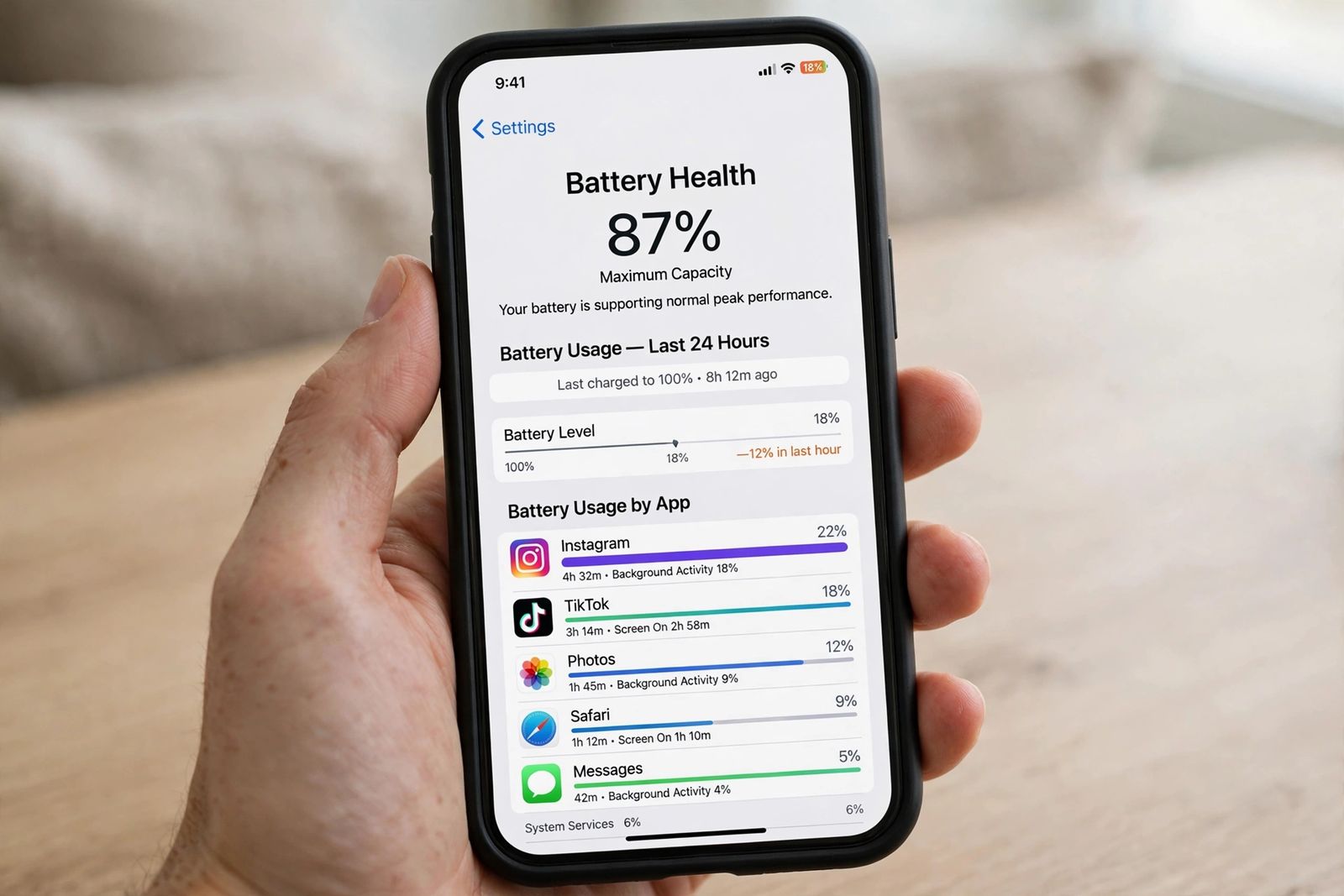
If your iPhone battery is draining fast, do not start by switching settings off at random. Work through four checks in this order: read the Maximum Capacity percentage in Settings > Battery > Battery Health (or Battery Health & Charging on older models), read the per-app usage list on the Battery screen before it, ask whether the drain started within a few days of an iOS update, and only then hunt the named drains — 5G, the Always-On display, Background App Refresh and location set to Always. The order matters because the first check splits the problem in two: if Maximum Capacity is around or below 80 percent, or the screen shows a Service message, the battery itself is worn and no setting will give the lost hours back; if the percentage is healthy, the cause is an app, a setting or unfinished update work, and the Battery screen names it. Apple’s own design figures set the line: batteries in iPhone 14 models and earlier are designed to retain 80 percent of their original capacity at 500 complete charge cycles, and iPhone 15 models at 1,000 cycles, under ideal conditions, per Apple’s iPhone battery and performance page.
The ordered diagnostic
Most battery guides hand you a flat list of ten or twelve fixes in no particular order. That wastes your time in a specific way: the fix for a worn battery (replace it) has nothing in common with the fix for a runaway app (restrain or delete it), and applying settings fixes to a worn battery — or paying for a battery when an app is at fault — solves nothing. The four checks below take a few minutes in total; each one either finds the cause or rules a whole family of causes out, and each ends with a plain verdict: normal, or faulty.
| Check | Where | Points to the battery itself | Points to software or settings |
|---|---|---|---|
| 1. Maximum Capacity | Settings > Battery > Battery Health | Around or below 80%, or a Service message | High 80s or 90s with normal peak performance |
| 2. Per-app usage | Settings > Battery | No app stands out, drain is even all day | One app or label dominates the list |
| 3. Update timing | Settings > Battery (Insights) | Drain long predates the last update | Drain began within a few days of updating |
| 4. Named drains | Cellular, Display, General settings | None of them explains the loss | 5G, Always-On, background refresh, location |
Check 1: Read the Battery Health percentage
Open Settings > Battery, then tap Battery Health on an iPhone 15 or later, or Battery Health & Charging on an iPhone 14 or earlier. Two things on this screen decide more than everything else in this article combined.
Maximum Capacity measures the battery’s capacity relative to when it was new, in Apple’s words: a battery will have lower capacity as it chemically ages, which might result in fewer hours of usage between charges. Read it against Apple’s design targets — 80 percent at 500 complete charge cycles for iPhone 14 and earlier, 80 percent at 1,000 cycles for iPhone 15 models — and against the cycle count where your model shows one (iPhone 15 and later show it on this same screen). The full model-by-model breakdown of this screen is in how to check battery health on iPhone; for the drain question, the working bands are:
- 90 to 100 percent: the battery is not your problem. A healthy-capacity battery that empties by lunch is being drained by something running on the phone — go to Check 2. Apple also notes a new phone can show slightly less than 100 percent depending on the time between manufacture and activation, so 98 or 99 on a recent phone is not a defect.
- Low to mid-80s: genuine ageing. Expect visibly shorter days, especially in cold weather — Apple explains that a battery’s impedance rises temporarily at a low state of charge and in cold temperatures, which is why an ageing phone can shut down with charge still showing. Settings discipline will help at the margins, but plan on a replacement in the battery’s near future rather than expecting fixes to restore the original day.
- Around or below 80 percent: Apple’s own service zone. This is the figure its design targets are built around, and it is where the screen itself starts raising service.
The Service wording outranks the number. Read the Peak Performance Capability line under the percentage. The healthy message is Your battery is currently supporting normal peak performance. If instead the screen says your battery’s health is significantly degraded and that an Apple Authorized Service Provider can replace it, Apple has made the diagnosis for you — that message is not a safety warning and the phone remains usable, but it is Apple’s own statement that the battery is the problem. The same applies if the line reports that the phone has experienced an unexpected shutdown because the battery could not deliver the necessary peak power and that performance management has been applied: the phone is now deliberately slowing peaks to stay alive, and the drain-plus-slowness combination is a battery symptom, not a settings one. One more line to rule out: if the screen says the battery cannot be verified as a genuine Apple part, Apple warns the health figures may not be accurate, and no reading from that screen should be trusted until the battery has been checked.
Verdict for Check 1: Service message, significantly-degraded message, applied performance management, or capacity around 80 percent or below → the battery itself is the cause; skip to “When the battery itself is the problem” below. Healthy percentage and normal peak performance → the battery is fine; something is spending its charge. Continue.
Check 2: Read the per-app usage screen
Go back one screen to Settings > Battery. This is the screen Apple’s battery-drain support page sends you to first, and it answers the question the Health screen cannot: where the charge actually went.
Start at the top. On iOS 18 and later, Insights call out background activities that can affect battery life and thermal performance for a while — an update still finishing, for example — and state that battery life returns to normal when the activity finishes. Battery Suggestions name settings costing you charge, in Apple’s own examples an auto-brightness or auto-lock that is switched off. On iOS 26 and later, the Daily Usage chart compares today’s usage with your average over the last seven days, which is the fastest way to see whether the drain is new or long-standing; the same screen’s older views show the Last 24 Hours and Last 10 Days.
Then scroll to the app list and read it the way Apple’s battery page teaches — by the labels under each app, not just the percentages:
- One app far ahead of the rest, with long background time. Tap the app (or Show Activity) to split its use into screen time and background time. An app you barely opened that shows hours of Background Activity is the classic runaway: it is working while the phone sits in your pocket. That single pattern — small screen time, large background time, large share of the day’s battery — is the closest thing this screen has to a named culprit.
- Location and Background Location under an app means it has been using location services. One mapping or delivery app during a trip is normal; a shopping or news app holding that label all day is not.
- Home & Lock Screen high on the list means the display is being woken constantly — usually notifications. The drain is real, but the cause is whatever is waking the phone, not the Lock Screen itself.
- No Cell Coverage and Low Signal is Apple’s own label, and it reframes the whole problem: the phone has been spending power searching for a better signal in a poor-coverage area. No app fix touches this; see Check 4.
- No app stands out and the usage is spread evenly. Combined with a healthy Check 1, that pattern usually means the drain is recent system work — Check 3 — or several ordinary drains stacking up, which is what Check 4 is for.
Verdict for Check 2: a dominant app or label names your next fix directly. An even spread with no culprit sends you onward — and rules out the “one bad app” theory that most guides stop at.
Check 3: The post-update window — and how long it really is
If the drain began right after an iOS update, the likeliest cause is the update’s own housekeeping: indexing, photo analysis and sync work that runs in the background after installation. Apple’s drain page is specific about the remedy and vague — deliberately — about the clock: if you notice that your battery life has decreased after updating your device, wait a few days and then check again. Insights on the Battery screen exist precisely to tell you this work is still running; while an Insight says background activity is ongoing, the drain has an explanation that is already fixing itself.
This is where a correction is owed, because most guides state a hard figure Apple does not. The “24 to 48 hours” window repeated across the top guides is not an Apple promise. Apple’s current wording is “a few days,” full stop. Treating 48 hours as a deadline produces two mistakes: people troubleshoot a phone on day two that would have settled on day three, and — the opposite error — people keep “waiting for it to settle” for two weeks when the window has plainly closed. The workable rule, from Apple’s own wording: give a post-update drain a few days, keep the phone on Wi-Fi and charging overnight so background work can run on mains power, and check the Battery screen for the Insight clearing. If heavy drain is still there after that — or it never followed an update at all — it is not indexing. Move on.
A new phone behaves the same way for the same reason: restoring a backup re-downloads apps, photos and data, and the system then indexes all of it. Expect a new or freshly restored iPhone to run warm and drain fast for the first few days; judge its battery from the second week, not the second day.
Verdict for Check 3: drain started within a few days of an update (or a restore), and an Insight is showing → wait it out, then re-run Checks 1 and 2. Drain older than that, or no update involved → continue to Check 4.
Check 4: The named drains
What remains is a short list of features that spend battery continuously. Each has an exact setting, and each is worth changing only if your phone actually uses it heavily — the point of the earlier checks is that most people need one of these, not all of them.
5G. On iPhone 12 models and later with 5G, Apple provides 5G Auto, which enables Smart Data mode: in Apple’s words, when 5G speeds don’t provide a noticeably better experience, the device automatically switches to LTE, saving battery life. It lives at Settings > Cellular > Cellular Data Options > Voice & Data. “5G On” in a weak-coverage area is the expensive combination — the radio works hardest exactly where the signal is worst, which is also what the No Cell Coverage and Low Signal label in Check 2 was telling you. 5G Auto, or LTE where 5G coverage is patchy, is the fix that matches that diagnosis.
Always-On display. On Pro models that have it, the Always-On display keeps a dimmed Lock Screen — clock, widgets, notifications — lit around the clock. It is designed to sip power, but it is a constant spend on top of everything else, and on a phone already losing the day it is one of the few drains you can remove entirely: Settings > Display & Brightness > Always On Display, off. If your Check 2 showed Home & Lock Screen high in the list, this and notification wakes are the two halves of that number.
Background App Refresh. This is the switch behind most Background Activity labels: Settings > General > Background App Refresh. Turn it off app by app for anything that does not need fresh content waiting when you open it — shopping, news and social apps are the usual spenders; messaging and mail are the ones most people leave on deliberately, accepting the cost. Setting the whole feature to Wi-Fi only is the middle option Apple offers, and it pairs with Check 2: restrain the specific apps the Battery screen named, rather than disabling refresh for everything on a guess.
Location set to Always. In Settings > Privacy & Security > Location Services, any app set to Always can wake GPS in the background indefinitely. Change apps to While Using the App unless the app genuinely needs your location when closed — a weather widget’s convenience rarely justifies it. Apple’s usage screen flags this as Location and Background Location, so again, let Check 2 tell you which apps to touch.
The display itself. Apple’s own battery page reduces its display advice to two moves: dim the screen, or turn on Auto-Brightness (Settings > Accessibility > Display & Text Size) so the phone does it for you — and its drain page lists a disabled auto-brightness and a disabled Auto-Lock as the first two Suggestions it surfaces. A screen at full brightness with Auto-Lock set to Never will out-drain every app on the phone; set Auto-Lock to 30 seconds or 1 minute at Settings > Display & Brightness.
Verdict for Check 4: change the settings your earlier checks actually pointed at, then give the phone a normal day. If the drain survives a full pass — healthy battery on Check 1, no culprit on Check 2, no update on Check 3, named drains restrained here — the remaining explanations are a software fault that a restart or an iOS update addresses, or a hardware fault that only a diagnostic can see. Both are covered next.
The fixes, in the order the diagnosis points to them
With the checks done, the fixes are short, because each belongs to a finding:
- Restart the phone. A stuck process is the one cause no screen itemises. Turn the iPhone fully off and back on — how to turn off an iPhone covers every model’s buttons and the button-free Settings route — and see whether the drain survives the restart. If the stuck process also leaves the screen ignoring your taps, iPhone screen not responding is the matching diagnosis — it splits the freeze by pattern and gives the force restart for each model, which needs no touch at all. A different complaint should not be folded into this one: if the battery reads healthy but callers are being sent straight to voicemail, that is a call-settings diagnosis, not a drain — iPhone calls going straight to voicemail splits it by who is affected (every call, unknown numbers only, or one person) before changing anything.
- Update iOS and your apps. Battery-draining bugs are fixed in updates on both sides: Settings > General > Software Update for iOS, and the App Store’s update list for the app Check 2 named. If the named app still misbehaves fully updated, delete and reinstall it; if it still misbehaves after that, delete it and watch the Battery screen for a day — the comparison settles whether the app was the cause.
- Use Low Power Mode as a bridge, not a diagnosis. Settings > Battery > Low Power Mode reduces or disables Mail fetch, Background App Refresh and some visual effects, per Apple’s drain page, and turns itself off once the phone charges above 80 percent. It buys hours on a bad day; it does not tell you anything about the cause. On iOS 26 and later, Adaptive Power is the automatic version of the same idea — it predicts high-use days, adjusts performance to stretch the battery, and can switch Low Power Mode on for you when the battery reaches 20 percent.
- Heat is a cause, not just a symptom. A phone that also runs hot — or has shown a temperature warning — needs the heat side worked through as well: iPhone overheating covers Apple’s temperature limits, the warning screens and the normal-vs-faulty split. Apple’s battery guidance puts the ideal zone at 16° to 22° C, says iPhone works best between 0° and 35° C, and warns that ambient temperatures above 35° C can permanently damage battery capacity — charging in that heat damages it further, and some cases trap enough heat during charging that Apple advises removing them. A phone that drains fast mainly in a hot car or direct sun is showing you a lifespan problem being created in real time, not a settings problem.
- The erase is the last step, not the first. If a full diagnostic pass finds nothing and the drain persists, a corrupted system state is what remains, and the rebuild — back up, erase, restore — is the heavy tool for it. It is irreversible without a verified backup, so treat the backup as the step itself; the full sequence is in how to factory reset an iPhone. Do it only after the checks above, because erasing a phone whose battery is worn accomplishes nothing at all.
- A phone that is also full and slow may have two different problems. Storage pressure creates its own background churn; if your phone is warning about storage as well as battery, iPhone storage full runs the cleanup in size order, and iPhone storage full: system data deals with the System Data side specifically — the two cleanups together are worth more than either twice.
Two things most guides get wrong
“500 cycles” is only half the story. Several top guides state Apple’s cycle figure as a single universal number — that after roughly 500 charge cycles a battery drops to around 80 percent. That is Apple’s design target for iPhone 14 models and earlier only. For iPhone 15 models the same Apple page gives 1,000 complete charge cycles to the same 80 percent. The error matters practically: a two-year-old iPhone 15-series phone at 86 percent is wearing normally for its design, while an iPhone 13 at the same percentage and cycle count is near the end of its designed span — and advice built on the 500-cycle figure sends the newer phone’s owner shopping for a replacement they do not need yet.
“Below 80 percent, Apple considers the battery consumed” is a simplification. Eighty percent is a design and reference figure — the capacity Apple’s batteries are designed to retain at their rated cycle counts. The decisive service signals on your own phone are the ones Check 1 lists: a Service or significantly degraded message, or performance management applied after an unexpected shutdown. A battery at 81 percent showing a degraded message needs service; a battery at 79 percent still reporting normal peak performance is a judgement call about your day, not an emergency. Read the messages, not just the number.
When the battery itself is the problem
The service pattern, assembled from Apple’s own pages, looks like this: Maximum Capacity around or below 80 percent; a Service or significantly-degraded message on the Battery Health screen; performance management applied after an unexpected shutdown; the phone switching off with charge still showing — Apple notes shutdowns grow more likely as the battery’s chemical age rises, especially at a low state of charge or in the cold; or a day that no longer lasts despite a clean run through Checks 2 to 4. And when a shutdown ends with the phone refusing to come back on at all, iPhone not turning on is the revival sequence — the hour’s charge, the per-model force restart, and the test that separates a dead screen from a dead phone. If the phone is swollen — the back raised, or the screen lifting from the frame — stop using and charging it and get it seen promptly; that is a safety fault, not a battery-life complaint.
Replacement, when it comes to it, runs through Apple or an Apple Authorized Service Provider — Apple’s position, stated in its battery pages, is that the iPhone battery should be serviced or recycled by Apple or an authorized provider. Get the price from Apple’s battery service information for your model rather than from a guide: the top results for this keyword currently quote two different price ranges for the same job, which is what unsourced pricing does over time. And keep the Check 1 evidence when you go — the capacity percentage, the cycle count if your model shows it, and the exact message on the screen. That is the information a service conversation starts from.
Frequently asked questions
Why is my iPhone battery draining fast overnight? Something is working while you sleep: an app with heavy Background Activity, mail fetching, location use, or a weak signal the phone keeps hunting for. Read Settings > Battery in the morning before using the phone — the overnight hours are in the Last 24 Hours graph, and the app list will show who was awake. If the graph shows activity all night with nothing open, re-run Check 2’s labels; if an iOS update landed that evening, it is Check 3’s window instead.
Why did my iPhone start draining fast all of a sudden? Sudden drain means something changed: an iOS update (Check 3), an app update that made one app misbehave (Check 2 names it), a move into worse signal coverage, or a new Always-location permission. Batteries do not wear out suddenly — chemical ageing is gradual — so a cliff-edge change in battery life is almost never the battery reaching a threshold overnight. It is the one pattern where you can be fairly confident a fix exists on the phone.
Does closing apps from the app switcher save battery? No. Swiping apps away does not appear in Apple’s battery guidance because suspended apps are not spending meaningful power, and reopening an app from cold costs more than resuming it. The exception is the app Check 2 caught misbehaving — and for that one, restricting its background refresh or deleting it works better than swiping it away every day.
Does 5G drain the battery faster than LTE? It can, especially where coverage is weak and the phone keeps working to hold the connection — the same low-signal spend Apple’s usage labels describe. Apple’s own answer is 5G Auto (Smart Data mode), which drops to LTE when 5G is not providing a noticeably better experience. If your drain maps to a low-signal building or commute, that setting — or LTE outright — is the targeted change.
How long should post-update battery drain last? Apple’s wording is “a few days” — its drain page says to wait a few days after updating and then check again, and its Insights feature tells you on the Battery screen while the background work is still running. There is no official 24- or 48-hour deadline. Drain that is still heavy after a few days, with no Insight showing, is no longer explained by the update.
What is a good Battery Health percentage? The 90s are a healthy battery. The 80s are visible ageing with normal operation. Around 80 percent is Apple’s design reference point — 500 cycles for iPhone 14 and earlier, 1,000 for iPhone 15 models — and below it the Battery Health screen’s own messages become the guide. The deep dive is how to check battery health on iPhone.
Will Low Power Mode fix the drain? It will stretch the day, which is what it is for — it reduces Mail fetch, Background App Refresh and visual effects — but it treats the symptom. If you need it every day on a phone that used to last, the cause is still on the phone waiting for the four checks above.
My battery health is fine but the phone still dies by evening. What now? That is exactly what Checks 2 to 4 are for, and it is the most common outcome: a healthy battery being spent by one app, an unfinished update, or a feature running constantly. Run the checks in order, change only what they point at, and judge the result after one normal day. If the drain survives the full pass, restart, update everything, and then consider the erase-and-restore last resort — or a diagnostic at an Apple Authorized Service Provider, because a fault the screens cannot show is what remains.
This article is general information, based on the Apple Support and Apple battery pages linked above and checked in November 2026. Menu names differ slightly between models and iOS versions — Battery Health versus Battery Health & Charging, and features like the Daily Usage chart (iOS 26 and later) and Adaptive Power (iOS 26 and later) only appear where Apple provides them; if a label on your phone differs, the Battery screen is still the right place to start.