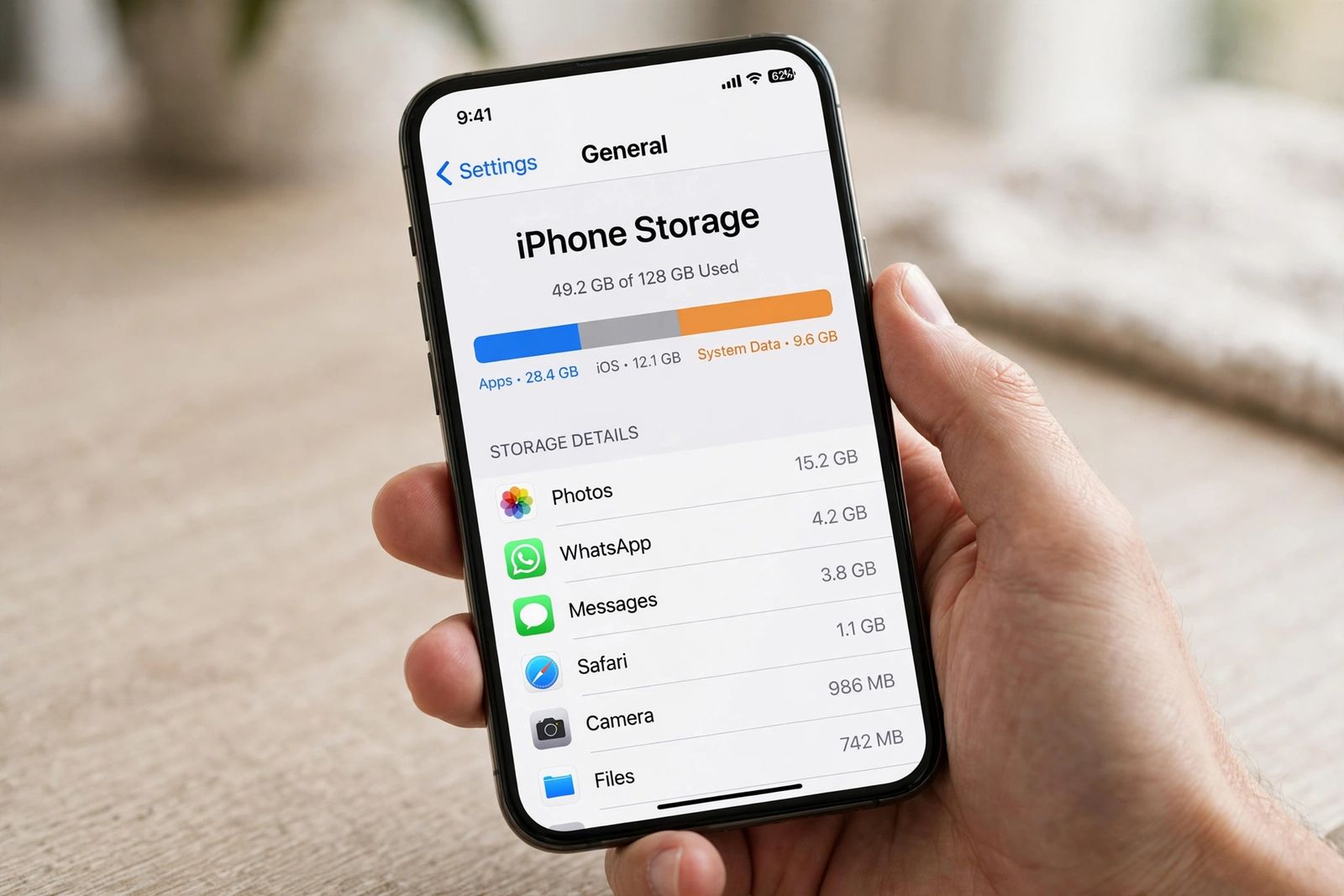
If your iPhone storage is full, start where the phone itself tells you the space went: Settings > General > iPhone Storage. Read the coloured bar and the app list underneath it, turn on the recommendations Apple shows for your phone, and then clear space in size order — photos and videos first (including the Recently Deleted album, where deleted items keep their space for 30 days), then Messages and chat attachments, then downloads hidden inside apps, then the apps themselves, choosing Offload App for ones you will want back and Delete App for ones you are done with. Two things this order protects you from: buying iCloud storage to fix a full phone — iCloud space is separate from the phone’s own storage and adds nothing to it — and hunting for a delete button for System Data (the category older guides call “Other”), which does not exist, because Apple’s storage page is explicit that the phone removes cached and temporary files itself when it needs the space. What follows is that cleanup in full: how to read the screen, a per-app table for the caches most guides wave at, what System Data actually is and how to shrink it safely, and what to do when the phone still says full after you have deleted things.
First, read the storage screen properly
Everything in this article is decided by one screen, so spend a minute on it before deleting anything. Open Settings > General > iPhone Storage and wait — on a nearly full phone the bar and the list can take a while to finish calculating, and the figures can shift while they settle.
- The bar splits used space into categories — Apps, Photos, Media, Messages, iOS, System Data and the rest. The widest block is your first target. Deleting small apps while Photos holds 40 GB is the most common wasted effort in this whole job.
- Recommendations sit under the bar, under Show All. They are personalised to your phone — offloading unused apps, reviewing large attachments, reviewing downloaded videos — and each shows the space it would save. Work through the ones you understand before doing anything by hand; they are, in effect, Apple’s own answer to the “Storage Almost Full” alert: check the recommendations, or remove content such as videos and apps.
- The app list is sorted by size, largest first, and shows when each app was last used. Tap any app and you get the two numbers that decide its fix: the size of the app itself, and its Documents & Data — everything it has downloaded or stored. A small app with a huge Documents & Data figure is not an app problem; it is a downloads or cache problem inside that app, and the per-app table below is built for exactly that case.
- One caution Apple itself gives on this screen: cached data and temporary data might not count as usage. The list can therefore understate what an app is really holding, and the bar and the list together do not always add up exactly. Treat the figures as a map, not an audit.
Is it the phone that is full, or iCloud?
These are two different stores with two different “full” messages, and confusing them is how people pay for cloud space that does not fix the alert on their phone. Device storage is the fixed capacity built into the iPhone — it never grows. iCloud storage is space on Apple’s servers (5 GB free with every account) for backups, iCloud Photos, iCloud Drive and Messages in iCloud.
| iPhone storage full | iCloud storage full | |
|---|---|---|
| Where you check it | Settings > General > iPhone Storage | Settings > [your name] > iCloud > Storage |
| What the alert looks like | “Storage Almost Full” on the phone | iCloud storage warnings, failed backups |
| What stops working | Taking photos and video, installing iOS and app updates, downloading apps; some apps misbehave | Backups stop, new photos stop uploading to iCloud Photos, iCloud Drive stops syncing, iCloud Mail cannot send or receive |
| Does buying iCloud+ fix it? | No — it adds cloud space, not phone space | Yes, or delete content from iCloud |
| The fix | This article: clear the phone itself | Delete old backups, large files and photos you no longer need via Recommended for You in iCloud settings |
The one connection between them: iCloud only frees space on the phone through a feature that moves content off it — practically, iCloud Photos with Optimize iPhone Storage turned on (covered in the photos step below). If iCloud itself is full, uploads stop, Optimize has nowhere to put the originals, and the phone keeps everything — which is why a full iCloud can quietly cause a full phone, even though paying for iCloud is not, by itself, a fix for one.
The cleanup, in order
1. Photos and videos — usually the biggest win
For most people this category dwarfs everything else, and inside it, video dwarfs photos: the estimates shown in Settings > Camera > Record Video put a minute of 4K video at roughly 170 MB at 30 frames per second and roughly 400 MB at 60. Work it in this order:
- Turn on Optimize iPhone Storage if you use iCloud Photos: Settings > [your name] > iCloud > Photos (on the newest iOS, tap the iPhone Storage row there) and choose Optimize iPhone Storage. Apple’s photo storage page describes what it does: full-resolution originals are stored in iCloud, and space-saving copies are kept on the device when space is needed. It needs iCloud Photos on and enough iCloud space to hold the library — check the upload has finished before expecting the phone figure to fall, because iOS swaps originals for smaller copies gradually, mostly when space gets tight.
- Merge duplicates: Photos > Collections > Utilities > Duplicates, then Merge. The phone keeps the best-quality version and sends the rest to Recently Deleted.
- Delete the obvious weight: long videos you will not watch again, screen recordings, and burst sequences — Photos > Collections > Media Types groups Videos, Screen Recordings and Bursts so you can find them in minutes.
- Empty Recently Deleted — the step that actually releases the space. Deleted photos and videos sit in Photos > Collections > Utilities > Recently Deleted for 30 days and still count against your storage the whole time. Open it, tap Select, then Delete All. This is permanent, so glance through first. One exception Apple warns about: if you are already over your iCloud storage limit, deleted photos are removed immediately and never reach Recently Deleted at all.
Back up before any mass deletion if your photos exist nowhere else — and remember that with iCloud Photos on, deleting a photo on the phone deletes it on every device signed into the same account. That sync behaviour is a reason to check the backup first, not a reason to avoid the cleanup.
2. Messages and chat attachments
Years of photos, videos, voice notes and documents inside conversations are the second usual giant, and they never appear in the Photos app, which is why people who have “already cleaned their photos” still have a full phone.
- In Settings > General > iPhone Storage, tap Messages. The screen splits its size into categories — photos, videos, GIFs and other attachments — and Review Large Attachments lists the biggest files across all conversations, largest first. Delete from there and you keep the conversations themselves.
- WhatsApp keeps its media separately and needs its own pass: WhatsApp > Settings > Storage and data > Manage storage sorts chats by size and offers a Larger than 5 MB view for the worst files. While you are there, turn off Save to Photos (in Settings > Chats) if it is on — with it on, everything you are sent exists twice on the phone, once in WhatsApp and once in Photos.
- To stop the pile regrowing, set Settings > Apps > Messages > Keep Messages to 1 Year or 30 Days instead of Forever. Be sure before you confirm: messages and attachments older than the limit are deleted permanently, and with Messages in iCloud on, deletions apply on all your devices.
3. Downloads hidden inside apps
Offline downloads are designed to be forgotten: the series downloaded for a flight, the podcast backlog, the playlists saved months ago. They sit under Media on the bar and inside each app’s own Documents & Data, so no single screen lists them all. The quick pass: the TV app and each streaming app’s Downloads section; Music > Library > Downloaded; Podcasts > Library > Downloaded Episodes; Maps > your profile > Offline Maps for areas you no longer visit; and Files > Browse > On My iPhone for installers, PDFs and exported videos. Everything deleted here can be downloaded again, which is why this step sits ahead of deleting anything personal. Files deleted in the Files app also pass through its own Recently Deleted — empty that too, from Files > Browse > Recently Deleted.
4. The apps themselves: offload or delete
Only now — with photos, attachments and downloads cleared — does the app list itself usually matter. For each large app you rarely open, the storage screen offers two different removals, and choosing the wrong one either frees too little or deletes data you wanted:
| Offload App | Delete App | |
|---|---|---|
| What is removed | The app itself only | The app and its Documents & Data |
| What you free | The app-size figure only | App size + Documents & Data — the full line on the storage screen |
| Your data | Kept on the phone — documents, downloads and settings stay | Gone from the phone, unless the app synced it to your account or iCloud (Apple notes data an app saved to iCloud is not deleted either way) |
| Getting it back | The icon stays on the Home Screen with a cloud badge; tap it and the app reinstalls with your data in place — if it is still in the App Store | Reinstall from the App Store and start from whatever the app restores from your account |
| Best for | Big apps you use occasionally — games, travel and airline apps, editors | Apps you are done with — and, deliberately, apps whose cache has ballooned, covered next |
To automate the gentle option, turn on Offload Unused Apps at Settings > Apps > App Store: when storage runs low, iOS offloads apps you have not used, keeping their data. Apple’s storage page defines the pair the same way this table does — offloading frees the storage used by the app but keeps its documents and data; deleting removes the app and its related data.
The per-app cache table: clear it in the app, or delete and reinstall
This is the part most storage guides skip. iOS gives apps no system-wide “clear cache” button, so each app decides for itself whether its cache can be cleared from inside — and for the apps that offer no button, deleting and reinstalling the app is the only way to reset its stored data to zero. That is a destructive step dressed as a tidy one: it signs you out, and anything stored only inside the app — downloads, drafts, unsynced chats — goes with it. Check what is inside before you delete, and use the table to see whether you need to.
| App | Clear cache inside the app? | How / what to do instead |
|---|---|---|
| Safari | Yes — but it takes history and cookies with it | Settings > Apps > Safari > Clear History and Website Data; to spare your history, use Advanced > Website Data in the same screen and remove only the largest sites. You will be signed out of most sites either way |
| Chrome | Yes | Chrome > ⋯ > Delete browsing data (older versions: Settings > Privacy), tick cached images and files |
| Telegram | Yes — the best controls of any large app | Telegram > Settings > Data and Storage > Storage Usage: clear the cache and set a maximum cache size so it cannot regrow unchecked |
| TikTok | Yes | Profile > ☰ > Settings and privacy > Free up space > Clear cache — the button shows the cache size before you tap |
| X (Twitter) | Yes | Settings and privacy > Accessibility, display and languages > Data usage — separate clears for media storage and web storage |
| Spotify | Downloads yes; cache in current versions | Remove downloads in the app’s Downloads/Library; current versions also offer a cache clear under Settings > Storage. Anything else needs delete and reinstall |
| YouTube | No | Watched-video cache has no in-app clear; remove Downloads in the app for offline videos, and delete + reinstall to reset the rest |
| Netflix | No | Remove titles in the app’s Downloads section; the cache itself resets only on delete + reinstall (you will sign in again) |
| No | No cache control in the iOS app — delete + reinstall is the only reset; have your login details ready | |
| No (browser data only, where offered) | No storage cache clear; delete + reinstall is the reset | |
| No cache button — manage the media instead | Settings > Storage and data > Manage storage deletes chat media per chat. Delete + reinstall only after a completed chat backup, or local chat data is lost |
Menu names move between app versions; if a button in the table is not where your version puts it, the fallback is unchanged — the app’s own downloads first, delete and reinstall last. Note what offloading does not do here: because offloading keeps Documents & Data, it leaves every cache in this table exactly as it was. Offload is for idle apps, not for bloated ones.
System Data (the old “Other”): what it is, and how to shrink it safely
On the storage screen the last rows are iOS — the operating system itself, whose size varies by device and model — and System Data, the row older iPhones and older guides call Other. Apple’s category list says what lives in it: non-removable assets such as Siri voices, fonts and dictionaries, non-removable logs and caches, the Spotlight index, and system data such as the Keychain and CloudKit database — plus the cached files the phone creates when you stream or view content so it loads faster next time. There is no folder behind the row and no delete button, and that is deliberate: when the device is low on storage it frees space itself by removing items that can be downloaded again or are not needed, and in Apple’s words, “to free up space, your device removes cached and temporary files, so you don’t have to.”
You shrink it indirectly, in this order:
- Free real space first — the cleanup above. A phone at 100 percent full cannot finish its own housekeeping; with a few gigabytes free, iOS can complete the cache removal it was already trying to do.
- Restart the phone. A restart closes out temporary files and forces the storage figures to recalculate; check the number again later, because the recalculated figure often appears hours afterwards, not instantly.
- Update iOS — Settings > General > Software Update; if the phone is too full to update on-device, update through a computer (Finder on a Mac, the Apple Devices app on Windows), which needs far less free space on the phone. A downloaded-but-never-installed update can also sit in the storage list as its own entry — tap it and choose Delete Update to reclaim it, and download it again later.
- Clear Safari’s website data (table above) and delete-and-reinstall the one or two worst cache apps from the table — streamed video and social caches are the largest feeders of this category that you actually control.
- Wait a day. System Data that was inflated by streaming, an update or heavy use commonly settles on its own once it has room; judge the result tomorrow, not in the next ten minutes.
Treat the number as a fault rather than clutter only when it behaves like one: it jumped suddenly and stays high for days after a restart and an update, it grows back within days of every cleanup, or it is larger than your apps and photos combined. That pattern, and the full step-by-step including the verified-backup erase-and-restore that resets the category completely, is the subject of the companion deep dive: iPhone storage full: System Data. And ignore any app that promises to clear System Data for you — iPhone apps are sandboxed and cannot touch the system’s caches or another app’s files; the most a “cleaner” can reach is content you could delete yourself, which is why so many of them sell subscriptions instead.
Two numbers the guides state that Apple doesn’t
There is no official “normal” size for System Data. Widely read guides put a healthy band on it — 5 to 20 GB is the figure most often quoted, with anything far above it declared “out of control.” Apple publishes no such band. A phone that streams video for hours daily, carries several Siri voices and languages, and is never restarted will legitimately run a larger figure than a lightly used phone, and the same number can be untidy on one phone and a symptom on another. Judge it by behaviour — the fault pattern in the section above — not by a band copied from a guide.
There is no official “keep 10 percent free” rule either. Several guides state a percentage — roughly a tenth of capacity — as the amount of free space to maintain. It is a reasonable rule of thumb, but it is a rule of thumb: Apple sets no minimum, and no official figure exists. The functional version is simpler: keep a few gigabytes free at all times, because iOS updates need room to download and install, the camera needs room to save, and the cache cleanup described above needs working space to run in. A phone kept permanently at the edge will keep re-triggering the alert whatever percentage that edge happens to be.
Still full after deleting? Work these causes
- Recently Deleted, everywhere. Photos is the famous one, but Files and Messages keep their own Recently Deleted collections, and deleted mail sits in Trash. An item in any of them still occupies the phone. Empty all of them, then recheck.
- The figures have not caught up. Storage numbers are estimates recalculated in the background. After a big cleanup, restart the phone and check again later the same day before concluding nothing worked.
- A stuck update file. A downloaded iOS update that never installed sits in the storage list under its iOS-version name; delete it from there (step 3 above) and let Software Update fetch it fresh.
- Synced content. Photos and media synced from a computer cannot be deleted on the phone — Apple is explicit that synced content is removed from the computer side, by deselecting it in Finder, the Apple Devices app or iTunes and syncing again. A computer check is also a useful second opinion: the storage bar there groups cached music, videos and photos as “Other”, so its totals will differ from the phone’s — a large disagreement after a restart and an update points at the phone’s accounting, not your deletions.
- It was iCloud all along. If the phone shows free space but backups and photo uploads have stopped, that is the iCloud column of the table near the top of this article, not the phone.
And if the phone cannot install an iOS update for lack of space, you have one extra option before the big cleanup: when an update needs more room, iOS can offer to temporarily remove apps to make space and reinstall them automatically afterwards. Accepting it is safe — it is offloading, done by the system, data kept — and updating through a computer avoids the problem entirely.
Keep it from filling again
- Leave the automatic settings on: Offload Unused Apps (Settings > Apps > App Store), Optimize iPhone Storage if you use iCloud Photos, and a Keep Messages limit instead of Forever.
- Choose recording settings you actually need: a minute of 4K at 60 frames per second costs more than twice the space of the same minute at 30 — Settings > Camera > Record Video shows the estimate for each option, and High Efficiency format (Settings > Camera > Formats) keeps photo and video files smaller.
- Do the two-minute monthly check: open the storage screen, look at which category grew, and clear that one while it is still small. Almost every “suddenly full” phone filled gradually and announced itself here first.
- Mind the second-order effects of a full phone. A phone that is always full is also a phone whose background work never finishes, which is part of why full phones often feel slow and drain oddly; if yours also loses charge fast with a healthy amount of free space, that is a different fault with its own ordered check — iPhone battery draining fast. And a phone that will not charge and will not update is usually two simple faults, not one expensive one: work the charging side through iPhone not charging before paying for any diagnosis.
Frequently asked questions
Why does my iPhone say storage is full when I don’t have much on it? Read the bar before believing the impression. The space is usually held by things that do not present as “your stuff”: video inside Photos, attachments inside Messages and WhatsApp, downloads inside streaming apps, items waiting in Recently Deleted, and System Data. The app list’s Documents & Data figures name them one by one.
Does buying more iCloud storage fix a full iPhone? No. iCloud storage is space on Apple’s servers; the phone’s capacity is fixed. More iCloud space helps only through a feature that moves content off the phone — in practice iCloud Photos with Optimize iPhone Storage turned on — and only once the originals have actually uploaded.
What is the difference between Offload App and Delete App? Offload removes the app and keeps its documents and data on the phone, so reinstalling restores your place; it frees only the app’s own size. Delete removes the app and its data, freeing both figures — which is why delete-and-reinstall is the cache reset, and why it is the one to do deliberately, after checking what the app holds.
Can I clear an app’s cache without deleting the app? Only where the app offers it — Telegram, TikTok, X and Chrome do; Safari does, at the cost of history and cookies. YouTube, Netflix and Instagram offer no in-app cache clear on iPhone, so for those the reset is delete and reinstall. The full table is above.
Why is my iPhone storage still full after I deleted photos? Almost always because the photos are in Recently Deleted, where they keep their space for 30 days — empty it in Photos. If you deleted them in Files or Messages, those apps have their own Recently Deleted collections to empty as well. After that, restart and give the figures time to recalculate before judging.
How much free space should I keep? Apple publishes no figure, despite the percentages quoted in guides. Keep a few gigabytes free as working room — enough for the camera, app updates, an iOS update download, and iOS’s own cache cleanup to run. If you regularly hit zero, the fix is one of the steps above done monthly, not a bigger buffer chased daily.
Will a “cleaner” app fix my storage? No app can clear System Data or another app’s cache — iOS does not give apps that access. Cleaner apps can only help with things you can already do free from the storage screen, such as finding duplicate photos. Treat any app or web pop-up that claims your storage is critically full and offers to fix it for a subscription as a sales pitch, and check the real figure in Settings instead.
This article is general information, based on the Apple Support pages linked above — principally “How to check the storage on your iPhone and iPad” and “Manage your photo and video storage” — and checked in November 2026. Menu names differ slightly between iOS versions (Safari and Messages settings sit under Settings > Apps on recent versions, and the Optimize iPhone Storage choice sits under an iPhone Storage row on the newest), and app cache menus move between app versions; if a label on your phone differs, the iPhone Storage screen is still the map to work from.