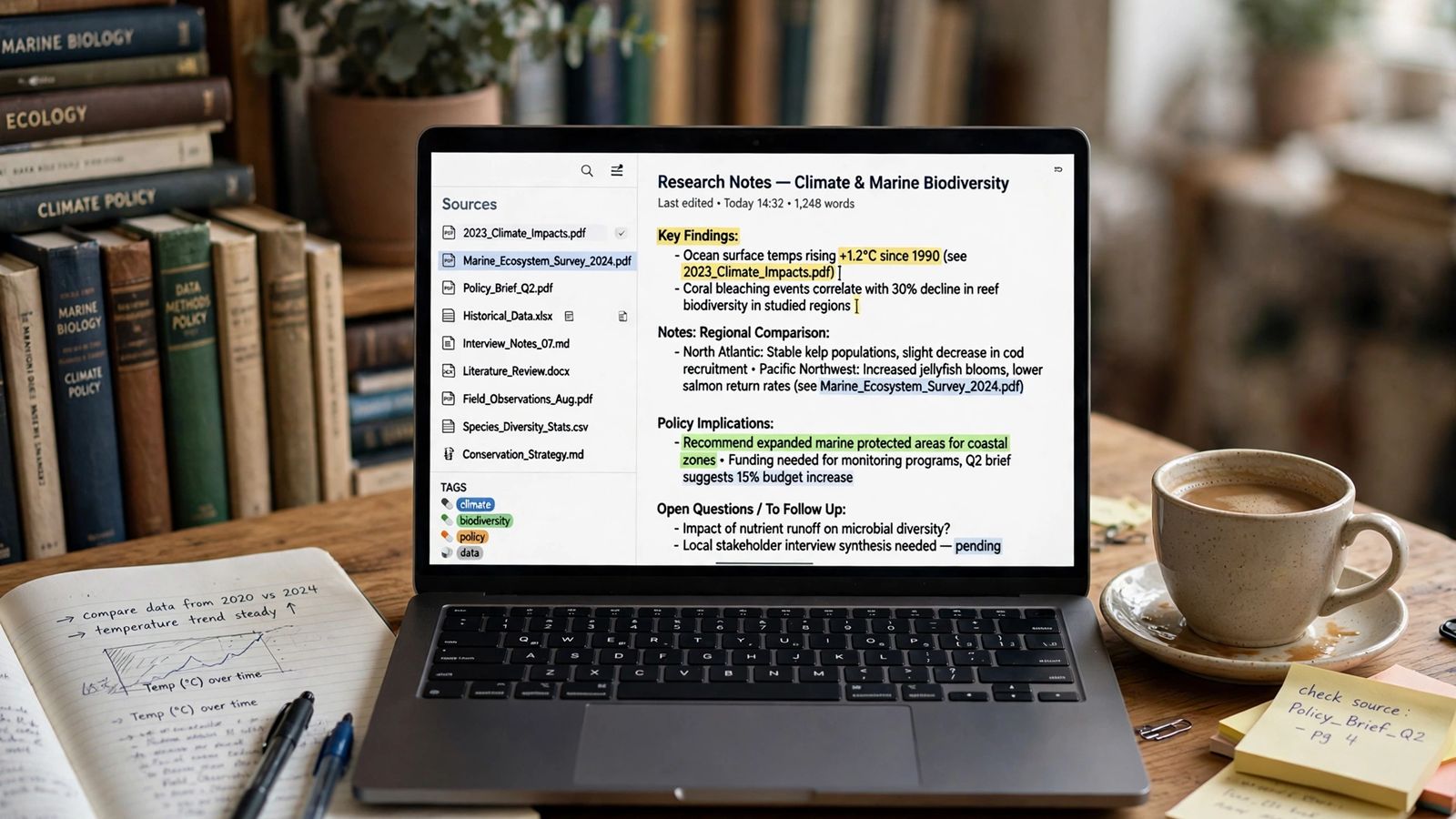
The short answer to how to use NotebookLM: go to notebook.google.com, sign in with a Google account, create a notebook, and add your sources — PDFs, Google Docs, web pages, YouTube videos, audio or pasted text. The tool then answers questions using only that material, with numbered citations that jump to the exact passage behind each answer, and its Studio panel can turn the same sources into an Audio Overview, a report, flashcards, a quiz, a mind map and more. One thing to know before anything else: in July 2026 Google renamed NotebookLM to Gemini Notebook. It is the same product, under a new name, and most people still search for the old one — so this guide uses both.
The name first: NotebookLM is now Gemini Notebook
On 16 July 2026, Google announced on its official blog: “We’re renaming NotebookLM to Gemini Notebook. It’s the same standalone product”. Nothing about your account changes. Existing notebooks stayed where they were, old links and shared notebooks keep working through automatic redirects, and the help centre moved from support.google.com/notebooklm to support.google.com/gemininotebook. The app now opens at notebook.google.com, and notebooks also appear inside the Gemini app, with changes syncing between the two. The Gemini app itself is a separate tool with its own paid-work routes, covered in how to make money with Gemini. Google’s blog post gives the scale behind the rename: more than 30 million people and over 600,000 organisations use the product.
The rename also came with an upgrade Google is still rolling out: each notebook gets a secure cloud computer that can write and run code to analyse data in your sources. Google said in July that this launched for Google AI Ultra users and qualifying Workspace customers first, and would reach Pro users on the web over the following weeks.
How to use NotebookLM step by step
1. Open the app and sign in. Go to notebook.google.com in a browser (there are also Android and iOS apps, though Google notes the mobile app may not have every feature). Sign in with a personal Google account, or a work or school account if your administrator has turned the service on. Google may ask you to verify your age before you start.
2. Create a notebook. Click Create new. Make one notebook per project or topic — this matters more than it sounds, because Google’s help centre is explicit that each notebook is independent: it cannot see or use the sources in any other notebook.
3. Add sources. In the left-hand panel, choose Add sources. You can upload files, pick documents from Google Drive, paste a web or YouTube link, paste text directly, or type a research question and let the built-in Fast Research or Deep Research find sources on the web for you to pick from.
4. Ask questions in the chat. The centre panel is a chat grounded in your sources. Google’s help page puts the rule plainly: chat responses only use data from your sources. Every claim carries a numbered citation; hover over it to preview the passage, click it to open the source with the supporting text highlighted. That click is the habit that makes the tool trustworthy — an answer with no citation behind it is an answer to check twice.
5. Save the good answers as notes. Any chat answer can be saved as a note, and a note can be promoted into a source in its own right, so your own summaries become part of what later answers can cite.
6. Make something in the Studio panel. The right-hand panel turns your sources into finished outputs: an Audio Overview, a Video Overview, a slide deck, a report, flashcards, a quiz, an infographic, a data table or a mind map. Details on the audio formats — the feature most people come for — are below. Finished outputs like these are also sellable work: client narration and course audio are the route described in how to make money with ElevenLabs.
7. Share the notebook if others need it. The Share button invites people by email as Viewers or Editors — what each role can see and do is covered in the sharing section below.
What you can add — and what actually gets imported
Google’s help page on adding sources lists a wide range of source types:
- Files: PDF, Word (docx), text, Markdown, CSV and PowerPoint (pptx) files, plus ePub books
- Google content: Docs, Slides, Sheets, eligible Google Play Books ebooks, and Gemini chats
- Web content: website URLs and public YouTube videos
- Media: audio files (MP3, WAV and many others) and images
- Pasted text, which you can title yourself
Each source can contain up to 500,000 words, or up to 200MB for an uploaded file, and Google says there is no page limit. The catches are in what gets imported, and they explain most “it gave a wrong answer” stories:
- A web URL imports text only. Images, embedded videos and pages linked from it are left behind, and paywalled pages are not supported.
- A YouTube link imports the transcript only. The video must be public and have captions (yours or auto-generated). Videos uploaded in the last 72 hours may fail, and a video with no speech cannot be used.
- Audio is transcribed on import — the notebook works from the transcript, not the recording.
- A copy-protected PDF will not import at all.
- Drive files behave differently from uploads. Google Docs, Slides (up to 100 slides) and Sheets (limited to 100,000 tokens) stay connected and re-sync; an uploaded file is a static copy frozen at the moment you added it.
- Footnotes and comments in Drive documents are not imported.
Quality follows a simple rule: a small set of relevant sources beats a large pile of loosely related ones, because every extra document is another place the chat can pull a half-relevant sentence from.
How to use NotebookLM well: questions that use your sources
Three habits separate useful answers from generic ones. First, ask about the sources, not the topic — “What does the contract say about carrying over unused leave? Quote the relevant lines” will always beat “explain leave policy”, because it forces the answer onto specific passages you can verify. Second, use the suggested questions and source guides: when a source is added, the tool summarises it and proposes questions, which are a good map of what the material actually covers. Third, set the chat’s behaviour with Configure Chat — Google offers Default, a Learning Guide style, or Custom instructions, so a high-stakes notebook can be told once how every answer should be framed instead of repeating it in each prompt. This source-first workflow is also what freelance researchers sell — the service version is laid out in how to make money with Perplexity.
You can also tick sources on or off so an answer uses only part of the notebook, and delete the chat history when earlier exchanges start steering later answers.
Audio Overviews and the other Studio outputs
An Audio Overview turns your sources into a spoken discussion between AI hosts. Google’s help centre lists four formats:
| Format | What you get |
|---|---|
| Deep Dive (default) | Two hosts unpack and connect the topics in your sources in a lively conversation |
| The Brief | One speaker gives the key takeaways in under two minutes |
| The Critique | Two hosts give a constructive evaluation of your material — an essay, a draft, a design |
| The Debate | Two hosts argue different perspectives in a formal back-and-forth |
You can generate in more than 80 languages, steer the discussion with a focus prompt (a topic to concentrate on, or the level of expertise to aim at), and choose a length — Shorter, Default or Longer, with the length control available in English only. Interactive mode goes further: on a newly generated overview, in English, you can tap Join while listening and ask the hosts a question by voice; they answer from your sources and then resume. Your voice and the transcript of that exchange are not stored or shared, and someone listening through a shared link cannot join in. One honest limitation: there is no voice picker — you cannot choose or change the hosts’ voices. And Google itself warns that Audio Overviews, voices included, are AI-generated and may contain inaccuracies or audio glitches, so check anything you plan to reuse — the same caution that applies to any AI hallucination.
The other Studio outputs work the same way — one click, built only from the sources you select: Video Overviews, Reports (briefings in suggested or custom formats), Flashcards and Quizzes, Mind Maps, Infographics, Data Tables and Slide Decks you can export and finish elsewhere. Decks finished for clients are a common paid package in their own right — the design-tool route is covered in how to make money with Canva AI.
Limits: what free gets you, and what paying raises
NotebookLM has no price of its own. It is free with a Google account on the Standard tier, and higher limits come with Google AI subscriptions. Per Google’s upgrade page in its help centre — which labels the figures subject to change — the fixed caps are:
| Plan | Notebooks | Sources per notebook |
|---|---|---|
| Standard (free) | 100 | 50 |
| Google AI Plus | 200 | 100 |
| Google AI Pro | 500 | 300 |
| Google AI Ultra (20 TB) | 500 | 500 |
| Google AI Ultra (30 TB) | 500 | 600 |
US prices on Google’s subscriptions page are $4.99 a month for Plus, $19.99 for Pro, and $99.99 or $199.99 for Ultra. The full, current table is on Google’s upgrade page in the help centre.
Everything else — chats, Audio and Video Overviews, reports, Deep Research runs — is no longer governed by the fixed daily counts still quoted in older guides (50 chats a day, 3 audio overviews a day: those rows have been removed from Google’s page). Since September 2026, consumer accounts use compute-based limits: how much you can do depends on the request’s complexity, the features used and the chat’s length; the allowance refreshes every five hours up to a weekly limit, and you can watch what remains in Settings → Usage. Paid plans multiply the free allowance — Plus at twice Standard, Pro at four times, Ultra at five or twenty times Pro. Any guide promising an exact daily count is out of date.
Sharing and privacy
Sharing is set per notebook. A Viewer can read the sources and notes; an Editor can add and delete sources and notes and share the notebook further. You can also make a notebook public, and share individual outputs — a report, a deck, an audio overview — by link; Google notes that anyone with the link to a shared artifact can view it, signed in or not. One caution from Google’s own sharing documentation: a chat-only view hides the sources from sight, but it does not fully remove a viewer’s underlying access to the notebook’s contents, so do not treat it as a way to share answers while keeping documents secret.
On data, Google’s privacy page says the content in Gemini Notebook will not be used to directly train its foundational AI models, unless you choose to provide feedback. Feedback is the exception to handle with care: rating an answer can send the full context of that interaction — your questions, uploads and the model’s responses — for review by trained teams, disconnected from your account and kept for up to three years, so Google asks users not to include confidential information in feedback. For Workspace and Education accounts the promise is stronger: uploads, queries and responses are not reviewed by humans and are not used to train models. The practical rule: use a work account for work documents, and think before putting confidential material into a personal notebook. Google also advises against relying on the tool for medical, legal, financial or other professional advice.
How this differs from a normal chatbot
A general chatbot answers from its training and, depending on the product, the live web — the class of tool explained in our guide to what generative AI is. Gemini Notebook inverts that: the sources you add are the whole world it answers from, and every answer shows its working through citations. Its limits look different for the same reason — where ChatGPT caps how many files you can attach to a conversation (see our breakdown of ChatGPT file upload limits), a notebook holds a whole project library at once and keeps answering from it for weeks. The chatbots it differs from are themselves income tools once wrapped in a service — how to make money with ChatGPT and how to make money with Claude map those routes.
Frequently asked questions
Is NotebookLM free? Yes. The Standard tier is free with a Google account: up to 100 notebooks with up to 50 sources each, plus chat and Studio outputs drawn from a compute-based usage allowance that refreshes every five hours up to a weekly limit. Google AI Plus, Pro and Ultra raise the caps.
Is NotebookLM the same as Gemini Notebook? Yes — one product, two names. Google renamed it on 16 July 2026, the old web address redirects to notebook.google.com, old help links redirect to the new help centre, and existing notebooks and shared links kept working. Searching either name finds the same tool.
Does NotebookLM train on my documents? Google says the content in Gemini Notebook is not used to directly train its foundational AI models unless you provide feedback — feedback can be reviewed with the full context of the interaction attached. On Workspace and Education accounts, Google says uploads, queries and responses are neither human-reviewed nor used for training.
Can one notebook use another notebook’s sources? No. Each notebook is independent, and the tool cannot access information across multiple notebooks at the same time — which is why one notebook per project, rather than per file, is the right unit.
Can you choose the voices in an Audio Overview? No. Google’s help page lists format, language, length and a focus prompt as the controls; there is no voice or host picker. Interactive mode — joining the conversation by voice — is English only and works only on newly generated overviews.
What happens if a source is too big? A source over 500,000 words, or an uploaded file over 200MB, cannot be imported; a copy-protected PDF is rejected outright. Split an oversized document into parts and add the parts as separate sources.
This guide is a November 2026 snapshot, checked against Google’s official blog and the Gemini Notebook help centre. The product changes quickly — limits in particular are labelled “subject to change” by Google itself — so if a figure here disagrees with support.google.com/gemininotebook, the help centre is right.