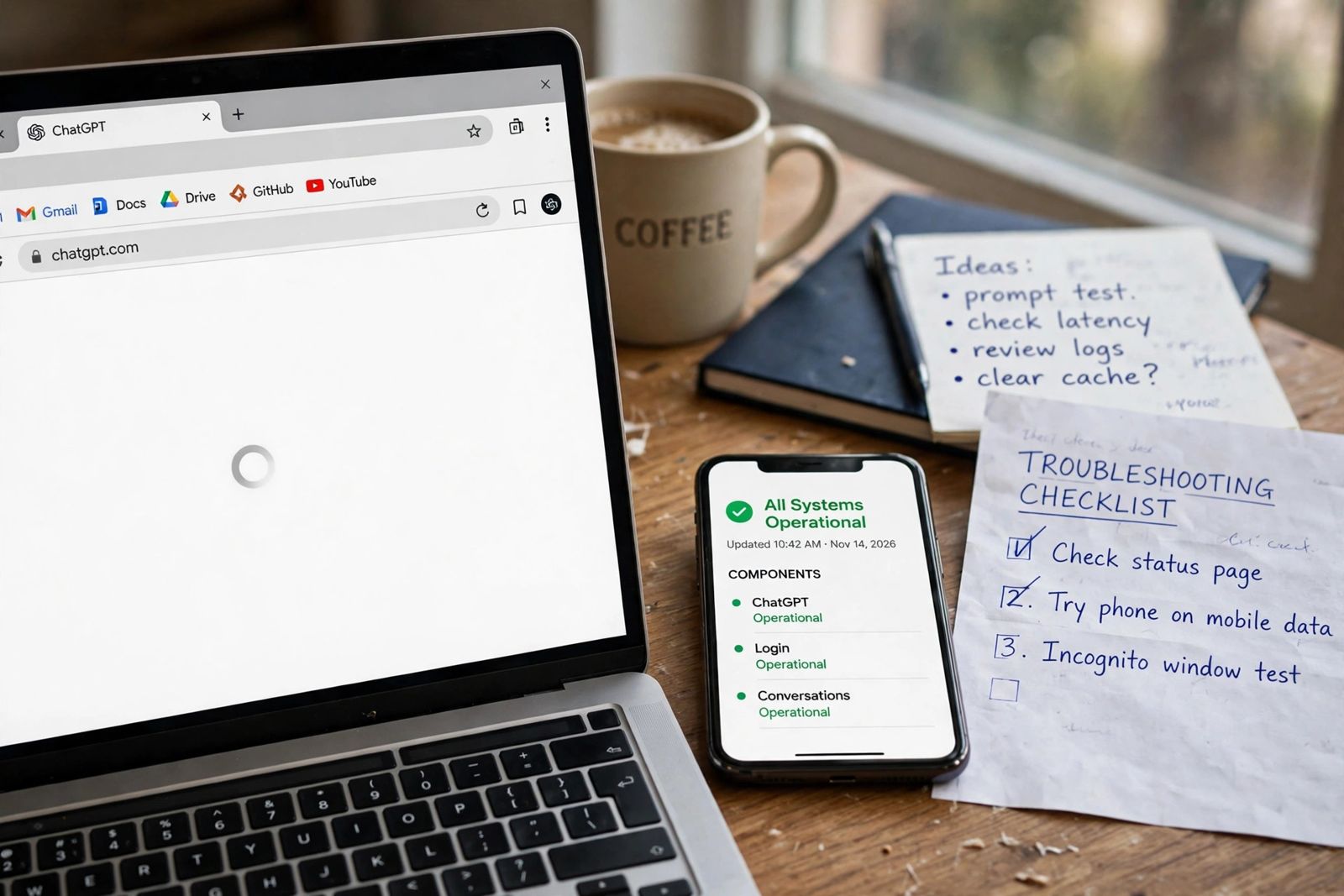
If ChatGPT is not loading at all — a blank white page, an endless spinner, or an app that opens to nothing — do not start by clearing your cache or reinstalling anything: start by finding out whether it is everyone or just you, because that one answer splits the fix in two. Open status.openai.com and test ChatGPT on a second device or network (your phone on mobile data is the fastest second test). If the status page shows a ChatGPT incident, or ChatGPT fails the same way everywhere, the fault is on OpenAI’s side and the only fix is waiting. If the status page is green and ChatGPT loads on the second test, the fault is local — one browser, one app install, or one network — and the ladder below fixes it in the order OpenAI itself gives for this exact symptom in its troubleshooting guide for ChatGPT error messages: hard refresh, sign out and back in, clear site data, disable extensions, test in an incognito window, turn off VPNs and filters, then switch network or device. Two neighbouring problems are not this one, and they have their own guides: if you reach the sign-in screen but cannot get in, that is ChatGPT login not working; if ChatGPT loads and answers but an answer dies with an error message mid-chat, that is the ChatGPT network error. This page owns the case where nothing loads in the first place.
Step zero: everyone or just you? (do this first)
Every guide for this keyword eventually mentions the status page. Almost none of them make you act on the two tests before touching a setting — which is why people wipe their browser data during an OpenAI outage, or wait out an “outage” that was only ever their own extension. Run both tests first; together they take about two minutes.
| Order | Test | How | What the result tells you |
|---|---|---|---|
| 1 | Check the official status page | Open status.openai.com and look at the ChatGPT components that match a loading failure — above all Conversations and Login — not just the headline | An active incident on those components means the failure is OpenAI’s. Stop here and wait; no local step shortens an incident. A green page does not end the question — go to test 2 |
| 2 | Test a second device on a different network | On your phone, turn Wi-Fi off so you are on mobile data, then open chatgpt.com (or the app) and try to load a chat |
Loads there → OpenAI is up and your account is fine; the fault is trapped in the first device, browser or network. Go to the ladder below. Fails there too, identically → this is the everyone pattern: recheck the status page for a just-posted incident and wait |
Two honest cautions about these tests. First, the status page reports availability in aggregate — OpenAI’s own footnote on the page says the figures are reported “across all tiers, models and error types” and that individual availability may vary — so a green page plus a failure that follows you across devices and networks is still worth one recheck a few minutes later, because incident posts can lag the first failures. Second, third-party outage trackers (the DownDetector-style pages that rank for this keyword) aggregate user reports, and user reports include thousands of local faults identical to yours; they are a second opinion about a spike, never proof of an outage. The official status page plus your own second-device test outrank them.
If both tests say “just you,” you have also learned something the ladder depends on: your account is not the problem. Do not change your password, do not create a new account, and do not delete the app yet — the fault lives in one surface, and the next section finds which one.
The browser-vs-app split ladder (the mandatory order)
OpenAI publishes a dedicated section for this symptom — “Blank screen, frozen page, or endless loading” — defined as ChatGPT displaying no content, getting stuck loading, or becoming unresponsive without showing an explicit error message. Its steps are short, but the order matters, and the top results for this keyword routinely scramble it (the visible flaw this article corrects is in the next section). Work down the side that is failing — web or app — one step at a time, reloading ChatGPT after each change so you know which step was yours.
| Step | Web (browser) | App (phone / desktop) | What a pass here proves |
|---|---|---|---|
| 1 | Hard refresh: Ctrl + Shift + R on Windows/Linux, Cmd + Shift + R on Mac | Force reload / fully close and reopen the app | A stale, half-loaded page or a wedged app view — the cheapest cause, and OpenAI’s first step for this symptom |
| 2 | Sign out of ChatGPT and sign back in — with your original sign-in method | Same: sign out and back in with the original method | A broken session rather than a broken page. If signing in itself is what fails, stop — that is the login guide’s problem, not this ladder |
| 3 | Clear site data or cookies for chat.openai.com (OpenAI’s wording) — and check for chatgpt.com data too, since ChatGPT now lives at chatgpt.com |
Clear the app’s cache where your system offers it (on Android: Settings > Apps > ChatGPT > Storage > Clear cache) | Corrupt stored data was blocking the load. Note this step costs a sign-out — which is why it sits third, after the two free tests, not first |
| 4 | Disable extensions or content blockers, then reload — privacy tools, script blockers and page-modifying extensions first | (No extensions in the app — skip to step 6 on this side) | An extension was interfering with the page. Re-enable one at a time to find it |
| 5 | Incognito test: open ChatGPT in an incognito/private window; if that works, try a fresh browser profile or a different browser | — | Works in incognito but not your normal window → the cause is your normal profile: its extensions or its stored data. You have isolated it without wiping anything |
| 6 | Turn off VPNs, secure DNS or other security filters (OpenAI names Web Protect-style filters in its sibling sections), then reload | Same: disconnect the VPN fully, pause filtering apps, then reopen | The filter or VPN path was breaking the connection to OpenAI’s servers |
| 7 | Switch to a different network or device — the reverse of your step-zero test: the surface that worked becomes your way in while you fix the other | Same: Wi-Fi ↔ mobile data; if the app fails on both but the web works on the same phone, the install itself is the suspect — go to the reinstall rule below | Works on the second network → the first network (router, workplace or school filtering) is the cause. Works nowhere on this surface → step 8 |
| 8 | Escalate with evidence: if it persists, OpenAI asks for browser console logs and a HAR file, with timestamps, sent to support via help.openai.com | Same evidence idea: note the app version, device, OS and the exact time it fails, then contact support | The failure has survived every local cause OpenAI lists — it is now a support case, and the logs are what make it actionable |
The reinstall rule for the app side. Notice that OpenAI’s blank-screen list does not include reinstalling — reinstall belongs to its app-specific guidance (for example, removing and reinstalling the iOS app when web sign-in works but the app’s does not). So on the app side, reinstall is the step after this ladder, not a substitute for it: force-close and reopen, update the app from the official store, clear cache where offered, test the other network — and only then remove and reinstall, signing back in with your original method. A reinstall done first destroys the comparison that tells you whether the install was ever the problem, and on a metered connection it is the most expensive step on the list. Never install “ChatGPT” from anywhere except the official App Store, Google Play, Microsoft Store or chatgpt.com/download — third-party download portals are a known malware route that rides on exactly this search.
The flaw in the top results: cache-first advice for a symptom OpenAI orders differently
OpenAI’s general “Something went wrong” list puts “clear your browser cache and cookies” third, and most pages ranking for “ChatGPT not loading” copy that general list wholesale — cache near the top, sometimes step one — and present it as the fix for a blank page. But OpenAI does not leave the blank page to the general list: it gives this symptom its own section, and in that section the order is hard refresh → sign out and back in → clear site data → extensions → incognito/profile/other browser → VPNs and filters → different network or device. The difference is not pedantry, for three reasons:
- Cost order. A hard refresh and a sign-out cost seconds and lose nothing. Clearing site data signs you out everywhere the data applied and forces a full reload of every asset — doing it first, during what might be a two-minute outage blip, buys the most disruption at the moment you know the least.
- Diagnosis order. The incognito test is the single most informative step in the list — one reload separates “your profile” from “your device and network” — and cache-first routines either bury it below the wipe or skip it entirely, so the reader never learns what was wrong and meets the same blank page again next month.
- Scope. OpenAI’s blank-screen step says clear site data for the ChatGPT domain, not “clear your browser cache and cookies” full stop. The domain-scoped version fixes the same fault without signing you out of every other site you use.
The same pages also tend to merge every ChatGPT failure into one mega-list — login loops, usage limits, voice problems, in-chat errors — which is how a reader with a blank page ends up reading about message caps. If an error message is what you see once ChatGPT loads, use the guide for that message instead: the network error guide for “A network error occurred,” and our is ChatGPT down guide for reading an incident properly when step zero points that way.
Why a page loads everywhere except here: the causes behind the ladder
Stale or corrupt stored data. The page’s own files and cookies are cached on your device; if that stored copy breaks — an interrupted update is the classic case — the browser faithfully reloads the broken version forever. This is what the hard refresh (which bypasses the cache for that load) and the site-data clear actually test.
Extensions and content blockers. ChatGPT is a heavy app-style page; a script blocker, privacy tool or page-modifying extension can stop the code that renders it, leaving exactly the blank screen OpenAI describes. OpenAI names this same family for the neighbouring “There was a problem preparing your chat” message. The incognito window is the diagnostic because it runs without your extensions by default.
VPNs, proxies, secure DNS and security filters. These sit between your device and OpenAI’s servers and can block, reroute or inspect the connection until the page never assembles. That is why they appear in nearly every OpenAI fix list — and why the test is to disconnect fully and reload, not to switch VPN servers and guess.
The network itself. Work and school networks filter traffic by policy, and OpenAI publishes network recommendations for IT teams for exactly this situation — including permitting the secure WebSocket connection ChatGPT uses for conversation updates. If ChatGPT loads on mobile data and never on the office Wi-Fi, the fix is an IT ticket quoting that page, not another browser setting. At home, a router restart is a reasonable extra test when other heavy sites also misbehave — but if only ChatGPT fails, the router is rarely the cause.
An old address or an outdated browser/app. ChatGPT’s home is chatgpt.com; an ancient chat.openai.com bookmark usually redirects, but if your blank page sits on an old bookmark, type the current address fresh once before climbing further. Likewise, update the browser or app before the deep steps — an outdated app is a documented cause of sign-in and loading failures in OpenAI’s app guidance, and the update is cheaper than the reinstall that may follow it.
OpenAI itself. Last on purpose. Loading failures do spike during incidents — that is precisely why searches for this keyword spike on outage days — but an incident is a conclusion the two step-zero tests have to earn, not a default. If the status page is green and your phone loads ChatGPT on mobile data, the outage theory is dead for you, however many people are posting about one.
If one old conversation will not load, but everything else does
That narrower case is not a loading failure of ChatGPT itself, and the ladder above is the wrong tool for it. OpenAI’s guidance for slow and stuck behaviour includes starting a new chat when a conversation is long or has many turns, because every new answer in a heavy thread is produced against the whole thread. Test with a fresh chat and a short prompt: if the new chat loads and answers, continue there with a short summary of the old one. Do not delete the stuck conversation while you test — your history is stored on your account, and a conversation that will not open today is a support data point, not rubbish.
When to contact OpenAI Support — and what to send
Contact support through help.openai.com when the blank page survives the full ladder: hard refresh, sign-in cycle, site-data clear, extensions off, incognito or second browser, VPN and filters off, second network or device — with a green status page throughout. OpenAI’s blank-screen section names its own evidence list for this exact point, and it is short:
- Browser console logs from the failing load.
- A HAR file (a recording of the browser’s network activity while you reproduce the failure), with timestamps.
- The basics that locate the case: your browser or app and its version, your device and operating system, and which ladder steps you already tried and what each one did.
Two safety rules belong here. A HAR file can contain session information, so send it only to OpenAI’s official support channel — never post it publicly or hand it to a third-party “fix” service. And never include your password or a sign-in code in a support request; no legitimate recovery route asks for either.
Frequently asked questions
Why is ChatGPT showing a blank white page? Because the page’s code never finished assembling on your device. Per OpenAI’s blank-screen section, the usual causes on your side are a stale cached copy, corrupt site data, an extension or content blocker, or a VPN/security filter — and occasionally an OpenAI incident. The step-zero tests separate the incident case; the ladder then works through the local causes in OpenAI’s order: hard refresh, sign out and in, clear site data for the ChatGPT domain, extensions off, incognito test, filters off, different network or device.
ChatGPT loads on my phone but not my computer (or the reverse). What does that prove? That OpenAI and your account are fine, and the fault is trapped in the failing surface — its browser profile, extensions, stored data, app install or network. Run the ladder on the failing side only, and leave the working side untouched; changing both destroys the comparison that is telling you where the problem lives.
Will clearing site data or cache delete my chats? No. Your conversations are stored on your OpenAI account, not in your browser’s cache. Clearing site data for the ChatGPT domain signs you out and forces a clean reload; your history is there when you sign back in — with the same sign-in method you originally used, which is the one detail worth checking before you clear.
The app opens to a blank screen but the website works. Is reinstalling the first step? No — it is the step after the app side of the ladder. Force-close and reopen, update from the official store, clear the app cache where your system offers it, and test the other network (Wi-Fi versus mobile data) first. Reinstall only if all of that fails; OpenAI reserves reinstall for app-specific guidance, and doing it first erases the evidence of which step would have fixed it.
How long do ChatGPT loading outages last? OpenAI does not publish a typical duration, and this article will not invent one. Watch the incident on status.openai.com — its updates are the only reliable clock — and re-run your second-device test after the incident is marked resolved; a page that still fails after that point has become a local problem again.
Is a blank page the same as ChatGPT being down? Only if it is blank for everyone. A blank page on one browser, device or network with a green status page is a local loading failure, and it is the more common of the two. The two-minute test — status page, then a second device on a different network — is what tells them apart; guessing wastes either your settings or your afternoon.
This article is based on OpenAI’s Help Center — principally the “Blank screen, frozen page, or endless loading” section of “Troubleshooting ChatGPT Error Messages” — and OpenAI’s official status page, both linked above and checked in November 2026. OpenAI revises its guidance as ChatGPT changes; if your screen differs, the Help Center pages linked here are the current authority.