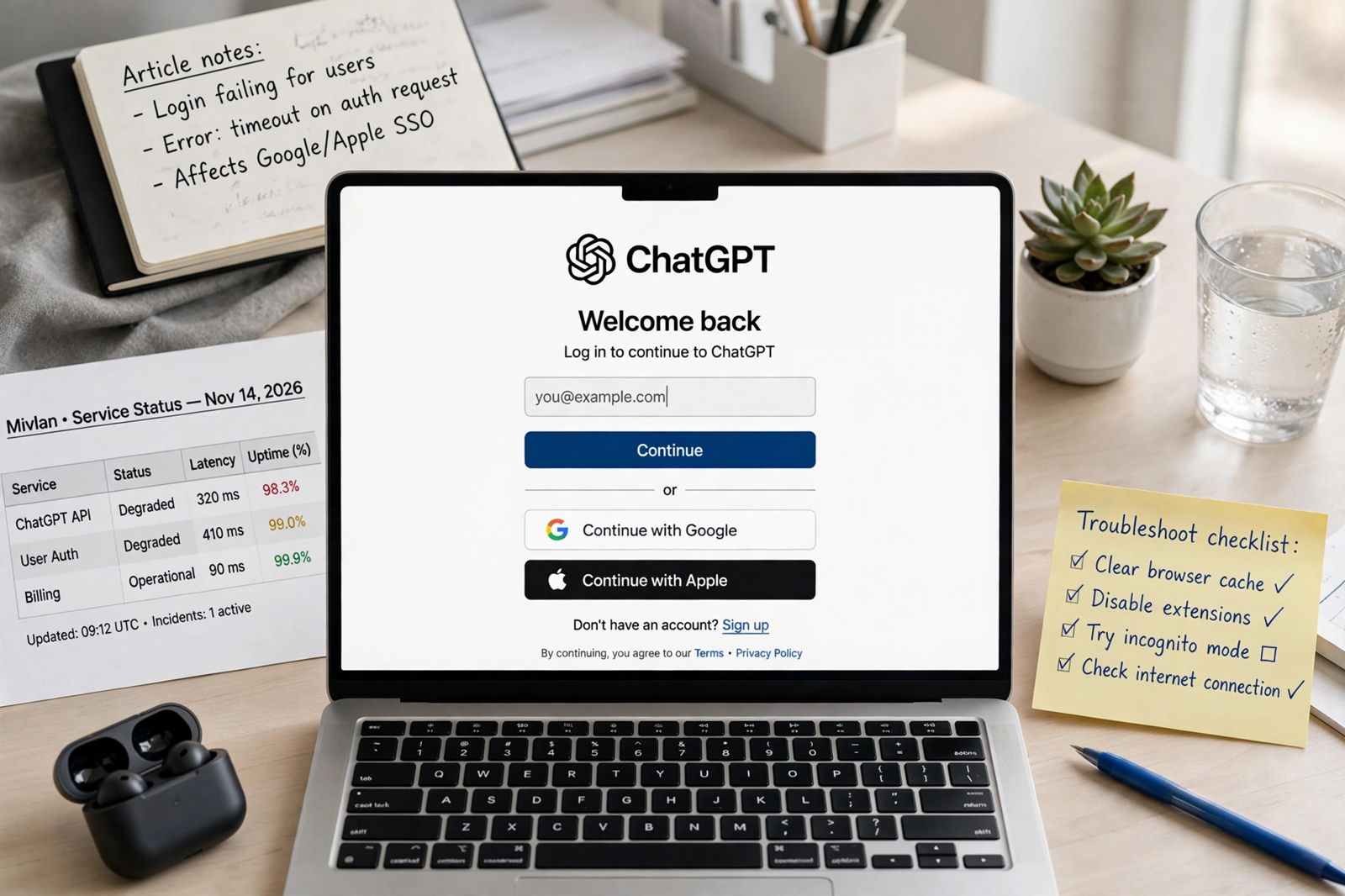
If ChatGPT login is not working, do not start by clearing your cache or resetting your password — start by answering one question: how did you sign up? Most login failures are a method mismatch: you signed up with Continue with Google, Continue with Apple, Continue with Microsoft, or email and password (or, for some new users, a phone number), and you are now trying a different door into the same account. OpenAI’s own login help page, Why can’t I log in to ChatGPT?, puts the authentication method at the centre of its fixes for exactly this reason: trying a method that is not enabled for your account produces “Wrong authentication method” or “There is already a user with email…”, and no password reset will fix it. Find your original method in the diagnosis below, follow that row, and only then move to the browser, verification-code and outage checks — in that order.
The method-first diagnosis (start here)
Work out which row is yours before you change any setting. If you are still signed in anywhere — another browser, the app, a second device — do not sign out yet: open Settings > Account there first and note the account email and method. That one look can save an hour.
| How you signed up | The sign-in you must use now | The trap in this row | The fix for this row |
|---|---|---|---|
| Continue with Google | Continue with Google, with the same Google account | Typing the same Gmail address into the email-and-password form; picking a second Google account and landing in an empty account with no chats or subscription | Use the Google button in an incognito window, and check which Google account the picker is offering before you confirm |
| Continue with Apple | Continue with Apple, with the same Apple account | Hide My Email: your account may live on an @privaterelay.appleid.com address, not your real email, so email login fails and password resets go nowhere |
Use the Apple button. Do not try to reset a password for the relay address |
| Continue with Microsoft | Continue with Microsoft, with the same Microsoft account | A work Microsoft account and a personal one look identical on the button | Use the Microsoft button and confirm the account name on Microsoft’s own screen before finishing |
| Email and password | That email address and password | Using your billing email instead of your account email — OpenAI warns they can be different; the inbox that got the original welcome or verification email is the account inbox | Sign in with the account email. Only this row has a ChatGPT password to reset with Forgot password? |
| Phone number only (eligible new users, some regions) | The phone-number flow for that account | Expecting an email code or email password reset for an account that has no email yet | Use the phone flow; to add email later, use Settings > Account > Email when signed in |
| Work or school SSO | Your organisation’s sign-in, with the invited email | Treating an invite or provisioning problem as a password problem | Confirm with your IT admin that the invite went to the correct email and the account is provisioned before retrying |
Three facts sit underneath the whole table, all from OpenAI:
- Different methods can create different accounts. OpenAI does not automatically merge accounts. Signing in the “other way” can succeed — into a separate, empty account — which is why “my chats and subscription vanished” after a login problem usually means wrong account, not deleted data. The chats are still on the original account.
- You are not locked into your first method forever — but the door only opens from inside. This corrects a claim repeated across the top results, that once you choose Google or Microsoft you are “locked in” with “no mixing and matching later.” OpenAI’s Changing your account sign-in method page says the opposite, with conditions: if you signed up with email and password, you can later sign in with Google, Microsoft or Apple as long as the email matches, and the account automatically combines both methods. If you signed up with a social button, you may be able to add a password under Settings > Security and login — which requires being signed in first. And deleting your account does not change its sign-in method, so deletion is never the fix for a method problem.
- MFA freezes the method in place. Once multi-factor authentication is on, OpenAI says you must keep using your current login method until you turn MFA off. If you plan to switch methods, the order is: disable MFA, sign out, sign in with the new method, re-enable MFA.
If you genuinely cannot remember your method, OpenAI’s own fallback is to try each one — username and password, then Google, Microsoft, then Apple — in an incognito window, so a cached session does not silently pick the wrong provider account for you. Stop when one works, and note which it was.
The stuck verification-code loop
The second most common failure is not the method — it is the code. ChatGPT asks for a one-time code (or a push approval in the app, “Yes, it’s me”), the code arrives late, expired, or not at all, and each new request quietly kills the previous code. That creates the loop people describe as “ChatGPT keeps rejecting my code”: several codes sit in the inbox, and only one of them can work.
OpenAI’s rules for this loop, from the same login page, are specific:
- Use only the newest code. “If verification codes arrive late or expire, request a new code and always use the most recent one.” An older code arriving after a newer request is already dead — entering it proves nothing except that it expired.
- Request once, then wait. Do not fire five requests in a minute. Each request replaces the last code and fills the inbox with traps. Request one code, check the full inbox, then decide.
- Check spam and quarantine, and allowlist the sender. OpenAI names
[email protected]: check spam/quarantine folders, allowlist that address, and — the step most guides miss — remove the login-code sender from your blocked-sender list if it is on there, then request a fresh code. - Check you are watching the right inbox. The code goes to the account email. With Apple Hide My Email that is a relay address that forwards to you; with a work account, a mail filter or quarantine held by your email admin is a real possibility — OpenAI lists contacting your email administrator as a step, not a last resort.
- Try the network and blocker variations. If codes still do not arrive, OpenAI suggests a different network and temporarily pausing personal VPNs or ad blockers before trying again.
- Know the hard limit. If you have lost access to the account inbox itself, OpenAI is blunt: “self-serve troubleshooting won’t help,” and SMS is not an alternative for email-based login or verification. That case is a support case from the start — include the account email, the sign-in method you tried, and any billing or subscription details so support can verify ownership.
And the safety rule that belongs in every code discussion: never share a login code with anyone, and never approve a push request you did not just make. A code you did not request is a warning, not a puzzle — deny the push, then secure the account.
“Checking your browser…” — the Cloudflare loop
If login never reaches the method or code stage because the page spins on “Checking your browser…”, you are stuck at the verification gate in front of ChatGPT, not at your account. OpenAI’s fix list for this exact loop is:
- Temporarily pause any personal VPN or proxy and refresh.
- Temporarily disable ad blockers, privacy tools and script blockers.
- Allow cookies — including third-party cookies — and JavaScript for
chatgpt.com,openai.comandauth.openai.com. - Retry in an incognito or private window, or with a clean browser profile.
- Switch networks — OpenAI’s example is corporate Wi-Fi to mobile data.
- On a corporate or managed network, ask IT: they may need to allowlist the Cloudflare challenges, and on a managed device you should ask IT before changing VPN, proxy, extension or cookie settings yourself.
A related trap sits one step earlier: a cookie-consent banner, cookie manager or tracker blocker can hide or block the login buttons themselves. If a “Continue with…” button is missing, OpenAI suggests a hard refresh, another browser or an incognito window, disabling extensions that alter page content, and accepting the site’s cookies for the OpenAI domains before retrying.
“We have detected suspicious login behavior”
This warning is a timer, not a ban. It follows repeated failed attempts, VPN use, or a network pattern that looks unusual — which is why hammering the login button after it appears makes it worse. OpenAI’s sequence is: clear your browser cache and cookies, try a different network, temporarily pause a personal VPN, and wait up to 1 hour before attempting to log in again, because “multiple failed attempts can trigger temporary restrictions.” If it persists after the hour, change one variable — a different browser, device or network, or an incognito window — rather than repeating the identical attempt.
Generic errors: “Something went wrong” and “Oops…”
For the vague errors, OpenAI’s order is short and worth following literally: wait at least 60 seconds, then try again; check status.openai.com for an active service issue; if there is no outage, clear cache and cookies, try an incognito window, and attempt login from a different device, network or browser with extensions disabled. Note where cache clearing sits in that order — third-party guides often put a full cache-and-cookies wipe first, but OpenAI puts timing and status first for login errors, and a wipe costs you every saved session in the browser. Do it when the sequence reaches it, not as a reflex. If the failure is happening after you are already in — answers failing rather than sign-in — that is a different problem: see the ChatGPT “error generating a response” guide.
Two smaller sign-up errors belong here too. “This user already exists” during sign-up usually means you began signing up before and did not finish — stop signing up and log in instead. A welcome email but no verification email has the same answer: go to chatgpt.com/auth/login, log in with your sign-up method, and completing that login should prompt activation if it is needed.
Is it an outage, or is it you?
Login failures spike when OpenAI itself has an incident, and no local fix shortens one. Before dismantling your browser setup, check status.openai.com and look specifically at the Login component under ChatGPT — login can be impaired while conversations work, and the reverse. Our companion guide, is ChatGPT down, walks through reading the component list and incident timeline properly. The discriminating test is the same as for any ChatGPT failure: an outage follows you across the app and the browser, on Wi-Fi and mobile data; a local fault stays with one browser, one device or one network. If the status page is green and login works in an incognito window on a second network, the outage theory is dead — go back to the method table. And if the page itself never renders at all — a blank screen with no login form to fail at — that is a loading failure rather than a login failure, with its own order of fixes: see ChatGPT not loading.
App-only failures have their own short ladder. If web login works but the iOS app does not, OpenAI recommends removing and reinstalling the app, then signing in with your original method. On Android, if the sign-in page will not open or complete, install or update Google Chrome and set it as the default browser (Chrome and Brave are the supported options for the browser-based sign-in flow); an outdated Google Play Store can also produce a “Something went wrong” at sign-in, and OpenAI gives an update path through Play Store > Settings > About. On iOS, if Google sign-in says cookies are disabled, the fix is in Settings > Apps > Safari > Advanced: turn off Block All Cookies, then try Google sign-in again. And across all apps, OpenAI recommends trying a desktop device when login trouble persists — the desktop web flow is the reference version the other flows are judged against.
While you are locked out, remember what login actually protects: your history, files and settings live on the account, which is also why understanding the account itself helps — how ChatGPT works explains the product behind the login screen, and ChatGPT file upload limits covers one of the first walls many people hit once they are back in.
Account deactivated, suspended, or deleted
No browser step fixes an account-state block, and recognising one early saves the entire ladder above. If your account was deactivated or suspended, OpenAI says you will not be able to sign in: check your email notifications from OpenAI for the details and next steps, and if you believe it is an error, contact support and include any account-related emails. A temporary safety-related suspension is different — you are signed out while it is active and can sign in again once it ends, unless a separate action has been taken. If you need billing help while locked out, include relevant billing or payment information in the support request and state which emails and sign-in methods you attempted. Deleting an account is permanent and, as noted above, does not reset its sign-in method — so if you are considering deleting your ChatGPT account as a way out of a login problem, do not: it removes the account, not the problem.
When to contact OpenAI Support — and what to send
Contact support through help.openai.com when: every method in the table fails in a clean incognito window; you have lost the account inbox; the account shows deactivated or suspended; or the same failure survives a second browser, device and network with a green status page. Make the report count by including what OpenAI actually asks for:
- The email addresses and sign-in methods you tried, plus your billing email if it is different, and relevant subscription details.
- The entire error message, copied exactly — and the request ID in full, letters, numbers and hyphens, if one is shown after “Please include the request ID”. If you cannot copy the text, attach a screenshot that clearly shows the full message and ID.
- For a reproducible browser problem, support may ask for a HAR file — follow the recording and sanitising instructions in the Help Center article support links you to, rather than sending a raw capture full of session data.
Never include your password or a login code in a support request. OpenAI does not need them, and no legitimate recovery route asks for them.
Frequently asked questions
Why does ChatGPT say “Wrong authentication method”? Because the sign-in method you just used is not enabled for that account. If you signed up with Google, use Continue with Google with the same Google account; if you are unsure of the method, try password, Google, Microsoft and Apple in turn in an incognito window, per OpenAI’s login page.
I signed up with Google. Can I ever use a password? Possibly, from inside the account: OpenAI’s sign-in method page says social-login users may be able to add a password under Settings > Security and login. The reverse direction is clearer — an email-and-password account can later use a matching Google, Microsoft or Apple sign-in, and the methods combine automatically. What you cannot do is reset a password that was never set.
Why did a new, empty account appear when I logged in? You almost certainly signed in with a different method or a different provider account than the original. OpenAI does not merge accounts automatically, so the new sign-in created or opened a separate account without your chats or subscription. Sign out, return to your row in the method table, and sign in that way.
Why is my verification code always “wrong” or expired?
Usually because an older code is being entered after a newer one was requested. Only the most recent code works. Request one code, wait, check spam and quarantine, make sure [email protected] is allowlisted and not on a blocked-sender list, and enter only that newest code.
ChatGPT login works on my phone but not my laptop (or the reverse). What does that tell me? That the account and the service are fine, and the fault lives on the failing side: browser profile, extensions, cookies, network or app install. Run the Cloudflare-loop and generic-error steps on the failing device only, and compare against the working one instead of changing both.
Should I create a fresh account to get back in faster? No — not as a recovery move. A fresh account is a separate account: no chats, no files, and no transferred subscription, and OpenAI will not merge it into the old one afterwards. Recover the original account through the method table or support.
This article is based on OpenAI’s Help Center — principally “Why can’t I log in to ChatGPT?” and “Changing your account sign-in method” — and OpenAI’s status page, all linked above and checked in November 2026. OpenAI revises its sign-in flows as ChatGPT changes; if your screen differs, the Help Center pages linked here are the current authority.