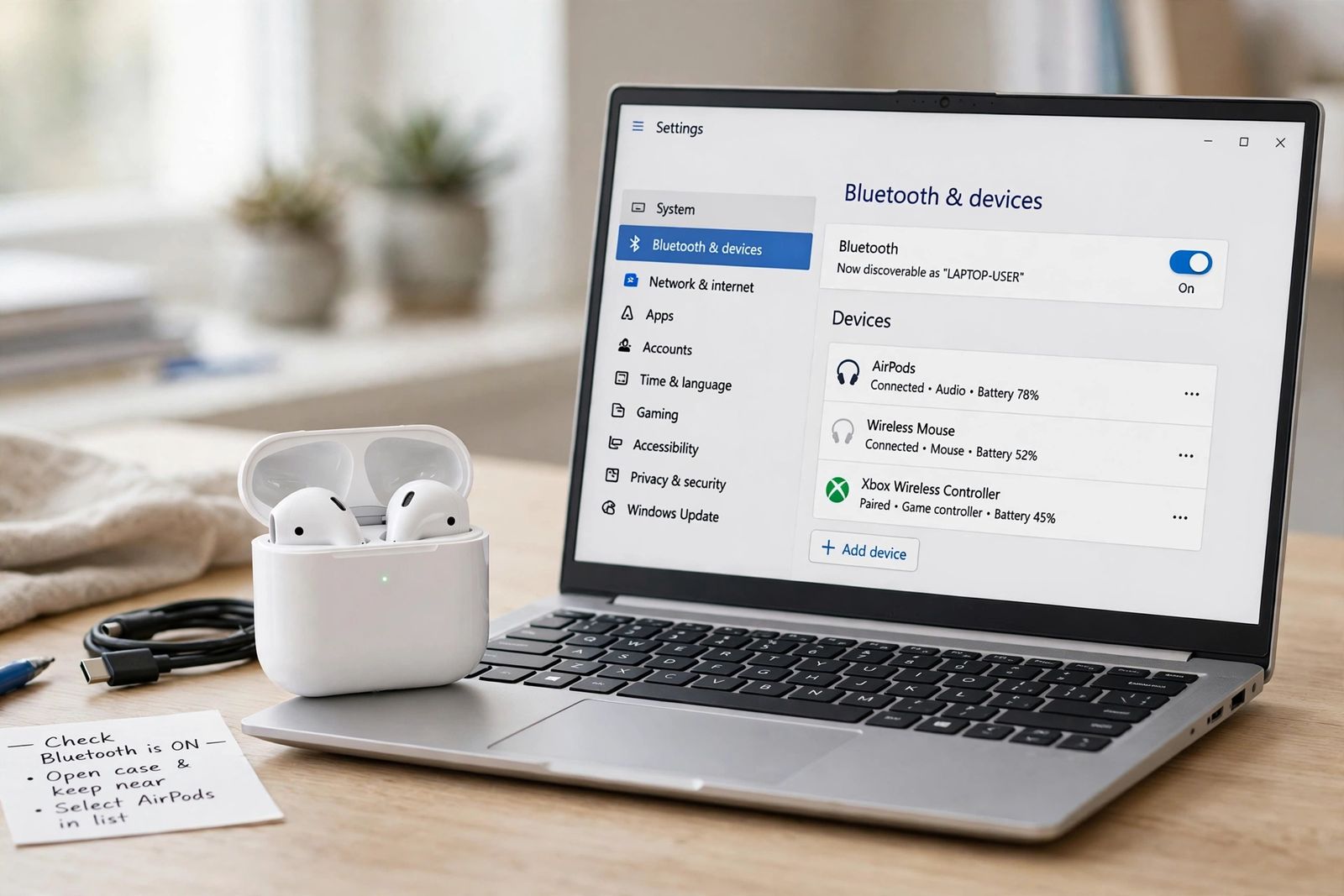
To connect AirPods to a laptop, put both AirPods in their case with the lid open and put the case into pairing mode — on AirPods 4, AirPods 5 and AirPods Pro 3, which have no back button, double-tap the front of the case until the status light flashes white; on AirPods 1, 2 and 3 and AirPods Pro 1 and 2, press and hold the setup button on the back of the case for about five seconds until the light flashes white — then, on a Windows laptop, go to Settings > Bluetooth & devices > Add device > Bluetooth and select your AirPods. That is the whole job on Windows, which is where most people asking this question actually are: Apple’s own support pages cover the Mac, so this guide leads with the Windows path, then covers the output-device switch most guides skip, the reason AirPods sound worse the moment a call uses their microphone, and the forget-and-repair fix for when pairing goes wrong. On a Mac signed in to the same Apple Account as your iPhone, the AirPods usually connect automatically with no pairing at all — the short Mac section is at the end.
First, pairing mode: the step that decides everything
Almost every failed attempt fails at the same place. The laptop cannot see the AirPods because the case is not broadcasting. AirPods do not sit discoverable the way a mouse does; you have to trigger pairing mode by hand, and the trigger changed with the newest models, which is why older guides — written when every case had a button — now send owners of new AirPods hunting for a button that does not exist.
A correction worth stating plainly, because it is the most common error in the guides for this exact search: there is no setup button on the newest cases. Several current guides still give the back-button hold as the universal first step, and at least one major laptop maker’s guide tells AirPods 4 owners to “press and hold the setup button” — on a case that has none. Apple’s own pairing guide for non-Apple devices splits the gesture by model:
- AirPods 4 (both models), AirPods 5 (both models) and AirPods Pro 3: with the AirPods in the case and the lid open, hold the case next to the laptop and double-tap the front of the case until the status light flashes white.
- AirPods 1, 2 and 3, and AirPods Pro 1 and 2: press and hold the setup button on the back of the case for about five seconds, until the status light flashes white.
- AirPods Max: press and hold the listening mode (noise control) button for about five seconds, until the status light flashes white. One button only — guides that tell you to hold the Digital Crown at the same time are describing the reset combination, not pairing.
Flashing white is the signal that the case is discoverable. A steady light, an amber light, or no light means it is not, and no amount of refreshing the laptop’s device list will find AirPods that are not broadcasting. If the light is flashing amber (orange) instead of white, that is a pairing error rather than discoverability — what it means and how to clear it is covered in AirPods flashing orange light. Charge matters too: Microsoft’s Bluetooth troubleshooting notes that some devices will not enter pairing mode on a low battery, so if nothing happens, charge the case for a while and try again — a case that will not charge at all is its own fault, split by bud and case in AirPods not charging — and battery wear and charge behaviour on Apple devices generally is covered in how to check battery health on iPhone.
Keep the lid open and the case next to the laptop while you pair. Closing the lid ends pairing mode.
How to connect AirPods to a Windows 11 laptop
With the case in pairing mode beside the laptop:
- Select Start, then Settings > Bluetooth & devices, and make sure Bluetooth is switched on.
- Select Add device, then Bluetooth.
- Select your AirPods when they appear in the list, and follow any further prompts, then select Done.
That Settings route is Microsoft’s documented pairing flow. Microsoft also documents a quicker taskbar route in Windows 11: select the Network, Sound or Battery icons next to the clock, select the Manage Bluetooth devices chevron on the Bluetooth quick setting, and select your AirPods under New devices. Either route ends in the same place. Microsoft notes that once paired, the Bluetooth device and the Windows device connect automatically whenever both are on and in range — so this pairing is a one-time job, and afterwards opening the case near the laptop should reconnect them.
The same steps connect AirPods to an HP, Dell, Lenovo or any other Windows laptop: the brand of laptop makes no difference, because Windows handles Bluetooth the same way on all of them. If the laptop has no Bluetooth at all — some older desktops and a few older laptops — Microsoft notes that a USB Bluetooth adapter plugged into a USB port adds it.
How to connect AirPods to a Windows 10 laptop
Windows 10 keeps the same job in a differently named menu, which is where people following a Windows 11 guide get lost. Go to Start > Settings > Devices > Bluetooth & other devices, select Add Bluetooth or other device, choose Bluetooth, then select your AirPods and Done — with the case in pairing mode, exactly as above. The pairing gesture on the case is identical; only the Windows menus differ.
After pairing: switch the output device
“Connected” in the Bluetooth list means the radio link exists; it does not guarantee the laptop is sending sound there. If the AirPods pair but audio still comes out of the laptop speakers, the output device is still set to the speakers. On Windows, select the Sound icon on the taskbar, open the output list (the arrow or chevron beside the volume slider), and choose your AirPods. In a meeting app, check that app’s own audio settings too, because apps can hold a different device from Windows. This one switch is the fix for most “connected but no sound” cases — check it before you re-pair anything.
Why AirPods sound worse on Windows when the microphone is used
One Windows behaviour deserves its own explanation, because it is responsible for most “AirPods sound terrible on my laptop” complaints — and almost no text guide explains it, because most of the top results for this search are videos and short brand pages that stop at pairing.
Classic Bluetooth audio runs two different profiles. Stereo music travels on a one-way, high-quality profile built for listening. Your voice travels on the Hands-Free Profile, a narrow channel built for phone calls. A pair of AirPods on Windows cannot use both at full quality at once: the moment an app asks for the AirPods’ microphone — Teams, Zoom, Discord, a browser tab with mic permission — Windows switches the AirPods into hands-free mode, and the stereo sound you had a moment ago is replaced by thin, mono, low-quality audio until the microphone is released. It is how classic Bluetooth audio works on Windows, not a fault in your AirPods, and no driver update or re-pairing changes it.
Two practical rules follow from that:
- For music or video: make sure no app is holding the microphone open, and in Settings > System > Sound set the output to the AirPods entry that does not say hands-free, if Windows lists two.
- For calls: either accept the hands-free quality for the length of the call, or do what usually sounds best — keep the AirPods as the speaker in your call app, but set the app’s microphone to the laptop’s built-in mic. The AirPods then stay in stereo, and the laptop’s microphone is doing the talking.
AirPods not showing up, or paired but not connecting: the forget-and-repair fix
Work through these in order; each one is a cause Apple or Microsoft names in their own troubleshooting.
- Pairing mode was never triggered. The most common cause by far. Redo the gesture for your exact model — front double-tap on the buttonless cases, back button hold on the rest — and watch for the white flashing light, not just any light.
- The lid closed, or the case is too far away. Pairing mode ends when the lid closes. Keep it open, beside the laptop, and move closer.
- Bluetooth is off, or the laptop has no Bluetooth. Check the toggle in Settings. On Windows, Microsoft’s Bluetooth troubleshooting starts by running its automated Bluetooth troubleshooter in the Get Help app when Bluetooth will not pair or connect.
- The AirPods are still connected to another device. AirPods hold on to the last device that asked for them. Disconnect them on the phone or tablet that has them — or turn that device’s Bluetooth off briefly — then pair with the laptop.
- Forget and re-pair. If the AirPods appear in the laptop’s list but will not connect, the pairing record itself is usually stale. Microsoft’s fix is to remove the device and add it again: in Settings > Bluetooth & devices, use the More options (…) menu on the AirPods entry, choose Remove device, then Add device and pair fresh — with the case put back into flashing-white pairing mode first, because Windows cannot rediscover a case that has stopped broadcasting. The same remove-and-re-add fixes sound coming from only one earbud: put both AirPods back in the case, remove the pairing, and pair again, accepting the prompt about the second earbud if Windows shows one.
- Restart, update, then reset. Turn Bluetooth off for ten seconds and back on, restart the laptop, and check Windows Update — Microsoft lists all three in its troubleshooting order. Put the AirPods in the case and close the lid for at least ten seconds (Apple’s restart step) and try again. If they still will not connect, Apple’s won’t-connect guide ends at resetting the AirPods; the full reset sequence for each model, and how to reconnect afterwards, is its own job — see how to reset AirPods.
How to connect AirPods to a MacBook
On a Mac there are two situations. If you set your AirPods up with an iPhone and your Mac is signed in to the same Apple Account, Apple says they should connect automatically — they appear in the Control Center sound controls and in Bluetooth settings without any pairing step. Pick them as the sound output and you are done.
If they do not appear — a Mac on a different account, a work Mac, a first pairing with no iPhone involved — pair manually, following Apple’s own steps: on the Mac, open System Settings, click Bluetooth in the sidebar and check it is on; put both AirPods in the case, open the lid next to the Mac, use the pairing gesture for your model until the light flashes white; then click Connect next to your AirPods in the Nearby Devices list. If you are asked to choose, note that newer AirPods need recent systems — Apple’s guide lists macOS Sequoia or later for AirPods 4, and macOS Tahoe or later for AirPods Pro 3 — so a Mac that cannot see new AirPods at all may need a system update before anything else. The full Apple-side picture, including Apple’s setup guide for Mac and other Bluetooth devices, is also where the automatic-connection conditions are set out.
What you do and do not get on a Windows laptop
Apple is explicit that AirPods used with a non-Apple device are a Bluetooth headset: you can listen and you can talk, and you cannot use Siri. Set expectations beyond that from the same fact. The automatic setup animation, automatic switching between devices signed in to your Apple Account, and the other Apple-account features belong to Apple’s own devices; on Windows, the AirPods behave like good ordinary Bluetooth earbuds — pair once, reconnect automatically in range, use them for sound and calls. Nothing about that requires any extra app, driver or adapter software, and any guide selling you one is selling you something the pairing does not need.
Frequently asked questions
Do AirPods work with a Windows laptop at all? Yes. Apple documents pairing AirPods with non-Apple devices itself: they work as a Bluetooth headset, for listening and talking. What you lose is Siri and the Apple-account features, not basic audio.
Why are my AirPods not showing up when I try to pair? Almost always because the case is not in pairing mode — the gesture differs by model, and on AirPods 4, AirPods 5 and AirPods Pro 3 there is no back button to hold; it is a double-tap on the front of the case. After that: lid open, case charged and near the laptop, Bluetooth on, and the AirPods disconnected from whichever device used them last.
How do I reconnect AirPods to my laptop after the first pairing? You should not need to. Microsoft states that a paired Bluetooth device and the Windows device connect automatically when both are in range, and a Mac on your Apple Account connects automatically too. If a reconnection fails, select the AirPods in Bluetooth settings and choose Connect; if that fails, remove and re-add them.
Why do my AirPods sound muffled on my laptop during calls? Because Windows has switched them to the Hands-Free Profile to use the microphone, which trades stereo quality for the mic. It is standard Bluetooth behaviour on Windows, not damage. When the call ends and no app is using the microphone, full-quality playback returns — and during the call, using the laptop’s own microphone in the app’s settings keeps the AirPods in stereo.
Can I connect AirPods to an HP or Dell laptop the same way? Yes — identically. Windows handles the Bluetooth pairing, so the laptop brand does not change a single step. The only model that matters is the AirPods model, because it decides the pairing gesture.
This article is general information, based on the AirPods and Bluetooth guidance published by Apple and Microsoft and checked in November 2026. Menu names differ between Windows 10 and Windows 11, and AirPods models differ in their pairing gesture — where yours differ, follow the same-named setting in the maker’s help for your model.