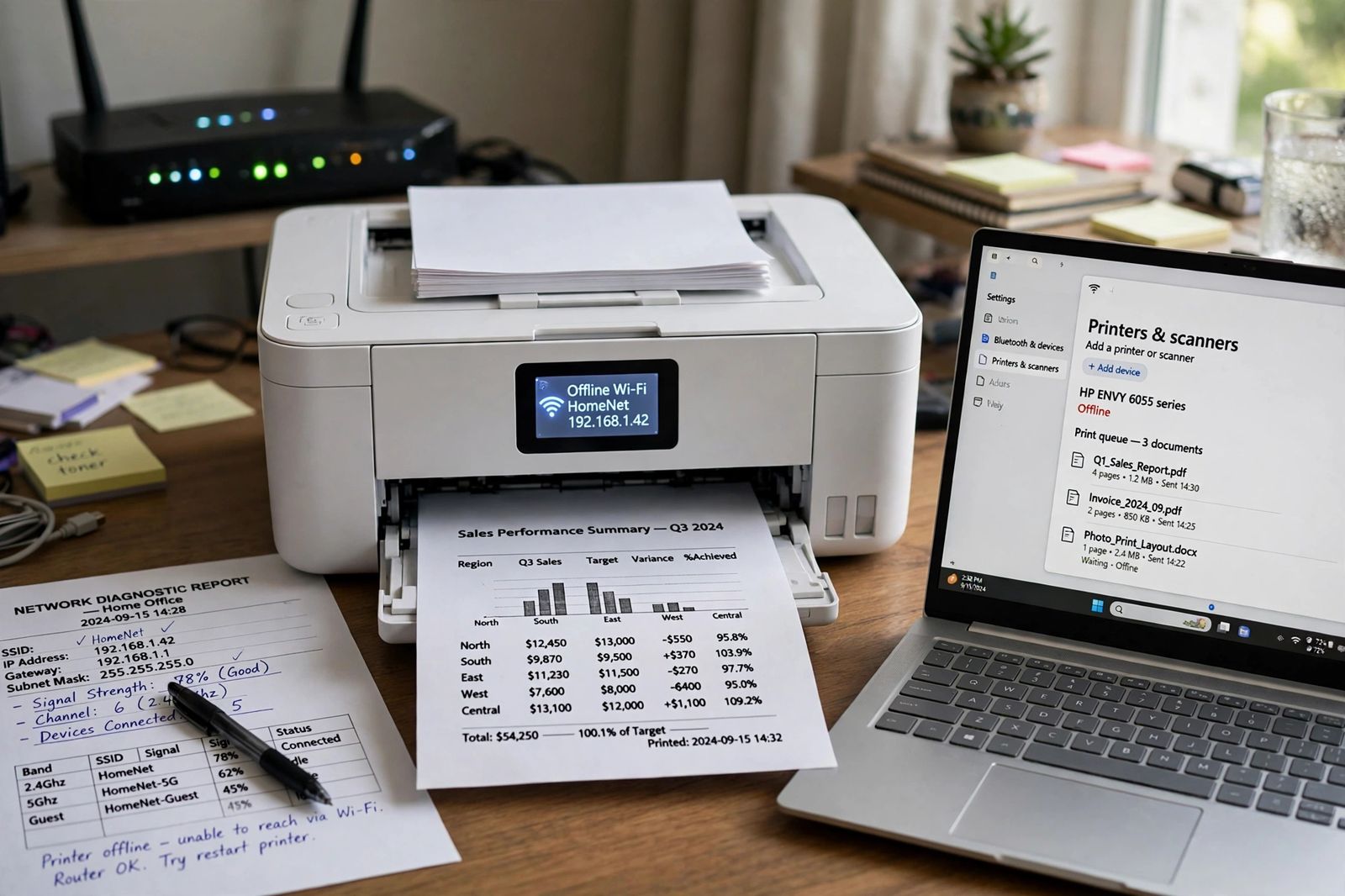
Your printer is offline because one of three layers has failed, and each layer has a different fix: the printer itself is in an error state or has dropped off the network, Windows is holding it offline through the Use Printer Offline toggle or a stuck print queue, or the printer’s network address has changed and your computer is still looking for it at the old one. Test the layers in that order. Look at the printer’s own display first — if it shows an error, offline or no network, the fault is at the printer and no Windows setting will fix it. If the printer’s display says it is ready and connected, open the Windows print queue next, cancel every job, restart the Print Spooler service and make sure Use Printer Offline is not ticked. If both of those pass and it still reads offline, print the printer’s network report and compare its current IP address with the address in the Windows port settings — a mismatch after a router restart is the classic recurring cause, and reserving that address in the router stops it coming back.
Start where the word “offline” appears
“Offline” is not one fault. It is a label that can appear in three different places, and the place you saw it tells you where to start:
- On the printer’s own display or lights. The printer itself is reporting the problem. Start at Layer 1 below.
- In Windows, next to the printer’s name, while the printer’s display looks normal. Windows cannot currently reach or trust the printer. The cause is usually Layer 2 (a Windows setting or queue) or Layer 3 (a network address).
- On one computer only, while another computer or a phone prints fine. The printer and the network are healthy. The fault lives on that one computer — Layer 2 first, then its port address in Layer 3.
The worked example in the photo at the top of this article shows the split clearly. The printer’s own screen reads Offline — Wi-Fi HomeNet — 192.168.1.42, its printed network report shows it joined to the HomeNet network at that address with signal strength at 78%, and the laptop beside it shows an HP ENVY 6055 series printer marked Offline with three documents waiting in its queue. A printer that can print its own network report and name its network and address is not dead — something between that report and the laptop’s queue is where the fault sits, and the layers below walk that gap in order.
If the printer feeds paper and tries to print but the pages come out blank or broken, that is not an offline fault at all — the job arrived. That wider set of faults has its own ordered checks in printer not printing.
The three layers, in the order to test them
| Order | Layer | How you recognise it | The fix for this layer |
|---|---|---|---|
| 1 | The printer itself — its display says offline, shows an error, or it has dropped off the network | The printer’s screen or lights show offline, an error message, a paper or ink warning, or no wireless connection; a test page printed from the printer’s own menu fails or the network report shows it is not connected | Clear the error the display names (paper, jam, cover, ink), power-cycle the printer properly — off, unplugged for 30 seconds, back on — and reconnect it to your Wi-Fi from its own menu if the network report shows it has left the network |
| 2 | Windows is holding it offline — the Use Printer Offline toggle, a stuck queue, or a stalled Print Spooler | The printer’s display says ready and connected, but Windows marks it Offline; jobs sit in the queue and never move, or one job shows an error and blocks the rest | Open the print queue, cancel all jobs, untick Use Printer Offline and Pause Printing in the queue’s Printer menu, then restart the Print Spooler service in Services. If jobs will not cancel, stop the spooler, delete the files inside the spool folder, and start it again |
| 3 | The network moved — the printer’s IP address changed, or Windows is checking its status in a way that fails | It worked until a router restart, power cut or network change; or it keeps flipping back to offline while a phone prints to it without trouble | Print a fresh network report, note the printer’s current IP address, and compare it with the address in Printer properties > Ports. If they differ, update the port to the current address or remove and re-add the printer, then reserve that address in your router so it stops changing. If the address matches and it still flips offline, test with SNMP Status Enabled unticked in the port settings |
Do not skip ahead. Reinstalling a driver (a Layer 3-adjacent step) cannot clear a ticked offline toggle in Layer 2, and no queue fix reconnects a printer that has left the network in Layer 1. Each layer takes minutes to rule out, and ruling one out is what makes the next one’s result mean something.
Layer 1: The printer itself says offline
Begin at the machine, before touching the computer. Microsoft’s printer guide draws this line explicitly: if the printer’s status reads “Printer in error state,” there is a problem with the printer itself — starting with low paper or ink, an open cover or a paper jam. A printer in an error state ignores jobs no matter what Windows does.
Read the display, then act on what it actually says:
- Clear the named error first. Paper out, a jam, a cover open, an empty cartridge — fix that specific thing. Do not start with a restart while the display is still naming a physical fault.
- Power-cycle it properly. Turn the printer off, unplug it, wait 30 seconds, plug it back in and turn it on. That 30-second unplugged wait is Microsoft’s own first step for an offline printer, because it clears temporary faults in the printer’s own software and forces its network connection to be made fresh. Tapping the power button off and on is not the same thing.
- Run the printer’s own tests. Print a test page or the network report from the printer’s own menu, with the computer not involved. If its own test page fails, the fault is in the printer — supplies or hardware — and the maker’s support is the next step, not another Windows setting. If the network report prints, read two things off it: the network name (SSID) it is joined to, and its current IP address. You will need both for Layer 3.
- Check the signal reading on that report. Canon’s offline guidance has you print the network settings and read the signal strength off the printout: the higher the percentage, the stronger the signal, and a weak reading means moving the printer closer to the router or access point. In the example at the top of this article the report shows 78% — a healthy reading, which is useful evidence: it rules out a weak-signal drop and pushes you on to Layer 2.
One Canon check is worth borrowing whatever brand you own: make sure you are not sending the job to a printer that is no longer connected. If the same printer model appears twice in your list — an old USB entry and the current Wi-Fi one, for example — jobs sent to the dead entry produce exactly this “offline” complaint while the working printer sits idle. Canon’s fix is to remove the duplicates and set the one you actually use as the default.
Layer 2: Windows is holding the printer offline
If the printer’s display says ready and its network report shows it connected, the printer has done its part. Now check whether Windows is holding jobs back on purpose — because two of its own settings do exactly that, and both survive restarts.
The Use Printer Offline toggle. In Settings > Bluetooth & devices > Printers & scanners, select your printer and choose Open print queue. In the queue window, open the Printer menu and look at Use Printer Offline and Pause Printing. If either is ticked, untick it. This is a manual switch that tells Windows to hold every job for that printer, and it is the single easiest cause to miss because nothing else looks wrong: the printer is on, the network is fine, and Windows simply never sends. On a printer shared from your PC, that tick holds jobs for everyone who uses the share, not just you. There is no general “Online” button to press instead — clear the cause and Windows updates the status to Ready or Idle itself within a few seconds.
The stuck queue and the spooler. Still in the queue window, if documents are waiting, cancel them all — in Windows 11 that is the … menu and Cancel all. One corrupt job at the front blocks every job behind it, and a queue that cannot empty can keep the printer flagged offline after the real cause is gone. Then restart the service that runs the queue: search for Services, open it, find Print Spooler, right-click it and choose Restart. That is Microsoft’s queue-reset sequence in its offline guide — check the queue, then reset the service that manages it.
If jobs refuse to cancel, clear the spool folder by hand, the way Microsoft documents it in its connection guide: stop the Print Spooler service in Services, open %WINDIR%\system32\spool\PRINTERS, delete the files inside that folder — never the folder itself — then start the Print Spooler again and confirm its startup type is Automatic. Know what this costs before you do it: it discards every waiting job on the PC, for every printer, and restarting the spooler affects anyone else mid-print on the same machine. Cancelled documents have to be sent again.
The troubleshooter belongs here too. On Windows 11, Microsoft’s offline guide starts with the automated printer troubleshooter in the Get Help app, which runs diagnostics and attempts to fix most printer problems itself. It is worth one run at this layer — it resets the same services and queue states you would by hand — and Microsoft tells Windows 10 users to skip it and go straight to the manual checks above.
A correction about the default printer. Several guides list “set it as the default printer” as an offline fix, as if the setting itself restores the connection. It does not. Setting a default only decides which printer your apps select first. It helps in exactly one situation: you were unknowingly sending jobs to an old or duplicate entry (the Layer 1 duplicate problem) — and then it is choosing the right entry that fixed it, not the default flag repairing anything. If the entry you set as default is the one that cannot be reached, it will sit there as the default, still offline. Microsoft includes the step in its sequence because sending to the wrong printer is common, not because it heals a connection.
For an HP printer, there is also a maker-side tool at this layer: Diagnose & Fix, inside the HP app (from 123.hp.com). HP says it works on exactly this layer’s faults — print queue errors, network connectivity and print spooler errors. Which brings up the correction in the next section, because a large amount of older advice points HP owners at a different tool that no longer exists.
Ignore this outdated advice: HP Print and Scan Doctor
Search results and forum answers still tell HP owners to download HP Print and Scan Doctor to fix an offline printer — including answers on Microsoft’s own Q&A forums. Do not. HP retired Print and Scan Doctor on May 27, 2025, and advises removing it if you still have it. It is no longer maintained or officially downloadable, so any copy offered by a third-party download site in 2026 is an unverified file carrying a retired tool’s name — the opposite of what you want on a machine you are trying to fix. HP’s stated replacement is the Diagnose & Fix tool inside the current HP app, described above. If a guide’s HP steps begin with Print and Scan Doctor, that guide predates the retirement; its other steps may still be fine, but that one is not.
Layer 3: The network moved
This is the layer behind almost every “it keeps going offline” complaint, and it splits into two different faults that feel identical.
The address changed. A home printer usually gets its IP address from the router, and the router is free to hand it a different one after a restart, a power cut or a lease renewal. Windows, meanwhile, keeps sending jobs to the address stored in the printer’s port — the old one. The printer is online at its new address; your computer is knocking on an empty door. The test is a comparison, and both halves are already in your hands if you printed the network report in Layer 1:
- Note the printer’s current IP address from the fresh network report — in our example, 192.168.1.42 on HomeNet.
- On the PC, open Settings > Bluetooth & devices > Printers & scanners > your printer > Printer properties > Ports and read the address of the ticked port.
- If the two differ, that mismatch is your fault. Update the port to the current address, or remove the printer in Printers & scanners and add it again so Windows builds a fresh entry at the address it can actually reach — the remove-and-reinstall finish in Microsoft’s offline sequence does this rebuilding for you.
Then make it permanent, or you will repeat this after the next router restart: in your router’s settings, set a DHCP reservation for the printer so it is always handed the same address. Canon’s offline guidance reaches for the same permanent fix from the printer’s side — setting a static IP address on the printer when Wi-Fi communication problems continue. Either method works; the reservation is usually easier because it is set once, in one place.
The status check is lying. Sometimes the address matches, the printer prints from a phone, and Windows still insists it is offline. Windows does not only send jobs to a network printer — it also polls it in the background, commonly over SNMP, to ask whether it is ready. If that poll times out or goes unanswered — a sleeping printer and a congested network can both cause it — Windows marks the printer offline even though a job would have gone through. The phone prints fine precisely because it never runs that check. The test: in Printer properties > Ports, select the ticked Standard TCP/IP port, choose Configure Port, and untick SNMP Status Enabled. Treat it as a test, not a ritual — if the status does not change, tick it back, because disabling it also stops Windows receiving live status such as toner levels from the printer. And if the port itself is a WSD port rather than a Standard TCP/IP port, that alone explains flaky status: remove the printer and re-add it by its IP address so it gets a standard port instead. On a work PC, leave port settings to your administrator.
One network myth to drop. You will read that a printer on the router’s 2.4 GHz band cannot be seen by a laptop on the 5 GHz band. On an ordinary dual-band home router that is not how it works: both bands are the same home network, and devices on different bands of the same router see each other fine. What genuinely separates devices is a different network — a guest SSID, an extender broadcasting its own network name, or a separate router. Microsoft’s version of the check is the accurate one: with access points, extenders or multiple routers with separate SSIDs, make sure the PC is connected to the same network as the printer. So compare network names, not bands: read the SSID on the printer’s network report (HomeNet, in our example) and compare it with the network name on the PC. If the names differ, move one of them — that is a real Layer 3 fault. If only the band differs, look elsewhere. And if the printer drops off the network entirely, again and again, that is a connection-stability fault in its own right — Wi-Fi keeps disconnecting works through it.
If it still reads offline after all three layers
You have narrowed it more than it may feel like. Finish with the two splits that decide where the fault must be:
- Print from another device. If a phone or a second computer prints, the printer and network are proven good and the fault is this PC’s driver or printer entry: remove the printer, restart the PC, and add it again, then — only now — install the maker’s current driver for your exact model from the maker’s own support site. On an ARM PC such as a Copilot+ machine, Microsoft warns that some manufacturer installers cannot add a printer at all; add it through Windows Settings instead.
- If no device can print and the printer’s own test page also fails, the fault is in the printer. Stop changing computer settings. The maker’s support is the right next step, and the network report you printed — with its network name, address and signal reading on it — is exactly the evidence they will ask for first.
Drivers deliberately come last in this article. An offline status is a communication label, and in the great majority of cases the communication is being blocked by an error state, a tick, a queue or an address — none of which a new driver touches. Reinstalling first is the slowest route to the same place, and it destroys the queue and port evidence that would have told you which layer failed.
Frequently asked questions
Why does my printer say offline when it is turned on and connected? Because “offline” reports whether your computer can reach and confirm the printer right now — not whether it has power. A display error at the printer, a ticked Use Printer Offline setting, a stuck queue or stalled spooler, and a changed IP address all produce the same label on a printer that is switched on and looks connected. Work the three layers in order to find which one it is.
How do I change my printer from offline to online? There is no Online button. Fix the cause in whichever layer failed — clear the printer’s error, untick Use Printer Offline and clear the queue, or correct the port address — and Windows changes the status to Ready or Idle on its own once it can reach the printer again.
Why does my printer keep going offline after the router restarts? The router handed the printer a new IP address and the Windows port still points at the old one. Update the port to the printer’s current address from a fresh network report, then set a DHCP reservation in the router (or a static IP on the printer) so the address stops moving.
Why does my printer print from my phone but say offline on my PC? The phone just sends the job; Windows also polls the printer’s status in the background, and when that poll fails Windows marks it offline even though jobs can get through. Check the PC’s queue and offline toggle first, then test the port’s SNMP Status Enabled setting as described in Layer 3.
Should I reinstall the driver when my printer is offline? Not first. Most offline cases are an error state, a queue or toggle, or an address mismatch, and none of those is a driver fault. Reinstall — from the maker’s site, for your exact model — only after the three layers pass, or if printing broke immediately after a system update.
This article is general information, based on the printer support guidance published by Microsoft, HP and Canon and checked in November 2026. Menu names and network-report layouts differ between models — where a step names a menu your printer does not have, follow the same-named tool in your maker’s help for your model.