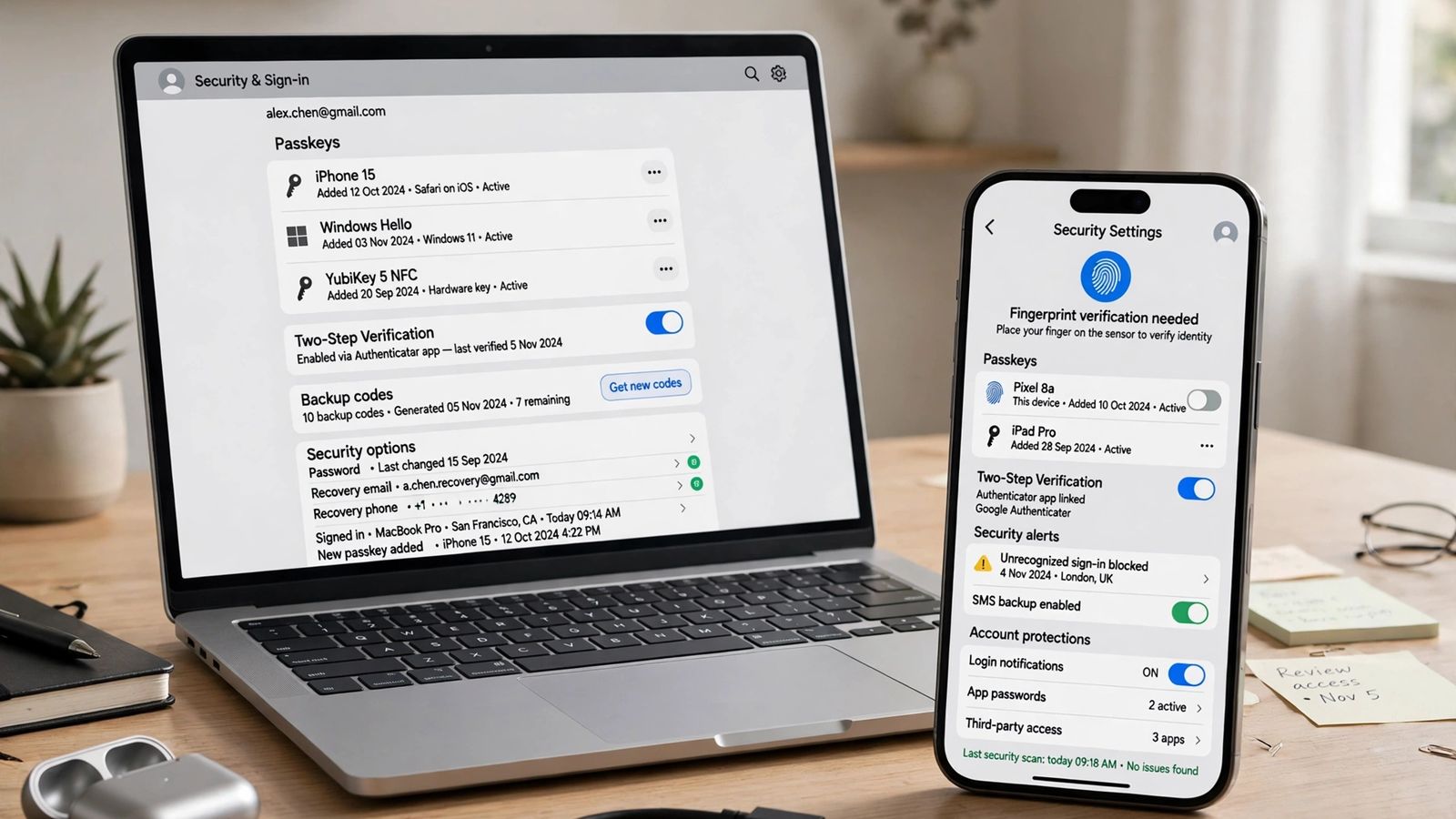
A passkey is a sign-in credential that replaces your password with a pair of cryptographic keys — one stays on your device, the other sits with the website — and you unlock it with the same face, fingerprint or PIN you already use to unlock that device. To learn how to set up passkeys on any account, the pattern is the same almost everywhere: open the service’s security settings, choose “Create a passkey” (or “Add a passkey”), then confirm with your face, fingerprint or PIN when your device asks. The sections below give the exact official route for a Google account, an iPhone, Windows and Android, plus what to do when no passkey option appears.
What is a passkey, and how does signing in with one work?
A password is a shared secret: anyone who learns it — from a phishing page or a breach — can use it. A passkey removes the shared secret. As the FIDO Alliance, the industry body behind the standard, describes it, a passkey is a FIDO credential stored on your phone, computer or a hardware security key, and tied to one specific account on one specific website.
When you create a passkey, your device generates a key pair for that site alone. The public key goes to the website, where it is useless on its own. The private key stays with you and never travels. At sign-in, the site sends a one-time challenge, you approve it with your face, fingerprint or PIN, and your device signs it with the private key; the site checks the signature and lets you in. Because the passkey is bound to the real domain, a look-alike page gets no response.
Day to day, signing in is three steps: enter your username (or tap the account field and pick the suggested account), choose the passkey — or Use a passkey / Try another way if it is not offered first — then confirm with your face, fingerprint or PIN. No password, and usually no separate code.
On a computer that does not hold your passkey, use the one on your phone: choose the passkey option on the computer, scan its QR code with your phone, turn Bluetooth on so the devices can prove they are nearby, and confirm on the phone. Google’s passkey help documents that flow, and Apple and Microsoft use the same pattern. Your biometric data never leaves your device — the website receives proof the check passed, not your face or fingerprint.
Before you start: where passkeys are stored and synced
A passkey has to live somewhere, and that choice decides where it syncs and how you get it back on a new device:
| Where you create it | Where it is stored | Where it syncs |
|---|---|---|
| Android phone or Chrome | Google Password Manager | Android devices and Chrome signed in to the same Google Account |
| iPhone, iPad or Mac | iCloud Keychain, shown in the Passwords app | Apple devices on the same Apple Account |
| Windows PC, saved to this device | Windows Hello, on that PC only | Nowhere — it is device-bound |
| Microsoft account, saved to a manager | Microsoft Password Manager or another synced manager you pick | Devices signed in to that manager |
| Hardware security key | On the key itself | Nowhere — it works wherever you plug it in or tap it |
Two kinds matter. Synced passkeys (iCloud Keychain, Google Password Manager) are copied, end-to-end encrypted, to your other devices on the same account, so a lost phone does not mean lost passkeys. Device-bound passkeys (saved only to Windows Hello on one PC, or to a security key) never leave that device — if it is gone, that passkey is gone, so important accounts need a second way in. A laptop that will not charge is the mundane version of “gone” — laptop plugged in but not charging is that fault’s checklist.
Three checks before you create anything, drawn from the official requirements:
- A screen lock must be on. No PIN, fingerprint or face unlock, no passkey — every platform requires one, because the screen lock is what unlocks the passkey.
- Your software must be current enough. For a Google Account passkey, Google lists Android 9 or iOS 16+ on phones, Windows 10, macOS Ventura or ChromeOS 109+ on computers, and Chrome 109, Safari 16, Edge 109 or Firefox 122+.
- Only create passkeys on devices you own. Anyone who can unlock a device can use its passkeys — use the QR route instead on a borrowed computer, which keeps the passkey on your phone.
How to set up passkeys for a Google account (and Gmail)
Your Google Account passkey covers Gmail and every other Google service. Google’s own steps, from Google Account Help:
- On the phone or computer where you want the passkey, go to myaccount.google.com/signinoptions/passkeys and sign in if asked. The shortcut g.co/passkeys leads to the same page. You can also get there through Google Account > Security & sign-in > Passkeys and security keys.
- Choose Create a passkey. If you want the passkey on a hardware security key instead, choose Use another device, insert the key, and enter its PIN or touch its sensor.
- Confirm with your fingerprint, face or screen-lock PIN when your device prompts you.
The passkey should now be listed on that page. Two details catch people out. Creating one turns on passkey-first sign-in by default — Skip password when possible, under Security & sign-in — which you can turn off if you prefer the password first. And Google warns a new passkey may take up to seven days to become available at sign-in; that delay is deliberate, so keep your password handy for the first week. If an Android phone is signed in to this account, check the list first: Google may already have registered a passkey for it automatically.
How to set up passkeys on iPhone with iCloud Keychain
Apple works differently, and this is where iPhone owners get stuck: there is no “create a passkey” button in Settings. You prepare iCloud Keychain once, then create each passkey inside the website or app itself. From Apple’s iPhone passkey guide — first, turn on the sync:
- Go to Settings > [your name] > iCloud.
- Tap Passwords (called Passwords and Keychain on iOS 17 or earlier), then turn on Sync this iPhone. Apple’s iCloud Keychain setup guide notes that two-factor authentication must be on for your Apple Account before iCloud Keychain can be set up — if it is off, your iPhone will offer to turn it on.
- Also turn on AutoFill Passwords and Passkeys under Settings > General > AutoFill & Passwords.
Then create a passkey at the service itself:
- Open the supported website or app. For a new account, follow its sign-up flow. For an existing account, sign in with your password and open its account or security settings.
- When you see the option to save a passkey, tap Continue.
- Confirm with Face ID, Touch ID or your device passcode.
The passkey is saved to the Passwords app and syncs through iCloud Keychain to your other Apple devices, alongside any password for the same account — having both is normal. If no passkey option appears in that service’s settings, the service does not support passkeys yet; no iPhone setting can add it. Make sure that sync is on before bigger phone jobs too — anyone following how to turn off an iPhone while troubleshooting should know their passkeys are already synced before the phone goes dark.
How to set up passkeys on Windows with Windows Hello
On Windows, passkeys saved to the PC are protected by Windows Hello, so Hello comes first. Microsoft’s Windows passkey documentation confirms you then sign in with that device’s biometrics or PIN:
- Set up Windows Hello if you have not already: Settings > Accounts > Sign-in options, then set up PIN (Windows Hello) and, if your PC has the hardware, fingerprint or face recognition. A PIN alone is enough — biometrics are optional.
- To add a passkey to your Microsoft account, sign in to Advanced Security Options at account.live.com/proofs/manage.
- Choose Add a new way to sign in or verify, then select Face, Fingerprint, PIN, or Security Key.
- Follow the prompts, then select Continue or Create to save to the suggested location, or Change / Save another way to choose: a synced password manager, your phone by QR code, a physical security key, or this Windows device via Windows Hello. Microsoft’s Create and save a passkey guide lists exactly those save options.
- Confirm with your Windows Hello face, fingerprint or PIN.
For any other website, the flow starts in that site’s own security settings — Windows cannot add passkey support to a site that has not built it. Passkeys saved on the PC can be reviewed or deleted at Settings > Accounts > Passkeys (Windows 11, version 22H2 and later). If you are following this walkthrough with the account page open beside Settings, how to split screen on Windows keeps the guide and the setting side by side. A passkey saved only to this device does not sync, so for an account you cannot afford to lose, save a second passkey to your phone or a synced manager too.
How to set up passkeys on Android
Android is the simplest case, because the Google flow and the phone are the same ecosystem:
- Make sure a screen lock is set: Settings > Security (the exact label varies by maker) and set a PIN, pattern, fingerprint or face unlock if none is active.
- Create the passkey for your Google Account with the Google steps above — on Android, choose Create a passkey at myaccount.google.com/signinoptions/passkeys and confirm with your screen lock. The passkey is stored in Google Password Manager.
- For other apps and sites, open the app or site, go to its account or security settings, choose its passkey option, and confirm the same way.
Passkeys in Google Password Manager sync to your other Android devices and to Chrome on the same Google Account. On Android 14 and later you can choose a different password manager as your passkey provider in system settings. Keep the phone itself healthy while you do account security, too — a handset that will not hold charge makes recovery harder, which is what how to check battery health on an iPhone covers on the Apple side.
Are passkeys safer than passwords?
Yes, on the two attacks that account for most account takeovers:
- Phishing. A password can be typed into a fake page. A passkey cannot — it is bound to the real domain, so a look-alike site receives nothing.
- Breaches and reuse. A breached password database gives attackers credentials to try everywhere. A breached passkey database gives them public keys, which cannot sign in to anything, and every account has its own key pair, so nothing is reused.
The limits matter too. A passkey does not protect an already signed-in session, and it moves trust onto your device: anyone who can unlock your phone can use its passkeys, so a weak screen-lock PIN becomes a weak account. Adding one also does not remove your password — Google states it does not change or remove existing authentication or recovery factors — so keep the password strong and your recovery email and phone number current.
Passkey not working, or you cannot create one
Work through this checklist in order:
- No passkey option anywhere. The service may not support passkeys yet (Apple: no option means no support), or your work/school administrator may not allow passkey sign-in. Keep using the password there.
- Creation fails. Check the screen lock is on, update the OS and browser, and leave Incognito/Private mode — Google notes passkeys may not work there on some systems. On iPhone, check iCloud Keychain sync is on.
- The passkey exists but does not appear at sign-in. On Google, check that Skip password when possible is on, and remember the seven-day wait for a brand-new passkey. Choose Try another way to fall back to your password in the meantime.
- QR sign-in fails. Turn Bluetooth on for both devices, keep the phone physically near the computer, scan with the phone’s camera app, and make sure both devices are online.
- You already have one. Some managers keep one passkey per account; if creation says one already exists, look in your Passwords app, Google Password Manager or Settings > Accounts > Passkeys on Windows before creating another.
- You lost the device. Sign in on a device you still control and remove the lost device’s passkey — Google’s route is Google Account > Security & sign-in > Passkeys and security keys, select it, then Remove. Synced passkeys reappear on a new device signed in to the same manager; a device-bound passkey on a lost PC cannot be recovered.
Frequently asked questions
Does setting up a passkey delete my password? No. The password stays as a fallback unless a service offers a separate password-removal step. Keep it until you have signed in with the passkey from a second device.
Where are my passkeys stored? In the manager offered when you created them: Google Password Manager on Android/Chrome, iCloud Keychain (Passwords app) on Apple devices, Windows Hello or a synced manager on Windows, or a hardware security key.
Do I need a separate passkey for every account? Yes — one key pair per account per site. That separation is the security feature: one site’s breach exposes nothing usable anywhere else.
Can I use a passkey on a computer that is not mine? Yes, without creating anything on it. Choose the passkey option, scan the QR code with your phone, and confirm there. Nothing is saved to the borrowed machine.
Are passkeys safer than passwords with two-factor authentication? Generally yes: a passkey combines something you have (the device) with something you are or know (face, fingerprint or PIN), and unlike a typed code it cannot be phished. Password plus two-factor remains the fallback where passkeys are not supported.
This article is general information, based on the Google, Apple, Microsoft and FIDO Alliance pages linked above and checked in November 2026. Menu names vary slightly by device and version — the setting is normally on the same screen under a near-identical name.