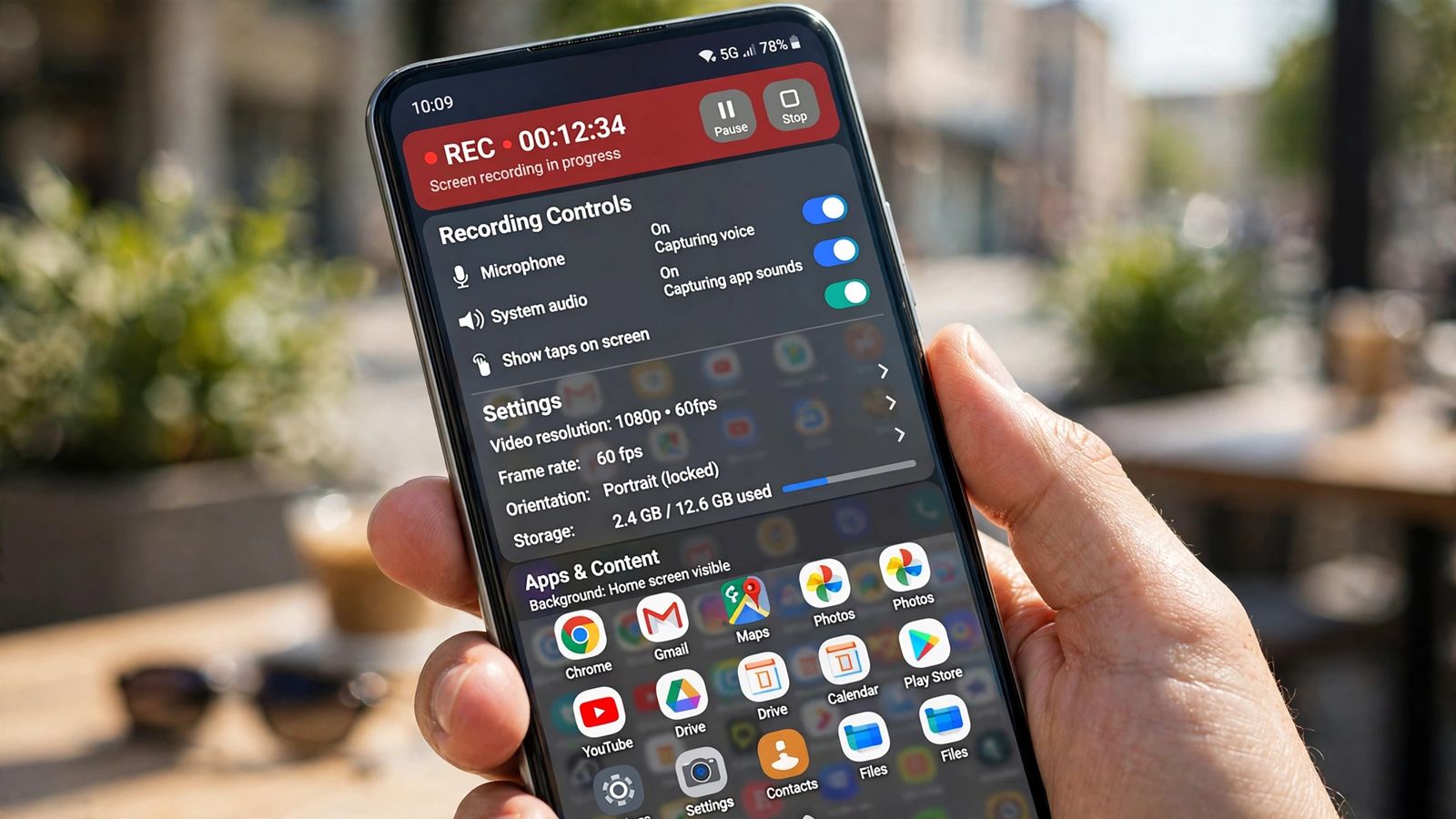
To record your screen on Android, swipe down twice from the top of the screen to open Quick Settings, tap Screen record (on a Samsung Galaxy the tile is called Screen recorder), set your audio choice, and tap Start — the recording begins after a short countdown. To stop, swipe down and tap the screen recorder notification. The finished video is saved automatically: in the Photos app on a Pixel, in the Gallery app on a Galaxy. No app needs to be installed — the recorder has been built into Android since Android 11, and Samsung’s own version has shipped on Galaxy phones since One UI 2. If the tile is missing, it usually just needs adding once — that fix is directly below.
If you don’t see the tile: add it to Quick Settings
The recorder lives in Quick Settings, but on many phones the tile starts out hidden in the panel’s unused half. Adding it is a one-time job:
- On a Pixel, Google’s Pixel Phone Help page gives the route: swipe down twice, and if Screen record is not there, swipe right through the tiles or tap Edit, then touch and hold Screen record and drag it into your active Quick Settings.
- On a Samsung Galaxy, swipe down to open the Quick settings panel, tap the pencil (edit) icon or the + button, find Screen recorder among the available buttons, and drag it into the panel. Samsung notes the exact menu names can vary by model and software version.
If the tile is not in the edit list at all, your phone may genuinely not have a built-in recorder — the section on older phones near the end covers what to do then. And if you only need a still image rather than a video, how to screenshot on Android covers the faster route. On a computer the still-image job has its own keys — how to screenshot on Windows is the PC version.
How to screen record on Android, step by step
The two big phone families differ in wording more than in logic. Pixel first, from Google’s Pixel screen recording page:
- Swipe down twice from the top of the screen to open Quick Settings in full.
- Tap Screen record.
- Choose what to record before anything starts: whether to record audio, and whether to capture a single app or your entire screen.
- Tap Start. The recording begins after the countdown, so use those seconds to get to the screen you actually want to show.
- Do what you came to capture. A recording indicator stays visible while capture runs.
- To stop, swipe down and tap the Screen recorder notification. The video saves itself; there is no save button to remember.
On a Samsung Galaxy, following Samsung’s own support guide:
- Open the Quick settings panel by swiping down from the top of the screen (on current models, from the top right).
- Tap Screen recorder.
- Choose a sound setting — None, Media, or Media and mic — then tap Start recording.
- While recording, a small toolbar on screen gives you the controls Samsung builds in, including pausing and, on supported models, drawing on the screen or adding your front camera in a corner window.
- Tap Stop in the toolbar. The video is saved to the Gallery app.
Coming from an iPhone? The shape of the feature is the same — a tile, a countdown, a saved video — but the audio switch works differently; how to screen record on iPhone covers that side.
How to screen record on Android with sound
Almost every disappointing screen recording fails here, so this is the section to read before your first real capture. The audio choice is made before you tap Start, and it cannot be changed once recording has begun. And the two phone families do not offer the same choices — most guides print one generic “Microphone / Device audio / Both” menu that matches neither phone exactly.
On a Pixel, audio is two independent switches: Record device audio and Record microphone. Turn them on separately or together:
- Device audio only — the clean clip: a game’s sound, a video’s sound, no room noise. This is the setting for gameplay and app demos.
- Microphone only — your voice over a silent screen, for narrating steps in an app that makes no sound of its own.
- Both on — commentary over the app’s sound: the tutorial combination.
On a Samsung Galaxy, audio is one setting with three values: None, Media, and Media and mic. Media is the phone’s own sound; Media and mic adds your voice. Notice what is missing: Samsung’s documented list has no microphone-only value. A Galaxy owner who wants to narrate over a silent app cannot pick that combination from Samsung’s own settings — the workaround is Media and mic with the app’s volume kept down. It is one of the few places the two recorders genuinely differ in what they can do.
One more microphone truth, whichever phone you have: the mic hears the room, not just you. A fan or a television in the background is baked into the file, and there is no removing it afterwards.
Video quality and the other settings
Samsung hides a real settings page behind its tile: touch and hold the Screen recorder icon in the Quick settings panel and the settings open. Samsung’s guide lists what lives there:
- Video quality: High (1080p), Medium (720p) or Low (480p). Medium is the sensible default for anything you plan to send — a few minutes at 1080p runs to hundreds of megabytes.
- Show taps and touches: small dots appear wherever you touch the screen. Turn it on for any how-to recording; it is the difference between a viewer following your finger and guessing.
- Selfie video size: how large your front-camera window appears, on models that support it.
- Save screen recordings in: where finished videos are stored — Samsung notes this option may not be available on all devices.
The Pixel recorder documents no quality picker at all on Google’s help page: you get the audio switches, the single-app choice and a Show selfie camera option for putting your face in the corner (Google notes that feature does not support front camera zoom). If a guide tells you to “just set 1080p” on a Pixel, it is describing a menu the phone does not offer. Android’s own overview at android.com makes the general point underneath this: the process varies by version and model, because each maker builds its own version of the feature.
Record one app, and keep your notifications out of the video
A whole-screen recording captures everything that crosses the screen — including the message notification that arrives halfway through, with its text readable in your video. Google’s own Android article warns about exactly this.
A Pixel offers the clean fix. When you tap Screen record, choose A single app instead of your entire screen, then pick the app. Only that app is captured; notifications, and anything you do outside the app, stay out of the file — the right choice for a bug report or for showing a relative how one app works. Samsung documents no equivalent single-app mode, so on a Galaxy the substitutes are older-fashioned: turn on Do Not Disturb before you start, and check the finished clip before you send it.
Where do screen recordings go on Android?
- Pixel: open the Photos app, tap Collections at the bottom, then On this device, then Movies. Google gives this as a route rather than a folder name, which is why “check the Movies folder” advice on its own sends people hunting in the wrong place.
- Samsung Galaxy: open the Gallery app and look in the Screen recordings folder. Underneath, the files live in Internal storage > DCIM > Screen recordings — the path you want if you are browsing with the My Files app or copying videos to a computer. If your phone has the “Save screen recordings in” setting, recordings go wherever that setting points instead.
Wherever yours land, two habits apply. Trim before you share: nearly every recording opens with a second of you leaving Quick Settings and ends with you reaching for Stop, and both Photos and Gallery will trim the ends — open the video, tap Edit, drag the timeline handles inward, and save a copy so the original survives. And mind the contents: these are full videos of everything on your screen, they quietly eat storage — if the phone is nearly full, how to clear cache on Android is the quickest honest win — and a recording can hold private detail you forgot was on screen. Watch it once before it leaves your phone.
Why some recordings come out black, silent, or missing entirely
Three separate causes get lumped together as “screen recording doesn’t work”, and they have different fixes — one of which is “there is no fix, and there never will be”.
The picture is black (often with the sound gone too). The app you recorded told Android not to allow it. Android gives apps a window flag — documented in Android’s developer reference as FLAG_SECURE — that treats a window’s content as secure and prevents it appearing in screenshots or recordings. Streaming services set it on their video; banking apps set it on screens showing balances. The block is enforced by the system underneath every recorder, so the built-in tool and every Play Store app fail identically, and no setting turns it off. Samsung states the same limit from the user’s side: due to copyright protection, screen recording may not work for some photos, videos, apps or websites.
The call is missing. On a Galaxy, Samsung states plainly that phone calls, VoIP calls and video calls cannot be recorded with Screen recorder — a privacy and legal restriction, set out on its Galaxy screen recording support page. If your plan was to capture a call, the built-in recorder is not the tool, on either phone family.
The video has no sound. That one is almost always yours to fix: the audio source was set to None, or to microphone while nothing was said, or — on a Pixel — the Record device audio switch was off. It cannot be corrected afterwards, so run a five-second test recording before capturing the thing that matters.
For long captures: Samsung documents that on Android 10 with One UI 2.5, recordings were limited to 1 hour or 4 GB, while on One UI 3.0 or later there is no file size or time limit — the practical ceiling becomes your free storage. And a recording in progress is lost if the phone powers down, so plug in before a long session.
No built-in recorder? What to do on an older phone
Be honest about the dividing line: stock Android gained its built-in recorder in Android 11. A phone on Android 10 or earlier from a maker that did not add its own recorder — and some budget models of any age — has nothing to add to Quick Settings, and no settings menu will change that.
Work through the fallbacks in this order:
- Check for the maker’s own recorder first. Samsung’s Screen recorder predates stock Android’s (it is there from One UI 2), and several other makers ship their own — Xiaomi, for example, has long included a standalone Screen Recorder app. Look in Quick Settings’ edit view and in your app list before installing anything.
- Then, and only then, a Play Store recorder. Established recorders such as AZ Screen Recorder exist for this gap. Treat the category with care: a screen recorder can see your entire display by definition, so its permissions and reviews matter more than for most apps. Install from the Play Store only, and never grant a recorder access it does not need.
- Know what no app can do. A third-party recorder does not unlock protected apps (the black-screen block sits in the system), and does not need — and should never ask for — root access. “No root required” is the baseline, not a feature.
Frequently asked questions
Does Android have a built-in screen recorder? Yes — since Android 11 as a standard feature, and on Samsung Galaxy phones since One UI 2 through Samsung’s own Screen recorder. It lives in Quick Settings; if the tile is not visible, add it from the panel’s edit view.
How do I record my screen with internal sound only? Set the audio before you start. On a Pixel, turn on Record device audio and leave Record microphone off. On a Galaxy, long-press the Screen recorder tile to open its settings and set Record sound to Media.
Can I record my voice but not the app’s sound? On a Pixel, yes — the two are separate switches, so microphone on and device audio off does exactly that. On a Galaxy, Samsung’s documented values are None, Media, and Media and mic — there is no microphone-only option in the list.
Why is my screen recording black on Netflix or my banking app? Because the app marked its window as secure (Android’s FLAG_SECURE). The system refuses the capture below the level of any recorder, so every recording tool produces the same black result and no setting changes it.
Where are screen recordings saved on Samsung? In the Gallery app’s Screen recordings folder; the underlying location is Internal storage > DCIM > Screen recordings, and on models with a “Save screen recordings in” setting, wherever that setting points.
How long can an Android screen recording be? Samsung documents no time or file-size limit on One UI 3.0 or later (the older One UI 2.5 limit was 1 hour or 4 GB). In practice, free storage is the ceiling — recordings are large video files, and a recording is lost if the phone powers down mid-capture.
This article is general information, based on Google’s Pixel Phone Help pages, Samsung’s official Galaxy support guides and Android’s own documentation linked above, checked in November 2026. Menu names and available settings vary by model and software version — Samsung says so on its own page — so if a step does not match your phone, check your model and version against the maker’s guide first.